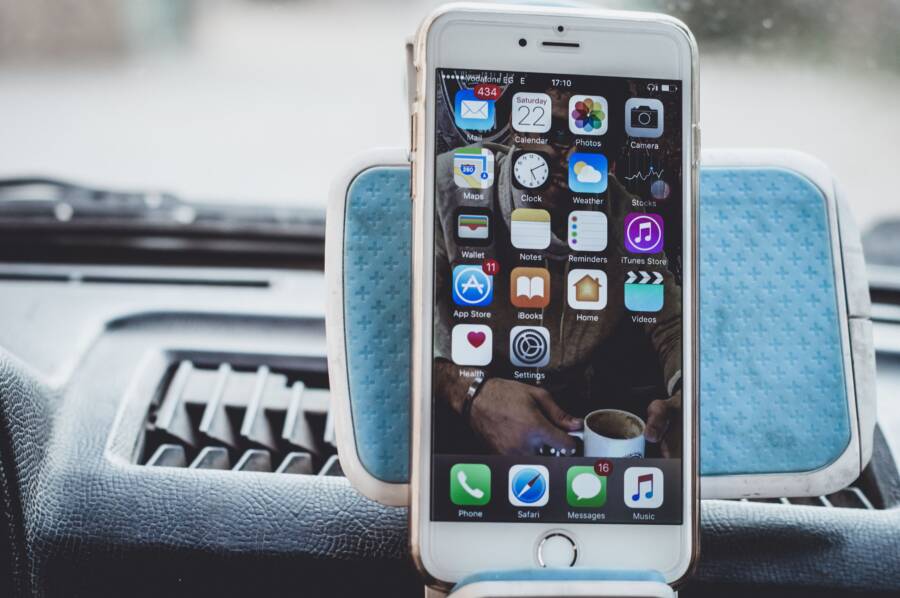
When your smartphone home screen consistently shuffles widgets, it is usually because of a restrictive lock setting, a temporary glitch within the launcher, or a conflict with a third-party application. These issues occur when the system fails to save your layout preferences or when a specific app pushes an update that resets your personalized view.
Fixing this requires you to verify your home screen lock status and clear the cache of your primary launcher. Following the steps below will help you restore order to your device and prevent the widgets from moving again.
Check Your Home Screen Lock Settings
The most frequent culprit for widgets jumping around your display is a disabled home screen lock. Smartphone manufacturers include this feature to prevent accidental moves or deletions. When it is turned off, the OS allows you to drag, resize, or remove elements at will. While this provides flexibility, it also means that a simple pocket slip or a clumsy thumb can ruin your perfectly organized layout. Enabling this lock is often the first step to stabilizing your interface.
Verifying the Lock Layout Feature
Locking your home screen layout forces the system to ignore any inputs meant to move your icons or widgets. Once this setting is active, the smartphone ignores drag gestures that would otherwise rearrange your apps. You must manually toggle the lock off if you want to make changes later. Follow these steps to secure your current setup:
Long-press on any empty area of your smartphone home screen.
Tap the Settings icon, often represented by a gear shape, that appears in the corner or bottom menu.
Locate the option labeled Lock Home Screen Layout or Lock Layout.
Toggle the switch to the On position.
Exit the menu and attempt to move a widget to verify the restriction is working.
By keeping this feature active, you prevent the system from forced reordering during OS updates or app cache clearings. It acts as a safety barrier that maintains your configuration exactly where you left it.
Troubleshooting Settings That Reset Automatically
If you enable the layout lock only to find it disabled again later, your device is experiencing a conflict. This behavior often points to a bug within the system launcher or an issue with an application that manages your theme. Sometimes, the smartphone resets these permissions during a routine update or when the launcher crashes and restarts in safe mode.
Check these potential causes if the lock refuses to stay on:
Corrupted Launcher Cache: If your home screen application has accumulated corrupt temporary files, it might fail to save user settings. Clear the cache for your default launcher via your settings menu to reset its behavior.
Third-Party Launcher Conflicts: If you use a custom launcher rather than the pre-installed one, that app may have its own independent lock settings that override the system defaults. Ensure the lock is enabled inside the third-party app settings directly.
System Update Glitches: Rare bugs in the OS can cause preference resets. If this happens consistently after a software update, check the manufacturer forum for known issues or wait for a subsequent patch.
App Permissions: Verify that your launcher has all necessary permissions to write data to your storage. If the system prevents the launcher from saving your layout, it will default to a standard view upon every reboot.
If these steps fail to stop the resetting, consider switching back to your default launcher temporarily to isolate the issue. A stable home screen usually relies on the native launcher’s ability to communicate with the operating system without interference from secondary applications.
Manage Your Launcher and App Behavior
Your smartphone relies on a system launcher to render the home screen and manage widget positioning. When widgets jump to different spots or revert to old layouts, the launcher often fails to write your preferences to the internal database correctly. By managing the launcher directly and monitoring the applications that host your widgets, you gain control over your home screen stability.
Clearing the Cache for Your Home Launcher
System apps like One UI Home, Pixel Launcher, or other manufacturer defaults store temporary data to keep your interface responsive. Occasionally, these files become corrupted or conflict with recent OS updates, causing the launcher to discard your current widget arrangement upon reboot. Clearing the cache removes these temporary files without deleting your personal data, app icons, or custom widget settings.
Follow these steps to refresh your launcher cache safely:
Open your phone Settings app.
Navigate to the Apps or Application Manager menu.
Tap the menu icon (usually three dots) or a filter button to show system applications.
Search for your specific launcher, such as One UI Home or Pixel Launcher, and select it.
Tap Storage and then select Clear Cache.
Restart your smartphone to allow the system to rebuild a fresh, clean cache file.
This process forces the launcher to re-index your home screen elements properly. Your apps and widgets remain exactly where they were, but the underlying data conflict typically vanishes after the reboot.
Identifying Misbehaving Third Party Widgets
Widgets provided by third-party applications can occasionally trigger a layout reset if they fail to report their size or resource requirements accurately to the system. If your home screen keeps reordering despite a locked layout, one specific widget might be the source of the instability. Testing them one by one helps you isolate the faulty app without wiping your entire setup.
You can verify which widget causes the issue using this systematic approach:
Remove all widgets from your home screen temporarily to see if the icons and layout remain stable for a few hours.
Re-add your widgets one at a time, waiting several hours or performing a reboot between each addition.
Monitor your device for the reordering behavior after adding each new widget.
Note if a specific app update coincides with the onset of the reordering issues, as developers sometimes push code that conflicts with newer Android versions.
When you identify the problematic widget, check the Google Play Store for an update to that specific app. If the behavior persists, contact the app developer or remove the widget until a patch is released. Switching to a different widget from the same app or a similar alternative often fixes the erratic behavior immediately.
Perform a System Update and Check Software Conflicts
If you have already ruled out simple layout settings, the underlying cause for your moving widgets likely stems from an outdated operating system or an application conflict. Smartphone manufacturers frequently release patches to address stability issues within the user interface. These updates often fix bugs that cause home screen elements to reset or jump unexpectedly after a reboot. By ensuring your software is current, you resolve known glitches that might be disrupting your screen configuration.
Updating the Smartphone OS
System updates contain vital improvements for your device performance. Developers include code to stabilize the home screen and handle widget data more reliably. If your OS is behind on patches, the system may struggle to interpret where specific widgets should sit. This is particularly true after a major Android or iOS version jump, as older configuration files can become incompatible with the new system architecture.
Updating your smartphone typically takes only a few minutes, but it provides a clean baseline for your interface. You should check for pending updates by following these steps:
Open your phone Settings menu.
Scroll to the bottom and select System or Software Update.
Tap Check for updates to see if a download is available.
If a patch exists, install it immediately and allow the device to restart.
Once the process finishes, the system re-indexes your apps and widgets. This often forces the home screen to acknowledge the correct placement of your widgets, stopping the erratic reordering behavior. If your device was already up to date, the issue might lie with a specific application installed on your device.
Safe Mode Testing
If the software is current and your widgets still relocate, a third-party application might be interfering with your home screen processes. Some apps, especially those that modify icons or themes, override system defaults and cause unintended layout shifts. Entering Safe Mode is the most effective way to identify if a third-party app is responsible.
Safe Mode starts your smartphone with only the essential pre-installed software, effectively silencing all downloaded apps. If your home screen remains stable while in this mode, you know for certain that a recently installed app is the culprit. Follow these steps to enter Safe Mode:
Press and hold the physical power button on your device.
When the power menu appears, long-press the Power Off icon or prompt on your screen.
Select the Safe Mode option when it appears and confirm your choice.
Your device will restart, and you will see “Safe Mode” labeled in the corner of your screen.
While in this state, test your home screen layout by moving a widget and restarting the phone. If the widgets stay put, start deleting apps you installed or updated recently. Begin with apps that have home screen functionality, such as custom launchers, icon packs, or weather trackers. Removing these one by one will help you pinpoint the specific software causing the conflict. Once you uninstall the problematic app, simply restart your smartphone normally to exit Safe Mode and resume your standard usage.
Resetting Home Screen Layouts as a Final Option
When your smartphone home screen continues to shuffle widgets despite your best efforts, a full layout reset often clears stubborn underlying conflicts. This process essentially wipes the current arrangement and returns the system to its out-of-the-box state. While it requires manual reconfiguration of your icons and widgets, it is the most effective way to eliminate persistent bugs that prevent your phone from saving changes.
Understanding the Factory Reset for Home Screens
A home screen reset removes all custom folders, widget placements, and shortcut positions from your primary launcher. It does not delete your apps, photos, or personal data. Instead, it resets the database file that the launcher uses to remember where everything sits on your display. If a hidden file corruption or a conflicting theme setting is causing the erratic behavior, this action forces the system to start fresh.
Performing a Full Layout Wipe
You can reset your home screen by clearing the data of your default launcher. This step goes beyond simply clearing the cache, as it erases the configuration files that store your layout preferences. Be prepared to reorganize your home screen after performing these steps on your smartphone:
Open the Settings app on your device.
Select Apps or Application Manager.
Tap the icon to sort by system applications or use the search bar to find your specific launcher, such as One UI Home or Pixel Launcher.
Select Storage.
Tap Clear Data or Clear Storage.
Return to your home screen, which will now appear in its default factory configuration.
Once you confirm the deletion, your home screen will return to the original layout provided by the manufacturer. You can then begin placing your widgets and icons back into their desired positions. If the widgets stay in place after the reset, the issue originated from a corrupted configuration file that the system could not repair on its own.
Post-Reset Setup Considerations
After the reset, wait a few hours before you heavily customize your screen. This observation period allows you to ensure the system is saving your new layout correctly. If you restore a backup from a cloud service immediately after the reset, you might accidentally reintroduce the corrupted layout file that caused the problem.
Try to set up your primary widgets manually, at least during the initial testing phase. If the home screen remains stable throughout the day, you can safely continue adding more shortcuts or folders. If the reordering returns, you may need to look for a deeper conflict within your system settings or consider using a third-party launcher that offers more robust layout management tools.
Conclusion
Most widget displacement issues on a smartphone stem from a disabled home screen lock or corrupted launcher data. You can typically restore order by toggling the layout lock in your display settings or clearing the cache for your system launcher.
If these steps fail to stop the movement, your device might have a deeper software conflict that requires a full layout reset. You should only contact manufacturer support if the reordering persists after a factory reset, as this suggests a hardware-level sensor error or a terminal software malfunction that requires professional diagnostics.