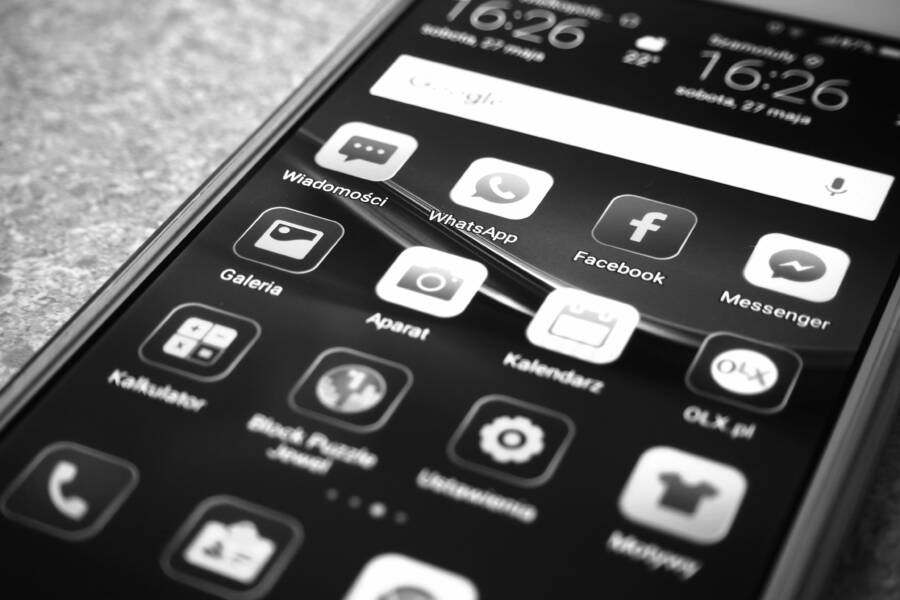
When your smartphone keeps reverting to the stock interface instead of your preferred home screen, the issue usually stems from aggressive system battery optimizations, security constraints, or conflicting app permissions. You don’t need a factory reset to solve this, as the problem is almost always hidden within your device’s specific app management settings.
Adjusting these settings allows your smartphone to keep your chosen launcher active by preventing the operating system from killing it in the background. Follow the steps below to reclaim control over your interface and keep your custom launcher as the permanent default.
Understanding Why Your Smartphone Launcher Keeps Changing
Your smartphone operating system manages background tasks with a heavy hand. When a custom launcher starts consuming more system resources than the manufacturer allows, the software often terminates the process. This action forces the phone to revert to the default interface immediately. Many users experience this reset right after a system update or when the battery level drops below a specific threshold. Manufacturers implement these aggressive power-saving protocols to extend battery life, but these rules frequently conflict with third-party home screen applications.
System Battery Optimization Rules
Most major brands apply restrictive power management to third-party software. Samsung uses a feature called Adaptive Battery, while Xiaomi and OnePlus include aggressive background process cleaners. When you install a custom launcher, the operating system might categorize it as a non-essential background app. If the software determines the launcher consumes too much energy, it kills the task to conserve power.
Once the system closes your chosen launcher, the phone defaults to the factory-installed interface because it is the only stable environment the system recognizes as a permanent fallback. You can prevent this by manually adjusting your battery settings:
Open your device Settings menu.
Navigate to the Battery or Apps section.
Locate the Battery Optimization or Background Usage Limits settings.
Find your custom launcher in the list of installed applications.
Change the setting to Don’t Optimize or Unrestricted.
Selecting these settings tells the operating system to ignore the launcher during routine background cleanup tasks. If you skip this step, the phone will likely reset the launcher every time you reboot the device or clear your recent apps.
Software Conflicts and Permissions
Beyond battery constraints, permission conflicts frequently disrupt third-party launchers. Custom interfaces rely on specific system hooks to display widgets, app shortcuts, and custom icons. If the launcher lacks the necessary permissions, it cannot communicate with the system, which causes the smartphone to drop the app as your primary interface.
Security tools and theme managers also contribute to this instability. Some built-in security suites identify third-party launchers as potential vulnerabilities because they control the home screen layer. These tools may attempt to reset your preferences to the secure stock launcher whenever they run a system scan.
You should verify that your custom launcher has the following permissions enabled:
Display over other apps: This is essential for launchers to draw the home screen and handle gestures correctly.
Notification access: This allows the launcher to show notification dots on app icons.
Accessibility services: Many advanced launchers require this to trigger specific actions or gestures.
Check these settings by visiting the App Info page for your launcher. Ensure all permissions are set to Allowed rather than Denied or Ask Every Time. If you use a third-party theme app, try disabling it temporarily to see if the launcher remains stable. Sometimes, the theme engine clashes with the launcher’s ability to render the interface, leading the system to revert to the default home screen as a safety measure.
Practical Steps to Keep Your Custom Launcher as Default
Maintaining your custom home screen requires more than a simple selection within the app itself. The operating system on your smartphone often treats third-party launchers as temporary overlays rather than core system components. To prevent these constant resets, you must enforce your choice through the official system settings and adjust power management permissions. These two adjustments create a stable environment that keeps your preferred interface active through reboots and system updates.
Fixing the Default App Selection in Settings
Many users mistakenly believe that setting a launcher as default inside the app menu is enough. However, the system often ignores internal app settings if they conflict with the primary Android default app registry. You need to configure this choice at the system level so the device recognizes your launcher as the permanent authority for the home screen.
Open the Settings app on your smartphone.
Tap on Apps or Application Manager.
Select Default Apps. On some devices, you may need to tap the three-dot menu icon or Advanced settings to find this option.
Choose Home App from the list.
Tap your preferred custom launcher to select it.
The system now registers your launcher as the primary interface provider. If your phone presents a prompt asking whether to use the new launcher “Once” or “Always,” choose “Always.” This final action locks the selection in the system registry, which helps prevent the OS from reverting to the factory interface during standard operation.
Exempting Your Launcher from Battery Saver Mode
Smartphones are increasingly aggressive about clearing background processes to preserve power. When your launcher sits idle in the background, the operating system might misidentify it as a resource-heavy app and force it to close. By removing these battery restrictions, you provide the launcher with the system resources it needs to stay active indefinitely.
Navigate to the battery management area of your settings to grant this permission. While the path varies by manufacturer, it usually follows these steps:
Go to Settings and find the Battery section.
Tap on Battery Optimization, Background Usage Limits, or App Power Management.
Locate your custom launcher in the app list.
Select the setting labeled Don’t Optimize, Unrestricted, or Never Sleeping.
Setting this status ensures the system doesn’t kill your launcher during deep sleep or power-saving cycles. This change is effective for users who notice their phone resets to the default interface after being idle for several hours. Once the system grants this exemption, the launcher maintains a consistent presence in the background, keeping your home screen stable and responsive regardless of your battery level or usage habits.
Advanced Troubleshooting for Stubborn Devices
When standard settings fail to keep your preferred interface active, the issue often resides in deeply embedded system files. Your smartphone relies on a core stock launcher to handle basic UI tasks. If that system app accumulates corrupt temporary data, it may constantly fight for control over your home screen. Clearing the cache and data of this hidden system component forces the device to rebuild its interface registry, which often resolves persistent reset loops.
Clearing Cache and Data for System Launchers
The factory-installed launcher is a system application that operates behind the scenes. Like any other app, it saves temporary files to load faster. Over time, these files can become corrupted or conflict with your third-party launcher settings. You must clear these remnants to restore standard behavior.
Open your phone Settings menu.
Select Apps or Manage Apps.
Tap the three-dot menu icon in the corner and choose Show System Apps.
Locate the stock launcher in the list. It often appears as System Launcher, Home, or by the manufacturer name.
Tap Storage.
Select Clear Cache and then Clear Data.
Clearing this data removes your custom icon arrangements on the stock screen, but it does not delete your personal files or apps. This process essentially resets the “factory” baseline, allowing your chosen third-party launcher to re-establish itself without interference from old, broken configuration files. If your smartphone still reverts to the stock interface after this step, the issue likely relates to deeper manufacturer restrictions.
Checking for Manufacturer Specific Software Layers
Modern manufacturers often build additional software layers on top of Android to manage system behavior. Interfaces like Samsung One UI, Xiaomi HyperOS, or other heavily skinned versions include proprietary security protocols designed to prevent unauthorized apps from modifying the core system. These layers sometimes treat custom launchers as suspicious background processes.
These systems frequently hide specialized toggles within their own security or privacy menus. Look for settings labeled “Home Screen Lock” or “App Protection” inside your device settings. If these are active, they may block any changes to your default launcher to protect your interface from accidental alterations.
You should also check for a specific “Security” or “Cleaner” app included by your manufacturer. These apps often contain their own power management or “auto-start” lists. Even if you have whitelisted your launcher in the standard Android battery settings, these proprietary tools might still force the app to close. Ensure your launcher is set to “Auto-start” or “Allow” within these manufacturer-specific apps to maintain its permanent position as your default home screen.
Choosing a Reliable Launcher for Your Smartphone
A launcher is the core interface of your smartphone. It controls how you see your apps, how you organize widgets, and how you navigate between screens. When you install a third-party option, you replace the manufacturer interface with one that matches your personal workflow. Selecting a stable launcher is the first step toward stopping unwanted resets and maintaining a consistent user experience.
Evaluating Stability and Resource Usage
Not every launcher handles system resources with the same efficiency. Some prioritize high-end animations and complex transitions that require constant background processing, while others focus on minimalism and speed. If you choose an interface that is too heavy for your hardware, the Android system may view it as a burden, eventually shutting it down to save battery life.
Look for active updates: Check the Play Store listing to see when the developer last released a patch. An abandoned app often contains bugs that cause incompatibility with newer Android versions.
Check memory footprints: Open your settings after using the launcher for a few hours. If the app consistently sits at the top of your battery and memory usage lists, it might be pushing the limits of what the operating system allows.
Read user reviews regarding crashes: Filter reviews by the latest release. Many users report if a specific update caused the launcher to force-close or reset to the default home screen.
Matching the Launcher to Your Operating System
Different brands apply unique modifications to the Android base. For example, stock Android on a Pixel behaves differently than the heavy skins found on Samsung or Xiaomi devices. A launcher that works perfectly on one device may face significant friction on another.
If you own a smartphone with aggressive memory management, favor launchers that prioritize lightweight code over flashy graphics. A launcher that uses simple design principles typically stays active longer because it does not trigger the background cleanup processes that cause resets.
Avoiding Common Installation Pitfalls
The way you set up a new interface matters just as much as the app you choose. Many users download a launcher and simply hit the home button to select it as the default, but this bypasses the more thorough system configuration required for long-term stability.
Always grant necessary permissions immediately after installation. If you ignore the prompt for accessibility or notification access, the launcher will eventually struggle to display essential information, leading the system to revert to the default interface. Properly setting the default status through your smartphone system settings is the final barrier against constant resets. By verifying that your chosen launcher holds the primary slot in your default app registry, you ensure that the phone treats your preference as a permanent system setting rather than a temporary app layer.
Conclusion
Fixing a stubborn launcher that resets to the default interface requires patience but relies on a simple set of adjustments. You need to verify that your smartphone treats the third-party app as an unrestricted process, rather than a background task prone to system termination.
Most persistent issues vanish once you update the default app registry and remove power management restrictions. If the problem continues, clearing the cache of the system-level home app usually provides the necessary clean slate for your chosen interface.
After you apply these changes, reboot your device to verify the new settings stick. Taking these small steps allows you to regain control over your home screen and ensures your smartphone stays configured exactly how you want it.