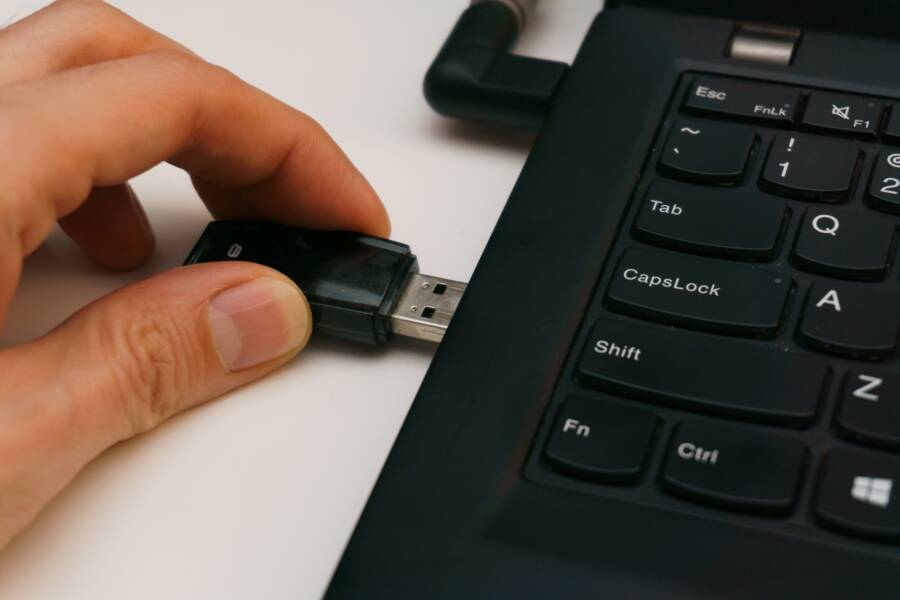
When your smartphone fails to detect a USB microphone, the issue is almost always a faulty adapter or incorrect audio settings. You can resolve most connection problems by checking your hardware compatibility and ensuring your device recognizes the external input.
Modern hardware allows your smartphone to connect to professional audio gear with little effort. If your device remains silent, follow these steps to troubleshoot the signal path and get your recording back on track.
Check Your Physical Connections and Hardware Compatibility
Most issues involving an unrecognized microphone stem from a weak link in the physical chain. Your smartphone requires a clean signal path to interact with external audio hardware. Before you adjust software settings, you must confirm that every cable and adapter performs its job.
Verifying Your Adapter Supports Audio Input
Not all adapters look the same under the hood. Many cheap USB-C to USB-A adapters support only charging or low-speed data transfers. These products lack the necessary internal wiring to carry an active audio signal from your microphone to your smartphone.
If your adapter is designed for power delivery, your device will charge while the microphone remains silent. Look for labels like “OTG” (On-The-Go) on the packaging or description. An OTG adapter is a requirement because it forces your phone to act as a host for external devices. Without this, your phone simply treats the connected gear as an unknown object.
Always test your adapter with another piece of equipment, such as a flash drive or a keyboard, if you have one available. If your phone recognizes the storage device but ignores the microphone, the issue likely resides in the microphone’s compatibility rather than the adapter itself.
Cleaning the Charging Port Safely
Pocket lint and debris often accumulate inside the charging port of a smartphone. Even a thin layer of dust blocks the tiny pins required for data communication. While your phone might still accept a charge, that connection is often too unstable to maintain a consistent digital audio stream.
You should inspect the port closely under a bright light. If you see packed lint, use a non-conductive tool to remove it. A wooden toothpick or a plastic dental pick is ideal for this task.
Follow these steps to clean the port without damaging sensitive hardware:
Power off your phone to avoid accidental short circuits.
Insert the tip of the toothpick gently into the port.
Move the tool around the edges to loosen debris.
Tip the phone so the port faces downward and tap the casing to shake out the dust.
Avoid using metal needles or paperclips, as these can easily scratch the charging pins.
Once the port is clear, blow a short, controlled burst of air into the opening. A clean connection provides the stable foundation your smartphone needs to bridge the gap between your external audio hardware and the operating system.
Adjusting Smartphone Settings to Enable External Audio
Once you confirm your hardware is clean and compatible, the software on your smartphone must acknowledge the incoming data. Most operating systems automatically switch audio input from the built-in microphone to the external USB device. If your recording software still uses the internal mic, you need to verify if the system has blocked or ignored the new connection.
Granting Permission for USB Devices
When you plug in a microphone, your smartphone often checks if you trust the device before opening a data channel. A prompt usually appears on your screen asking for permission to access the USB accessory. If you accidentally ignore this prompt or hit cancel, the operating system prevents the microphone from communicating with your apps.
Look for a small notification icon in your status bar if no prompt appears immediately. Pulling down the notification shade often reveals a “USB Preferences” or “Connected Device” option. Tapping this notification lets you manually change the USB mode from “Charge Only” to “Audio Input” or “MIDI/USB Data.”
If your device remains silent despite a secure physical connection, follow these steps to force the system to check for the microphone:
Unplug the USB microphone from your smartphone.
Wait five seconds for the system to refresh its connection status.
Reconnect the microphone firmly to the adapter.
Watch the notification panel for a pop-up window regarding USB permissions.
Tap “Allow” or “OK” to grant the microphone access to your system.
Some security settings on newer models restrict USB data transfers when the phone is locked. Always unlock your screen before you plug in your external hardware. If the phone still fails to recognize the input, navigate to your sound settings to see if the device shows up in the list of available recording sources. Certain apps also require you to select the input source manually within their specific audio configuration menus. Checking these settings ensures the smartphone routes the audio signal correctly through the USB path.
Troubleshooting Software Conflicts and App Permissions
Sometimes your hardware works perfectly, but the software on your smartphone prevents the connection. Audio devices depend on specific app permissions and system drivers to function. If your microphone remains silent, you must determine if the fault lies with your recording software or the operating system.
Testing with Different Recording Apps
A simple voice memo app helps you isolate the problem quickly. If your primary recording app fails to capture sound, try a basic, system-provided voice recorder. These built-in tools often prioritize standard audio drivers and work with external devices more reliably than third-party applications.
Follow these steps to check for software conflicts:
Download a generic, highly-rated voice memo app from your app store.
Close all other background applications that might use audio inputs.
Plug in your USB microphone securely.
Open the new voice memo app and attempt a short test recording.
Review the recording to hear if the audio quality matches your microphone or sounds distant.
If the basic app detects the microphone, your main recording app likely lacks the correct configuration. Check the settings menu inside your preferred application to confirm the input source is set to “External Mic” or “USB Audio.” Some advanced software requires you to manually select the microphone from a list of detected devices.
If neither app detects the device, the conflict exists at the system level. You might have a setting that restricts USB peripherals while the smartphone is locked or connected to a power source. Review your global privacy settings to ensure the microphone has permission to access external inputs. If you see the microphone appear in the system settings but not in your app, update the app or reinstall it to clear potential cache errors. Always ensure your smartphone software is up to date, as newer versions frequently include fixes for external hardware connectivity.
Determining If the Microphone Needs External Power
Many professional USB microphones require more electricity than a standard smartphone port can supply. Your smartphone has a strict power output limit to protect its internal battery. When your gear draws too much current, the connection often drops or fails to initiate entirely. You can identify this issue if your microphone lights up or registers for a split second before vanishing from your settings.
When to Use a Powered USB Hub
A powered USB hub acts as an electrical bridge between your gear and your smartphone. It features its own AC power adapter that plugs into a wall outlet. By taking the power demand away from your mobile device, the hub provides a stable, consistent flow of electricity to your microphone.
Professional-grade microphones use high-quality preamps and complex circuitry to capture clean audio. These components demand a constant energy supply that exceeds what a typical mobile device provides. If your microphone includes features like internal gain controls, phantom power indicators, or high-fidelity output stages, it likely exceeds the power budget of your phone.
You should consider a powered hub if you notice these specific signs:
Your microphone remains completely unresponsive even when you use a confirmed working OTG adapter.
The device works briefly upon connection but disconnects as soon as you start an app.
Your smartphone displays a notification stating that the connected accessory uses too much power.
You connect multiple devices, such as a microphone and a headphone monitor, simultaneously.
A powered hub ensures that the data path remains isolated from the power path. Your smartphone still handles all the digital processing, but the hub manages the heavy electrical load. This setup protects your phone battery from rapid drain and prevents the hardware conflicts that occur when a microphone starves for energy. Always choose a hub labeled as “active” or “powered” to ensure it includes the necessary wall plug for external electricity.
Conclusion
Fixing a connection issue between your smartphone and a USB microphone requires a methodical approach. First, verify that your physical hardware and adapters are compatible with your device. Next, clear any debris from your charging port to ensure a stable data flow. Finally, check your system settings and app permissions to confirm the phone correctly recognizes the external input.
If the microphone still lacks power, a dedicated powered hub will likely resolve the signal failure. Troubleshoot these components systematically to identify the specific point of interruption. Consistency is the best tool for restoring high-quality audio recording to your mobile device.