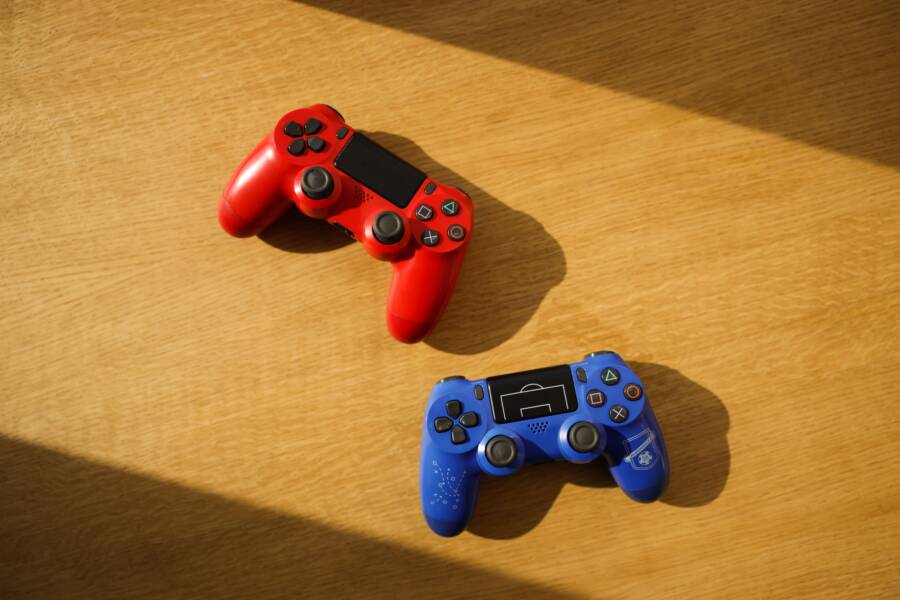
If your game controller keeps dropping its connection to your smartphone, the issue usually stems from Bluetooth signal interference, aggressive battery saver settings, or outdated device firmware. Most of these problems are purely software-based and you can resolve them in a few minutes.
A stable link is essential when you play competitive games on your smartphone. When your input signal cuts out during a tense moment, it disrupts your control and ruins your ranking.
You can restore your setup by addressing these common connection bottlenecks directly. Follow the steps below to identify the exact cause and fix your controller pairing for good.
Quick Checks for Bluetooth Stability
Bluetooth connections occasionally glitch due to background data corruption or signal congestion. Before you blame the hardware, you should verify the basics of your wireless environment. Small adjustments to your pairing history and physical setup often stabilize the link between your smartphone and controller.
Clearing Out Old Bluetooth Pairings
Bluetooth adapters on your smartphone keep a database of previously connected devices. Over time, this cache accumulates obsolete data or conflicting handshake protocols that interfere with new connections. If your controller keeps dropping out, resetting the pairing profile often clears these hidden bugs.
Follow these steps to perform a clean re-pairing:
Open your smartphone settings menu and navigate to the Bluetooth section.
Find the entry for your game controller in the list of paired devices.
Select the option to forget, unpair, or remove this device from your list.
Turn off Bluetooth on your smartphone and restart the device to refresh its internal radio services.
Place your controller into pairing mode according to the manufacturer instructions.
Re-enable Bluetooth and select the controller from the list of available devices to establish a fresh connection.
This process forces the smartphone to negotiate a new security handshake with the controller. By removing the old profile, you discard any corrupted configuration settings that triggered previous disconnects. Most users report a immediate improvement in stability after performing this reset.
Managing Wireless Interference in Your Home
Bluetooth and Wi-Fi frequently compete for the same 2.4GHz frequency band. If you play games near a busy Wi-Fi router, the resulting radio traffic creates invisible noise that disrupts your controller signal. This interference leads to dropped inputs or a complete loss of communication with your smartphone.
You can minimize this conflict by identifying potential sources of congestion in your room:
Move away from your wireless router while you play. Distance reduces the density of competing signals reaching your handheld gear.
Turn off unnecessary smart home devices. Smart bulbs, speakers, or plugs that rely on 2.4GHz Wi-Fi can unintentionally overwhelm your local connection.
Switch your home Wi-Fi to the 5GHz band if your router supports it. This keeps your internet traffic separate from the Bluetooth radio frequency used by your gaming gear.
Avoid using USB 3.0 hubs near your phone while playing. These hubs sometimes emit electrical noise that interferes with the tiny antenna inside a smartphone.
Treating your physical space as a clear zone for radio communication helps maintain a constant stream of data. If you notice drops only in specific rooms, the issue likely stems from local interference rather than a faulty controller. Clear the airwaves, and your connection should stay firm during your gaming session.
Software Settings That Affect Your Gaming Experience
Your smartphone manages background tasks to save power, but these settings often conflict with gaming controllers. When your device treats a controller as a non-essential background process, it kills the Bluetooth link to conserve battery life. Adjusting these specific software constraints is often the missing piece to achieving a stable, uninterrupted gaming session on your smartphone.
Disabling Battery Optimization for Gaming Apps
Modern Android and iOS devices use aggressive power management to extend screen-on time. If the system thinks your game or controller driver is idle, it may put the process to sleep. You need to whitelist these apps to prevent the phone from cutting their connection.
On Android, follow these steps to manage power settings:
Open the Settings app and tap on Apps or Manage Apps.
Select your game from the list.
Tap on Battery or Battery Usage.
Choose the Unrestricted setting to allow the app to run fully in the background.
Apple handles this differently since iOS manages background activity globally. You should go to Settings, then General, and select Background App Refresh. Make sure the toggle for your game is enabled here. Additionally, keep your smartphone plugged into power or ensure your battery is above 20% to prevent the system from entering Low Power Mode, which often throttles Bluetooth performance to save energy.
Updating Firmware on Your Controller and Phone
Communication errors happen when the software protocols on your smartphone no longer align with the controller firmware. Manufacturers release updates to fix handshake bugs and improve Bluetooth signal stability. Running outdated software makes your setup prone to unexpected disconnects during intense gameplay.
You can verify your system status by checking for updates in two places. First, check your smartphone for OS updates under Settings and System or General. A new Android or iOS version often includes patches for better Bluetooth connectivity with third-party accessories.
Second, look for a dedicated mobile app from your controller manufacturer. Popular brands like Xbox, PlayStation, 8BitDo, and Razer provide apps that detect your hardware via Bluetooth and install necessary firmware improvements. Follow these steps to perform an update:
Download the manufacturer’s controller app from the official app store.
Pair your controller to your smartphone.
Open the app and select your device to check for available firmware updates.
Keep your smartphone close to the controller during the update process to prevent a failed flash.
Once the firmware is current, the devices communicate using the latest security and timing standards. This creates a more reliable link that resists the signal drops common in older, mismatched software versions. Updating both sides of the connection is the most effective way to eliminate persistent communication errors.
Advanced Troubleshooting When Problems Persist
Sometimes basic fixes like clearing caches or moving your router don’t resolve the connection issues. If your controller still drops its link to your smartphone, you might face deep-seated configuration conflicts or hardware mismatches. The following steps help you isolate the remaining variables to restore a solid gaming experience.
Resetting Network Settings on Your Smartphone
When standard troubleshooting fails, the issue often hides within the deeper network configuration files of your device. Resetting your network settings clears these deep-level caches, which restores all communication protocols to their factory defaults. This action forces the device to rebuild its connection profiles from scratch, often removing invisible bugs that prevent stable Bluetooth operation.
Keep in mind that this process is comprehensive. It wipes all saved Bluetooth device names, Wi-Fi passwords, and VPN configurations stored on your phone. You will need to manually reconnect to your home or office Wi-Fi networks after the device restarts.
Follow these steps to refresh your network stack:
Open your settings menu and search for the Reset options.
Select the option labeled Reset Network Settings.
Confirm your choice with your passcode or biometric scan.
Wait for your smartphone to reboot and clear the stored data.
Manually reconnect your controller and Wi-Fi networks as if setting them up for the first time.
By flushing these files, you remove any corrupted handshake data that persists through a standard restart. It is an effective way to eliminate hidden software glitches that interfere with your gaming hardware.
Testing Controller Functionality on Another Device
If you have tried every software fix on your current smartphone without success, you must confirm that the controller itself is in working order. Testing your hardware on a different smartphone or a tablet helps you pinpoint whether the problem stems from your main device or a faulty internal component inside the game controller.
If the controller stays connected to a secondary device, your original smartphone likely has a hardware defect in its Bluetooth antenna or a persistent firmware conflict. If the controller disconnects from the second device as well, the fault almost certainly resides within the controller hardware.
Consider these troubleshooting outcomes:
If the controller works fine elsewhere, try a factory reset on your smartphone or contact the phone manufacturer for support regarding its Bluetooth hardware.
If the controller fails on multiple devices, check if the battery is failing to maintain a consistent charge or if the internal radio antenna inside the controller is damaged.
Isolating the hardware in this way saves you time. You stop chasing software ghosts on your phone when the physical controller has reached the end of its lifespan.
Common Questions About Controller Connectivity
Users often face recurring issues when connecting gaming hardware to a smartphone. These questions clarify the most frequent points of confusion regarding Bluetooth pairing and signal reliability.
Can low battery levels cause a controller to disconnect?
Yes, a low battery often triggers unexpected disconnects. When your controller power drops below a certain threshold, the internal Bluetooth radio becomes unstable to preserve the remaining charge. Most modern game controllers attempt to save power by prioritizing basic functions over maintaining a strong wireless signal.
If you notice your controller drops the link frequently, plug it into a power source or charge it fully. Similarly, keep your smartphone battery above 20 percent. Many mobile operating systems throttle wireless performance when the battery hits a low-power state to keep the device running longer.
Why does my controller disconnect when I get a notification?
Notifications can pull your smartphone resources away from the background Bluetooth process. When a notification pops up, the system may briefly prioritize the display of that message over the constant data stream from your controller. This momentary shift causes a micro-stutter or a total drop in the connection.
You can prevent this by enabling Do Not Disturb mode while you play. This setting suppresses incoming alerts, keeping your system resources focused on your game and the active Bluetooth link.
Does the distance between the devices matter for stability?
Physical distance between your controller and the smartphone impacts signal strength significantly. Bluetooth signals degrade over space and struggle to pass through solid objects like your body, walls, or thick furniture. While most controllers work fine at a range of 10 to 20 feet, obstacles in the signal path can cause latency or random disconnections.
Keep your device in a clear, open area for the best results. If you use a clip to mount your smartphone directly to the controller, ensure the connection is not obstructed by your hands or protective cases.
Will interference from other Bluetooth devices disrupt my game?
Bluetooth adapters prioritize connections with multiple active devices, such as wireless earbuds, smartwatches, and fitness trackers. If you have many devices connected to your phone at once, the Bluetooth bandwidth becomes congested. This competition for airtime often leads to dropped packets or complete disconnection of your gaming controller.
Try turning off Bluetooth for secondary devices like smartwatches or speakers before you start your gaming session. A cleaner connection environment allows the controller to maintain a dedicated, uninterrupted path to your phone.
Conclusion
Fixing a Bluetooth connection requires a systematic approach to eliminate potential interference or software conflicts. Most users resolve these issues by starting with the simplest solutions, such as unpairing the controller and performing a clean restart of the smartphone. Focus on testing one variable at a time to identify the specific cause of your disconnection.
If your device continues to drop the signal, check your battery management settings and ensure your firmware is current. Clearing network settings or testing the hardware on a second device often reveals if the fault lies with your specific handset. These steps restore stability and allow you to return to your games without further disruption.