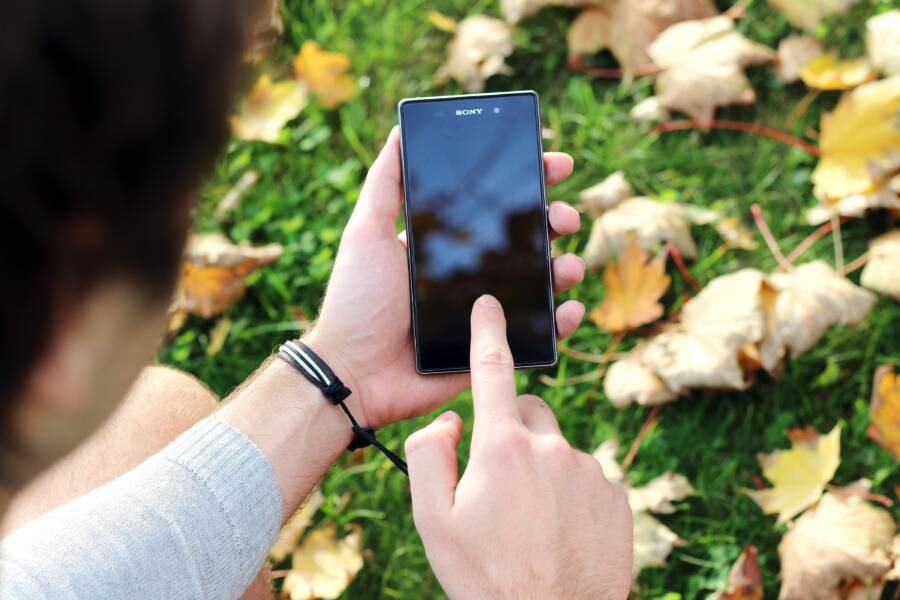
If your smartphone touchscreen stopped responding right after you applied a new screen protector, the issue is likely due to physical interference rather than actual hardware failure. The protector might be too thick, misaligned, or trapping small pockets of air that prevent your fingers from making proper contact with the display.
Most of these sensitivity issues are simple to correct at home without needing a professional technician. This guide covers how to identify the cause, perform quick adjustments to your settings, and determine when you need to replace the protector or seek a repair.
First, check whether the screen protector is the real problem
Before you assume your smartphone has internal hardware damage or a software glitch, you must verify the external accessories. Many touch sensitivity issues originate from an poorly installed or incompatible screen cover. You can perform these diagnostic checks quickly to rule out the protector as the primary source of frustration.
Look for bubbles, dust, cracks, or lifted edges
Physical defects in your screen protector often disrupt the electrical conductivity between your finger and the digitizer beneath the glass. When air bubbles form under the surface, they create a gap that acts as an insulator, preventing the touch input from registering correctly. Similarly, trapped dust particles create microscopic bumps that cause uneven contact, leading to dead spots where the screen fails to respond to your touch.
You can perform a visual inspection by turning off your smartphone screen and holding it at an angle under a bright light. Look for the following signs of wear or improper installation:
Visible pockets of air that do not push out toward the edges.
Small debris trapped between the adhesive side of the protector and the display.
Fine spiderweb cracks, which often occur at the edges and interfere with edge-to-edge touch functionality.
Visible lifting or gaps around the perimeter of the screen, which indicates the adhesive has failed.
If you find any of these issues, they are likely causing your current touchscreen troubles. Small debris or bubbles near the center of the display are particularly disruptive because they sit directly over common interaction points.
Compare touch behavior with and without the protector
Testing the screen without the protective layer is the only way to confirm if your smartphone hardware remains healthy. You must peel the protector off carefully to avoid damaging your display. Start at one corner and lift it slowly with a thin, non-metallic tool or your fingernail.
Once the display is bare, clean it thoroughly with a microfiber cloth to remove any remaining adhesive residue. Use the smartphone for a few minutes while navigating menus, typing, and opening various apps. Observe the touchscreen performance during these tasks. If the screen responds accurately without the protector, you have successfully identified the culprit. If the touch behavior remains sluggish or unresponsive while bare, the issue likely resides in the hardware or your system software, indicating that a professional repair might be necessary.
Check whether the protector is the wrong type for the phone
Not all screen protectors are compatible with every smartphone model, even if they appear to fit physically. Thick tempered glass options sometimes exceed the touch sensitivity threshold designed by the manufacturer. If you recently installed a glass protector that feels unusually heavy or thick, it might be the reason your phone ignores lighter taps.
You should also watch for these specific compatibility issues:
Fingerprint sensor interference: Many modern phones use ultrasonic or optical sensors beneath the display. Using a standard protector that lacks a specific cutout or a thin region for the sensor prevents your fingerprint from registering correctly.
Privacy filter limitations: Some privacy screens utilize polarized layers that naturally dampen the electrical charge from your fingers. This reduction in conductivity often results in missed swipes or delayed reactions.
Curved screen misalignment: If you have a device with a curved display, using a flat protector that only adheres at the edges creates a hovering effect over the center of the screen. This gap makes the display seem unresponsive because your touch never makes direct contact with the glass surface.
Check your device settings to see if your phone offers a “screen protector mode” or “increased touch sensitivity” option. If your settings don’t include these, you may need a thinner, high-quality film protector or a model specifically certified for your exact smartphone model.
Fix the most common touchscreen issues after a protector change
Touchscreen problems after applying a new protector often result from trapped particles or incorrect alignment. These issues are rarely permanent and usually require a simple adjustment. You can resolve the majority of these frustrations by ensuring the surface is clean and the software settings match your new hardware configuration.
Remove and reinstall the screen protector the right way
The primary cause of unresponsive areas is almost always debris trapped beneath the glass. Dust, lint, or oil residue creates microscopic gaps that prevent your skin from completing the electrical circuit with the smartphone display. To fix this, you must carefully peel back the protector and clean the screen again.
Select a room with minimal airflow, such as a bathroom after you run the shower, to settle dust particles in the air. Use a microfiber cloth to wipe the display until no smudges remain. If you have dust removal stickers, use them to lift any tiny fibers that the cloth left behind. Once the glass is spotless, align the edges of your protector with the frame of your phone before lowering it gently. Start from one side and let the adhesive bond across the screen to push out any remaining air.
Turn on touch sensitivity or similar settings
Modern smartphones often include specific software adjustments designed to compensate for the added thickness of protective covers. If your screen feels sluggish, your device might just need a nudge to recognize your inputs through the extra layer. Look for settings labeled as screen protector mode, increased touch sensitivity, or glove mode in your display menu.
These features adjust the digitizer input threshold to register taps that are slightly lighter or further from the glass. You can usually find these options under the display or accessibility sections of your settings app. If your specific model lacks these toggles, verify that your operating system is up to date, as some manufacturers introduce sensitivity improvements through firmware patches.
Restart the phone and test touch in different apps
Software glitches sometimes occur during the installation process, especially if the screen registers ghost touches or constant contact while you apply the new cover. A simple restart forces the digitizer to recalibrate, which often clears temporary processing errors. Turn your phone off, wait ten seconds, and power it back on to reset the touch controller.
After the reboot, test your input in various environments to identify patterns. Open the keyboard to check for missed letters, navigate the lock screen to test swipe gestures, and try opening a web browser to verify scroll consistency. If the keyboard works but the browser does not, the issue might relate to a specific app interface rather than the screen protector itself.
Remove case pressure and other accessories that may interfere
Physical pressure from a tight-fitting case is a frequent, overlooked cause of screen malfunctions. Some protective cases feature raised edges that press against the side of the screen protector. This pressure can cause the glass to lift slightly or create permanent “dead zones” where the protector remains under constant tension.
Remove your case entirely to see if the touch response improves. If the problem disappears, you may need a case with a lower profile or one designed specifically for your protector. Additionally, check for external interference from magnetic mounts, bulky camera lenses, or stylus pens that might sit too close to the active display area. These accessories sometimes disrupt the magnetic field or the electrical conductivity required for a smooth touchscreen experience.
If the screen still fails, rule out software and hardware problems
Sometimes, a touch-responsive issue persists even after you adjust the physical screen protector. If you have already removed debris and verified your settings, the problem might reside deeper within the operating system or the display hardware. You can perform a few systematic checks to determine if the issue is a software glitch or a sign of permanent damage.
Update the phone’s software and display drivers
System updates often contain fixes for touch-related bugs or driver conflicts that occur after major OS changes. If your smartphone recently received a software update, a conflict might exist between the new firmware and your current display settings. These updates sometimes optimize how the digitizer interprets input signals, which helps the screen recognize touches through a thicker layer like a glass protector.
Before assuming your screen is broken, check for pending updates in your settings menu. Manufacturers frequently release patches to resolve performance issues that surface after system modifications. If an update is available, install it and restart your phone. A clean installation often clears out temporary process errors that disrupt touch responsiveness.
Test for damage from pressure, heat, or a past drop
Screen protectors sometimes hide or exacerbate existing display issues rather than causing them. A damaged digitizer typically exhibits specific symptoms, such as flickering, ghost touches, or unresponsive dead zones that remain even when the screen is bare. If your phone took a hit or suffered from heat damage in the past, the glass might look intact while the underlying sensor array fails to register your inputs.
Watch for these indicators of hardware fatigue:
Ghost touches appear as random inputs when you are not touching the screen.
Dead zones exist where specific parts of the screen refuse to register any contact, regardless of how hard you press.
Flickering or lines appear on the display, suggesting a loose connection or damaged ribbon cable.
Touch lag occurs when the device takes several seconds to acknowledge a swipe or tap.
If these symptoms persist after removing the screen protector, the issue is likely internal. A drop might have caused micro-fractures in the digitizer or loosened internal connections. In these cases, the screen protector is merely a bystander, and the smartphone requires professional evaluation to restore proper functionality.
Use safe mode or touch diagnostic tools to narrow the cause
Safe mode serves as a powerful tool to identify whether a third-party app is interfering with your touchscreen. This mode restricts the system to essential software, disabling any apps you installed that could potentially hijack touch gestures. If your touchscreen works perfectly while in safe mode, you know an application is the culprit rather than the hardware.
Many smartphone manufacturers also include built-in diagnostic tools that let you test the entire surface of the display. On some devices, you can access these by typing specific codes into the dialer, such as #0# on many Samsung models, to open a hardware test menu. Once open, you can drag your finger across a grid to see if the device registers every point. If your phone lacks these hidden menus, search the support pages of your manufacturer for a dedicated diagnostic application or a support chat that can remotely verify your display health. Identifying whether the touch failure follows a pattern across the whole screen helps you decide if it is time to seek a hardware repair or simply uninstall a problematic app.
How to choose a better screen protector next time
Choosing the right screen protector requires more than grabbing the cheapest option at the checkout counter. Your phone model, your daily habits, and your sensitivity preferences all determine which protector will work best for your device. Making an informed choice before your next purchase prevents the frustration of unresponsive touchscreens and wasted money.
Choose the right material for your phone and usage
The three most common materials offer different balances of protection and responsiveness. Tempered glass provides the most natural feel because it matches the hardness and texture of your actual display. These protectors remain thin, usually between 0.2mm and 0.33mm, which is generally acceptable for most modern capacitive sensors. If your screen feels sluggish with a glass protector, check your settings to see if your phone has a sensitivity toggle you can enable.
Thermoplastic Polyurethane (TPU) films offer a more flexible solution. These are significantly thinner than glass and work well for curved screens, though they lack the same impact resistance against heavy drops. Hybrid protectors combine the flexibility of film with the surface hardness of glass. You might prefer a hybrid version if you need high clarity and scratch resistance but find thick glass options prevent your fingers from triggering the digitizer. Always look for options that explicitly state they are compatible with your specific device.
Match the protector to fingerprint sensors and curved screens
Modern smartphones often pack complex sensors behind or within the display area. If you use an ultrasonic fingerprint sensor, a standard glass protector might block the high-frequency sound waves needed to read your print. You must select a protector that specifically lists compatibility with ultrasonic sensors, as these versions feature a specialized adhesive layer or a thinner, reinforced section directly over the scanning area.
Edge-to-edge curved screens present their own set of challenges. A rigid, flat protector cannot bend, so it only adheres to the flat portion of the screen, creating a gap that traps dust and ignores your taps. You need a protector designed with a slight curve or one made of a flexible material that maintains full contact with the glass. Pay attention to Face ID cutouts or camera housing areas as well. A protector that covers the front-facing sensors can interfere with facial recognition, causing your phone to fail its security checks or dim the screen unexpectedly.
Look for better installation support and clear reviews
A perfect installation is your best defense against touchscreen issues. Modern kits now include alignment trays that take the guesswork out of positioning the glass. An alignment tray ensures the protector sits perfectly centered, which prevents it from interfering with your phone case or side buttons. Always prioritize kits that include comprehensive dust removal tools, such as large adhesive strips and alcohol wipes, as even a tiny speck of debris causes an air bubble that ruins touch accuracy.
Before buying, read reviews specifically for your phone model rather than just the brand. Sort these reviews by the most recent entries to see if users report issues like edge lifting, halo effects, or dead zones near the fingerprint sensor. If you see repeated complaints about touch lag or registration failures, skip that product entirely. The best protectors for a smartphone often have documented community support, proving they work well without forcing you to sacrifice screen sensitivity for physical safety.
When it is time to get professional phone repair help
Sometimes, DIY solutions fail to address the core problem. If you have removed your screen protector, checked your software settings, and confirmed the display still ignores your input, the issue is likely hardware-related. A professional technician has the tools to diagnose the specific component failure that prevents your smartphone from registering touch.
Signs the touchscreen or digitizer needs repair
You should seek professional help if the display shows clear evidence of internal failure rather than surface-level interference. Hardware issues often progress from minor glitches to total functional loss. Watch for these specific indicators:
Large dead areas exist where the screen remains completely unresponsive to any input, even after you remove the protector and perform a hard reset.
Constant ghost touches occur, where the smartphone registers inputs as if someone is tapping or swiping when you are not touching the glass.
The screen remains non-functional even without a protector, or it shows visual defects like flickering, vertical lines, or dark spots beneath the glass.
Visible physical damage, such as internal cracks or liquid spots, appears beneath the surface of the top glass layer, which suggests the digitizer layer is damaged.
If you notice any of these symptoms, the touchscreen digitizer itself is likely failing. Continuing to use the smartphone in this state can occasionally lead to further damage, especially if internal components are loose or exposed to moisture.
What to tell a repair technician before you go
Clear communication helps the technician identify the root cause faster, saving you time and potential diagnostic fees. Provide a concise history of the issue so they do not waste time testing variables you have already eliminated. Mention the following details when you drop off your device:
State clearly that the problem started or persisted after you installed a new screen protector.
Explain the specific tests you performed, such as removing the protector, checking touch settings, and running the device in safe mode.
Report whether the touchscreen issue happens with the protector removed, as this is the most critical piece of information for the technician.
Disclose any history of physical impact, such as drops or pressure, as well as potential exposure to moisture or high humidity.
Providing this context allows the technician to focus on internal hardware diagnostics immediately. If you have already ruled out the software and the screen protector, they can skip basic troubleshooting and focus on checking the display assembly connections or the motherboard components of your smartphone.
Conclusion
Fixing a stubborn touchscreen involves a clear sequence of steps. Begin by removing the protector, cleaning the display, and reinstalling the film or glass carefully. Adjust your system settings to increase sensitivity, restart the phone to clear temporary glitches, and test the display without any accessories attached.
If the screen functions correctly while bare but fails with the cover, the protector itself is the primary source of the problem. If the touchscreen remains unresponsive even without the cover, your smartphone likely requires software troubleshooting or a professional hardware repair.