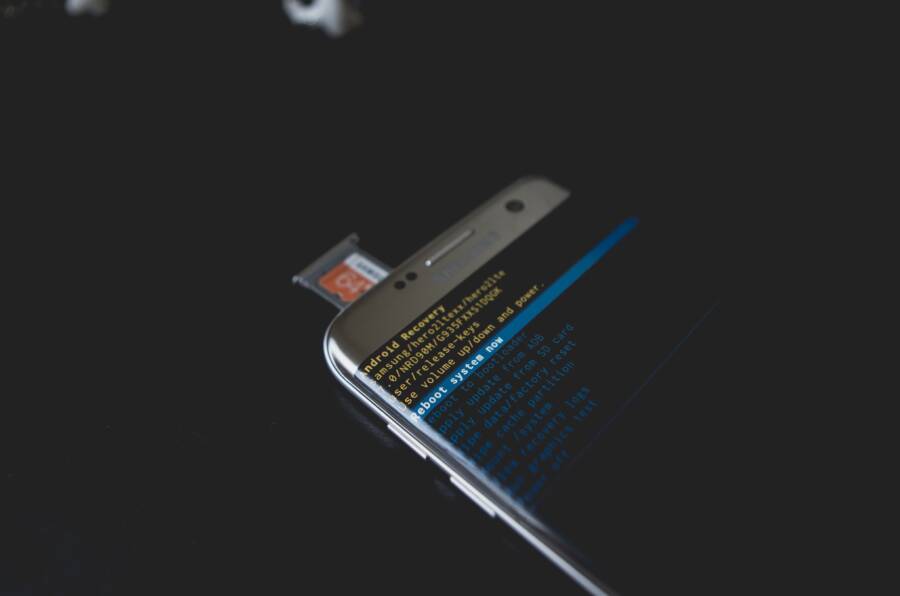
When your smartphone freezes during multitasking, the cause is usually memory overload, outdated software, or too many background processes running at once. These issues prevent the system UI from keeping up with your commands, which turns a standard experience into a frustrating wait.
This guide provides actionable steps to fix these performance hitches and regain the speed you expect from your device. Follow the diagnostic and repair methods below to stop the lag and restore stability to your system.
Why Does Your Smartphone System UI Keep Freezing?
Your smartphone system UI freezes when the hardware resources are insufficient to handle the concurrent demands of multiple open apps. When your device struggles to keep up, the operating system stops responding to touch inputs or gestures as it prioritizes background data processing over your active tasks. This temporary paralysis often stems from a conflict between software requirements and the available capacity of your phone.
Memory Exhaustion and Background Activity
Random Access Memory (RAM) serves as the short-term workspace for every app currently running on your smartphone. When you switch between numerous applications, the system tries to keep each one in a “ready” state to allow for quick transitions. Eventually, you run out of available memory, forcing the operating system to continuously stop and start background tasks to make room for what you are currently using.
This constant swapping process triggers a recognizable lag in the interface because the processor spends more time managing memory than executing your commands. You might notice this specifically when you have media-heavy apps or browser tabs open simultaneously. These applications occupy significant portions of your memory, leaving little room for the system UI to render animations or respond to your navigation inputs.
Storage Capacity and File System Latency
A full storage drive often contributes to system UI instability even if you have enough RAM. Your smartphone uses a portion of its internal storage as virtual memory, which acts as a backup when your physical RAM hits its limit. If your storage is nearly empty, the system cannot effectively manage this swap space, causing the UI to stutter as it waits for data to write and read from the drive.
Beyond simple space constraints, a highly fragmented file system can slow down performance. If the drive is nearly full, the system struggles to find contiguous blocks of space to save temporary files. This inefficiency causes the operating system to pause while it organizes data, leading to the freeze you experience during heavy multitasking.
Outdated Software and Resource Incompatibility
Software bugs within the operating system or individual apps can create memory leaks. A memory leak happens when an app consumes increasingly larger amounts of RAM without releasing it, eventually suffocating other system functions. If you notice the UI freezes more often after installing a specific update or a new app, there is a high probability that the software code is not optimized for your hardware.
Manufacturers release updates to address these specific performance bottlenecks. If you skip these patches, your smartphone continues to run on inefficient code that may conflict with newer security protocols or app requirements. Regularly checking for system updates ensures you have the latest performance fixes that manage background processes more effectively.
Common Signs of Resource Overload
Identifying the patterns behind these freezes helps you determine if the issue is a software glitch or a hardware limitation. Understanding these signals allows you to take corrective action before a full system crash occurs.
When these symptoms appear, it serves as a clear indication that your smartphone needs a resource reset. Addressing these performance bottlenecks involves closing unused background applications, clearing temporary cache files, or offloading data to cloud services to free up local drive space. Consistent management of these resources keeps your device responsive regardless of how many apps you use at once.
Quick Fixes for Immediate System UI Stability
When your phone stops responding during multitasking, the underlying issue is often a temporary bottleneck in how the device manages its active tasks. You can quickly restore order by shedding unnecessary load and refreshing the system interface. These fixes do not require specialized technical skills or advanced tools, as they primarily involve adjusting existing settings to give your hardware room to breathe.
Managing Background Processes to Free Up Memory
Background processes consume RAM even when you aren’t looking at the apps themselves. When too many apps run simultaneously, the system UI becomes unresponsive because it lacks the memory required to render your interactions.
Identify the culprits by navigating to your battery or memory settings. Most modern operating systems offer a specific menu labeled “Battery Usage” or “Memory” that lists apps by their resource consumption. Look for apps that show high activity despite you not having opened them recently.
Force stop high-resource apps. If a specific app is hogging resources, open the “App Info” page for that specific application. You will see an option to “Force Stop” or “Restrict Background Activity.”
Disable auto-start permissions. Some apps are configured to launch as soon as you turn on your smartphone. Restricting these permissions ensures they only consume memory when you manually choose to open them.
If you find that specific apps are consistently slowing down your device, consider uninstalling them or looking for a “lite” version of the software. Reducing the number of apps allowed to run in the background is the most effective way to keep your system UI stable during heavy multitasking sessions.
Clearing Cache Data Without Losing Your Personal Files
Over time, your smartphone accumulates temporary files known as cache. These files help apps load faster, but they can become corrupted or bloated, which triggers freezes when the system tries to read them. Clearing this data is a standard maintenance task that is completely safe. You will not lose your photos, contacts, or saved game progress because these items are stored separately from the cache.
To clear the cache for your System UI or specific problematic apps, follow these steps:
Open your phone settings and navigate to the “Apps” or “Application Manager” section.
Find the application that is causing the lag. If the freeze is system-wide, tap the three-dot menu icon in the corner and select “Show System Apps” to find “System UI.”
Tap on “Storage” or “Storage and Cache.”
Select “Clear Cache.” Do not select “Clear Data” or “Clear Storage,” as that might reset your app preferences or delete account logins.
Performing this task on a weekly basis prevents temporary files from stacking up and creating bottlenecks. If you encounter a persistent UI freeze, clearing the cache for the “System UI” process itself often forces the interface to reload, which usually resolves the frozen state immediately without requiring a full device reboot. This keeps your user experience smooth and ensures the operating system maintains a clear path for your commands.
Advanced Troubleshooting When Simple Methods Fail
When basic maintenance like closing apps or clearing the cache doesn’t resolve UI freezes, your smartphone likely requires a deeper configuration change. Persistent lag during multitasking suggests the system animation overhead is consuming resources that your processor needs for active tasks. Adjusting internal software parameters can often eliminate this friction, forcing the device to prioritize speed over visual flair.
Optimizing Developer Settings for Smoother Transitions
Developer options provide direct access to hidden system controls that manage how your smartphone renders graphics and handles transitions. By default, these settings are hidden to prevent accidental changes, but they contain specific tools to reduce UI stuttering. Accessing this menu allows you to shorten or disable window and transition animations, which makes the interface feel more responsive during intense multitasking sessions.
To unlock these settings, follow these steps:
Open your phone settings and tap on “About Phone” or “Software Information.”
Locate the “Build Number” entry and tap it seven times in rapid succession. A notification will appear confirming that you are now a developer.
Return to the main settings menu and search for “Developer Options.”
Scroll down to the “Drawing” or “Animations” section to find three specific settings: Window animation scale, Transition animation scale, and Animator duration scale.
Change each of these values from 1x to 0.5x or turn them off completely.
Reducing these scales forces the UI to render movements twice as fast, which significantly lowers the CPU load whenever you switch between apps. While the interface may appear less fluid without the traditional smooth fades, the increase in actual performance is immediate. You will notice that menus open instantly and multi-window transitions happen without the usual delay.
If your smartphone still experiences freezes after applying these changes, verify that your “Background process limit” in the same Developer Options menu is set to “Standard limit.” Sometimes third-party apps or system cleaners set this to a restricted mode, which actually causes more lag by forcing the system to kill and restart apps too frequently. Keep the setting at standard levels to maintain a stable, predictable multitasking environment.
Preventing Future UI Freezes on Your Device
Proactive maintenance prevents most system UI freezes on a smartphone. While occasional performance hitches happen during heavy multitasking, you can stop them from becoming a recurring pattern by adjusting your daily usage habits and system settings. Stable operation depends on managing the balance between your active apps and the resources available in the background.
Establishing a Routine Maintenance Schedule
Your device performs best when you clear out temporary system clutter before it accumulates. You don’t need to restart your phone constantly, but a weekly reboot helps clear out orphaned processes that slowly consume memory over time. This simple practice refreshes the system memory and allows the operating system to start fresh without leftover data fragments causing conflicts.
Consider these habits to keep your system responsive:
Restart once a week: A fresh boot clears out temporary cache and stops stuck background processes that you might not notice.
Update your apps regularly: Developers frequently release patches for memory leaks, which are often the primary cause of sudden interface stutters.
Monitor storage health: Aim to keep at least 15% of your total storage capacity free so the operating system has room to manage virtual memory operations.
Auditing Installed Applications for Performance Impact
Not every app respects your device’s limits. Some applications continuously sync data or keep processes alive even when you are not using them. If you notice your smartphone becoming sluggish, check which applications remain active in the background. You can find this data in your battery or power management menu, which lists specific apps by their power consumption.
If you identify an app that consistently drains power or triggers lag during multitasking, consider these alternatives:
Switch to a lighter version: Many popular social media and news platforms offer “lite” or “go” versions of their apps designed for lower-resource environments.
Remove unused apps: Every app installed on your device consumes a small amount of system resources for background checks and updates. Uninstalling apps you haven’t opened in over a month recovers both storage and processing potential.
Limit background data: If you need an app but want to prevent it from taxing your processor, go into the app permissions and toggle off its ability to use background data or refresh while closed.
Evaluating System and Hardware Limitations
If your smartphone hardware is older, the latest software updates might be too demanding for your processor to handle smoothly. High-definition animations and advanced multitasking features rely on modern hardware specs. When you reach a point where software updates cause constant stuttering, you should review your settings to see if your phone supports a “high performance” or “battery saver” mode.
Sometimes the most effective way to prevent future freezes is to adjust your own multitasking behavior. While modern devices support multiple open apps, opening too many media-heavy applications simultaneously forces the processor to prioritize tasks in a way that causes the user interface to hang. Closing apps you finished using prevents the system from splitting its attention between too many competing programs. These small adjustments provide a more stable experience and extend the life of your device.
Conclusion
The most effective way to restore your smartphone performance is to reduce the demand on your system resources. You can achieve this by managing background applications, clearing temporary cache files, and limiting unnecessary animation overhead. These adjustments prioritize active tasks and keep your interface responsive during multitasking.
If you continue to experience system UI freezes after following these steps, your device may suffer from a deeper software conflict or a hardware defect. Contact official manufacturer support to diagnose potential faults that require professional repair.