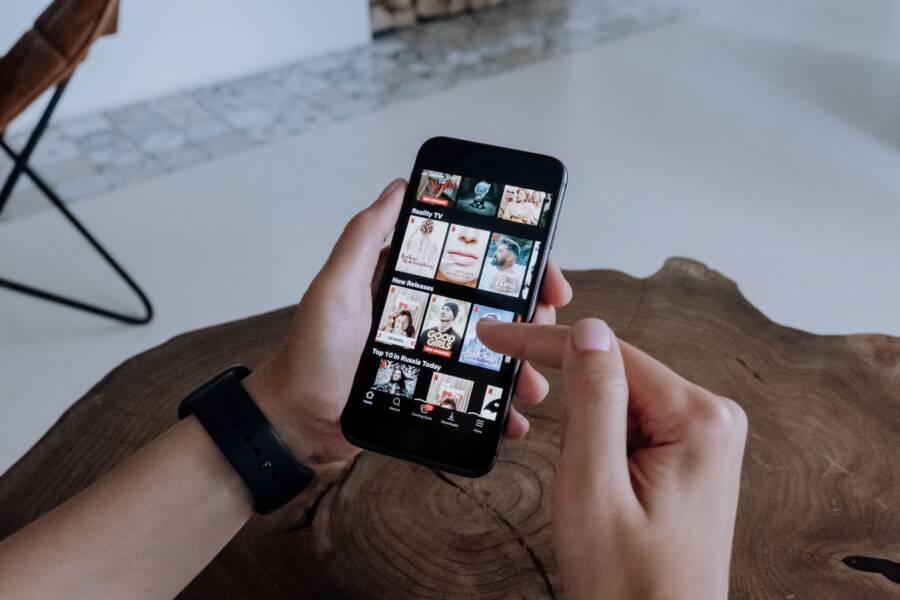
A flickering screen while you watch videos often stems from software glitches, incorrect display settings, or minor hardware issues. You can fix most of these problems using simple troubleshooting steps on your smartphone without needing a professional repair.
Whether the screen pulses during playback or the image jumps erratically, the issue is rarely permanent. You can identify the cause and restore your display quality by checking your software and configuration.
Read on to identify the cause of your flickering screen and apply the correct fix to your device.
Quick Fixes to Stop Screen Flickering on Your Device
Flickering screens often signal temporary software conflicts rather than permanent hardware damage. You can usually resolve these visual glitches by managing system processes and maintaining current software. Before seeking repairs for your smartphone, perform these routine checks to stabilize your display.
Restarting and Updating Your System
A simple restart is the most effective way to clear the system cache and refresh the temporary memory. When your smartphone stays on for extended periods, background data can clutter the RAM and cause performance stutters. Turning your device off completely and waiting thirty seconds forces the operating system to shut down all active tasks. Once you power it back on, the system initializes fresh, which often stops intermittent display flickering during video playback.
If a restart does not solve the problem, check for pending software updates. Manufacturers release patches to address driver issues that affect screen stability. Follow these steps to find available updates:
Open your device settings menu.
Select the option for system or software updates.
Tap the button to check for new downloads.
Install any available packages and allow the device to restart.
Updating the system often includes fixes for display drivers. These drivers control how the graphics processor interacts with your screen. When these files are outdated, your smartphone may struggle to render high-definition video, leading to visible pulses or jumps. Maintaining current firmware helps your hardware run efficiently while reducing visual errors.
Managing Background Apps
Too many active applications can overwhelm your processor and trigger visual glitches. Every app consumes a portion of your smartphone memory and computing power. When you run a demanding video player alongside several other active programs, your device may experience frame drops or screen flickering as it attempts to juggle these tasks.
You can improve performance by closing unnecessary background apps. Most mobile operating systems feature a multitasking view that lets you swipe away unused programs. If you notice the screen pulse while watching a video, exit your current media app, swipe away all other open applications, and then reopen your video.
If the flickering persists, consider these additional steps to manage your device workload:
Identify apps that refresh data constantly in the background.
Adjust notification settings for heavy programs to prevent sudden CPU spikes.
Remove or disable apps you no longer use to free up system resources.
Clear the cache specifically for your video streaming apps within the settings menu.
Limiting the strain on your processor helps your smartphone dedicate its power to video playback. Consistent performance prevents the graphics hardware from misfiring, which keeps your viewing experience stable. By cleaning up your digital workspace, you create a more reliable environment for media consumption.
Adjusting Display Settings to Resolve Video Glitches
Your screen might flicker during video playback because the internal display settings conflict with the high-speed requirements of modern media. When the software struggles to match the video frame rate or brightness levels with your hardware capabilities, visual instability occurs. Adjusting these specific configurations often stops the strobing effect immediately.
Tweaking Refresh Rates and Brightness
High refresh rates often improve the smoothness of your scrolling, but they can clash with older video files. Many modern displays offer a variable refresh rate, which jumps between 60Hz and 120Hz depending on the content. This constant switching during a video can cause the screen to strobe as the processor fails to keep up.
You can stabilize your screen by locking the refresh rate to a fixed setting. Follow these steps to adjust this on your smartphone:
Open the Display settings menu.
Look for an option labeled Motion Smoothness or Refresh Rate.
Select the standard 60Hz option instead of an adaptive or high mode.
Aggressive auto-brightness also causes flickering. When this feature is active, the ambient light sensor constantly measures your surroundings. If the sensor detects a minor change, it adjusts the backlight intensity instantly. This rapid pulsing becomes very noticeable during dark scenes in a video. Turning off this automatic adjustment keeps the display output steady while you watch.
Turning Off Adaptive Features
Manufacturers include several display enhancements intended to make colors appear better or reduce eye strain. However, these features often interfere with the color grading of professional video content. If your screen flickers or pulses in intensity, these settings are the likely culprits.
You can test if these features cause the issue by disabling them one at a time. Each adjustment provides insight into whether your smartphone hardware is simply misinterpreting the video data.
True Tone or similar color balancing tools adjust your screen temperature to match the environment. Switch this off to see if the flickering stops.
Night Shift or blue light filters often lower the screen frequency, which creates a noticeable strobe effect in certain video players. Disable this mode entirely to verify if the display stabilizes.
Adaptive brightness features often override your manual settings. Toggle the auto-brightness switch to off and set the slider to a comfortable manual position.
If the flickering disappears after you disable these features, keep them turned off while you view high-resolution media. Most video platforms prefer a neutral color profile, so disabling these automated tools often produces a better, more stable picture. If you still see visual errors after these adjustments, the conflict likely sits deeper within the display drivers.
Digging Deeper into Software Conflicts and Cache
Video flickering often stems from hidden software issues deep within your operating system. When temporary files become corrupt or apps clash with your system architecture, the display fails to render frames correctly. These conflicts disrupt the timing between your processor and the screen, which creates visible jumps or pulses during playback.
Clearing App Cache for Streaming Services
Temporary data, or cache, helps streaming apps load videos faster by storing snippets of data. Sometimes these files get damaged during an update or a sudden interruption, leading to playback errors like flickering. Clearing this data forces your smartphone to build a clean set of temporary files, which often resolves the issue.
You can clear the app cache on most Android devices by following these steps:
Open your device settings menu and select the Apps or Application Manager tab.
Find your specific video streaming service in the list of installed programs.
Tap on Storage within the app details page.
Select the Clear Cache button to remove the temporary files.
Close the settings menu and reopen the app to check if the flickering stops.
If the app continues to flicker, you can repeat these steps for any other media applications on your smartphone. Do not worry about losing your account logins or downloaded content, as the clear cache function only removes temporary performance files. Some apps also offer a Clear Data option, but this will sign you out and delete your personal preferences, so use it only if the basic cache clear fails to provide relief.
Checking for App Compatibility Issues
Software developers update their apps regularly to support new versions of your operating system. If you run an outdated version of a streaming app on a modern system, the software instructions might conflict with your current display drivers. This incompatibility causes the app to request display refresh rates or color profiles that your hardware cannot handle properly.
Start by checking your app store for any pending updates for your media players. Developers frequently release patches specifically to address performance bugs and display glitches reported by users. If an update is available, install it and restart your smartphone to ensure all new files load correctly.
In cases where the app is already up to date, check if your current operating system version meets the minimum requirements for that specific application. Sometimes a system update fixes underlying compatibility gaps that previously prevented smooth video playback. If you recently performed a major system upgrade, check the developer website or the app store description to see if you need a newer version of the app for full compatibility. When an app simply fails to work on your current setup, reinstalling the software from scratch often clears out lingering configuration errors that cause display instability.
Identifying Hardware Damage and Professional Support
Sometimes, flickering remains even after you clean the software and reset your display settings. This indicates a physical fault within the smartphone hardware. Identifying the source of the damage helps you decide if a simple fix is possible or if you need an expert.
Signs of Physical Screen Failure
Software issues often look like rhythmic pulses or strange colors across the entire screen during specific app usage. Hardware damage, however, usually presents as persistent lines, dark spots, or static that stays on the screen even when the phone reboots or stays on the startup logo.
Physical damage typically comes from a few common scenarios:
Liquid exposure: Water or moisture inside the device corrodes internal ribbon cables. This often creates flickering that worsens as the components oxidize over time.
Pressure points: Dropping a bag on your device or sitting on it can crack the internal display layer. Even if the outer glass remains smooth, the underlying panel suffers, leading to vertical lines or flickering zones.
Impact damage: A hard drop can loosen the display connector cable inside the housing. If the cable is loose, the screen may flicker only when you hold the phone at a certain angle or press on the frame.
Distinguishing these signs is important. If you see physical cracks or discoloration, you likely need a screen replacement. Software glitches change when you restart the phone, but hardware damage remains constant regardless of the operating system state.
When to Visit a Repair Technician
DIY troubleshooting is helpful for software bugs, but physical hardware damage requires professional tools and experience. You should seek a repair technician if your screen displays permanent lines, shows dead pixels, or if the flickering started immediately after a drop or water spill.
Before you visit a repair shop, check your warranty status and service documentation.
Verify your warranty: Many manufacturers cover factory defects for a limited time. If the flickering is a hardware fault unrelated to drops or water, you might get a free repair or replacement.
Review accident coverage: Some plans, such as AppleCare or similar provider insurance, cover accidental damage. Using these services prevents high out-of-pocket costs.
Avoid unauthorized disassembly: Opening your smartphone yourself often voids the official warranty. If your device is still under coverage, let an authorized technician perform the inspection.
A professional technician will open the chassis to inspect the display ribbon cable and the underlying connection to the motherboard. They also have the equipment to perform a deep diagnostics test on the screen panel itself. If the screen is beyond repair, they provide a reliable replacement that restores the original display quality of your smartphone. Always choose authorized service centers to ensure the new parts meet the manufacturer’s standards for color accuracy and touch responsiveness.
Conclusion
Resolving a flickering screen on your smartphone starts with basic software maintenance. You can fix most display issues by clearing your cache, managing background processes, and adjusting refresh rate settings. These steps stabilize the signal between your processor and the display panel.
Use this checklist to troubleshoot your device:
Restart your device to clear temporary memory.
Check for system updates to repair driver conflicts.
Close unnecessary apps that consume processing power.
Disable adaptive brightness and motion smoothness features.
Clear the cache for video streaming apps.
If your screen continues to flicker after completing these tasks, physical hardware damage is likely the cause. Visit an authorized repair center to inspect internal connections or replace a faulty display. Professional assistance ensures your device receives a safe, lasting repair.