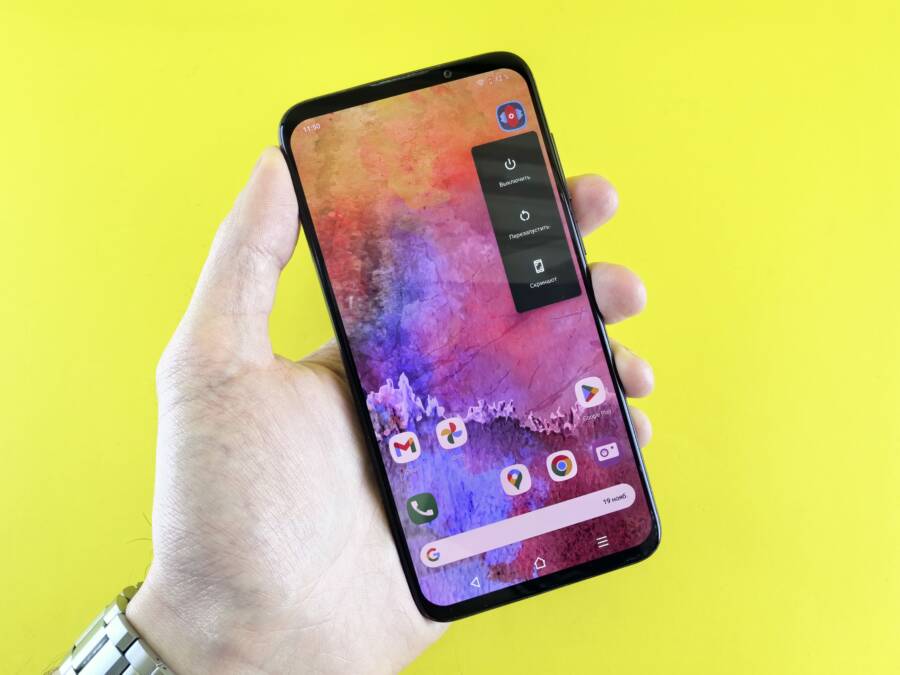
When your smartphone fails to show missed calls, the issue usually stems from simple software glitches or incorrect notification settings. You likely do not have a broken device, and you can often fix the problem with a few quick adjustments to your system configuration.
Checking your alert permissions and disabling battery saver modes will resolve this for most users. If these settings remain correct, a software restart or a cache clear typically restores your notification history. This guide covers the essential steps to identify why your missed calls disappear and how to get your alerts back.
Quick Checks to Resolve Missing Call Alerts
When your smartphone stops notifying you of incoming calls, the cause is often a simple software configuration. You can usually restore these alerts by checking a few specific system menus. These settings often shift during software updates or after you install new apps. Following these troubleshooting steps helps you identify if the problem is a user-defined restriction or a deeper system error.
Checking Do Not Disturb and Focus Settings
Focus modes and Do Not Disturb settings are the most common reasons for silenced notifications on a smartphone. These features hide incoming alerts to help you concentrate, but they often remain active longer than you intend.
On an iPhone, open your Control Center by swiping down from the top right corner. Look for the Focus or Do Not Disturb icon. If the button is highlighted, tap it to turn the feature off. You can also visit the Settings app, tap Focus, and check if any individual modes like Driving or Sleep are currently enabled.
Android users should swipe down from the top of the screen to view the Quick Settings panel. Find the Do Not Disturb tile and ensure it is toggled off. If you use a custom skin, such as Samsung One UI, check the Modes and Routines section within the Settings menu. Sometimes, a schedule causes your phone to silence alerts automatically at specific times of the day.
Verifying Notification Permissions for Your Phone App
Your smartphone requires specific system permissions to display alerts on your lock screen and status bar. If the phone app lacks these permissions, the device will still receive the call, but it won’t trigger a notification.
To check this on an iPhone, navigate to Settings and select Notifications. Scroll through your apps until you find the Phone app. Ensure the Allow Notifications switch is turned on and that the Lock Screen, Notification Center, and Banners alerts are all selected.
On Android, long-press the Phone app icon and tap App Info. Select the Notifications category to see your current settings. Ensure the main notification toggle is active. Verify that the Incoming Calls category is set to show as an alert rather than silent. If the toggle is already on, try turning it off and back on again to force the system to refresh the permission status.
Troubleshooting Software Glitches on iPhone and Android
Software glitches often hide behind simple notification errors on your smartphone. When your device ignores incoming calls, the system software might suffer from a temporary conflict or an outdated file structure. These problems usually do not indicate a hardware failure. You can resolve most of these technical hiccups by performing standard maintenance steps on your operating system and application data.
Updating Your Smartphone Operating System
Manufacturers release software updates to patch known bugs that interfere with system stability. If your phone runs an outdated version of its operating system, it might struggle to process background tasks like incoming call notifications. Keeping your software current provides the most recent fixes for these hidden communication errors.
To check for updates on your iPhone, follow these steps:
Open the Settings app from your home screen.
Select the General menu.
Tap Software Update to see if a newer version is available.
If an update appears, tap Download and Install to begin the process.
Android users follow a similar path, though the menu names vary slightly by manufacturer. Open your Settings app and look for a menu labeled System or Software Update. Tap Check for updates to see if your carrier or phone maker has a patch waiting. Installing these updates ensures your smartphone manages background processes correctly, which often restores missing call alerts.
Clearing App Cache and Restarting Devices
Temporary files often clutter your phone app and cause it to stop communicating with the system notification service. For Android users, clearing the app cache removes these corrupted files without deleting your actual call history or contacts. Open your Settings app, tap Apps, and find your primary Phone application. Select Storage, then tap Clear Cache. This action resets the temporary data that might prevent alerts from triggering.
Restarting your device is another powerful way to fix persistent notification issues. When a phone remains on for long periods, background tasks can freeze or enter a loop. A full power cycle forces the operating system to stop these unresponsive processes and reload everything from a clean state. To restart, hold your power button until the shutdown slider appears, turn the phone off, wait thirty seconds, and power it back on. This simple step clears the memory and allows the notification system to restart fresh.
Network and Carrier Issues That Could Be at Play
Sometimes, your smartphone is working perfectly, but the network connection creates a barrier to incoming alerts. Cellular towers rely on specific data packets to tell your device when a call is waiting. If your signal strength is weak, or if the connection between your device and the local tower becomes unstable, those packets might never reach your screen. Interference from physical obstructions or congestion on the network often causes these silent failures. When your phone displays full bars but fails to receive notifications, a communication gap between your carrier and your device is often to blame.
Toggling Airplane Mode to Reset Signal
Airplane Mode acts as a hard reset for your smartphone antenna. When you turn it on, the device immediately drops all cellular, Wi-Fi, and Bluetooth connections. Toggling it off forces the phone to initiate a fresh handshake with the nearest cellular tower. This process clears out old or stuck network assignments that might prevent call notifications from coming through properly.
Follow these simple steps to perform this reset:
Swipe down or up to open your Control Center or Quick Settings panel.
Tap the airplane icon and wait about ten seconds for the radio signals to shut down completely.
Tap the icon again to disable Airplane Mode and allow your device to reconnect to the network.
This action prompts your carrier to re-verify your device status on their system. If your phone was stuck in a stalled state, this re-connection usually updates your status and allows missed call notifications to arrive without further delay. Many users find this method fixes intermittent reception issues faster than rebooting the entire device. Since it only takes a few seconds, it is an efficient first step whenever you suspect that network interference is blocking your alerts.
Advanced Fixes When Nothing Else Works
If you have tried the basic software tweaks and network resets without success, the problem may lie within deeper system configurations. Sometimes, a smartphone holds onto corrupted data or conflicting settings that resist simple troubleshooting. When standard fixes fail, you need to use more invasive methods to isolate the issue. These procedures often resolve persistent bugs by forcing the device to discard problematic hidden data.
Resetting Network Settings Safely
A network settings reset clears all stored connectivity data on your device. This process erases saved Wi-Fi passwords, Bluetooth device pairings, and cellular network preferences. It does not delete your personal files, contacts, or photos, so your data remains safe. Think of this as wiping the slate clean for every connection your phone makes.
Because this action removes saved Wi-Fi passwords, you must have those credentials handy before you begin. You will need to manually reconnect to your home and work wireless networks after the phone reboots. To perform this reset on an iPhone, navigate to Settings, tap General, and select Transfer or Reset iPhone. Choose Reset and then select Reset Network Settings.
On an Android device, the steps are slightly different depending on your specific model. Open Settings and search for Reset options in the search bar. Look for the option labeled Reset Wi-Fi, mobile, and Bluetooth or Reset Network Settings. Confirm your choice and wait for the phone to restart. Once the device powers back on, it will act as if it is connecting to these networks for the first time.
If a simple glitch in the radio management software was stopping your missed call alerts, this action usually resolves it. Your smartphone will establish fresh communication channels with the cellular towers. Remember to pair your headphones or car audio systems again after the process finishes. This step is a highly effective way to eliminate hidden conflicts within your network protocols.
If your smartphone still fails to show notifications after a network reset, you might look into factory resetting the device as a final measure. A factory reset returns the phone to its original state from the factory. Before taking this step, perform a full backup of your device using cloud storage or a computer. This ensures that you can restore your photos, messages, and app data after the process is complete. Factory resets are extreme, but they successfully remove deep-seated software errors that no other method can touch.
Conclusion
Missing call notifications on your smartphone are usually the result of simple software conflicts or incorrect system settings. You can resolve most of these issues by toggling your notification permissions, checking your Focus modes, or clearing your app cache. Testing your device after each step will help you identify the specific cause quickly.
If you decide to perform a network reset or a factory restore, back up your photos, contacts, and personal files to a cloud service first. These advanced steps clear out deep-seated errors, but they also erase saved network credentials. Your device should function reliably once you apply these fixes.