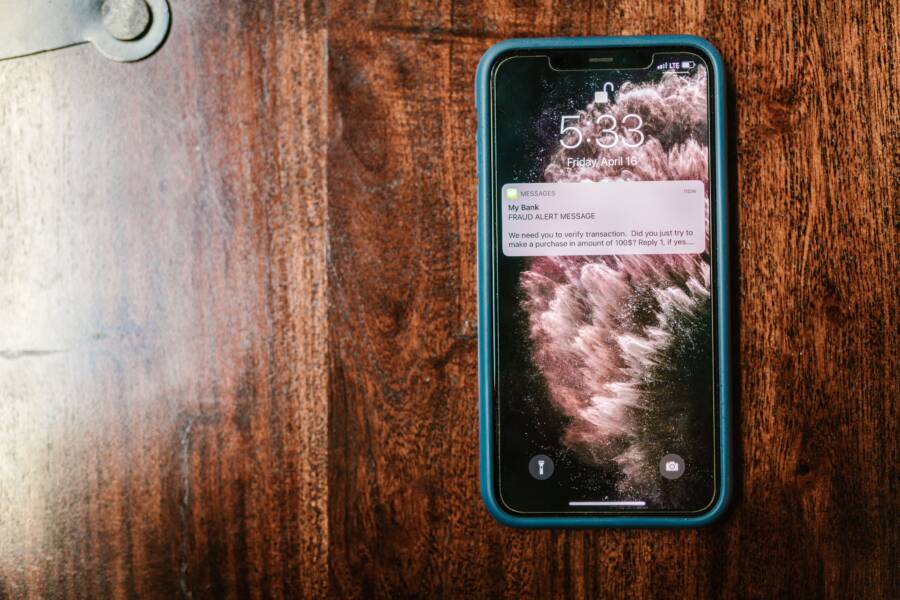
If your smartphone stopped sending notifications after a recent system update, you aren’t alone. This common technical glitch occurs because updates can accidentally reset your notification permissions or conflict with outdated cache files stored on the device.
Fortunately, you can usually fix this issue by adjusting a few settings or clearing specific application data. Most users restore their alerts within minutes by checking these core configurations.
Follow this guide to pinpoint the exact cause of your silence and get your alerts working again.
Quick Checks for iPhone and Android Settings
System updates often modify global system configurations. Sometimes these changes accidentally toggle your device into a silent state that persists even after the update finishes. Before you modify individual app settings, verify these primary system-wide controls on your smartphone to confirm your device is actually allowed to alert you.
Verify Your Focus or Do Not Disturb Status
When your device remains silent after an update, the most likely culprit is a misconfigured Do Not Disturb or Focus mode. These features restrict incoming alerts to keep your screen clear, but they sometimes stay active longer than intended.
For iPhone users, swipe down from the top-right corner to open the Control Center. Look for the Focus icon. If it is highlighted, tap it to turn it off. You should also check your Focus settings in the main Settings menu under the Focus tab. Ensure you have not accidentally scheduled a block that covers your current time of day.
Android users face similar settings, often labeled as Do Not Disturb. Open your Quick Settings panel by swiping down from the top of your screen twice. If the Do Not Disturb tile appears lit up, tap it to disable the restriction. You can also head into the main Settings app, tap Notifications, and select Do Not Disturb to confirm that no automated schedules are currently muting your smartphone alerts.
Confirm Notification Permissions for Individual Apps
System updates occasionally reset the background activity permissions for specific apps. If the system treats an app as inactive or non-essential, it might suppress that app’s notifications to save battery life. You must check these permissions individually to restore standard behavior.
On an iPhone, go to Settings and tap Notifications. Scroll through the list to find the app that stopped working. Ensure the Allow Notifications toggle is turned on and that the Lock Screen, Notification Center, and Banners boxes are all checked. If the settings appear correct, toggle the switch off and back on again to force the system to re-recognize your preference.
Android users should open Settings and select Apps. Find the specific app in the list and tap Notifications. Verify that the Show Notifications switch is active. In some cases, you may need to tap Notification Categories or Channels to ensure that specific types of alerts, such as direct messages or sound notifications, are individually enabled. If the app is set to silent or minimized by the system, these individual categories provide the granular control necessary to get your alerts back on track.
Advanced Troubleshooting Steps to Fix Your Smartphone
If basic permission checks fail to bring your alerts back, your smartphone likely holds onto corrupt data or misconfigured network paths after the update. These persistent issues often hide deep within temporary system files or internal connection protocols. By targeting these hidden layers, you can force the device to reconstruct its communication bridge with notification servers.
Clear System Cache and Refresh App Connections
Your smartphone uses cache files to speed up everyday tasks by storing bits of data for quick access. After a system update, old cache files frequently conflict with new OS requirements. This conflict stops apps from communicating correctly with the server, which leaves you without updates or alerts. Clearing this temporary storage removes the clutter without deleting your personal files or media.
On Android, navigate to Settings, select Apps, and find the specific application causing trouble. Tap Storage and select Clear Cache. You should avoid the Clear Data button unless you are prepared to log in again and lose custom app preferences. If the problem persists for multiple apps, you can clear the system partition cache through the recovery menu, though modern versions of the operating system often handle this automatically through background maintenance.
If you are using an iPhone, the process is different because you cannot manually clear an app cache. The most effective way to refresh your connection is to offload the app. Go to Settings, tap General, and select iPhone Storage. Find the app, tap it, and choose Offload App. This action removes the application binaries while keeping your documents and settings intact. Once finished, reinstall the app from the App Store. This forces the device to pull a fresh copy of the app, which often clears out the underlying software errors preventing your notifications from reaching the screen.
Perform a Network Settings Reset to Fix Syncing Issues
Notifications depend on a constant, healthy handshake between your smartphone and the servers of your service providers. Sometimes, a system update corrupts the network configuration profile, which blocks the incoming data needed for real-time alerts. A network settings reset acts as a hard restart for all your connectivity components.
Before you proceed, keep in mind that this action deletes your saved Wi-Fi passwords, Bluetooth device pairings, and VPN configurations. You will need to rejoin your home and office networks manually after the phone reboots. Despite this minor inconvenience, it is a highly effective way to flush out configuration errors that prevent your smartphone from maintaining a stable link to the notification servers.
To perform this reset on an iPhone, open Settings and tap General. Select Transfer or Reset iPhone, then tap Reset and choose Reset Network Settings. Your device will restart automatically.
On Android, open Settings, go to System or General Management, and look for Reset options. Select Reset Wi-Fi, mobile, and Bluetooth to wipe the slate clean. Once the process finishes, reconnect to your Wi-Fi and mobile data networks. This fresh start often triggers the system to re-establish its handshake with the notification server, finally allowing your alerts to flow through again.
When to Consider a Full Factory Reset or Official Support
Sometimes persistent notification issues survive every manual adjustment and network reset. If your smartphone continues to ignore alerts, the system files might have suffered deeper corruption during the installation process. Before you decide to wipe your device or contact professional technicians, make sure you have exhausted all configuration options. A factory reset is the final resort because it returns your phone to its original software state and erases everything currently stored on the internal memory.
Backing Up Your Data Before Taking Drastic Steps
A factory reset deletes every photo, contact, and message on your device. You must secure your data in a safe location before initiating this process to avoid permanent loss. Cloud storage services provide the most reliable way to sync your information without needing a physical computer.
iPhone users should use iCloud to create a complete backup. Navigate to Settings, tap your name at the top, select iCloud, and tap iCloud Backup. Make sure the toggle for Back Up This iPhone is active and then select Back Up Now to capture your latest data. Android users should verify their Google One backup settings under System or Accounts. Ensure that your photos sync to Google Photos and that your app data and device settings reside in your Google Drive cloud storage. Check these services online from a computer or tablet to confirm your files exist before you start the reset.
Contacting Manufacturer Support for Persistent Bugs
Occasional system updates introduce software bugs that affect specific device models or hardware configurations. If you perform a factory reset and the issue immediately returns, you might be dealing with an underlying code error. Companies like Apple, Samsung, or Google often issue secondary updates to patch these flaws once they receive enough reports from users.
Check the official support forums for your specific smartphone model to see if others reported similar notification failures following the same update. If you find multiple users experiencing the exact same behavior, the issue is likely a widespread bug. In these cases, you should contact the manufacturer through their official support app or website. Provide them with your device model, your current system version, and a clear description of the troubleshooting steps you already tried. Support representatives can tell you if a fix is currently under development or if your device requires a hardware diagnostic at a service center.
Conclusion
Notification issues after a system update are usually temporary conflicts between your old settings and the new software. Most users fix their alerts by adjusting permission toggles or clearing temporary cache files on their smartphone.
Keep your device software current to avoid persistent bugs and security gaps. Updates offer more than just new features, as they often include patches for known communication errors. If you still face issues, reach out to the device manufacturer to see if a broader fix exists. Your digital life relies on these constant connections, so keep your settings optimized for the best experience.