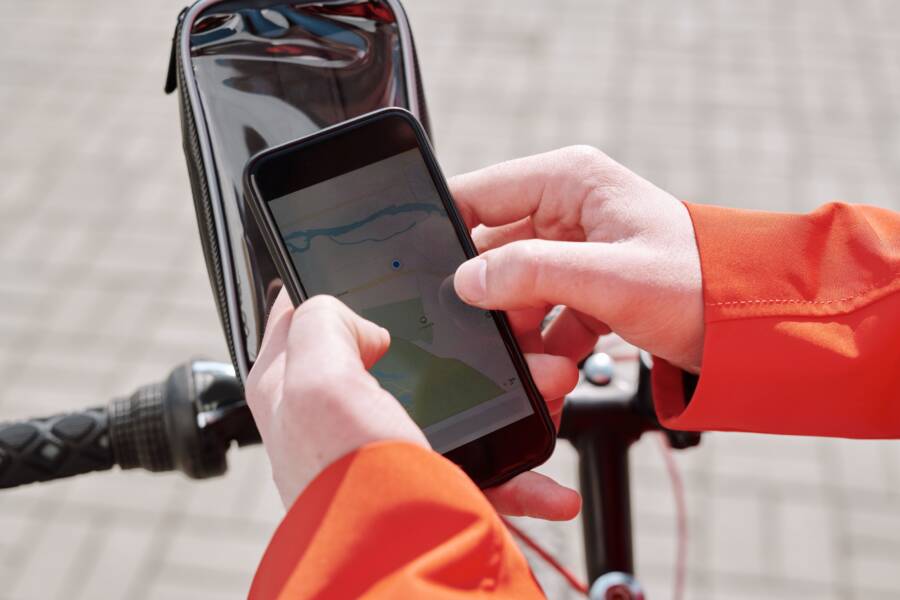
When your smartphone fails to find a recent address, the cause is usually outdated cache data, poor location permissions, or a temporary software glitch. You can resolve most mapping errors by clearing your app data, restarting your location services, or checking for pending updates.
These issues occur because map applications rely on a constant handshake between GPS hardware and current database servers. When these signals drop or stored temporary files become corrupted, your smartphone loses the ability to translate specific coordinates into recognizable street addresses. Understanding this process helps you quickly restore navigation functionality.
The following steps provide the most effective ways to troubleshoot your device and get back on the right path.
Quick Fixes for Common Maps Glitches
When your smartphone fails to locate an address, minor connection interruptions are often the primary cause. Map applications require a consistent data flow to pull real-time coordinates and street names from remote servers. If this handshake fails, the app may display a blank screen or a spinning loading icon. Checking your environment and hardware settings often resolves these issues in under a minute.
Checking Your Network and GPS Signal
A weak cellular signal or an improperly configured connection often prevents your maps from downloading necessary map tiles. If you are in a basement, a tunnel, or a rural area with limited coverage, your smartphone struggles to update its position accurately. Even a few bars of service might be insufficient if your data connection is throttled or congested.
Toggle your connection settings to force a refresh if the maps remain unresponsive:
Open your device settings and enable Airplane Mode for ten seconds.
Disable Airplane Mode to force the radio hardware to reconnect with the nearest cell tower.
Switch from mobile data to a stable Wi-Fi network, or vice versa, to see if the connection improves.
GPS hardware also needs a clear line of sight to the sky to lock onto satellite signals. If you are inside a large building, move closer to a window or head outdoors. This change allows the internal sensor to calculate your position more efficiently without interference from thick walls or metal structures.
Refresh Your App and Location Permissions
Map applications frequently lose the ability to find addresses if the software permissions have been accidentally revoked or corrupted. Your smartphone requires explicit authorization to access your precise location data. Without this access, the app cannot triangulate your position, which makes searching for nearby addresses or directions impossible.
Follow these steps to ensure your device settings allow for proper tracking:
Open the Settings menu and navigate to the Privacy or Location section.
Find your specific maps application in the list of installed programs.
Verify that the location setting is set to Always or While Using the App.
Toggle the switch for Precise Location to the on position to provide the most accurate data.
If these settings are already correct, consider restarting the application entirely. Simply swiping the app away from your recent tasks menu clears the temporary memory cache. When you reopen the maps, it initiates a fresh request for your current coordinates. This basic reset often clears out minor software bugs that prevent the app from recognizing your request for a specific address.
Updating Data and Calibrating Your Compass
Your smartphone relies on fresh data and a correctly oriented sensor to display your exact location. When these systems drift, your map might point the wrong way or fail to identify nearby addresses entirely. You can restore accuracy by maintaining your device software and performing simple calibration tasks for the internal magnetometer.
Why Keeping Map Data Up to Date Matters
Map applications pull information from massive, changing databases that track new roads, building names, and business locations. If your software remains outdated, the app tries to overlay your position on an obsolete map grid. This discrepancy often results in incorrect address markers or navigation errors.
Regularly updating your operating system and map apps fixes these compatibility gaps. App store updates frequently include patches for server communication, which allows your smartphone to request location data more efficiently.
Follow these steps to keep your navigation tools functional:
Enable automatic updates in your app store settings to get the latest database versions.
Check your operating system settings for pending updates that improve hardware communication.
Remove and reinstall the map app if you suspect the local database is corrupted or stuck.
These updates also ensure that your phone uses the most recent security protocols for location services. An outdated system might block the app from connecting to satellites or towers, making it look like your address search is broken. Consistent maintenance keeps your device tuned to the current state of the world around you.
Step by Step Guide to Calibrating the Compass
The internal compass, or magnetometer, on your smartphone tracks your orientation as you move. If you hold the device near large metal objects or high-voltage lines, the sensor can lose its reference point. This causes the blue location beam in your map app to point in the wrong direction, making it difficult to figure out which way to walk toward an address.
You can often fix this by recalibrating the magnetometer using a figure-eight motion. This process resets the sensor and helps the phone distinguish between magnetic interference and true north.
Perform these steps to recalibrate your compass:
Hold your smartphone firmly in your hand with the screen facing up.
Move your hand in a steady figure-eight pattern through the air.
Repeat this motion three or four times while keeping your wrist flexible.
Rotate the device along different axes to ensure the internal chip registers movement from all angles.
Many map applications provide a visual prompt when they detect sensor drift. If the app displays a pulsing blue circle with a wide beam, it means your compass needs this calibration immediately. Once you finish the figure-eight motion, the beam should narrow and point accurately in the direction you are facing.
Advanced Troubleshooting for Persistent Search Failures
When standard resets and permission checks fail to fix mapping errors, your smartphone might have deeper software conflicts. Persistent failures often stem from accumulated junk data or authentication errors within your user profile. These issues prevent the application from communicating with map servers effectively, even when your signal is strong.
Clearing App Cache to Resolve Corrupted Data
Temporary files stored by your map application allow the software to load faster. However, these files often become corrupted over time. When this occurs, your smartphone may struggle to interpret new address requests or display outdated map tiles. Clearing the cache removes these damaged files without deleting your saved locations, offline maps, or personal account settings.
You can clear the cache on your Android device by following these steps:
Open the Settings app on your phone.
Select Apps or Application Manager.
Find your maps application in the list and tap on it.
Tap Storage or Storage and Cache.
Select Clear Cache.
Do not select Clear Storage or Clear Data unless you are prepared to reset the app entirely. Clearing the storage often wipes away your offline maps and custom preferences, forcing you to reconfigure the application from scratch. Sticking to the cache option effectively removes the corrupted temporary files while keeping your core data intact.
Troubleshooting Account Sync Issues
Sometimes, the primary cause of a search failure is a desynchronized user profile. Your map app relies on your account to verify settings and preferences across multiple platforms. If the connection between your account and the server stalls, the app may stop processing location queries correctly. Signing out and signing back in forces the application to re-establish a fresh link with the server.
You can resolve these sync conflicts with these steps:
Open the map application on your smartphone.
Tap your profile icon located at the top right corner of the screen.
Select your account name and choose the option to sign out.
Close the application completely by swiping it away from your recent tasks.
Relaunch the app and sign back into your account.
This process refreshes your profile credentials and clears lingering errors that block address lookups. If the issue remains, check if other services on your phone are syncing correctly. Sometimes, a global issue with your system-wide account settings prevents individual apps from accessing necessary server data. Verifying that your internet connection remains active during this process helps the app pull your account data back down from the cloud.
When to Use Offline Maps or Alternative Navigation
Sometimes your smartphone cannot establish a reliable connection to cellular networks or GPS satellites. When you travel to remote areas, international borders, or underground transit hubs, standard mapping software often stalls. Recognizing when to shift away from real-time data helps you maintain your progress without unnecessary delays.
Benefits of Pre-loading Offline Maps
You should download offline maps whenever you plan to travel through regions with spotty cellular coverage. By storing map data directly on your internal storage, your smartphone bypasses the need for a live server connection to render streets and points of interest. This approach saves battery life because your device stops constantly searching for weak signal towers.
Offline navigation remains functional even when your data plan reaches its limit or roaming charges become a concern. You can prepare for these trips by searching for your destination area in your preferred map application and selecting the download option before you leave. Most apps allow you to save regions based on your needs, so you can manage your device storage efficiently while ensuring you stay on track.
Choosing Alternative Navigation Software
When specific map apps fail to find your desired address, the underlying database might have temporary synchronization issues. Installing a secondary navigation application serves as a practical backup during these moments. Different services frequently rely on distinct data providers, meaning one app might locate an address while another struggles to pull the information.
Consider keeping one of these alternatives installed on your smartphone as a fail-safe:
OpenStreetMap-based apps often provide detailed data in areas where major commercial services lack local updates.
Dedicated GPS tools frequently operate with fully downloaded databases, which prevents dependency on mobile network stability.
Local transit or city-specific apps sometimes contain more accurate address indices for specific neighborhoods or pedestrian zones.
Switching to a different app verifies if the problem resides within your primary software or if the location data itself is missing from the server. If a secondary app finds the address immediately, you can conclude your original software requires a cache reset or a version update. Relying on multiple tools ensures you never get stranded when technology fluctuates.
Conclusion
Most mapping errors on your smartphone stem from minor software conflicts or outdated temporary data rather than permanent hardware failure. You can resolve these issues by refreshing your location permissions, clearing the application cache, or ensuring your device software stays current.
Regular maintenance helps keep your navigation tools precise and ready for daily use. If a primary map application remains unresponsive, switching to a reliable alternative is a practical way to reach your destination without delay. When your device remains tuned to current data and signals, it serves as a dependable guide for every trip.