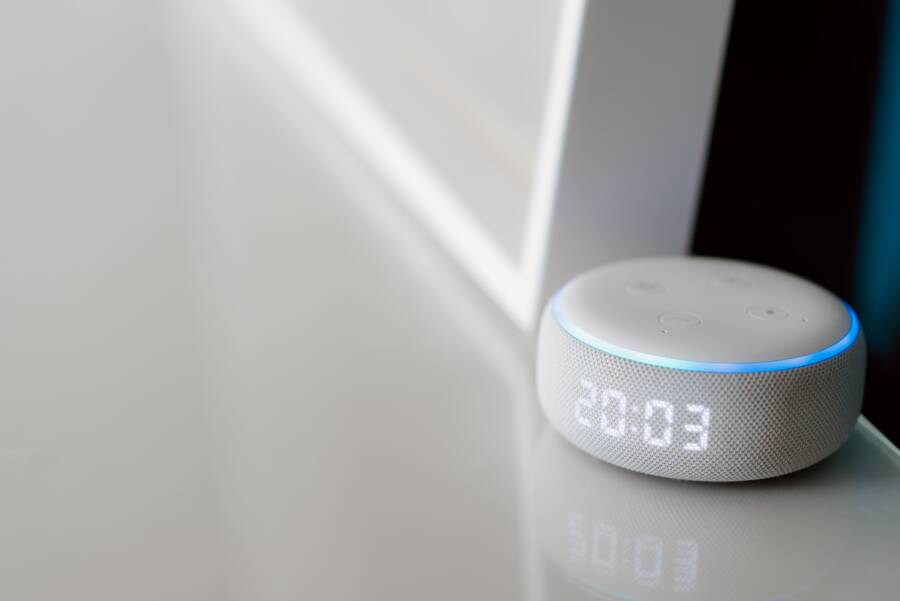
Casting issues between your smartphone and a smart speaker are usually temporary software glitches. Most connection problems stem from a simple breakdown in communication between your device and the local network.
Your smartphone needs a stable Wi-Fi connection and updated software to broadcast audio properly. If those two conditions are met, you can often restore your sound in a few minutes.
Fixing this connection is a straightforward process that gets your music playing again quickly. Follow these steps to diagnose and resolve the error on your device.
Essential Checks for Your Wi-Fi Connection
A stable internet connection is the foundation of any casting setup. If your smartphone cannot communicate with your speaker, the network configuration is often the root cause. You should verify your connection status before adjusting more complex software settings.
Confirming Same Network Synchronization
Casting protocols rely on your devices being part of the exact same local network segment. Many routers broadcast multiple signals, such as 2.4GHz, 5GHz, and separate guest networks. If your phone sits on the 5GHz band while your speaker connects to the 2.4GHz band, they might lose the ability to discover one another. Guest networks add another layer of isolation, specifically designed to prevent devices from communicating with the main network.
Use this checklist to verify your settings:
Open the Wi-Fi settings menu on your smartphone.
Confirm the name of the network, which is the SSID.
Check if your speaker uses the exact same SSID.
Ensure your phone is not connected to a network labeled “Guest.”
Toggle the Wi-Fi off and back on to force a fresh connection.
If you find your devices on different bands, manually switch your phone to match the speaker. Most modern smart speakers prefer a stable 2.4GHz connection to maintain a consistent signal through walls.
Power Cycling Your Network Equipment
Sometimes, your router experiences a cache error that prevents it from broadcasting discovery packets across the local network. These packets are essential for your smartphone to see the available smart speakers. A full power cycle clears the internal memory of the router and forces all devices to re-establish their connection.
Follow these steps to refresh your network hardware:
Unplug the power cable from the back of your router.
Wait at least 30 seconds to allow the internal capacitors to drain.
Plug the power cable back into the outlet.
Allow the router to finish its boot cycle, which usually takes two to five minutes.
Wait for the status lights to return to their normal operating state.
After the router is fully active, return to your smartphone and reopen the audio app. Check if the casting icon now appears next to the speaker name. This process often clears temporary routing conflicts without requiring you to change any advanced network configurations.
Solving Smartphone and Speaker Software Glitches
Software conflicts often stop your devices from communicating correctly. Even when your network is stable, an outdated application or a temporary system freeze on your speaker can block audio transmission. Most software problems respond well to simple updates or a quick hardware reset.
Updating Essential Casting Applications
Your smartphone relies on specific apps to bridge the gap between your media library and the smart speaker. When the app version on your device falls behind the requirements of your speaker firmware, the casting protocol may break. Developers frequently release updates to fix bugs, improve discovery speed, and maintain compatibility with updated speaker software.
You should check your app store regularly for available updates:
Open the App Store or Google Play Store on your smartphone.
Search for the app you use to cast audio, such as Spotify, YouTube Music, or the Google Home app.
Look for an Update button next to the app name.
If an update exists, tap it to install the latest version.
Close and restart the app after the update finishes to apply the changes.
Running the latest version ensures your smartphone uses the most recent communication protocols. If the app is already up to date, you might consider uninstalling and reinstalling it to clear any corrupted cache files that interfere with signal discovery.
Restarting the Casting Hardware
Smart speakers are essentially small computers that stay powered on for weeks at a time. Occasionally, the background services responsible for listening for a casting signal stop responding or hang while waiting for a handshake from your smartphone. A soft reset clears the internal memory of the speaker and forces it to re-initialize its network services.
You can reset most smart speakers by following these steps:
Unplug the power adapter directly from the wall outlet.
Wait at least 60 seconds to ensure the speaker fully discharges.
Plug the power cable back into the wall.
Listen for a startup chime or watch for a status light to indicate the device is ready.
Wait another minute for the speaker to re-register on your network.
After the speaker reboots, try to cast audio from your phone again. This quick procedure resolves many common communication errors because it forces the speaker to announce its presence on the network once more. If the cast icon still doesn’t appear, you might need to check if the speaker requires a manual firmware update through its dedicated mobile app.
Managing Permissions and Settings on Your Phone
Your smartphone acts as the central controller for your audio system. If the device cannot talk to your smart speaker, the operating system might be blocking the connection. Privacy settings and network access rules often change during system updates. These adjustments can unintentionally cut off your ability to cast music. You should verify your phone permissions to ensure the app has the necessary access to communicate with hardware on your local network.
Adjusting Privacy and Network Permissions
Modern mobile operating systems prioritize user privacy by restricting how apps interact with other hardware. When you install a new app or update your software, your phone might revoke access to your local network. Without this permission, the app cannot scan for your smart speakers. You must manually grant access to restore functionality.
Follow these steps to check your settings:
Open the Settings app on your smartphone.
Scroll down until you locate your music or home control app in the list.
Tap on the app name to view its specific settings.
Look for a toggle labeled Local Network or Nearby Devices.
Switch this toggle to the On position if you find it disabled.
Close the settings menu and reopen your audio app to refresh the device list.
If these settings were already active, toggle them off and back on again. This action forces the operating system to reset the connection handshake between your phone and the local router. Many casting issues disappear immediately after you refresh these specific access rights.
Clearing App Cache for Better Connectivity
Applications store temporary files to load faster and save bandwidth. Over time, these files can become corrupted or outdated. When this happens, the app might hold onto a broken connection state. It continues to look for a speaker that is no longer there or fails to recognize a valid signal. Clearing this cached data removes the bad information and allows the app to start a fresh scan.
You can clear the cache through your phone system settings:
Navigate to the Apps or Application Manager section in your phone settings.
Select the music or casting app from the list.
Choose the Storage or Storage and Cache option.
Tap the button labeled Clear Cache.
Restart your phone to ensure the app initializes with a clean state.
This process does not delete your login information or saved playlists. It only discards the temporary data used for routine operations. You will often see the missing casting icon reappear once the app performs a new discovery search. If the connection remains broken, consider removing the app entirely and downloading a fresh copy from the store. A clean installation is the most effective way to eliminate deeply embedded configuration errors.
Advanced Troubleshooting for Persistent Casting Errors
Sometimes, your phone refuses to connect to your speaker even after you check the network and restart your hardware. These persistent issues often hide in environmental factors or deep configuration states that require more aggressive solutions. If you already performed the basic steps, you should now examine physical interference and system-level device resets.
Avoiding Interference from Nearby Devices
Wireless signals operate on specific frequencies, and congestion can degrade the quality of your connection. Your smart speaker and your smartphone communicate over Wi-Fi, which often shares the same 2.4GHz space as many household devices. Bluetooth accessories and microwave ovens also broadcast on similar frequencies, creating signal noise that blocks casting packets.
You should minimize this interference to maintain a stable link between devices:
Keep your router and your speaker at least three feet away from other electronics like cordless phones or baby monitors.
Turn off Bluetooth on nearby tablets or computers that might struggle for bandwidth near your speaker.
Move your phone closer to the speaker while initiating the cast to ensure the initial handshake completes without packet loss.
Check if your home Wi-Fi signal is weak in the specific room where your speaker sits.
If you have many smart home devices active at once, your network might struggle to manage the traffic. Consider disabling unused wireless accessories temporarily to see if the casting signal stabilizes. Reducing the noise floor in your home environment often allows the phone to find the speaker more reliably.
Factory Resetting Your Smart Speaker
A factory reset returns your speaker to its original out-of-the-box state. This step wipes all custom settings, saved network credentials, and pairing history. You should treat this as a last resort because you will need to set up the device from scratch using your home management app. Only perform this action if all other troubleshooting methods fail to restore functionality.
Most manufacturers design this process to be intentional so that you do not accidentally trigger it. You usually need to hold a specific combination of buttons, such as the volume controls or a dedicated mute switch, for ten to fifteen seconds. Look for the status lights to change color or flash in a specific pattern, which indicates that the reset is in progress.
After the speaker finishes its reboot, it will enter setup mode and broadcast its own temporary wireless signal. Open the setup app on your phone, find the new device, and follow the prompts to reconnect it to your local network. This process clears away deep-seated configuration errors that survive a standard power cycle. Once the speaker joins the network again, it should appear correctly in your casting menu.
Conclusion
Most casting errors originate from simple network mismatches or outdated software versions. When your smartphone cannot find your smart speaker, verify that both devices share the same Wi-Fi frequency and local network.
Updating your audio apps and restarting your hardware often restores the connection instantly. Test your casting capabilities immediately after each step to confirm when the issue resolves. Consistent maintenance of your network settings prevents these communication gaps from returning.