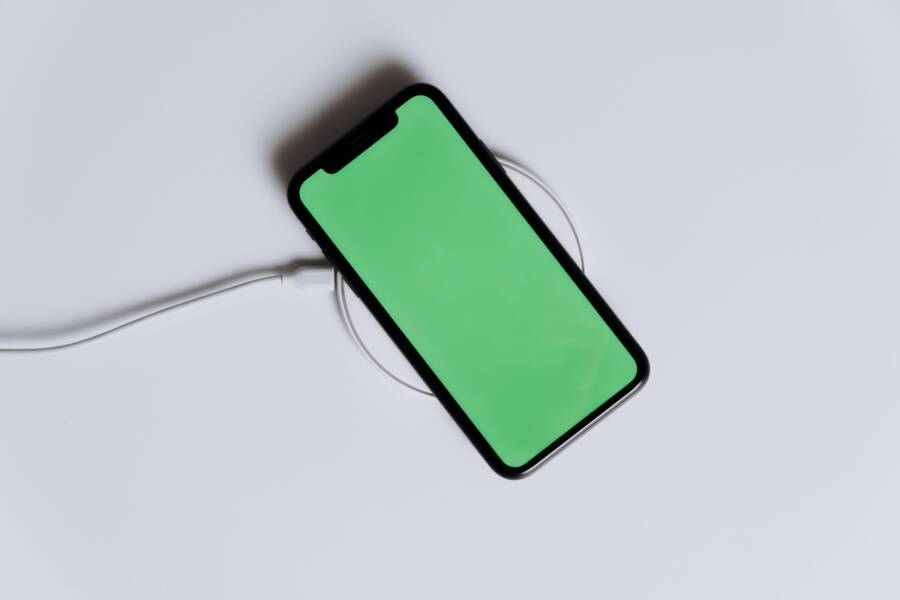
Your smartphone stops charging at 80 percent because of a built-in feature designed to protect long-term battery health. This behavior is not a defect, but rather a software safeguard meant to slow down the chemical aging of your lithium-ion battery.
Most modern devices include settings that pause the charging process once the battery reaches this threshold. By limiting the charge level, your phone stays cool and avoids the stress associated with holding a maximum capacity charge for extended periods.
If you prefer to have a full charge for a long day ahead, you can adjust these settings to regain full capacity. Continue reading to discover how to identify these limits and how to manage your device settings effectively.
Understanding Battery Health Features
Modern smartphone batteries rely on lithium-ion technology to store energy. These batteries are sensitive to how they are charged and discharged. Chemical reactions inside the battery cells degrade faster when they remain at extreme charge levels for long periods. Keeping your charge level between 20 percent and 80 percent avoids the intense physical stress placed on the battery internal components. This practice helps your smartphone maintain its capacity for many years rather than just a few months.
How Optimized Charging Protects Your Hardware
Batteries store energy through the movement of lithium ions between two electrodes. When you charge a phone to 100 percent, the ions crowd into the anode. This state creates high pressure and heat, which causes chemical wear on the electrolyte and the battery structure. The 80 percent mark serves as a stable buffer zone where ion distribution remains balanced.
Staying within this range minimizes the time a smartphone battery spends at high voltage. High voltage accelerates the growth of solid electrolyte interphase layers, which reduces the total energy the battery can hold over time. Think of it like a rubber band. Stretching the band to its absolute limit every single day causes it to lose its shape and elasticity. Keeping the usage in a moderate range allows the battery to perform at its peak for much longer.
When Software Limits Charging by Design
Major manufacturers such as Apple and Samsung include built-in features to manage these chemical limits automatically. You might notice your smartphone stops charging at 80 percent after a major system update or because of specific battery health settings. These software features learn your daily routine and pause charging to preserve the hardware.
Updates sometimes reset your preferences or enable these battery protection modes by default to improve device longevity. If you find your phone stops at this limit, it is usually because the software believes your battery needs protection or has identified a regular charging pattern. You can check these settings to see if a feature like Optimized Battery Charging or Protect Battery is active. Users can toggle these options off if they need a full charge for a busy day, but leaving them on is often the best choice for your device health.
How to Disable Charging Limits on Your Device
You can regain full battery capacity by adjusting the hidden settings on your smartphone. Manufacturers often enable these limits by default to slow battery aging, but you possess the control to turn them off when you need extra power. The process involves navigating through your system settings to locate specific battery management menus. Once you find these options, disabling them allows your battery to charge to its full 100 percent capacity.
Adjusting Settings on iPhone
Apple includes a feature called Optimized Battery Charging on most modern devices. This setting pauses charging at 80 percent until the software predicts you need the remaining power based on your daily usage patterns. If you find this limit restricts your needs, you can easily turn it off in the battery menu.
Open the Settings app on your smartphone.
Scroll down and tap on the Battery option.
Select Battery Health & Charging from the list.
Locate the toggle for Optimized Battery Charging and switch it to the off position.
You may see a prompt asking if you want to turn it off until tomorrow or permanently. Choose the option that fits your current needs. Keep in mind that disabling this feature exposes your battery to higher stress levels over time, so you should only do this if you frequently require a full charge during the day.
Modifying Charging Policies on Android
Android devices offer various battery protection features, though the exact labels depend on your specific brand and model. Most manufacturers place these controls within the main system settings under sections dedicated to power or device maintenance. You should look for menus labeled Battery, Device Care, or Battery Protection to adjust these policies.
On many Samsung smartphones, for example, you can find a feature called Protect Battery. When this is active, the system restricts the maximum charge to 80 percent to extend the total lifespan of the hardware. To disable this, follow these steps:
Launch the Settings application on your smartphone.
Tap on Battery or Device Care, depending on your menu layout.
Select the Battery option to view more detailed settings.
Look for Battery Protection or Charging settings.
Toggle the switch to the off position to stop the 80 percent limit.
Other brands like Google or Motorola might use different terms such as Adaptive Charging. You can typically find these toggles within the same Battery settings screen. If your specific menu looks different, use the search bar at the top of the Settings app and type “Battery” to quickly find the right page. Once you deactivate these settings, your device will charge to its full capacity during the next connection cycle.
Troubleshooting Unexpected Charging Stops
When your smartphone stops charging before reaching full capacity, the issue often stems from simple hardware failures or environmental factors rather than complex software bugs. Identifying the cause starts with a logical assessment of your charging gear and the temperature of your device.
Checking Your Cables and Power Adapters
Faulty accessories are common culprits for inconsistent charging behavior. A damaged cable or a degraded power adapter may fail to maintain a steady current, leading your smartphone to stop the charging process to prevent electrical instability.
You should inspect your equipment for signs of physical wear. Check the following areas on your charging setup:
The cable jacket should not have frays, cuts, or exposed wires.
The connector pins on the lightning or USB-C tip must be clean and free of debris.
The power adapter should remain cool to the touch while plugged into the wall.
Small amounts of pocket lint or dust inside the charging port can also interrupt the connection. Use a wooden toothpick to gently clear out the port if you notice the charging cable feels loose or does not click firmly into place. If your cable shows visible damage, replace it immediately with a high-quality, certified alternative to protect your device from potential voltage spikes.
Dealing with Overheating Issues
Thermal management is a critical safety function in every modern smartphone. If the internal temperature rises above a specific threshold during the charging process, the system will automatically pause power intake. This safety measure protects sensitive internal components from heat-related damage and prevents the battery chemistry from breaking down prematurely.
Charging your device while it sits in direct sunlight or inside a hot vehicle is a frequent cause of this behavior. Heavy use of the phone during a charge cycle, such as playing graphics-intensive games or running background updates, also generates significant heat.
You can take these steps to keep your device within safe operating ranges:
Remove the protective case if the phone feels hot during charging.
Keep the device away from heat sources like windows, heaters, or electronic appliances.
Disconnect other high-power accessories that may be adding to the total thermal load.
Stop using the device until the charging session finishes to reduce energy strain.
Wait for the smartphone to reach a normal room temperature before trying to charge it again. If the device repeatedly gets hot even when idle, the issue could point to a malfunctioning internal component that requires professional inspection.
Best Practices for Maintaining Battery Longevity
Your smartphone battery has a limited number of charge cycles before its capacity naturally declines. Managing how you charge the device helps maintain peak performance for years. While modern software handles most of the heavy lifting, your habits determine how long the battery stays healthy.
Adopt Moderate Charging Habits
Extreme charge levels stress the internal chemistry of lithium-ion batteries. Keeping your smartphone charge between 20 percent and 80 percent provides the most stable environment for the cells. Deep discharges below 20 percent often force the battery to work harder, while constant charging to 100 percent creates internal voltage pressure.
You can extend the lifespan of your battery by following these habits:
Plug in your device before it drops below 20 percent to avoid voltage dips.
Unplug the phone when it reaches 80 or 90 percent rather than leaving it on the charger all night.
Use the official power adapter provided by the manufacturer to match the specific voltage requirements of your hardware.
Manage Heat Exposure
Heat is the primary enemy of any battery. Charging your smartphone in a hot environment causes chemical damage that lowers the total capacity of the cell. Internal heat builds up quickly when the phone works hard, so you should keep the device in a cool area while it charges.
Follow these tips to keep your device cool:
Remove thick or insulating cases during long charging sessions.
Avoid placing the phone on soft surfaces like blankets or pillows that trap heat.
Keep the device out of direct sunlight or hot vehicles.
Close background apps that consume heavy processing power while the phone is connected to power.
Monitor Battery Health Statistics
Most operating systems now provide built-in tools to check the current health status of your battery. Checking these metrics once a month helps you understand if your current charging patterns are effective. If you see the maximum capacity percentage drop significantly, you might need to adjust your usage habits or consider a professional battery replacement.
Keep your software updated to the latest version. Manufacturers often release improvements to power management algorithms that optimize how the system handles voltage and temperature. These updates help your smartphone maintain efficiency and prevent the battery from hitting the 80 percent limit unexpectedly due to software errors.
Conclusion
Your smartphone stopping at 80 percent is almost always a safety feature rather than a hardware failure. Manufacturers implement this limit to protect the chemical integrity of your battery and prevent long-term degradation.
You have the freedom to disable this setting if you prioritize a full charge over total battery lifespan. Balance your immediate need for power against your long-term goals for the device to determine the best choice for your situation.