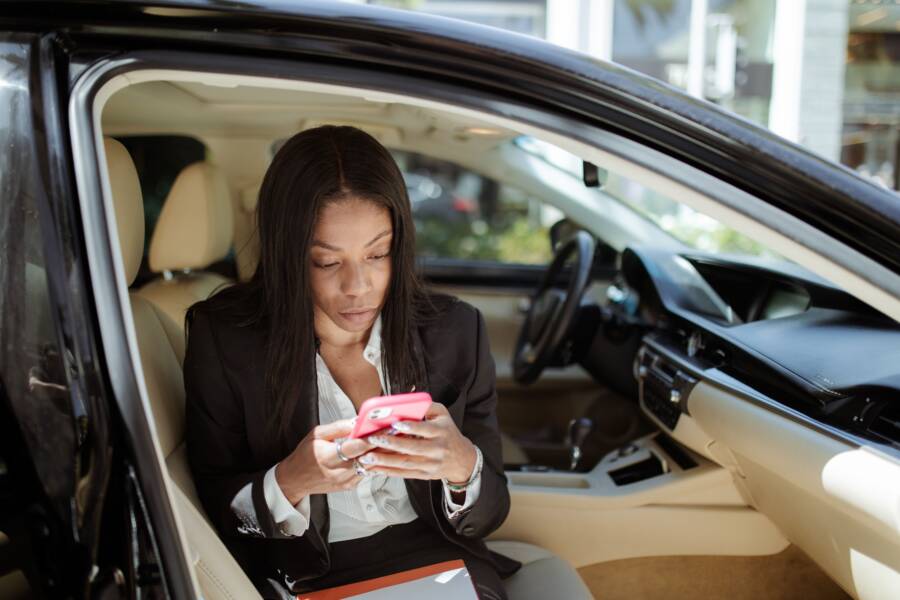
When your smartphone fails to connect to your car dashboard, the problem usually stems from a faulty cable, outdated software, or a minor setting error. Most of these connection failures are quick to resolve and take less than ten minutes to fix.
You can often restore your connection by inspecting your hardware and verifying your device permissions. If your phone remains unresponsive, a few simple adjustments to your vehicle settings should get things working again.
Follow these troubleshooting steps to identify the source of your connection error. You will find that most issues disappear once you reset the link between your device and the dashboard.
Quick Checks to Get Your Connection Working Again
When your smartphone fails to talk to your car display, you can usually fix the issue in a few minutes. Most connection problems stem from minor hardware faults or forgotten security settings. Before you visit a service center or reset your entire system, try these physical and software checks to restore your link.
Troubleshooting Cables and Physical Ports
The cable acts as the bridge between your car and your device. If this bridge has internal damage, the data cannot travel between the two systems. You should always use the original cable that came with your smartphone or a high-quality replacement certified for data transfer. Cheap aftermarket cables often focus on charging only, meaning they lack the internal wires required to transmit the signals needed for a display connection.
Beyond the cable, your phone charging port acts as a magnet for pocket debris. Over time, lint, dust, or small particles can pack into the bottom of the port. This blockage prevents the plug from seating fully, which stops the data pins from making proper contact.
Turn off your device to avoid short circuits.
Use a wooden toothpick or a non-conductive plastic dental pick to look inside the port.
Gently scrape the bottom of the port to loosen compacted lint.
Use a blast of compressed air to blow out any remaining dust.
Inspect the port with a flashlight to confirm it is clear before reconnecting your cable.
Verifying Smartphone Permissions and Settings
Modern devices prioritize security by blocking unknown connections. If you recently performed a system update or reset your privacy preferences, your phone may ignore the car display to protect your data. You must manually grant permission for the device to share information with an external screen.
When you plug your device in, keep an eye on the phone screen for an “Allow Access” or “Trust This Device” prompt. If you miss this notification, the car will show a connection error because the phone is waiting for your manual confirmation. You can often trigger this prompt again by unlocking your phone and keeping the home screen visible during the connection attempt.
If the prompt does not appear, check your settings menu to ensure the connection feature remains enabled. On many systems, if you previously selected “Don’t Allow” when the phone asked for permission, the device will continue to block the car by default. You can navigate to your phone connectivity settings to clear previous connections or reset your USB data restrictions. Once you verify these permissions, the car screen should recognize your smartphone and launch the interface automatically.
Soft Resets and Software Updates for Seamless Syncing
When your smartphone refuses to mirror its display to your car, a minor software glitch often sits at the heart of the conflict. Your car and your phone rely on a constant handshake of data packets to maintain a connection. When that handshake fails, clearing the temporary memory of your devices is often the fastest path to recovery.
Performing a Hard Restart on Your Device
A force restart clears the temporary background processes that might be hanging or conflicting with your vehicle link. This process does not delete your personal files or photos. It simply forces the operating system to shut down and reload every driver and service from scratch.
Follow these steps based on your specific model:
For newer iPhones without a home button, press and quickly release the volume up button, press and quickly release the volume down button, then press and hold the side power button until the Apple logo appears.
For older iPhones with a home button, hold both the home button and the top or side power button until the screen goes black and the logo reappears.
For most Android devices, press and hold the power button and the volume down button simultaneously for ten to fifteen seconds.
Keep holding these buttons until the phone screen turns off and initiates a reboot sequence.
After your smartphone restarts, unlock the device and wait for it to fully load your home screen. Plug it back into your vehicle to test if the connection now initiates correctly.
Updating Firmware on Both Ends
Outdated software acts as a major roadblock for modern vehicle integration. Car manufacturers frequently release firmware updates to improve compatibility with newer smartphone operating systems. If your car software is several years old, it may not understand the signals your current smartphone sends.
Start by visiting the official website of your car manufacturer. Look for a support or owner section where you can enter your vehicle identification number. This page will often list available updates for your infotainment system that you can download to a USB drive and install yourself. If you prefer professional help, schedule a visit to your local dealership. Service departments can flash the latest firmware onto your car, which often fixes stubborn connectivity bugs.
Simultaneously, verify that your smartphone runs the latest version of its operating system. Manufacturers release patches to fix bugs that specifically impact external hardware connections. You can check for these updates in your device settings menu under general or system sections. Keeping both your car and your phone running the latest software ensures the two devices speak the same digital language. This simple maintenance step resolves many issues that physical hardware checks cannot fix.
Resolving Advanced Connection Errors
Stubborn connection issues often persist even after you perform basic troubleshooting. When your smartphone fails to maintain a link with your car, the underlying cause is likely a conflicting digital handshake or a corrupted temporary file. These advanced steps clear out deep-seated software glitches that standard restarts leave behind.
Deleting and Re-pairing Your Smartphone
A fresh pairing process forces your smartphone and vehicle to negotiate their connection from scratch. This clears out old security tokens that might be expired or mismatched. You must remove the device from the vehicle registry and the car from your phone settings to ensure a truly clean slate.
Open the Bluetooth or CarPlay settings on your smartphone.
Select your vehicle from the list of known devices.
Choose the option to forget this device or remove the connection.
Navigate to the settings menu on your car dashboard display.
Locate the list of paired devices and delete your smartphone profile.
Turn off your car engine and your smartphone completely.
Restart both devices and initiate the pairing process as if you are connecting to a brand new unit.
When you perform these steps, keep both devices within a few feet of each other during the handshake. This reduces interference and helps the systems exchange security credentials without interruption. Once the devices confirm the pairing code, grant all necessary permissions on your screen immediately.
Managing App Cache and Data
If your connection issues only appear when you open specific mapping or music apps, the problem is likely tied to local data fragments. Applications often store temporary files to speed up performance, but these files can become corrupted over time. Clearing the cache allows the app to fetch a fresh version of its data, which often resolves synchronization conflicts between your smartphone and the infotainment system.
For Android users, you can manage this in your system settings. Navigate to the app manager, select your mapping application, and choose the option to clear cache. You do not need to delete the entire app or your user account to perform this fix.
For iPhone users, the operating system manages cache files automatically. If a specific app consistently fails to project onto your car screen, delete the app entirely and reinstall it from the app store. This replaces the core files and resets any misconfigured settings that prevent the bridge between your smartphone and the dashboard from functioning. After you reinstall or clear the data, restart your device before attempting another connection. This ensures the operating system registers the clean installation before the app starts requesting resources for your car screen.
Common Questions About Dashboard Connectivity
You likely have several concerns when your smartphone fails to display on your car screen. Most drivers experience similar issues, and simple solutions exist for almost every common scenario. Here are the answers to the most frequent questions regarding vehicle and smartphone integration.
Does my car screen require a specific cable for smartphone projection?
Many people assume any USB cable works for screen projection, but that is rarely true. Your car dashboard needs a cable capable of both data transfer and power delivery. Many generic or inexpensive cables only contain the wires necessary to charge a battery.
If you use a charging-only cable, your smartphone will receive power, but the car will never detect a data connection. Always check the packaging or the manufacturer website to confirm the cable supports high-speed data transfer. Using the original cable that came with your phone is the most reliable way to maintain a stable link. If you prefer third-party options, look for cables specifically labeled as data-sync compatible.
Will updating my car firmware fix intermittent connection drops?
Software bugs are common causes of sudden disconnections while you drive. Car manufacturers release firmware updates to improve compatibility with newer operating systems on your smartphone. These patches address handshake errors that occur between your vehicle and your mobile device.
You can check if an update is available by visiting your vehicle manufacturer website and entering your vehicle identification number. Many modern systems allow you to install these updates via a USB drive. If your connection drops frequently, a firmware update often resolves the underlying communication conflict. Reach out to your local dealership if you feel uncomfortable performing the installation yourself.
Is it safe to clear the cache on my phone for this connection?
Clearing the cache is a safe procedure that does not remove your personal photos or important documents. Temporary files sometimes become corrupted, which prevents your smartphone from projecting correctly to the dashboard. Deleting these temporary files forces the app to rebuild its data structure using fresh, clean information.
You can perform this task within the system settings on an Android device by selecting the app manager and choosing the clear cache option. iPhone users may need to delete and reinstall the affected app to achieve the same result. This process resets the handshake protocol, which often clears up persistent screen-mirroring errors without affecting your saved settings or user data.
Why does my phone ask for permission every time I plug it in?
Your smartphone prioritizes privacy by requesting confirmation before sharing data with an external display. If your phone stops asking for this permission, you may have accidentally selected a setting that denies access. Check your USB connection settings to ensure the device is configured to allow data sharing with external accessories.
Keep your smartphone unlocked and active when you first plug it into the car. This makes it easier to spot and select the trust or allow prompt on your screen. Once you grant this access once, your phone should remember the vehicle and connect automatically in the future. If the prompt remains absent, restart your phone to reset the USB notification service.
Conclusion
Most connection issues disappear once you confirm your hardware is functional and your device settings are correct. Start by checking your cable for physical damage, as this is the most common point of failure. If the cable is solid, a quick restart of your smartphone often clears the temporary software glitches that block communication with your dashboard.
If the problem persists, delete the pairing from both your car and your phone before setting it up again. This clean slate removes outdated security tokens that prevent a stable handshake. You now have the tools to troubleshoot and resolve these minor technical hiccups whenever they occur.