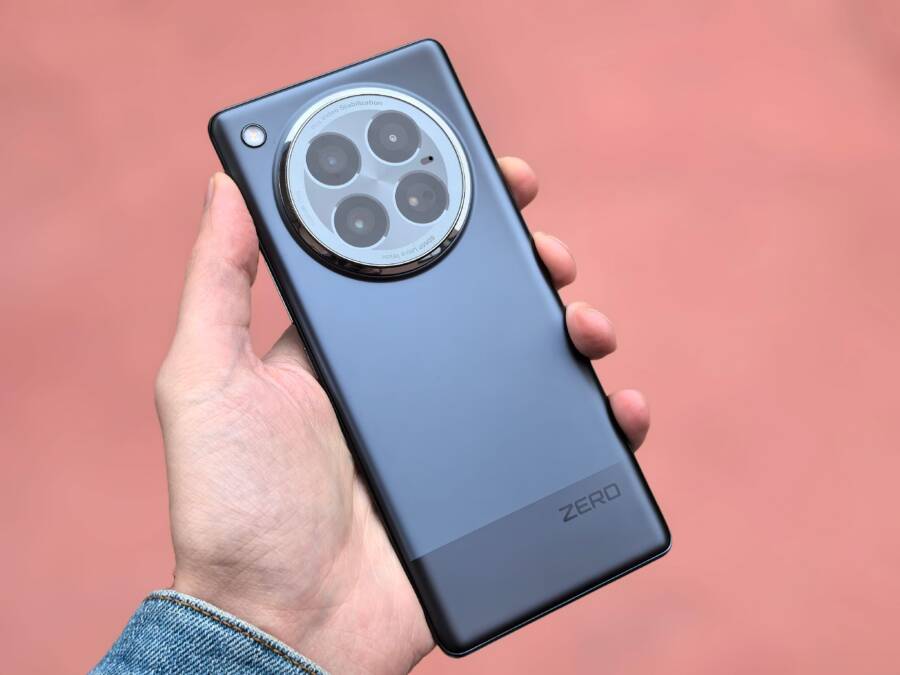
If your smartphone camera keeps jumping between lenses while you try to take a photo, you are likely experiencing a feature called auto-lens switching. This happens when the device software decides a different lens is better for your subject distance or current lighting.
While this feature is normal, it often glitches when you want manual control over your shot. You don’t have to live with a jumpy viewfinder or distorted framing.
Here is how you can regain control of your camera and stop the automatic lens shifting.
Understanding How Smart Lens Switching Works
Modern cameras on your smartphone rely on software to decide which physical lens handles your current shot. This process keeps your images clear regardless of how close or far away your subject sits. The device constantly evaluates distance and lighting to pick the best optic for the scene.
Sensor Data and Focal Lengths
Your phone houses several camera sensors, each paired with a specific lens. One lens usually handles wide-angle shots, while another provides telephoto zoom. A third lens might manage ultra-wide views or macro photography. When you zoom in or move closer to an object, the software monitors these inputs. It performs a calculation to determine if the main sensor still provides the highest quality or if another sensor offers better resolution.
The Role of Software Algorithms
The camera app uses algorithms to make these switching decisions in real time. These programs prioritize image stability, focus speed, and overall exposure. If the software detects that your subject falls outside the optimal range for the current lens, it triggers a switch to a more appropriate module. This change happens almost instantly on most devices.
Why Automatic Switching Causes Issues
While the logic behind lens switching aims to help, it often creates friction for users. The software might mistake your intent during low-light conditions or when you track a moving subject. It attempts to optimize the image, but the sudden shift in perspective can ruin your composition or introduce blur as the cameras swap. Many users find this disruptive because the viewfinder suddenly jumps as the focal length changes. You lose your framing and must reset the shot, which is frustrating during fast-paced moments. Understanding that this behavior is a programmed response helps you realize you have options to manage or disable it.
Quick Fixes for Persistent Lens Switching Glitches
When your camera lens shifts on its own, it often stems from minor software bugs or outdated background files. These glitches disrupt your focus and framing during critical moments. Fortunately, you can stop this behavior by addressing how your smartphone manages its hardware communication. If these issues persist, check your software environment first to ensure the camera sensors receive the correct instructions.
Updating Your Camera App and System Software
Outdated software frequently fails to interpret focal data accurately. This causes the camera to hunt for the right lens, leading to the erratic switching you see on your screen. Manufacturers release periodic updates to refine these algorithms and patch communication errors between your apps and the hardware.
On an Android device, you should first check the Google Play Store for camera app updates. Open the store, tap your profile icon, and select Manage apps and device to see if any updates await. In addition, check your main system settings under System Update to ensure you run the latest firmware. Android phones rely on these system-level updates to coordinate sensor inputs properly.
iOS users receive camera improvements through general system updates. Open the Settings app, tap General, and select Software Update. If a new version exists, install it immediately. Apple bundles camera fixes into these OS releases to maintain smooth transitions between lenses. Always keep your phone plugged into a power source during these updates to prevent interruption.
Clearing Cache to Reset Camera Performance
Sometimes, temporary files become corrupted and store incorrect logic about your lens preferences. These files act as a buffer for your camera settings. Clearing this cache forces the camera app to rebuild its configuration from scratch, which often stops unwanted lens jumping.
For Android users, head into your phone settings and tap Apps. Find the Camera app in the list, tap Storage, and select Clear Cache. You might also choose Clear Data if the problem persists, but remember that this resets your specific camera preferences. Restart your smartphone afterward to let the system reinitialize the camera module.
iOS handles temporary data differently, so you cannot manually clear a cache for the stock camera app in the same way. If your iPhone continues to switch lenses, restart the device to dump the current memory. If that fails, force quit the camera app by swiping up from the bottom of your screen and flicking the app away. A simple reset often resolves minor glitches caused by stray background processes that interfere with lens selection.
Adjusting Settings to Disable Auto-Macro or Lens Switching
You can often stop your smartphone from swapping lenses by disabling specific automation features within your camera app. Manufacturers include these settings to help novices capture better shots, but they frequently interfere with intentional composition. Taking manual control of your lens choice helps you achieve consistent framing during your photography sessions.
Managing Automatic Macro Mode Settings
Most modern camera apps include a dedicated toggle for macro photography. This feature triggers the camera to switch to the ultra-wide lens when you move close to a subject. While this helps capture tiny details, it creates a jumpy viewfinder when you do not want the perspective to change.
You should look for a setting labeled “Macro Control” or “Auto Macro” inside the camera settings menu. On many devices, you can access this by tapping the gear icon located in the corner of your camera interface. Once you locate the toggle, turn it off to prevent the automatic shift to the macro lens. If you use an iPhone, you might also see a small flower icon appear on the screen when the phone gets close to an object. Tapping that icon usually disables the macro behavior for your current session. Keeping this feature off forces the device to stay on the main lens, which provides more control over your depth of field and prevents unwanted cropping.
Testing Camera Focus and Distance Behavior
After you adjust your settings, you must verify that the smartphone camera maintains the chosen lens regardless of the distance. Testing your configuration ensures that the previous erratic behavior is gone. Start by opening the camera app and pointing it at a stationary object from about two feet away.
Gradually move the device closer to the subject while watching the viewfinder. If your settings are correct, the camera should remain on the primary lens instead of jumping to the ultra-wide module. You can repeat this process at different distances to confirm that the software no longer forces a switch.
Follow these steps to confirm your changes:
Position your device near an object at a distance where the camera previously triggered a switch.
Observe the screen for any sudden zoom or perspective changes as you move closer or further away.
Check if the camera maintains a consistent focal length across various lighting conditions.
If the viewfinder remains stable, your settings are active. If you still notice shifting, double-check that the macro toggle is truly disabled, as some system updates occasionally reset these preferences. A quick test ensures you can trust your camera when you need to capture a specific moment without the software guessing your intentions.
When to Seek Professional Help for Hardware Issues
Sometimes, your smartphone camera problems move beyond simple software glitches. If you notice physical damage or consistent malfunctions despite following troubleshooting steps, you should contact a repair service. Hardware faults often require specialized tools and parts that are not available to the average user. Identifying these signs early prevents further damage to the internal components.
Recognizing Physical Camera Damage
Visible damage to the lens glass is an immediate indicator of a hardware issue. Cracks, deep scratches, or liquid ingress inside the lens assembly will permanently affect image quality. Even if the camera still manages to switch lenses, the optical path is compromised. You cannot fix a cracked element through software settings.
Also, watch for debris trapped beneath the glass cover. If you see dust or lint inside the lens housing, the seal is broken. This often happens after a drop or excessive exposure to environmental elements. A professional technician must disassemble the unit to clean the sensors or replace the lens module entirely.
Identifying Internal Hardware Failure
A malfunctioning lens motor often produces an audible clicking or grinding noise when you open the camera app. This sound indicates the mechanical actuator is struggling to move or align the lens properly. If your smartphone continues to switch lenses erratically while making these noises, the hardware is failing. Software resets will not resolve a mechanical obstruction or a burnt-out focus motor.
You should also watch for persistent focus errors that affect every lens module. If your phone cannot lock onto a subject regardless of the lighting or distance, the autofocus sensor might be disconnected or damaged. A technician needs to inspect the internal ribbon cables that connect the camera modules to the motherboard. These cables often loosen or snap if the device experiences significant impact.
Choosing a Certified Repair Service
When you confirm that hardware failure is the culprit, find an authorized service provider. Using a certified shop ensures that the technicians use genuine parts and follow the manufacturer’s repair protocols. Generic repair centers often lack the specialized calibration software required to align multi-lens camera systems. Improper alignment leads to poor image quality and recurring software errors.
Check the manufacturer’s website to find an authorized location near you. Many companies offer mail-in repair options if a local shop is unavailable. Review the warranty status of your smartphone before you initiate a repair request. Many hardware defects fall under standard manufacturer warranties if they occurred without accidental damage. Professional service protects your investment and ensures your camera returns to peak performance.
Conclusion
Automatic lens switching provides a helpful way to capture various subjects, but it should not override your creative vision. You now have the knowledge to manage these software features and regain control over your smartphone camera.
Maintaining updated system software ensures that your device interprets focus data correctly. Furthermore, toggling off automatic macro modes allows you to frame shots exactly as you intend without unwanted movement.
Take a moment to test these manual controls on your device today. Experimenting with your camera settings will help you achieve the precise results you want in every scene.