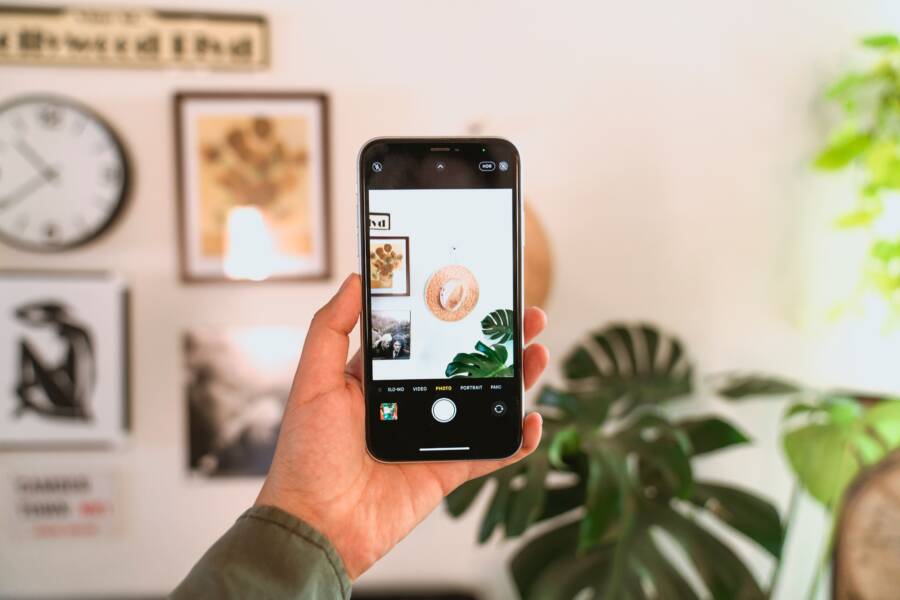
Grainy, speckled photos in dim rooms happen because your smartphone camera sensor struggles to find enough light. To compensate for the darkness, the software boosts the signal, which inevitably introduces digital noise.
You don’t need professional gear to fix this issue. By adjusting your settings and lighting, you can get sharp, clear shots at home. Let’s look at the best ways to improve your indoor photography.
Understanding Why Your Smartphone Camera Struggles Indoors
Your smartphone camera struggles indoors primarily because of the limited physical size of its image sensor. Indoor environments typically lack the brightness found outdoors, forcing your device to compensate for the insufficient light. When light levels drop, the sensor works harder to capture enough information, which often triggers a series of software-based corrections that degrade your final image quality.
Sensor Size and Light Sensitivity
Most smartphone sensors are physically small to keep the device thin and portable. Small sensors have tiny pixels that lack the surface area to gather significant amounts of light compared to professional camera hardware. During the day, bright sunlight masks this hardware limitation. However, when you step indoors, the camera sensor reaches its physical limit quickly.
The camera must then rely on amplification to create a visible image in dim rooms. This electronic gain amplifies the signal from each pixel, but it also amplifies the background electrical interference. This interference manifests in your photos as digital noise, which usually appears as speckles, grain, or blotchy patches in the shadows of your shot.
The Role of ISO in Digital Grain
ISO is a setting that determines how sensitive the camera sensor is to light. In a manual camera, you control this value, but most mobile devices adjust it automatically based on your surroundings. When you point your phone at a dimly lit scene, the camera automatically ramps up the ISO to brighten the photo.
Increasing the ISO value creates a brighter image, but it does not add more light to the scene. Instead, it pushes the electronic signals to their breaking point. This is why indoor photos taken with an automatic mode often look washed out or grainy. You can observe this effect by checking the photo details, where high ISO numbers frequently correlate with significant image degradation.
Shutter Speed and Motion Blur
Your smartphone tries to keep indoor photos sharp by balancing light sensitivity with shutter speed. To avoid completely black frames, the shutter remains open longer to collect more light. This process creates a common problem where slight hand movements or subject motion during the exposure result in blur.
Understanding these mechanics helps you identify exactly why your photos lack clarity. By recognizing that noise is the physical output of your camera struggling to process inadequate light, you can focus on modifying your environment rather than just changing software settings. Improving the lighting conditions at the source is the most effective way to help your sensor perform at its best.
Simple Settings and Quick Fixes for Cleaner Images
You can improve your indoor photos by making small adjustments before you press the shutter. Controlling your environment and choosing the right camera settings stops your smartphone from working too hard. These changes keep the ISO low and prevent the messy grain that ruins clear shots.
Use More Natural Light Sources
The most effective way to eliminate noise is to provide your camera with actual light. When a sensor receives enough photons, it does not need to amplify its internal signal. This means your smartphone avoids the electronic gain that creates visible speckles and artifacts.
Position your subject near a large window to get the best results. Natural light from the side creates soft shadows and provides enough illumination for the sensor to stay at a low sensitivity. If you are shooting a portrait, have the person face the light source directly. This simple change removes the need for the camera to push its processing power to the limit.
Lamps also serve as useful tools if you lack natural sunlight. Use a desk lamp or a floor light to brighten your subject, but avoid harsh, direct bulbs that create glare. You might bounce the light off a white wall or use a thin curtain to diffuse the beam. These methods produce softer lighting that looks professional and keeps the image signal clean.
Optimize Your Camera App Settings
Your smartphone offers several software tools designed to clean up grainy images. Check your settings before you start to ensure your device operates at its full potential. High resolution is usually fine, but avoid adding heavy filters inside the camera app because they often hide noise by softening the entire image.
Look for a night mode or low-light setting in your camera interface. These modes use a technique called stacking to combine multiple photos into one clean final image. The software takes several quick exposures and aligns them to cancel out random digital noise. This results in much sharper details than a single frame ever could.
Follow these tips to keep your settings in check:
Turn off any beauty or smoothing filters that blur your photos.
Enable night mode when the room feels dim to allow for longer, clearer exposure stacking.
Check your resolution settings to ensure you are capturing the maximum amount of data.
Tap your subject on the screen to let the camera adjust focus and exposure balance before you shoot.
Using these tools properly helps your hardware perform better in difficult conditions. You gain more control over the final output by letting the software do the heavy lifting in a structured way. Clearer photos are often just a few taps away in your camera app settings.
Hardware Tips to Help Your Phone Capture Better Light
Physical hardware limits how much light your smartphone gathers in dark rooms. While software tries to fix the resulting noise, you can achieve better results by optimizing the hardware side of your photography. Small adjustments to your device and accessories change how light hits the sensor and improve final image clarity.
Clean Your Camera Lens Regularly
A dirty lens is a common cause of hazy or noisy indoor photos. Your smartphone lens collects fingerprints, dust, and lint because it stays in your pocket or bag throughout the day. These smudges scatter light, which forces the sensor to work harder and adds unnecessary artifacts to your shots.
Wipe your lens with a clean microfiber cloth before you take any indoor photo. Avoid using your shirt or a paper towel, as these materials leave scratches or transfer oils onto the glass. A clear path for light ensures the sensor receives the maximum amount of data possible, which keeps your images sharp.
Use a Tripod for Stable Exposures
Shaky hands are the enemy of low-light photography. When you hold your smartphone manually, the device increases its shutter speed to compensate for your movement, which often leads to blurred, noisy results. A tripod keeps the camera perfectly still so it can use a longer, slower shutter speed.
Using a longer exposure allows the sensor to collect more photons without boosting the ISO sensitivity. This hardware stability produces significantly cleaner images because the internal processor does not have to amplify the signal to compensate for motion. You can find affordable, portable tripods that work well for home photography setups.
Add External LED Lighting
Your smartphone camera performs best when it has a constant, reliable light source. If natural light is unavailable, attach a small portable LED light to your device or place one nearby. These accessories provide a steady beam of light that fills in shadows and gives the sensor enough information to operate at a low ISO.
Choose a light with adjustable color temperature to match your indoor environment.
Diffuse the light using a white sheet or a specialized attachment to soften the harsh glare.
Position the light at a slight angle to the subject rather than pointing it directly forward.
Adding extra light effectively removes the physical burden from your sensor. By providing more photons to the hardware, you bypass the software amplification that creates unwanted digital noise. Your photos will retain more texture, better color accuracy, and higher overall detail compared to shots taken in dark, unassisted conditions.
Using Post-Processing Tools to Remove Digital Noise
Software tools offer a reliable way to clean up grainy textures after you capture an image. Even with perfect lighting, some sensors produce minor artifacts in deep shadows. Post-processing tools allow you to selectively smooth these areas without ruining the crisp details in the rest of your smartphone photo. These applications work by analyzing pixel patterns to identify and remove artificial speckles.
Recommended Apps for Photo Cleanup
Several mobile apps simplify the process of noise reduction. You do not need expensive computer software to achieve professional results on your device. Most of these tools feature intuitive sliders that let you control exactly how much smoothing to apply to your image.
Lightroom Mobile is a standard choice for many photographers. It provides a dedicated detail panel where you can find a noise reduction slider. You simply drag the toggle to the right until the grain disappears. Because this app handles raw files, it gives you much more control over the final outcome compared to standard gallery editors.
Snapseed is another powerful, free option owned by Google. Within its details tool, you can adjust structure and sharpening, but its healing and selective tools also help hide blotchy patches. If you prefer a more automated approach, consider apps like Denoise It. These utilities use specific algorithms designed to detect and smooth out digital noise automatically. You often just need to import your photo and pick a preset level to see an instant improvement in clarity.
Conclusion
The quality of your indoor photos depends on how well your smartphone manages light. By adding natural light, keeping your device steady, and using editing tools to smooth out artifacts, you can eliminate grain effectively.
These techniques work together to lower the burden on your camera sensor. Test these adjustments in different rooms to see how they change your results. Consistent practice will help you capture clear, sharp images every time you shoot.