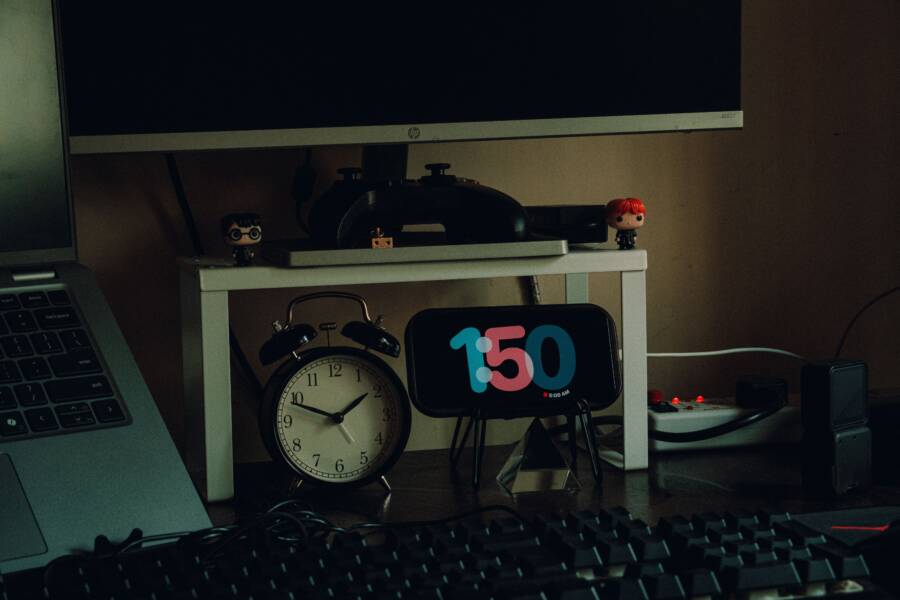
Your alarm failing to sound while your smartphone is locked usually happens because the operating system restricts background activity to save power. When your device enters a deep sleep state, it often pauses the processes that trigger time-sensitive alerts to maximize battery life.
You can solve this by adjusting your notification and battery optimization settings. These changes prevent the software from killing the alarm clock process while the screen stays dark.
Why Your Smartphone Blocks Alarms
Most modern mobile operating systems prioritize power efficiency over background tasks. When you lock your smartphone, the system assumes you do not need active applications and limits how much energy they consume.
If the alarm app lacks the necessary permissions to run in the background, the system terminates the alert before it can wake your screen. This creates a conflict where the hardware is ready to function, but the software prevents the chime from sounding.
Steps to Keep Alarms Active
To fix this, you must grant your alarm app unrestricted access to your device battery. Go to the settings menu on your smartphone and select the battery or power management section. Look for an option labeled “App Battery Usage” or “Battery Optimization” and find your alarm application in the list.
Change the setting for that specific app to “Unrestricted” or “Don’t Optimize.” This tells the operating system to ignore power-saving rules for your alarm clock, ensuring it stays active regardless of whether your phone is locked or in use.
Verify Notification Permissions
In addition to battery settings, check your notification permissions to ensure the alarm has priority status. Navigate to the notifications menu in your settings and confirm that the alarm app has permission to bypass “Do Not Disturb” modes.
Some devices feature a specific setting for critical alerts. Enabling this feature allows the alarm to sound even if your phone is set to silent or is in a focused work mode.
Quick Comparison of Power Management Modes
Setting your alarm app to the unrestricted mode is the most effective way to guarantee you wake up on time. While this consumes a small amount of extra power, the trade-off is necessary for critical functions like your morning wake-up call.
Common Questions
If your alarms still fail to trigger, check for pending system updates. Sometimes a software bug causes background management errors that manufacturers fix with a patch. You should also ensure you are not using a third-party task killer or cleaner app, as these programs frequently close essential services that the operating system tries to keep open.
Reliable alarm performance depends on a balance between power settings and notification permissions. By allowing the app to run without restrictions and ensuring it bypasses silent modes, you restore full functionality to your device. Check these settings once a month to ensure that system updates have not reset your preferences.
Why Your Smartphone Alarms Get Silenced While Locked
When your alarm fails to trigger, the culprit is often a conflict between power management software and time-sensitive system alerts. Manufacturers design modern operating systems to aggressively monitor resource usage to keep your battery performing well. While this keeps your phone running longer during the day, it occasionally interferes with essential services like the clock app.
The Role of Battery Optimization Features
Most smartphones include features such as “Battery Saver” or “Adaptive Battery” to limit background activity. These settings monitor which apps consume the most energy and restrict those that seem inactive. If your clock app runs processes in the background that the system deems non-essential, the phone might suspend those tasks once you lock the screen.
When the device enters a deep sleep state, it attempts to throttle all non-critical background activity. If the alarm clock software doesn’t have a high enough priority, the system effectively silences the application to preserve power. This creates a situation where the alarm trigger event occurs, but the operating system prevents the sound from playing because it treats the alarm as a background task that shouldn’t be active.
To prevent this, check your battery settings for these common issues:
-
Optimization filters: Many operating systems default to “Optimized” for all apps, which grants the system permission to pause background processes.
-
App-specific restrictions: Some versions of Android or iOS hide the alarm settings under a submenu labeled “Battery” or “Power Consumption.”
-
Background sync limitations: If you have “Data Saver” mode enabled, it might prevent the alarm from accessing necessary time-syncing data, leading to minor triggers failures.
Manually setting your alarm application to an unrestricted status ensures it maintains a persistent connection to the system timer. You should verify these settings periodically, especially after a major operating system update, as these patches sometimes reset your power preferences to their default, restricted states.
Software Bugs and System Cache Glitches
Sometimes, your smartphone faces a software glitch that disrupts normal alarm functionality. The system cache, which is temporary data the phone stores to speed up app loading, occasionally becomes corrupted or bloated. When this happens, the operating system might fail to properly interpret the command to wake the phone and trigger an alarm.
Small errors in the operating system often accumulate after long periods without a reboot. Since many users keep their phones powered on for weeks at a time, these background errors stay trapped in the memory. A simple restart clears the system cache and forces the operating system to reload all services, which often resolves the conflict between the lock screen and the alarm clock.
If a restart doesn’t fix the issue, clearing the cache for the clock app itself acts as a fresh start. You can do this by:
-
Opening the settings menu on your smartphone.
-
Navigating to the Apps or Application Manager list.
-
Selecting the system clock app from the list.
-
Choosing the storage options to clear the cache.
Clearing the cache does not delete your saved alarms or personal data. Instead, it removes the temporary files that may contain the bugs preventing your alarm from firing. If the problem persists, it may signal a deeper incompatibility that requires a firmware update from the manufacturer. Always check the system update section to ensure you run the most stable software version available for your device.
Step-by-Step Fixes for Your Alarm Issues
Fixing your alarm begins with confirming that your smartphone settings actually allow sound to bypass software restrictions. Many users assume their volume settings are correct, but the system often treats alarm audio differently than media or ringtone volume. By adjusting a few key configurations, you restore control over your morning schedule.
Checking Sound Settings and Do Not Disturb Modes
First, verify that your ringer and notification volumes are turned up. On most devices, you access this by pressing the physical volume buttons and tapping the settings icon to expand all sliders. Make sure the alarm volume slider is at a high level. If this slider remains low, your phone will stay silent regardless of whether it is locked or unlocked.
Next, check your Do Not Disturb settings. This mode is the most common reason for missed alarms. Follow these steps to ensure your clock app has the necessary bypass permissions:
-
Open your device settings and select Sound or Notifications.
-
Tap on Do Not Disturb and look for a section labeled Allowed Apps or App Exceptions.
-
Add your clock or alarm app to the list of allowed applications.
-
If your device offers a Priority Alerts option, enable it for your clock app to ensure it overrides silent or focus modes.
Some phones have a global setting that allows alarms to sound even when the device is set to silent. Review your sound profile settings to confirm that your smartphone is configured to permit alarm audio in all states. If you still encounter issues, check if a scheduled Do Not Disturb routine is activating shortly before your alarm.
Managing Battery Optimization for the Clock App
Battery optimization features frequently throttle background processes to extend daily usage. While this saves power for most applications, it can inadvertently stop your alarm from firing when the screen remains off for long periods. You must manually instruct your smartphone to exempt the clock from these power-saving measures.
Accessing these settings varies slightly depending on your specific device, but the general path remains consistent across most platforms. Follow these instructions to modify the power usage profile:
-
Navigate to your device settings and select Apps or Manage Applications.
-
Find the clock app in your list of installed software and tap on it.
-
Select the Battery or Battery Optimization category.
-
Change the setting from Optimized or Restricted to Unrestricted.
Setting the app to Unrestricted allows it to run processes in the background without interference from the system. This action prevents the smartphone from killing the alarm service during deep sleep states. You should repeat these steps for any third-party alarm applications you use as well. If you encounter a toggle labeled Don’t Optimize, ensure it is active for your clock. Following these changes guarantees that the system keeps your alarm active and ready to sound at the scheduled time.
Testing Your Changes to Ensure Reliability
After you adjust your battery and notification settings, verifying that your changes work is vital. You do not want to find out your alarm is broken at 6:00 AM on a workday. Running a simple test allows you to confirm that your smartphone handles the alarm properly while the screen is locked.
Conducting a Short-Term Alarm Test
The most effective way to test your configuration is to set a trial alarm for a few minutes in the future. Once you have saved your settings, lock your smartphone and wait for the alarm to trigger.
-
Set a recurring alarm for two minutes ahead of the current time.
-
Lock your device screen immediately.
-
Place the device on a flat surface to mimic your typical overnight setup.
-
Listen for the audio to trigger while the display remains dark.
If the alarm sounds as expected, your current power management settings are correct. You can confidently rely on the device for your regular wake-up schedule. If it stays silent, you should double-check your notification permissions or confirm that you selected the unrestricted battery profile in your settings.
Checking Performance Over Longer Durations
Sometimes a smartphone works for a short test but fails after hours of inactivity. This happens because the device enters a deeper sleep state only after it sits idle for a long time. If you suspect your issue is related to deep sleep, perform a secondary test before you go to bed.
Set a test alarm for 30 minutes after you lock your phone for the night. This provides enough time for the device to cycle through its power-saving routines and enter a deep sleep state. If the alarm triggers successfully, you have solved the underlying conflict between your system and the clock application.
Understanding Success Indicators
You know your configuration is successful when the phone screen wakes up automatically to show the alarm interface. If you hear the sound but the screen stays black, you might need to check your lock screen notification settings to ensure alerts have permission to show content.
Consistency is the best measure of reliability. If your alarm works for three days in a row, the settings are stable. If you notice any inconsistencies later, check for recent software updates that might have reverted your custom power preferences to their default state.
Common Questions About Smartphone Alarm Failures
Many users encounter unexpected alarm failures when their devices are locked. These issues often stem from how your smartphone manages background processes to preserve battery life. If your alarm clock lacks the necessary permissions, the operating system may force the application to sleep, effectively silencing your alerts.
Why does my alarm only work when the screen is active?
When your screen is locked, your smartphone enters a power-saving mode. The operating system monitors background activity and terminates processes that seem non-essential to extend battery longevity. If your alarm clock application is not set as an exception, the system treats it like any other background app and restricts its ability to trigger sounds. You can fix this by navigating to your battery settings and marking the alarm app as unrestricted.
Do software updates cause alarm issues?
Operating system updates sometimes reset your power management preferences to default settings. If you notice your alarms failing after a system update, your previous configuration for battery optimization may have been cleared. Always check your battery and notification permissions after installing a major update to ensure your alarm clock retains its elevated status.
Can third-party cleaner apps silence my alarm?
Utility apps that promise to boost battery performance or clear system memory often kill background tasks automatically. These programs frequently close the processes your alarm needs to function correctly. If you use a task killer or a battery manager, disable it or whitelist your alarm app to stop it from interfering with your morning schedule.
Does Do Not Disturb mode affect my alarm?
Do Not Disturb mode can block alarm sounds if the application does not have permission to bypass silent settings. You should verify that your clock app is added to the list of allowed applications within your notification settings. Enabling priority alerts for your alarm clock ensures that it functions regardless of your device sound profile.
How often should I test my alarm reliability?
Testing your alarm once a week helps identify configuration issues before they cause you to miss an appointment. Set a test alarm for a time when you know your smartphone will be locked and inactive. If the alarm fails to sound, review your battery optimization or notification settings again. Consistent testing remains the most reliable way to monitor your device performance over time.
Conclusion
Reliable morning alerts depend on the balance between power-saving features and system permissions. If your smartphone prevents alarms from sounding while locked, the most effective fix is to set your clock application to an unrestricted battery mode. You should also verify that your alarm app has explicit permission to bypass Do Not Disturb and silent settings.
Testing your configuration with a trial alarm ensures these changes remain active even after the device enters a deep sleep state. By keeping your system updated and clearing the cache of your clock app, you maintain consistent performance over time. You now possess the tools to reconfigure your device settings and stop missed alarms for good.