There Is a Frequency That the Wealthiest Families Have Used for Generations and Most People Will Never Know It Exists
>>> Open the Door <<<

You’ve filmed a great moment on your smartphone, but it doesn’t play on your TV or computer. The gap usually comes from video formats and codecs your device uses, which other devices may not understand.
This post gives you a practical, step by step guide to fix these issues. You’ll learn quick checks, simple tweaks, and device specific tricks to get your videos playing again, no fuss.
We’ll cover the common culprits like MP4 containers, HEVC and AV1 codecs, and how to transfer files without breaking playback. By the end, you’ll know exactly what to try first, what to change, and when to upgrade codecs or players for better compatibility.
Why phone videos won’t play on other devices
When you record a video on your phone, it may not play on your TV, laptop, or another phone. The reason often lies in the formats and codecs used to encode the file, plus a few other hidden gotchas. This section breaks down the main causes and practical checks you can run to fix the problem quickly.
He Was Drowning in Bills and Burnout Until a Simple Daily Ritual Rewired His Brain for Wealth in Less Than a Week
>>> Start Your Shift Today <<<

 Photo by Polina Zimmerman
Source: https://www.pexels.com/@polina-zimmerman
Photo by Polina Zimmerman
Source: https://www.pexels.com/@polina-zimmerman
Common causes: codecs and containers
Video files are made from two parts: a container and a codec. Think of the container as the box that holds video, audio, subtitles, and metadata. The codec is the language the box uses to compress and decompress the data.
- Codecs like H.264, HEVC (H.265), and AV1 are ways to encode the video data. A device may understand an MP4 container but still fail if it doesn’t have the right codec decoder for the video stream inside.
- Containers such as MP4, MOV, and MKV organize the data. MP4 is widely supported, but not all MP4 files use the same codecs. A device might play MP4 video with H.264 but stumble with an MP4 file encoded in HEVC.
Quick checks you can do in your file properties:
- Look for the container: MP4, MOV, or MKV.
- Check the video codec: H.264, HEVC, AV1, or another codec.
- Confirm the audio codec and channels as a secondary check.
If playback fails on a given device, try to play the same file on another player. Some devices support MP4 but only with certain codecs, so you may need to re-encode or convert to a more widely supported format.
Other factors that block playback
Beyond codecs and containers, several practical factors can stop playback in its tracks:
- High bitrate and 4K/60fps: Very high data rates can overwhelm older or lower-powered devices. If a file is 4K or 60 frames per second, try a lower resolution or frame rate first.
- Variable frame rate (VFR): Some phones export with VFR, which newer TVs and media players struggle with. This can cause stuttering or no playback at all.
- Digital Rights Management (DRM): Some videos are protected. DRM restrictions can prevent playback on non-authorized devices or apps.
- File corruption or incomplete transfers: A transfer that stops mid-way or a damaged file will not play correctly. This often shows as a black screen, error messages, or occasional skips.
Real-world cues to spot these issues:
- A file labeled 4K at 60fps that stutters or refuses to play on an older TV.
- An MP4 file that plays on a phone but not on a computer or media player.
- An error message about DRM or unsupported format when trying to open the file.
Practical checks you can run now:
- Try playing the file on a different player to rule out the app.
- Re-download or re-transfer the file to ensure the copy isn’t corrupt.
- Lower the resolution and frame rate to see if the file plays smoothly.
For deeper dives on how codecs and containers interact, see resources like “Navigating the codec landscape for 2025: AV1, H.264, H.265, VP8 and VP9” and related guides. You can also explore general guidance on fixing video codec issues and DRM-related playback limitations from credible sources:
- https://uploadcare.com/blog/navigating-codec-landscapes/
- https://www.gumlet.com/learn/video-codec-not-supported/
- https://ceciliadigiarty.medium.com/4-ways-to-fix-video-codec-not-supported-on-windows-or-android-219b62cd06ca
Other factors that block playback (continued)
- DRM limitations can block playback across devices and apps. If a file is purchased or streamed with protection, you may need authorized hardware or software to view it.
- File corruption or incomplete transfers are common culprits. Even a brief hiccup during transfer can render a file unplayable on some devices. Running a quick integrity check or re-copy can solve this.
Helpful resources that explain these issues in plain terms:
- https://www.sfware.com/blog/mp4-codec-and-compatibility-issues
- https://www.handyrecovery.com/fix-corrupted-video-files-on-android/
How to diagnose the problem quickly
A fast, repeatable check makes it easy to pinpoint the cause. Use this decision flow to identify where things go wrong and what to fix first.
- Try the file on another player
- If it plays on one app but not another, the problem is likely with the player’s codecs or settings.
- If it fails on all players, move to step 2.
- Inspect the file’s metadata
- Look at container, video codec, audio codec, and bit rate.
- If you don’t have a tool handy, a lightweight option is to use a media info utility to reveal what’s inside the file.
- Compare with a known good file
- Use a file that you know plays on all devices as a baseline.
- Compare container type, codecs, and bit rate to identify any unusual differences.
- Test at lower quality
- Re-encode a copy to a common format like MP4 with H.264 video and AAC audio.
- Try 1080p or 720p at 30fps to see if playback improves.
For quick checks, you can use open source tools such as MediaInfo or VLC to read a file’s codecs and containers. This knowledge helps you decide whether to re-encode, convert, or adjust playback settings. If you need a step-by-step on how to use these tools, see the linked resources above.
- MediaInfo: https://mediaarea.net/MediaInfo
- VLC media player: https://www.videolan.org/vlc/
If you want a more structured path to diagnose and fix files, check out guides that explain practical workflows for decoding compatibility and file repair.
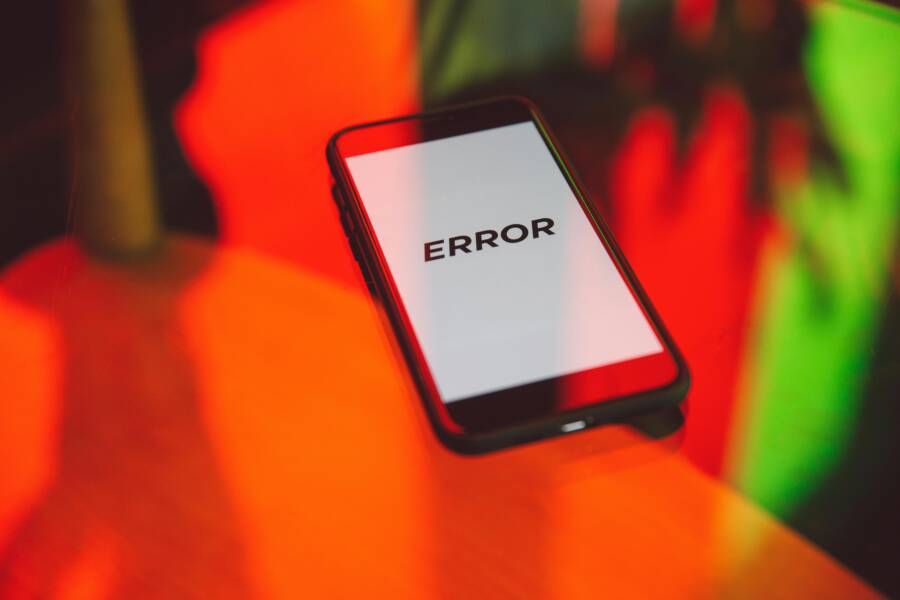
Images and illustrations can go a long way to help readers visualize this content. The image above shows a common playback error scenario, which many readers will instantly recognize. It’s a helpful cue that the article will cover practical fixes, not just theory.
If you’d like to see deeper, more technical explorations of codec compatibility and container choices, the linked articles provide solid, real-world guidance you can apply right away.
Fast fixes that cross most devices
When a video from your smartphone won’t play on other devices, the quickest path to a smooth fix is to standardize formats and keep things simple. These fast fixes work across TVs, computers, tablets, and many streaming devices. Below you’ll find practical, step-by-step actions you can take now to restore reliable playback without getting bogged down in tech details. Think of them as your first aid kit for video compatibility.
Re-encode to MP4 with H.264 and AAC
MP4 paired with H.264 video and AAC audio remains the most universally supported combination. It plays nicely on almost every device, from older TVs to PCs and mobile devices. Re-encoding to this standard reduces the risk that a device can’t decode the file, especially when the original file uses newer or less common codecs.
- Why this is the safest choice: H.264 (also called AVC) is widely decoded by built-in players and hardware decoders. AAC audio is similarly ubiquitous. When both are present in an MP4 container, most devices can handle playback without extra software.
- Simple bitrate targets you can trust:
- For 1080p, aim for 8–12 Mbps for good quality with reasonable file sizes.
- For 720p, 4–8 Mbps works well for standard motion and keeps file sizes modest.
- Practical tip: use HandBrake to re-encode with a proven preset. Start with a widely compatible preset, then adjust if you need higher quality or smaller file size. The HandBrake official presets are designed for compatibility with a range of devices, and they can downscale higher resolutions automatically if needed. If you want deeper control, explore HandBrake’s quality settings to keep a consistent look across devices. For more on presets and quality control, see the HandBrake documentation.
If you’d like a quick hands-on path, start with a basic MP4-H.264/AAC encode at 1080p30, then test on a few devices. If playback is still tricky, dial the resolution down to 720p and review the results. Consistency in format reduces the number of potential fail points.
Helpful resource to get you started:
- Official HandBrake presets and workflow guidance
Use a universal media player
A universal media player can bridge gaps between codecs, containers, and device limitations. VLC is the standout option here because it supports a wide range of formats and codecs out of the box, and it’s available on many platforms.
- Why VLC helps: It includes robust codec support and has codecs built in, so fewer devices will balk at your file. It’s especially useful when you’re dealing with mixed media from different sources.
- How to install and use:
- On computers and phones, download from the official site or app store.
- Open VLC, then drag and drop the video file or use the Open Media option to locate it.
- If playback still stalls, try adjusting the preferred export format in the app or use VLC’s Convert/Stream feature to re-encode on the fly.
- Portable options: For TVs or smart TVs, VLC offers portable versions that can run from USB drives or network shares where supported. This helps when your TV’s built-in player struggles with certain files.
- Real-world benefit: If one app on a device fails, another app often handles the file. A universal player reduces the number of failures you’ll see across devices.
To explore portable VLC options and official downloads, check these sources:
- VLC Portable for USB drives and TVs
- VLC Portable Apps and related downloads
Update software and dependencies
Software and firmware updates are often the easiest way to broaden codec support across all devices. Manufacturers push updates to fix playback issues, add new codecs, and improve media handling in apps and firmware.
- Why updates matter: A device might handle an older codec but struggle with newer ones until the firmware or app adds support. Keeping things up to date reduces compatibility headaches.
- Quick checks by device type:
- Smart TVs: Check the Settings or Support menu for “Software Update” or “Firmware Update.” Some TVs can update over the internet, while others require a USB drive with a downloaded update file.
- Phones: Open the Settings app, look for System or Software Update, and install available updates. Updates often include codec improvements and bug fixes.
- PCs: On Windows, run Windows Update and check for optional driver updates. On macOS, run System Preferences > Software Update. Also consider updating video playback apps like your browser or media players.
- Practical outcome: After updating, re-test the problematic videos. If a file still doesn’t play, you’ve ruled out firmware issues and can focus on re-encoding or alternate players.
If you want a quick starting point for updates, these steps can guide you through the process on most devices:
- Update smart TV firmware via the built-in internet update service
- Check smartphone OS updates and app store updates
- Verify media player apps are current on your PC or laptop
What to do next if updates don’t help? Re-encode the video to MP4 with H.264 and AAC (as described above) and test again. If multiple devices fail on multiple networks, the issue is likely with the file itself or the encryption/DRM on the file.
Additional reading on codec support and update workflows can deepen your understanding:
- How to fix “Video Codec Not Supported” errors
- How to update smart TV software and what to expect from firmware upgrades
By following these fast fixes, you create a reliable baseline that minimizes playback problems across most devices. This approach keeps your content accessible whether someone watches on a phone, a laptop, or a living room TV. And if you’re juggling files from a smartphone, remember that starting with a universal MP4, H.264, and AAC combo, paired with a dependable player, sets you up for smoother viewing everywhere.
External references and further reading:
- Official HandBrake presets and workflow guidance
- VLC Media Player Portable resources
- How to fix video codec not supported on various devices
- Update guides for popular smart TVs and PCs
Notes:
- When you test, try the same file on at least two different devices or apps. If it plays everywhere except one device, focus on that device’s settings first.
- If a file is DRM protected, ensure you have the right authorization and use compatible apps to view it.
Best practices for recording and exporting videos
Getting from a smartphone moment to a universally playable file is a mix of smart choices at capture and careful exporting. This section covers practical, ready-to-use guidance that helps you prevent playback headaches down the line. Think of it as the playbook that keeps your footage friendly to TVs, laptops, and mobile devices alike. Throughout, keep in mind that small decisions at recording time can save big re-encoding work later.
Choose standard formats and safe settings
When you record, aim for a format and settings that travel well across devices. The standard MP4 container with H.264 video and AAC audio is the best default for broad compatibility. A good baseline is 1080p at 30 frames per second (fps). This combination works on most modern and older hardware, from smart TVs to budget laptops.
She Pressed Play on a Strange Audio Track and Within Days Her Financial Reality Started Shifting in Ways She Could Not Explain
>>> See How It Works <<<

- Why this setup works: MP4 is a widely recognized container, H.264 is supported by most hardware decoders, and AAC audio is universally decoded. This trio minimizes the chances a device can’t play your file.
- Plainspoken bitrate targets you can rely on:
- 1080p at 30fps: 8–12 Mbps for clear video without huge file sizes.
- 720p at 30fps: 4–8 Mbps for smoother playback on slower networks or devices.
- Practical tip: start with 1080p30 MP4 H.264/AAC, test on several devices, then downscale if playback issues persist. If you need a quick reference, consult established presets from reliable sources like HandBrake for proven compatibility.
For quick reference on common encoding goals, see practical guidelines from expert sources that outline format, resolution, and bitrates that work well in real-world scenarios. These guidelines help you keep your workflow predictable and your files playback-ready across platforms. You can explore more about universal encoding practices here: https://help.viostream.com/technical-information/video-encoding-best-practices and related resources on supported formats for Android devices: https://developer.android.com/media/platform/supported-formats.
- In practice, involve your smartphone and performing a quick test on a TV or computer after exporting. If a device still balks, re-encode with the simplest profile first to isolate codec issues.
- If your footage includes complex motion or fine detail, you may push toward the higher end of the bitrate for 1080p, but stay mindful of file size and network constraints.
A note on workflow consistency: adopt a single, reliable export preset for most projects. This reduces surprises when you share videos across devices or publish to platforms.
HEVC vs H.264: when to choose each
HEVC (H.265) and H.264 each have strengths, but they play differently across devices. HEVC compresses more efficiently, delivering similar quality at smaller file sizes. That sounds ideal, but not every device decodes HEVC natively.
- What to know about HEVC: better compression means smaller files at the same quality, which helps with storage and streaming. It shines on newer smartphones and recent TVs that include hardware decoding.
- Where H.264 remains king: broad compatibility. H.264 is supported by almost all devices and software, including older TVs, PCs, and mobile gear.
If you know your target audience or device set, a simple rule of thumb helps: shoot in HEVC if you expect playback on devices released in the last five years and you’re comfortable re-encoding for older gear. If you’re unsure, default to H.264 to avoid compatibility pitfalls.
For readers who want deeper specifics, consider this quick comparison: HEVC can deliver similar or better visual quality at about half the bitrate of H.264 under many conditions, but it requires hardware support for smooth playback. If your audience is mixed, the safer path is H.264. If you’re prioritizing storage efficiency and the devices are modern, HEVC is worth it. You can explore deeper insights from codec comparison guides like the ones referenced in reliable technical texts (examples include discussions on HEVC versus H.264 and practical implications for devices). To learn more about how HEVC compares and where each is best used, see: https://www.nearstream.us/blog/h265-vs-h264-whats-the-difference-which-is-better and https://www.boxcast.com/blog/hevc-h.265-vs.-h.264-avc-whats-the-difference.
Quick, practical guidance:
- Shoot in HEVC if you’re confident the target devices support it and you’re comfortable dealing with potential re-encoding for older gear.
- Switch to H.264 if you’re distributing to a broad audience with mixed devices, or you want a guaranteed smooth playback without extra steps.
Storage, backup, and metadata
A solid storage and metadata strategy prevents a lot of playback headaches. The core idea is simple: keep originals, document how you captured and exported the files, and maintain a clean backup routine. This pays off when you need to re-encode, repair, or transfer videos to new devices or platforms.
- Keep originals intact: store the untouched, original captures alongside re-encoded copies. If you ever need to revert to the source, you’ll thank yourself.
- Preserve logs of codecs and settings: note container type, video and audio codecs, resolution, frame rate, bitrate, and any special flags (like VFR or high dynamic range). This helps you reproduce a fix if playback issues reappear.
- Maintain a straightforward backup plan: use a primary drive plus at least one offsite or cloud copy. Redundancy protects you from drive failures or accidental deletions.
- Document metadata for each file: filename conventions, date, device used, and a short note about the shooting conditions. This makes it easier to locate the right clip when you need it.
A practical workflow looks like this:
- After recording, save a high-quality original and a compressed master in MP4 with H.264 and AAC.
- Add a simple metadata note to the file name or a sidecar text file. Include resolution, fps, and codec versions.
- Back up to two locations, with a separate cloud copy for convenience.
If you want a deeper dive into how to structure your video assets, you can reference established workflows and guidelines that emphasize reliable encoding and storage practices. For hands-on steps and best practices, explore resources like Viostream’s Video Compression Guidelines and other codec-focused guides: https://help.viostream.com/technical-information/video-encoding-best-practices and https://www.boxcast.com/blog/hevc-h.265-vs.-h.264-avc-whats-the-difference.
Extra tips to keep things tidy:
- Keep a simple log of every export, including target device or platform, and any issues you encountered.
- When you delete intermediate files, do so only after you’ve confirmed the final version plays across all intended devices.
- If you’re moving files between devices, verify integrity with a quick hash check or a media info readout to ensure no corruption happened during transfer.
For added background on file repair and media integrity, you can consult guides that discuss maintaining video quality and preventing corruption during transfers. Helpful references include resources on fixing corrupted or problematic files and general codec compatibility guides: https://www.sfware.com/blog/mp4-codec-and-compatibility-issues and https://www.handyrecovery.com/fix-corrupted-video-files-on-android/.
Incorporating external references naturally:
- When you need a quick reference on practical workflows for encoding and metadata, Viostream’s guidelines are a solid starting point: https://help.viestream.com/technical-information/video-encoding-best-practices
- For broad device support on Android, the official formats guide provides quick checks: https://developer.android.com/media/platform/supported-formats
- If you’re curious about universal playback options and toolbox suggestions, VLC remains a dependable partner across devices: https://www.videolan.org/vlc/
Moving forward with a reliable strategy means your videos stay accessible long after you press record. The goal is simple: minimize playback obstacles and keep your audience happy, whether they’re watching on a phone, a laptop, or a living room display. The next sections build on these foundations with practical steps you can apply today. And if you want to see real-world examples of how to implement these practices, the linked references provide solid, actionable guidance you can put into action right away.
What If the Only Thing Between You and the Life You Deserve Is a Hidden Wealth Code Waiting to Be Activated
>>> Open the Door <<<

Troubleshooting by device type
When videos from your smartphone refuse to play on other devices, the fix is often to tailor your approach to the playback target. This section breaks down practical, device-specific checks and fixes. You’ll learn where to focus first, what settings to adjust, and easy ways to keep your files universally playable. Think of it as a quick-reference cheat sheet that you can return to whenever you’re troubleshooting a video that won’t cooperate.
 Photo by Kelvin Valerio
TVs and streaming devices
Televisions and streaming devices are the most common fallback points for phone videos. The goal here is to ensure the file format and playback method match what your display expects, while keeping the process simple.
- USB playback: Many TVs support USB drives with MP4 files, but not all USB formats are equal. Use a USB drive formatted as FAT32 or exFAT and keep the video in an MP4 container with H.264 video and AAC audio for maximum compatibility. If your TV struggles with a file on USB, try re-encoding to a simpler profile or moving the file to a different USB port. Also check if the TV has specific USB playback limitations listed in its manual.
- HDMI connection: When streaming from a laptop or media player to a TV via HDMI, ensure the source is using an MP4 file with widely compatible codecs. Some TVs handle HDMI input better when the file is 1080p at 30fps rather than higher settings. If you encounter issues, test with a smaller file or a different HDMI cable to rule out the cord as the culprit.
- Streaming apps on TVs: Smart TVs and streaming devices rely on app support. If a video won’t play in one app, try a universal or alternative player app available for that device. Keep the app updated; developers push fixes for codec support and streaming reliability. If you use a USB-to-TV setup, the TV’s built-in player can fail where a dedicated app succeeds.
Practical setup tips:
- Prefer MP4 with H.264 video and AAC audio for broad compatibility on TVs and streaming devices.
- Use 1080p30 as a safe baseline for streaming apps and many older sets.
- Keep a single, well-supported file for testing before you branch into higher resolutions.
If you want a deeper dive on common TV playback issues and fixes, see resources that explore USB and HDMI playback, plus streaming app guidance.
- Helpful reference for USB playback on TVs: https://www.lg.com/africa/support/product-help/CT20080005-20153288765262
- A practical guide to playing MP4 on TV via HDMI: https://videoconverter.wondershare.com/convert-mp4/play-mp4-on-tv.html
Image note: When you test, try the same file on two different devices or apps. If one device or app consistently fails, focus on that environment first.
Computers and laptops
Computers and laptops offer the most flexibility but also the most points of failure. The key is to keep codecs aligned with what your system can decode, or to use a player that can adapt on the fly.
- Codec packs and decoders: On Windows, codec packs can extend playback options, but they can also conflict with native decoders. If your system struggles with a file, installing a reputable codec pack can help, but proceed with caution and back up your system. VLC and other robust players bundle many codecs, reducing the need for extra packs.
- Media players: A versatile player is your best friend here. VLC, for example, handles a wide range of formats without extra installs. If you encounter trouble, switch to a different player to see if the issue is app-specific.
- Software updates: Keep your OS, drivers, and media apps current. Updates bring new codecs and improved compatibility, which can fix stubborn playback issues without re-encoding.
- Fallbacks for older hardware: If the device is several years old, expect occasional limitations with newer codecs like HEVC or AV1. In those cases, re-encoding to a more universal profile (MP4, H.264, AAC) often resolves the problem.
Practical steps:
- Install a universal player and test with a known-good file.
- Update the operating system and video drivers.
- If issues persist, re-encode the problematic video to MP4 with H.264 and AAC, targeting 1080p30 or 720p30 for older hardware.
For readers who want a deeper understanding of codecs on Windows and Mac, consider these resources:
- Downloadable codec packs and guidance: https://codecguide.com/download_kl.htm
- Overview of codecs and their best use cases: https://codecguide.com/guides.htm
If you want a quick test workflow, use a known-good file as a baseline, verify it plays across your devices, then compare its container, video codec, and bitrate to the problematic file. This helps you decide whether re-encoding is the right move.
Phones and tablets from other brands
When the playback target is a different brand, you’ll often run into two practical hurdles: file transfer methods and on-device apps. The goal is to preserve metadata and avoid wrappers that confuse the player on the destination device.
- Transfer methods that preserve metadata: Prefer direct transfers (USB, AirDrop, or cloud sync) that keep the file’s original container, codec, and metadata intact. Avoid zipping or wrapping files unless necessary, as some players will ignore or misread nested wrappers.
- Avoid wrappers that break playback: Some transfer methods wrap files in container formats that the destination device can’t parse. If you notice playback problems after transfer, try a direct copy of the MP4 file rather than sending a ZIP or RAR package.
- Universal player app on target device: Install a flexible player like VLC on the tablet or phone. A universal player can handle a broad set of codecs and containers, reducing the chance of a mismatch between the source file and the device’s decoder.
Practical tips:
- Use a direct transfer method when possible, then test playback on the device before removing the original file.
- If you must transfer through a cloud service, download the file locally to the target device and play it with a universal player.
- For cross-brand sharing, keep an MP4 with H.264 video and AAC audio as the default file format to maximize compatibility.
Resources you may find helpful when dealing with cross-brand transfers and universal players:
- VLC for Android and iOS platforms with cross-device compatibility: https://www.videolan.org/vlc/
- Android formats and supported codecs overview: https://developer.android.com/media/platform/supported-formats
Pro tip: Before you transfer, make a quick metadata note about the file (resolution, fps, codecs). This helps you verify playback after moving the file, especially if you’re testing on several devices.
Images and visuals can reinforce this guidance. If you choose to include visuals, place them near the transfer discussion to illustrate a smooth cross-device workflow.
In conclusion, troubleshooting by device type keeps your problem-solving focused and efficient. By aligning formats with the capabilities of TVs, computers, and mobile devices, you minimize the need for re-encoding and keep your videos accessible to your audience. The next sections will build on these foundations with practical workflows and real-world checklists you can apply today.
Conclusion
Fixing video playback across devices starts with standardized formats and simple checks. Re-encode tricky phone videos to MP4 with H.264 video and AAC audio, or use a universal player like VLC to verify playback before converting. Keeping to widely supported containers and codecs minimizes the number of devices that balk at your files, and updating firmware on TVs and apps helps too.
Five item quick checklist
- Test the file on a second device or app to rule out the player
- Check container, video codec, and audio codec with a lightweight tool
- Re-encode to MP4, H.264, AAC at 1080p30 if issues persist
- Use a universal player for a quick pass before re-encoding
- Update the device firmware or software and re-test
If you share a quick example in the comments about a file that gave you trouble, I can tailor step by step HandBrake or VLC settings for you. Your feedback helps others avoid the same bottlenecks, and seeing real-world cases keeps this guide practical. Thanks for reading, and give these fixes a try today; you might be surprised by how quickly playback becomes reliable across your devices.
She Pressed Play on a Strange Audio Track and Within Days Her Financial Reality Started Shifting in Ways She Could Not Explain
>>> See How It Works <<<