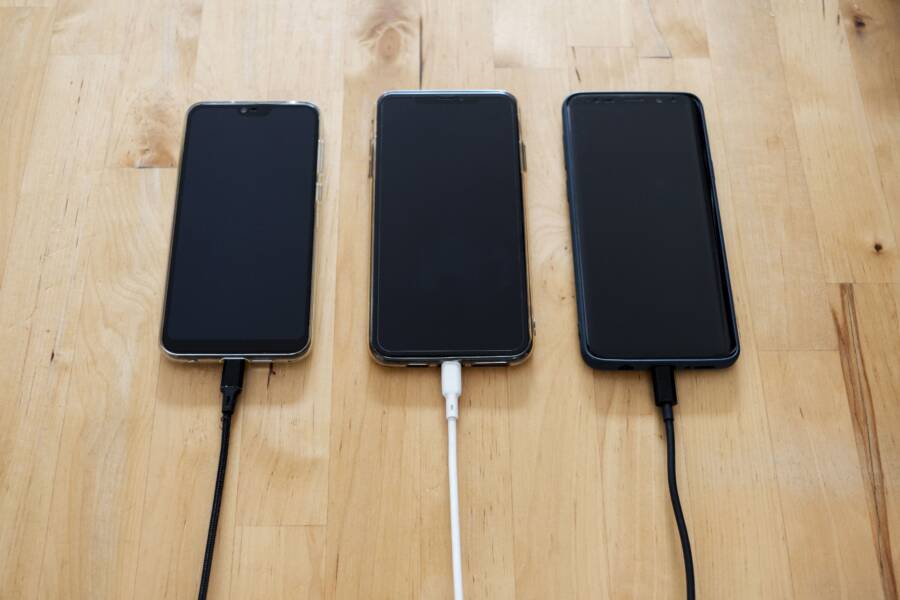
When your smartphone battery stays stuck at 1 percent despite being plugged into a charger, you are likely dealing with a software glitch or a calibration error rather than a dead battery. This issue happens because the internal operating system misreads the actual charge level of the battery cells.
Because this is usually a digital communication error, you can often fix it without replacing any hardware. Most people resolve the problem by forcing the system to re-sync its power data through a series of specific reset steps.
The following guide walks you through the proven methods to recalibrate your device and restore accurate power readings.
Why Does Your Smartphone Battery Percentage Get Stuck?
When your battery percentage hangs at 1 percent, your device is experiencing a disconnect between its actual power reserves and the data displayed on your screen. This creates a scenario where the operating system loses track of the physical state of the battery, leaving you with inaccurate feedback about how much runtime remains. Identifying whether this is a logical error in the software or a hardware breakdown is the first step toward getting your device back to normal.
Understanding Battery Calibration Issues
Modern smartphones rely on a fuel gauge chip that tracks how much energy enters and leaves the battery. This chip calculates the remaining charge based on voltage levels, temperature, and current consumption. Because batteries lose capacity as they age, the software needs to maintain a calibrated baseline to translate voltage readings into an accurate percentage.
Over time, this calibration data becomes skewed. You might frequently charge your device for short bursts or let it die completely, which disrupts the tracking logic. When the internal sensor receives inconsistent data, it struggles to map the voltage output to the correct percentage range. Eventually, the operating system defaults to a safe value, such as 1 percent, to prevent the sudden power loss that occurs when the battery voltage drops below a certain threshold.
To improve your accuracy, think of the battery like a gas tank with an aging fuel sensor. If the sensor starts reading empty when there is still fuel inside, the gauge stays stuck. Recalibrating the system forces the software to reset its zero and full points, allowing it to correctly read the voltage levels again.
Software Bugs That Cause Display Glitches
Sometimes, the hardware remains perfectly healthy while the user interface stops updating because of a deeper software conflict. Background processes, especially those related to system management or power optimization, can lock the status bar display. If a system process responsible for refreshing the battery icon hangs or encounters a memory error, the UI remains frozen on its last known state, regardless of whether the battery is currently charging or depleting.
Corrupted system files also trigger these visual glitches. If an update fails or a cache file becomes fragmented, the communication bridge between the battery controller and the operating system may break. You might see the lightning bolt icon appear, indicating that power is entering the phone, yet the percentage never moves. This indicates that while the power circuit is functioning, the software reporting layer is unable to process or display the incoming data.
If you suspect a software bug, you should focus on clearing the temporary data that manages these display updates. Restarting your device often clears the cache for these background processes and allows the system to poll the battery status again. If the issue persists, the problem lies in the system firmware itself, which typically requires a full charge cycle or a factory reset to resolve the reporting error.
Simple Steps to Fix a Frozen Battery Percentage
When your battery percentage stops moving, the operating system effectively loses its connection to the battery health data. You can usually clear this error by forcing a hardware refresh or performing a full calibration cycle. These methods address the underlying software logic that dictates how your device reports its power level.
The Force Restart Technique
A forced restart is the fastest way to clear temporary memory errors that cause display glitches. This process cuts power to the processor for a split second, which forces the operating system to re-poll the fuel gauge chip upon reboot.
For modern iPhones, the process requires a specific sequence of button presses to trigger the interrupt. You must press and quickly release the volume up button, then press and quickly release the volume down button. Immediately after, press and hold the side power button until the screen goes black and the Apple logo reappears. This sequence bypasses standard shutdown procedures and clears out cached background processes that might be locking your battery status.
Android devices use a similar logic but often require a different hardware trigger. On most current smartphones, you perform a force restart by holding the power button and the volume down button simultaneously for about 10 to 15 seconds. You should continue holding these buttons until the screen turns off and the manufacturer logo appears. This action terminates all active tasks, including the specific battery monitoring services that may be frozen.
If your smartphone battery percentage does not update after this process, wait for the device to fully boot before plugging it back into the charger. Sometimes the system needs a clean slate to register that the device is receiving power.
How to Properly Recalibrate Your Battery
If a restart does not restore the accurate percentage, your battery calibration data is likely corrupted. Recalibration forces the smartphone to recognize the true zero and maximum capacity points of the battery.
Use your smartphone normally until the battery drains completely and the device shuts down on its own.
Keep the phone powered off and leave it undisturbed for at least 4 to 6 hours. This allows the battery voltage to stabilize and the chemical potential to settle to a true empty state.
Connect your charger while the device remains off. Charge the phone to 100 percent without turning it on or interrupting the process.
Once the indicator shows a full charge, leave the device plugged in for an additional two hours to ensure the fuel gauge chip confirms the maximum voltage.
Disconnect the charger and power the device on.
This process clears the old, inaccurate baseline data the system was using to calculate your charge level. By allowing the phone to sit at zero percent, you effectively remove any phantom energy reading that was preventing the system from updating. The device now establishes a fresh baseline based on the current voltage, which allows the percentage display to sync with your actual remaining power. If the percentage remains stuck after this full cycle, the fuel gauge chip or the internal battery cells might require physical inspection by a technician.
Deep Troubleshooting for Persistent Battery Issues
If your smartphone still shows 1 percent after attempting a forced restart or a full calibration cycle, the problem requires a more targeted investigation. You are likely facing a firmware conflict, a rogue background application, or a corrupted system partition that prevents the hardware from reporting correct power levels.
Updating Your System Software
System firmware contains critical code that manages how your hardware interacts with the battery. Manufacturers release updates to fix bugs in this power management logic, such as errors where the system fails to poll the fuel gauge chip during charging. If your device runs on outdated software, it may be relying on incorrect power profiles that cause the percentage to hang.
Check for available updates by navigating to your settings menu. If you see a pending software update, install it immediately. Developers often include specific patches to resolve power reporting discrepancies that affect battery indicators. A fresh installation replaces potentially corrupted system files with stable code, which provides the operating system with an accurate framework to read battery voltage.
Beyond fixing display bugs, these updates improve the efficiency of your device. They ensure that power management services operate within the manufacturer’s intended parameters. If you have been ignoring update notifications, the operating system might be missing the very patch needed to correct your current display error.
Managing Background Apps
Sometimes an application consumes system resources or locks the process responsible for updating your battery percentage. If a specific app freezes, it creates a bottleneck that stops the user interface from refreshing the power status. You can identify the culprit by examining your system usage statistics to see which programs draw the most power or demand the highest CPU cycles.
Look for these signs of an app-related battery conflict:
An app remains at the top of your battery usage list despite you not opening it recently.
The phone feels warm to the touch even when the screen is off.
The status bar stops refreshing after you open a specific program.
You can verify if an app is the cause by booting your smartphone into Safe Mode. This mode disables all third-party applications and runs only the essential software required for the device to function. If your battery percentage starts to update normally while in this mode, you have confirmed that a downloaded application is interfering with the system. Once you identify the problematic app, uninstall it and check if your battery reporting returns to normal. Keeping your app library updated also prevents these conflicts, as developers frequently fix code that causes memory leaks or background crashes.
When Is It Time for a Professional Hardware Repair?
You should consider a professional repair only after you exhaust all software troubleshooting steps. If your smartphone battery remains stuck at 1 percent despite full calibration cycles, system updates, and factory resets, the issue likely resides in the hardware. Software fixes address logical errors, but physical damage or component degradation requires expert intervention.
Identifying Physical Battery Failure
Batteries are consumable components that lose their ability to hold a charge over time. If your device is more than two or three years old, the chemical composition inside the battery cell might be exhausted. A battery that no longer maintains a stable voltage will cause the fuel gauge chip to report inaccurate or frozen data because the internal resistance is too high for the system to process correctly.
Watch for these physical indicators of a failing battery:
Your phone feels noticeably warm even when you are not using high-demand applications.
The rear casing of the smartphone appears slightly swollen or pushed outward.
The device shuts down randomly at higher percentages, such as 20 or 30 percent.
You notice a significant drop in battery life between charges.
A swollen battery is a serious safety concern that demands immediate attention. If the casing shows signs of expansion, stop using the charger and take the device to a repair technician immediately. Do not attempt to open the case yourself, as punctured lithium-ion cells can ignite or release harmful gases.
Evaluating Internal Hardware Damage
The fuel gauge chip on your motherboard tracks power flow. This small component can sustain damage from liquid exposure or physical impact. Even if the phone functions normally in other aspects, a damaged sensor will prevent the operating system from reading the battery capacity. If the internal pins or the connector ribbon cable are loose or corroded, the communication bridge between the battery and the motherboard is broken.
Professional technicians use diagnostic tools to measure the voltage output directly from the battery terminals. This test separates a bad battery from a faulty motherboard component. If a technician confirms the battery is healthy but the phone still fails to charge, the problem is likely a defective charging port or a failing power management integrated circuit. Replacing these parts involves specialized tools and microsoldering skills, which makes a professional repair the safest choice for your device.
Deciding Between Repair and Replacement
Repairing a smartphone battery is often more affordable than purchasing a new device. If the rest of your phone works well, replacing the battery provides a second life to your hardware for a fraction of the cost of an upgrade. However, if your device suffers from multiple issues, such as a broken screen, failing ports, and an old processor, the cost of labor might exceed the current market value of the phone.
Compare these factors before you visit a repair shop:
The warranty status of your smartphone determines if the manufacturer covers the repair cost.
Repair shops provide quotes that include the cost of parts and labor for your specific model.
A professional technician can provide a warranty on their work, which gives you peace of mind after the repair.
If your device is an older model that no longer receives software updates, you might consider if the cost of the hardware repair is worth the investment. Many users choose to upgrade their phone if the repair cost reaches half the price of a new unit. If you are unsure, ask a technician for a full diagnostic report so you understand exactly which components need replacement before you commit to the service.
Conclusion
Fixing a battery percentage stuck at 1 percent usually starts with a forced restart to refresh the operating system. If that fails, performing a full calibration cycle by draining the device until it shuts down and then charging it uninterrupted to 100 percent will often re-sync the system software with the actual battery voltage.
These steps address most software-related display errors on your smartphone. You should always keep your system software updated to ensure power management firmware is current. Additionally, avoiding exposure to extreme temperatures prevents long-term degradation of the battery health sensors.
If these procedures do not resolve the issue, the problem might stem from physical component failure or a damaged fuel gauge chip. A professional technician can perform diagnostic tests to determine if you need a battery replacement or a more complex repair.