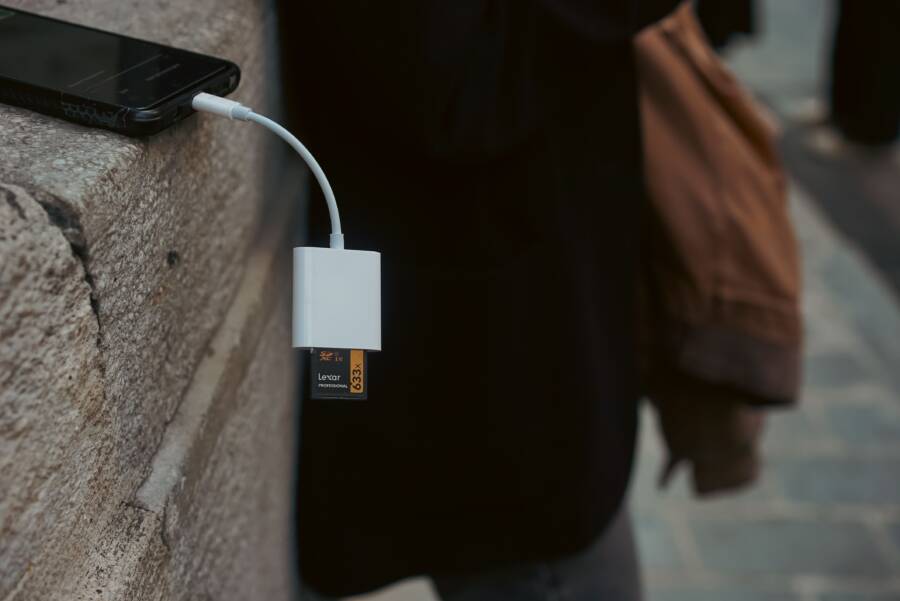
When your smartphone stops saving photos, it is usually because the internal storage has reached its capacity. This common issue triggers an error message that prevents you from capturing new memories or saving media.
You can fix this by clearing unnecessary files, removing cached data, and moving your content to cloud storage services. These actions free up space and allow your device to function normally again. Follow the steps below to reclaim your storage and restore full camera functionality.
Why Your Smartphone Gallery Says It Is Full
Your smartphone alerts you when storage reaches its limit because the hardware requires a specific amount of free space to perform basic tasks. When you cannot take more photos, your device is not just out of room for files. It lacks the temporary space needed to process image data and run your camera software.
Understanding the Role of Media Files
Modern smartphones capture high-resolution photos and 4K videos that consume significant storage space. A single high-definition image often takes up several megabytes, while minutes of 4K video can easily demand gigabytes. You might not notice these files individually, but they accumulate rapidly over time.
Every time you record a clip or snap a burst of photos, your device writes substantial data to your internal memory. Because modern smartphone sensors provide higher detail than ever before, the file sizes have increased accordingly. You likely capture more content than you realize, leading to a crowded system partition before you notice the impact on your performance.
Internal Storage Versus Cloud Syncing
Your smartphone relies on internal storage to manage the immediate operations of the camera app. When you press the shutter button, the device saves the image temporarily to its internal memory before moving it to your main storage or uploading it to the cloud. If your local storage is full, the system has no workspace to stage these new files, and it shuts down the camera function to prevent data corruption.
Cloud services offer a secondary solution for offloading your media, but they do not automatically clear space on your physical device unless you adjust your settings. Many people assume that syncing to the cloud removes the files from their phone immediately. In reality, the smartphone keeps local copies for fast access unless you enable specific features like optimized storage.
If you encounter a full storage error, consider these quick adjustments to regain access to your camera:
Delete high-resolution videos you no longer need, as these occupy the most space.
Check your recently deleted album, as photos often stay there for 30 days before the device permanently removes them.
Move older media files to a computer or an external drive to preserve your library without keeping it all on your phone.
Enable cloud optimization features that replace full-size local files with smaller, compressed versions.
By managing how your media stays on your device versus the cloud, you maintain the necessary room for your smartphone to process new photos. Clearing out these large files provides the breathing room your operating system requires to function correctly.
Immediate Ways to Free Up Space on Your Device
You can reclaim significant storage capacity on your smartphone by targeting the largest files and removing temporary data. Most modern mobile operating systems include built-in tools designed to identify and delete clutter without requiring manual searching through every folder. Using these native features remains the most efficient way to regain space quickly.
Deleting Large Files and Old Videos
High-definition videos and unused media files are often the primary culprits behind a full storage alert. Your smartphone tracks which files occupy the most space, allowing you to prioritize your deletions for maximum impact.
Navigate to your device settings to find the storage management menu. On Android, look for the Storage or Device Care section, which often features a Cleanup or Free Up Space button. iOS users should go to Settings, select General, and then tap iPhone Storage. These menus provide a breakdown of your storage usage, often highlighting large attachments, long videos, and files you haven’t opened in months.
You can manage your files effectively by following these steps:
Review the list of large files identified by your operating system.
Select old videos or high-resolution photos you no longer need.
Confirm the deletion to permanently remove these items from your internal memory.
Empty your Recently Deleted folder, as these items still consume space until you manually purge them.
Sorting files by size helps you remove the most “expensive” media first. If you delete a few long video clips, you often clear more room than you would by removing hundreds of individual text-based images.
Removing Unused Apps and Cached Data
Beyond your photos and videos, background applications and their associated data often accumulate in your device memory. Clearing this temporary information provides more room for your camera to function correctly without forcing you to delete your personal media library.
Apps often save temporary files, known as cache, to load content faster when you reopen them. Over time, these files grow into a significant portion of your storage. You can usually clear this data by tapping into the App Info section of your settings for specific apps that show high usage. Be aware that clearing the cache only removes temporary files, while clearing storage data might reset app settings or logins.
Beyond cached data, evaluate your app list for software you haven’t used in a while. Each installed application takes up base storage that could be better spent on new photos. Uninstalling these redundant apps immediately frees up space. Your smartphone keeps the operating system cleaner when you remove software that no longer serves a purpose. Check your settings periodically to see which apps consume the most data, then remove the ones you don’t recognize or haven’t opened since last year.
Using Cloud Storage to Back Up Your Memories
Moving your photos to the cloud is a reliable way to keep your media safe while freeing up internal storage on your smartphone. When you store images and videos on a remote server, you gain the ability to delete the bulky local files that cause system errors. This approach prevents data loss if your device breaks, is lost, or gets stolen.
Setting Up Auto-Backup Solutions
Automatic backups ensure that every new photo you capture reaches the cloud without manual intervention. Most modern mobile operating systems include native tools that simplify this process. For users on Android, Google Photos is the primary choice, while iPhone users rely on iCloud Photos.
To activate these services, follow these general steps:
Open the settings menu within your preferred cloud storage app.
Locate the backup or sync section.
Toggle the switch to enable automatic syncing for your camera folder.
Select the quality level for your uploads, such as original quality or a space-saving compressed format.
Once you enable these settings, your smartphone works in the background to upload new media whenever you have a stable internet connection. You can check the progress inside the app to confirm that every file uploaded successfully. Regularly verifying this status prevents gaps in your backup history. Because these services handle the heavy lifting, you no longer need to worry about transferring files by hand.
How to Use the Free Up Space Feature
Cloud storage apps often include a specialized feature designed to delete items from your phone that are already safely backed up. This tool scans your internal storage, compares the local files to the ones on the cloud, and removes the local copies to create immediate room. It is a secure way to gain gigabytes of space in seconds.
You can typically find this option within the management settings of your storage app. When you tap the button labeled Free Up Space or Review Storage, the application identifies files that it successfully uploaded to the server. You receive a prompt showing how much space the deletion will recover before you confirm the action.
Keep these points in mind when using this feature:
Ensure your device shows a backup complete status before you run the cleanup.
Understand that while the photos disappear from your local gallery app, they remain accessible via the cloud application.
Avoid running this feature if you have a weak internet connection, as you might need immediate access to your photos while traveling.
Using this tool periodically prevents your smartphone from hitting a storage ceiling. It effectively maintains a thin, manageable library on your device while keeping your entire archive within reach through your cloud provider.
Long Term Habits to Prevent Storage Issues
Preventing a full gallery requires more than a one-time cleanup. Your smartphone collects digital debris daily, often without your direct knowledge. By adjusting how apps handle media and establishing a recurring maintenance routine, you keep your device fast and functional. These habits stop storage saturation before it becomes a problem.
Managing Downloads and Messengers
Apps like WhatsApp, Telegram, and Signal often save every image, video, and audio clip you receive directly to your internal memory. While this makes media accessible offline, it fills your phone storage with content you might never view again. Most of these applications enable automatic saving by default, meaning your gallery becomes a dumping ground for group chat memes and forwarded clips.
To regain control, you must adjust the media settings within each application. Most messengers allow you to toggle off the “Save to Gallery” or “Auto-download media” options entirely. If you prefer to keep some photos, select the “Wi-Fi only” option for downloads instead of allowing data-heavy files to consume space while you are on the go.
Check these areas to stop the automatic storage bloat:
Open the settings menu in your messenger app and look for Data and Storage usage.
Disable the toggle for automatic media downloads or saved photos.
Periodically clear the media folder specifically assigned to these apps through your file manager.
Taking these steps ensures your gallery contains only the photos you intentionally choose to keep. You still retain the ability to download specific files when they matter, but you stop the silent accumulation of unwanted data.
Regular Digital Decluttering
Routine maintenance is the most effective way to keep your smartphone healthy. Set a calendar reminder once a month to perform a quick audit of your photo gallery. This simple habit prevents the “storage full” notification from ever appearing during important moments.
During your monthly review, focus on three specific types of files that typically clog your system. First, delete blurred shots, duplicates, or photos taken by mistake. Second, review your screenshots; most people take screenshots for temporary reference and never delete them. Third, identify long video clips that you no longer need.
Following these steps during your audit makes the task manageable:
Filter your gallery by file size to identify the largest videos first.
Scan your folders for screenshots and delete the ones that are no longer relevant.
Review your favorites folder to ensure you aren’t hoarding low-quality images.
Empty your trash folder to permanently remove the files from your storage.
Treating your digital space like a physical closet prevents clutter from piling up. When you commit to a short monthly cleanup, you avoid the frustration of a locked camera and keep your device operating at peak efficiency.
Conclusion
Managing your smartphone storage is a continuous process rather than a one-time fix. Regular maintenance prevents your gallery from reaching its limit, which keeps your camera ready for every moment.
Cloud backups offer the most reliable way to preserve your memories while keeping your device free of clutter. By automating these syncs and performing monthly cleanups, you avoid the frustration of full storage errors. You now have the tools to maintain a lean, high-performing library on your phone.