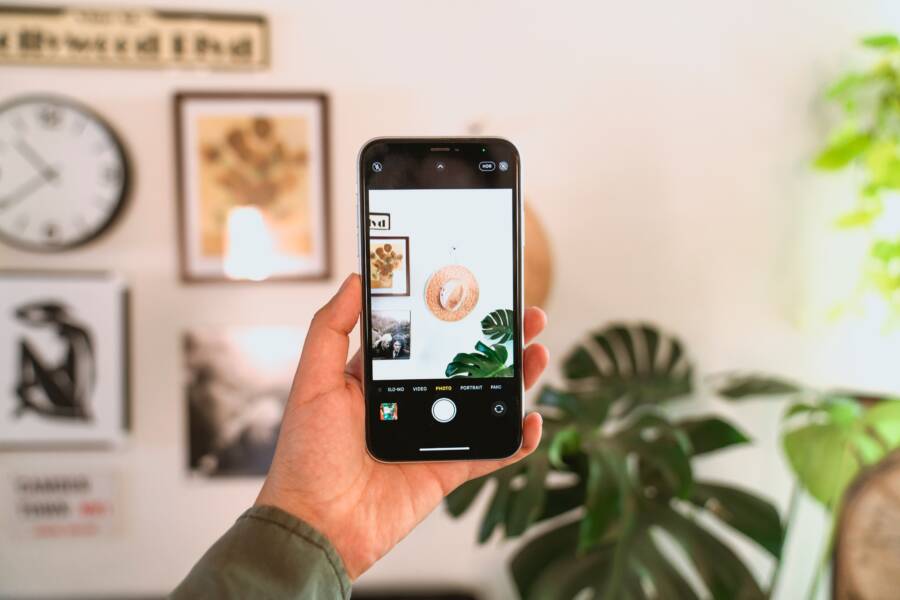
You can stop your front camera from flipping your photos by adjusting the mirror settings within your camera application. Most modern smartphone devices include a simple toggle in the settings menu that lets you save your selfies exactly as you see them in the preview window.
When you take a selfie, your phone typically captures a mirror image to match what you see on the screen while framing the shot. However, many users prefer their photos to show the world exactly as it appears to others, which means turning off the mirroring feature. Adjusting this setting ensures your text and orientation appear correctly after you press the shutter button.
Why Does Your Smartphone Camera Mirror Your Selfies
Most users notice that their smartphone camera flips their image immediately after they snap a picture. This behavior occurs because the device defaults to a mirror mode during the framing process. When you look into a mirror, your reflection is horizontally flipped, and this visual pattern is what your brain expects to see. By mirroring the front-facing camera preview, your device ensures that your movements, such as raising your right hand, feel intuitive and fluid while you compose your shot.
Understanding the Mirror Effect in Photography
The mirror effect describes how the camera software processes the incoming light and translates it into an image file. When light enters the front camera lens, the sensor captures the raw data as it truly appears. However, most camera applications apply a horizontal flip to this data before displaying it on your screen. This “mirror front camera” setting is an artificial overlay designed for the user interface rather than a permanent change to the optical hardware itself.
When you disable this setting, you change how the software handles the image capture pipeline. The camera will stop flipping the preview, which makes it feel as though you are looking through a window rather than into a mirror. It is important to realize that the lens itself does not physically change how it sees the world. Instead, the change is entirely digital. If you notice that text on your shirt appears backward in your preview, you are likely looking at a mirrored version of reality. Once you toggle this setting off, the resulting file will contain the image in its true, unreversed orientation.
The Reason Manufacturers Use Mirrored Previews
Manufacturers prioritize this mirrored preview because it provides a comfortable experience for the average user. Humans spend their lives seeing themselves in mirrors, which makes a non-mirrored reflection feel jarring or unnatural. If you raise your left arm while looking at a standard camera preview that is not mirrored, your brain perceives your arm moving on the opposite side of the screen. This disconnect creates a subtle cognitive delay that makes it harder to frame yourself correctly.
By keeping the preview mirrored, phone designers allow you to adjust your pose and hair with ease. You do not have to mentally reverse your movements because the screen matches your own physical perspective. This design choice serves as a psychological convenience, even if the final photo might look different from what you see on the screen. Most people prefer this behavior for framing because it reduces the mental effort required to center the shot. If your phone were to show you exactly how others see you from the start, you would likely find it more difficult to stay perfectly centered in the frame.
How to Turn Off Mirroring on iPhone and Android
You can control whether your smartphone camera saves photos as a mirror image or in their true orientation. While your device defaults to a mirrored preview for your convenience, this setting is fully adjustable within the camera software. Changing this preference allows you to capture selfies that display text, clothing, and your surrounding environment exactly as they appear to others.
Adjusting Settings for iPhone Users
Apple includes a dedicated toggle for front camera mirroring within the iOS Settings menu. This feature is available on devices running iOS 14 or later. Follow these steps to change your camera behavior:
Open the Settings app on your iPhone.
Scroll down until you find the Camera menu and tap it.
Locate the Composition section within the camera settings.
Toggle the switch next to Mirror Front Camera to the off position.
After you disable this feature, your front-facing camera will stop reversing your image during the capture process. The camera app will stop mirroring the preview in real time for certain device models, or it will simply save the final file without the horizontal flip. You can test the change by taking a photo of text or a sign to see how it appears in your library.
Changing Camera Preferences on Android Devices
The path to disabling mirrored selfies on an Android smartphone changes depending on the manufacturer. Different brands use custom interface skins, which means the toggle location varies from one device to another. Despite these visual differences, the logic remains consistent across most major brands.
You should start by opening your camera application and looking for the settings icon, usually represented by a gear symbol. Within this menu, search for labels like Save selfie as previewed, Mirror front camera, or Picture as previewed. If you own a Samsung device, you will often find this under the Camera settings menu labeled as Save selfies as previewed. Other manufacturers like Google or Motorola might place this setting directly in the main Camera settings list.
If you cannot find the specific toggle, check the Advanced or More settings sections inside your camera application. Some older smartphone models do not offer a setting to disable mirroring, as the feature was not standard in earlier software versions. In these cases, you can use built-in photo editing tools to flip your images horizontally after they are saved to your gallery. Most native gallery apps provide a rotate or mirror function under the edit menu, allowing you to manually correct any selfie that is saved in reverse.
What to Do If Your Camera Settings Are Missing
Sometimes you will open your smartphone camera app only to find that the expected options are missing. If you cannot locate a setting to disable mirrored selfies, your device might lack this specific software feature. This situation is common with older models or budget devices that run stripped-down versions of camera software. When the native camera app ignores your preference, you still have ways to achieve the desired orientation without replacing your phone.
Using Photo Editing Tools to Flip Your Images
If your camera app lacks a mirror toggle, you can correct the orientation manually after you take the photo. Most smartphones come with a built-in gallery or photo editor that handles basic transformations, including horizontal flips. This method is effective because it preserves the original quality of your picture while ensuring the final output displays correctly.
Open your device gallery and select the selfie you want to adjust.
Tap the Edit button, which is usually represented by a pencil or slider icon.
Look for the Crop or Transform menu.
Locate the icon that shows two triangles pointing at each other or a label named Mirror or Flip.
Apply the change to reverse the orientation horizontally.
Save the new version of your image.
This process takes a few seconds and provides a clean, accurate result. While it requires an extra step after shooting, it is a reliable workaround that functions on almost any smartphone. You should check your specific gallery app for a Batch Edit feature if you need to fix multiple photos at once. This saves you from repeating the process for every individual file.
Third-Party Camera Apps That Offer Better Control
Third-party camera applications often include advanced settings that default software misses. Developers prioritize these tools for photographers who want full authority over how their images are processed and saved. Installing an alternative app is a practical solution if you feel limited by the constraints of your factory-installed camera.
Open Camera is a highly recommended open-source option for Android users. It provides an extensive range of settings, including a specific toggle to save selfies as previewed or mirrored. This app is free, contains no advertisements, and gives you deep control over your photo orientation.
Retrica is another popular choice if you prefer a more creative interface. It handles image mirroring natively and allows you to toggle this preference before you even take your shot. Many users find the interface intuitive and better suited for social media styles.
Adobe Lightroom functions as a powerful camera replacement. Beyond its editing capabilities, its built-in camera mode provides precise control over how your smartphone captures raw data. Using this ensures that your selfies are oriented exactly how you want them from the moment the shutter clicks.
Choosing an alternative app helps you bypass the limitations of a basic camera interface. You gain the ability to lock your orientation settings permanently, so you never have to worry about flipping images in an editor again. Test a few options to see which interface feels most comfortable for your daily photography needs. Each app brings different strengths to your smartphone camera setup.
Common Questions About Selfie Orientation
Understanding how your camera records images helps you get better results every time you open your smartphone app. Many users have identical questions when they notice their photos look different than the preview on the screen. Addressing these points clears up the confusion between live viewfinder behavior and final image files.
Do mirrored photos affect image quality?
Changing the orientation settings does not alter the actual resolution or quality of your file. A mirrored photo and a non-mirrored photo contain the exact same pixel data; only the horizontal orientation changes. Your smartphone sensor records the light as it hits the lens regardless of your chosen setting. You lose no detail, sharpness, or color accuracy by turning off mirroring. It simply tells the software to skip the final flip before saving the file to your storage.
Does this setting apply to back-facing cameras?
The mirror setting exclusively affects your front-facing selfie camera. The primary cameras on the back of your smartphone are designed to capture the world as it exists, so they never apply a mirror effect. You do not need to worry about your landscape photos or group shots appearing reversed. This feature is a specialized tool meant only for personal portraits where the preview needs to mimic a reflection for easier composition.
Why does text look backward in my selfies?
Text appears backward because your device likely defaults to a mirror image. This behavior mimics how you look in a mirror, where your left side is on the left and your right side is on the right. If you hold up a piece of paper with writing while this mode is active, the software flips the image to match your expectations. Turning off the mirror setting ensures that your smartphone records the text exactly as it faces the world. Your photos will then show the writing in the correct, readable direction.
Should I keep mirroring turned on?
Keeping the mirror setting active is helpful if you use the preview to fix your hair or adjust your pose. Because you are used to seeing a reflection, your brain processes mirrored movements more naturally. However, you should disable it if you frequently take selfies with signs, clothing with text, or scenery in the background. Many users prefer the non-mirrored look because it represents a more realistic view of their appearance. Choosing between these options depends on your personal preference for framing versus the accuracy of the final saved file.
Conclusion
Taking command of your front camera settings prevents your photos from appearing reversed. Whether you adjust the toggle in your smartphone settings or use a third-party application, these steps ensure your images capture the world exactly as you see it.
Accurate selfies improve the realism of your portraits and save time during the editing process. You no longer need to manually flip your files in a gallery app once you configure your capture preferences correctly.
Does your current camera app provide enough control over your orientation settings, or are you considering an alternative tool for better results?