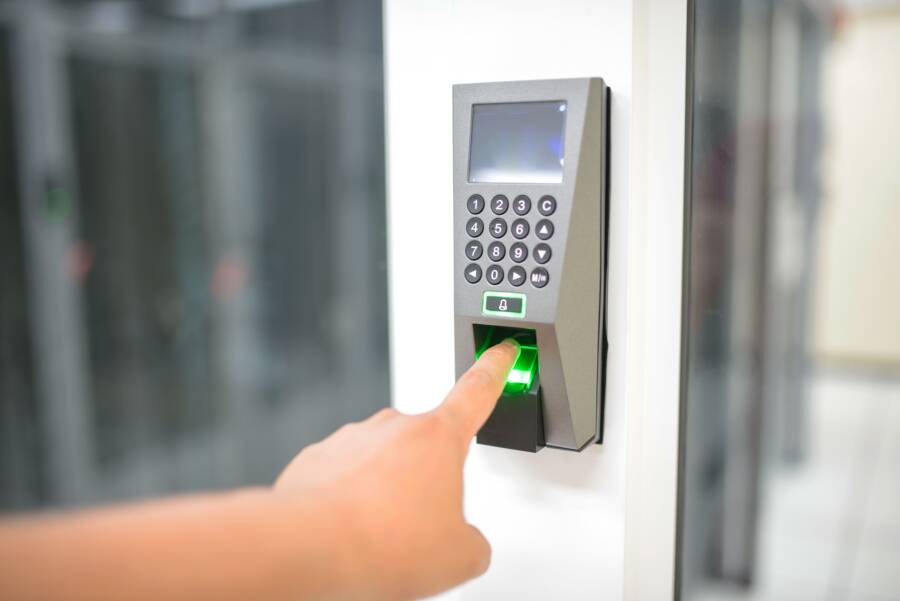
Fingerprint sensors on your smartphone often fail because dry skin lacks the subtle moisture and natural oils required to create a clear contact patch. Without these oils, the ridges of your fingerprint do not register with the scanner, causing repeated access errors.
You can resolve this annoyance quickly by adjusting your software settings or using simple hydration techniques to improve sensor recognition. These physical and digital tweaks will help you regain reliable access to your device.
The following sections provide practical steps to fix these authentication failures for good.
Why Your Smartphone Struggles With Dry Hands
Fingerprint scanners on your smartphone rely on specific physical conditions to function correctly. When your skin is excessively dry, these sensors often fail to capture the high-quality image required for identity verification. Understanding how your device views your finger helps explain why simple environmental factors lead to repeated authentication errors.
How Sensor Technology Reads Your Print
Modern biometric security generally uses one of two primary methods to map your fingerprint. Optical sensors work like a tiny camera, taking a high-resolution photo of your finger surface. These sensors project light to illuminate the ridges and valleys of your print. They rely on the contrast between the raised skin ridges, which touch the sensor, and the recessed valleys that hold air. Dry skin often lacks the necessary reflection or creates flaky patches that distort this image, leading the sensor to see a blurred or incomplete pattern.
Ultrasonic sensors operate differently by sending sound waves through the display glass to bounce off your finger. These waves return to the sensor at different times based on the depth of the ridges and valleys, creating a three-dimensional map. While ultrasonic technology handles dirt or moisture better than optical sensors, it still requires a solid contact patch. Dry, hardened skin inhibits the transmission of these sound waves, causing the sensor to receive a weak signal that fails to match your stored biometric data.
Both sensor types depend on a clear, consistent connection. If your skin is too dry, the following issues typically occur:
The lack of natural oil prevents the finger from making a firm, uniform seal against the glass.
Flaking or cracked skin creates jagged artifacts that the sensor interprets as noise rather than valid ridge patterns.
Reduced skin elasticity makes it difficult for the print to flatten adequately, shrinking the surface area available for the scan.
The Impact of Skin Texture and Environment
External conditions play a significant role in how well your smartphone reads your biometrics. Humidity is a major factor because ambient moisture helps keep skin supple and conductive. During winter months or in dry climates, your skin loses hydration rapidly. This dehydration changes the texture of your fingertips, making the ridges less defined and harder for scanners to detect. Temperature also affects the situation; cold air causes blood vessels near the skin surface to constrict, which further reduces skin moisture and sensitivity.
Your personal grooming habits influence sensor accuracy as well. Many hand lotions and soaps leave behind chemical barriers or residue that interfere with the scan. While a small amount of oil is beneficial for sensor contact, thick lotions can fill in the valleys of your fingerprints or create a greasy smudge that obscures the sensor. Hand sanitizers are particularly problematic because they strip away natural oils and leave the skin surface temporarily parched and uneven.
If you live in a dry environment or work with materials that dry out your hands, you might find that your phone stops recognizing your prints by the end of the day. Keeping your hands slightly moisturized is often the best way to maintain consistent performance. If you regularly use heavy products, consider washing your hands with mild soap and drying them thoroughly before attempting to use the scanner to ensure a clean contact surface.
Simple Software Tricks to Improve Recognition Accuracy
Software settings often determine how your smartphone processes biometric data. You can improve detection speed and reliability by modifying how the operating system handles your fingerprint input. These adjustments take only a few minutes and effectively compensate for the reduced skin hydration that causes authentication failures.
Registering Prints Under Dry Conditions
Your smartphone records biometric data based on the specific condition of your skin at the time of registration. If you scan a dry finger, the device saves a map that only recognizes dry skin. You can bypass this limitation by registering the same finger twice under different conditions.
First, delete your existing fingerprint profile to start with a clean slate. Register your finger for the first time after washing your hands and drying them completely to capture your natural, standard skin texture. Then, add the same finger again while your skin is slightly damp or after applying a thin layer of light moisturizer. This creates a broader reference library for the scanner. By providing the sensor with two distinct profiles, the device compares your input against both clean and hydrated versions of your fingerprint, which significantly increases the chance of a successful match regardless of your current skin state.
Adjusting Sensitivity Settings
Modern smartphones often include specific software adjustments for users who apply screen protectors. These tempered glass or plastic covers create a physical barrier that weakens the signal between your skin and the sensor. If your device struggles to read your print because of this extra layer, you can increase the input sensitivity to compensate.
Navigate to the display or security settings menu on your smartphone to find this option. Look for a toggle labeled “Touch sensitivity,” “Increase touch sensitivity,” or “Screen protector mode.” Enabling this feature tells the processor to amplify the signals coming from the touch interface. This change helps the sensor pick up the faint ridges of dry fingertips that would otherwise go unnoticed through a screen protector. Keep in mind that this setting consumes slightly more battery life, so you should only enable it if you actually use a screen protector or if your fingerprint unlock performance remains poor after testing other fixes.
Physical Maintenance and Habit Changes
Maintaining a smartphone fingerprint sensor requires more than just software tweaks. Often, the physical state of your device and the condition of your fingertips determine whether you get into your phone on the first try. Small adjustments to how you clean your hardware and how you prepare your skin can improve your daily unlock rate.
Keeping Your Sensor Clean
Accumulated oils, lint, and dust particles create a physical barrier that prevents the sensor from capturing a clear ridge pattern. Optical sensors are particularly sensitive because they rely on light reflection to map your fingerprint. If a layer of grime sits between your finger and the screen, the sensor interprets this as noise rather than a distinct print.
Clean the display area with a high-quality microfiber cloth. These cloths pull oils and debris from the surface without leaving behind lint or paper fibers. Avoid using harsh household cleaners or abrasive paper towels, as these can scratch the glass and degrade the oleophobic coating. This protective layer is essential because it repels skin oils and prevents smudges from spreading during normal use.
If you must use a liquid cleaner, apply a small amount of distilled water or a dedicated screen-cleaning solution to the cloth first, never directly to the smartphone display. Wipe the area in a gentle, circular motion to lift away stubborn residue. Once the surface looks clear, wait a few seconds for any remaining moisture to evaporate completely before attempting an unlock. A dry, pristine surface allows the sensor to capture the necessary light contrast for an accurate scan.
Smart Use of Skin Hydration
Fingerprint scanners struggle when skin is excessively dry because the lack of natural moisture prevents a firm, complete contact patch. Dry skin often results in flaky, uneven surfaces that look jagged to the sensor. You can resolve this issue by introducing a small amount of hydration to your fingertip just before you place it on the screen.
If your hands feel particularly parched, touch your finger against your forehead or the side of your nose for a second. This area naturally produces a tiny amount of sebum, which adds enough moisture to fill the microscopic valleys in your fingerprint ridges. This extra lubrication creates a better seal between your finger and the glass, helping the sensor read your data more effectively.
If you prefer a more clinical approach, use a very light, non-greasy moisturizer. Apply only a minuscule amount to the tip of the finger you use for unlocking. Wait a moment for the lotion to absorb; you want the skin to feel supple, not slippery or wet. A heavy layer of cream will leave a visible smudge that acts as an obstruction rather than an aid. By keeping your fingertip slightly hydrated, you ensure that the sensor receives a consistent, high-fidelity image every time you access your phone.
Troubleshooting When Nothing Else Works
Sometimes, your smartphone still refuses to recognize your fingerprint even after you adjust software settings, clean your screen, and try various hydration tricks. When these standard fixes fail, the issue might reside within the hardware or the accessories protecting your display. Determining the exact source of the failure helps you decide whether to change your physical setup or pursue a repair through official support channels.
Checking Your Screen Protector Compatibility
Many screen protectors act as a barrier between your skin and the sensor, especially with ultrasonic systems that rely on precise physical contact. Glass protectors are often thicker than plastic films, which can attenuate the signal enough to cause consistent errors. If you installed a high-quality protector and the phone stopped recognizing your print immediately after, the material is likely the primary culprit.
When shopping for a replacement, look for products specifically labeled as fingerprint-sensor compatible. Manufacturers design these covers with specific adhesives and thinner glass profiles to minimize signal loss. Avoid bargain-bin screen protectors, as these often contain air gaps or low-grade materials that distort the biometric data reaching the sensor.
Consider these factors when choosing a new protector:
Adhesive quality is vital because any microscopic bubble or separation point blocks the sensor from reading the ridge patterns of your finger.
Material thickness matters significantly; ultra-thin tempered glass or high-clarity TPU films provide the best results for biometrics.
Manufacturer certification gives you a higher chance of success, as many companies test their products against specific phone models to verify that the scanner remains functional.
If you find a protector you like, verify the installation instructions. Many modern devices require you to re-register your fingerprints after applying a new protector. The sensor needs to map your skin through the new layer to establish an accurate baseline.
When to Contact Support or Service
Distinguishing between a stubborn user error and a genuine hardware defect is the next logical step. If you remove your screen protector and reset the factory settings, yet the sensor still fails to enroll or recognize your fingers, you likely face a hardware problem. Sensors are delicate components, and they can fail due to manufacturing flaws, physical damage, or water ingress.
Check for these signs that suggest a hardware failure:
The sensor is completely unresponsive, meaning it shows no light or error message even when you place your finger firmly on the designated area.
The system displays persistent error messages stating the scanner is unavailable or requires a service check.
Your smartphone shows visible signs of damage, such as a crack running directly through the sensor or a lifted display panel near the scanning hardware.
If you reach this point, contact your device manufacturer directly through their official support portal. Professional technicians run diagnostic tests to confirm if the biometric module is functional. If the device remains under warranty, manufacturers often replace the screen assembly or the entire unit when the sensor fails to perform its primary function. Avoid attempting DIY repairs, as opening the device to access the sensor often voids your warranty and risks damaging other sensitive internal components.
Conclusion
Reliable biometric access depends on the quality of the contact patch between your finger and the sensor. If your smartphone consistently fails to recognize your print, re-registering your fingerprints under different hydration conditions often provides the most effective fix. Combined with basic sensor maintenance and subtle skin hydration, these steps ensure your device reads your biometrics accurately regardless of environmental dryness.
Finding a balance between security and convenience requires adjusting both your software settings and your daily habits. By applying these simple corrections, you can maintain quick, reliable access to your device without sacrificing the protection your biometric lock provides.