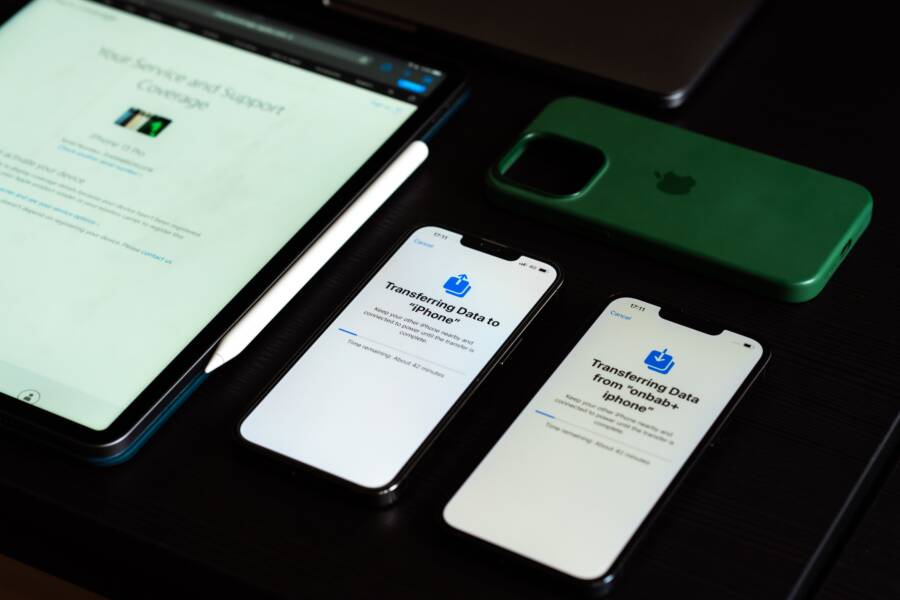
If your smartphone refuses to transfer files to your Windows laptop, the problem is usually a faulty cable, incorrect USB settings on your device, or outdated drivers. Most of these connection issues are minor and you can fix them in less than five minutes.
You should first check your hardware to rule out physical damage before adjusting your software settings. Follow these steps to restore your connection and move your files again.
Check Your Physical Connection First
Connection issues often stem from simple hardware faults rather than complex software errors. Before you adjust settings on your computer or smartphone, verify that your physical link is secure. A faulty cable or an unstable port frequently prevents a computer from recognizing your device. Start your troubleshooting process by isolating the connection hardware to rule out basic mechanical failure.
Swap Your Charging Cable
Many USB cables sold with third-party accessories are designed exclusively for charging. These cords lack the internal pins necessary to transmit data. If you use a cable that does not support data transfer, your smartphone will receive power, but your computer will never detect the device.
Always use the original cable that came with your smartphone when you need to transfer files. Original manufacturer cables contain the full set of wires required for both power delivery and high-speed data synchronization. If your original cord is missing or damaged, purchase a high-quality replacement specifically labeled as a data sync cable. Cheap, non-certified cables are frequent culprits in connection failures because they often have poor shielding or missing data wires.
Test Different Computer USB Ports
Computer ports can fail or provide inconsistent performance depending on their location. If you use a desktop tower, the front-facing USB ports are often connected to the motherboard via internal extension cables. These extensions may fail to provide enough bandwidth or voltage to maintain a stable connection with your smartphone.
Plug your cable directly into the USB ports located on the back of the computer case. These ports attach directly to the motherboard, which minimizes signal loss and provides more reliable power output. If you currently use a USB hub, remove it temporarily and connect the phone directly to the computer. Hubs frequently struggle to handle the power requirements of mobile devices, leading to intermittent connection drops during large file transfers.
Fixing USB Settings on Your Device
Most file transfer failures occur because the smartphone is stuck in a charging-only state. When you plug your device into a computer, it defaults to drawing power rather than exchanging data. You must manually instruct the operating system to open a communication channel for your files. This process is straightforward and fixes most connectivity problems immediately.
Enabling MTP or File Transfer Mode
Modern Android devices hide file transfer capabilities behind a specific notification menu to maintain security. You need to activate this mode every time you plug your phone into a new Windows machine. Without this step, the computer detects a power source but cannot access the internal storage directories.
Follow these steps to enable the connection:
Connect your smartphone to the Windows computer using a reliable USB cable.
Unlock your phone screen to ensure you can interact with the notification area.
Swipe down from the top of the screen to open the notification shade.
Look for a notification labeled Charging this device via USB or similar text.
Tap the notification to reveal a list of USB preferences.
Select File Transfer or MTP from the list of available options.
Once you select this mode, your computer should play a connection sound and automatically open a file explorer window. If the folder appears empty, wait a few seconds for the device to index the files. If you still see nothing, disconnect the cable and repeat the steps carefully.
Handling Security Prompts
Your smartphone includes built-in safeguards to protect your personal data from unauthorized computers. When you first connect your device to a Windows machine, the phone displays a popup asking if you trust the computer. This is a crucial security layer that manages access to your photos, videos, and private documents.
If you ignore this prompt or accidentally tap Cancel, the computer cannot read your device storage. Windows will recognize that a USB device is attached, but it will not show any files or folder structures in File Explorer. You must grant explicit permission to establish a secure link.
To resolve this, unlock your phone screen immediately after plugging it in. Look for the prompt labeled Allow access to phone data or Trust this computer. Tap Allow on the screen to authorize the connection. If the prompt does not appear, disconnect the USB cable and plug it in again while the phone is fully unlocked. Once you authorize a specific computer, your phone remembers this choice for future connections. If you ever feel insecure about your device connection, you can clear these trusted settings within the developer options menu of your smartphone.
Troubleshooting Windows Drivers and Software
Sometimes a smartphone connects perfectly to a computer, yet Windows fails to recognize the files. This typically happens when the software communication layer between your device and the operating system is corrupted or outdated. Drivers act as the translator between your hardware and Windows, so any communication gap here stops file transfers entirely. If physical checks fail to solve the problem, you should investigate these software-based solutions to restore your connection.
How to Update USB Drivers
Windows uses specific drivers to identify different types of devices. If your computer misidentified your smartphone during the first connection, it might have installed the wrong driver or a generic one that does not support data transfer. Updating the driver forces Windows to re-evaluate the device and install the correct software package.
You can update your drivers through the Device Manager by following these steps:
Right-click the Start button and select Device Manager from the menu.
Expand the section labeled Portable Devices or Universal Serial Bus devices.
Look for your smartphone in the list, which may appear with a yellow exclamation mark icon.
Right-click the name of your device and select Update driver.
Choose Search automatically for drivers to let Windows find the best match online.
Follow the remaining on-screen prompts and restart your computer if requested.
If Windows fails to find a driver, try selecting Browse my computer for drivers instead. You can then choose Let me pick from a list of available drivers on my computer. Select MTP USB Device from the list provided, as this is the standard protocol for most modern mobile devices. Completing this installation often clears persistent communication errors.
Using Official Smartphone Utility Software
Native Windows Explorer provides a simple interface for file management, but it occasionally struggles with specific device protocols or encrypted file systems. Manufacturers often provide their own utility software designed to bridge the gap between their specific hardware and the Windows operating system. These tools handle data handshakes more reliably than the default Windows file transfer process.
For instance, Samsung users benefit from using Smart Switch, which manages backups and file transfers without relying on standard Windows drivers. Similarly, other major manufacturers provide dedicated desktop applications meant to detect the device, install necessary background services, and provide a stable pathway for moving data.
If you find that your computer still refuses to see your files, check the official website of your phone manufacturer. Download their designated synchronization tool and install it on your machine. These utilities often include proprietary drivers that provide superior compatibility compared to the generic ones included in Windows. Once you install the software, launch it while your device is connected to see if it detects the storage. This method effectively bypasses common Windows interface limitations and provides a secure, consistent way to move your photos and documents.
Alternative Ways to Move Files
If your USB connection remains unresponsive, you have several reliable wireless methods to move files between a smartphone and a Windows computer. These options bypass physical cable constraints and often provide a faster way to sync individual documents or photos. You can pick the method that fits your current network environment and file size requirements.
Cloud Storage Services
Cloud services offer the most consistent way to sync data across platforms. By installing a cloud app on both your smartphone and your PC, files upload automatically to a shared folder. This removes the need for any manual connection steps or cable troubleshooting.
Popular platforms like Google Drive, OneDrive, and Dropbox perform this task efficiently. You simply upload your chosen files from the phone app, and they appear in the corresponding folder on your Windows desktop. This approach works well for documents, individual photos, or small video clips. Keep in mind that large file transfers require a stable Wi-Fi connection to prevent data usage fees or slow upload speeds.
Wi-Fi Transfer Applications
Specialized file transfer apps allow you to move data over your local network without relying on cloud servers. These tools create a temporary bridge between devices when both are connected to the same Wi-Fi router.
Examples such as AirDroid or LocalSend work by providing a local web address. You open this address in your Windows web browser, which creates a secure portal to your phone files. These apps are often faster than cloud storage because your data does not leave your home network. You maintain full control over your privacy since the transfer stays local.
Email and Messaging Workarounds
For single images or small PDF files, emailing items to yourself is a quick solution. You attach the file to an email on your smartphone and open the message from your computer browser. This method is effective for emergencies when you only need to grab one or two documents immediately.
Similarly, messaging platforms like Telegram or WhatsApp allow you to send files to your own account. Many of these services offer desktop apps that sync your chat history, including the files you sent from your phone. You simply open the desktop application and download the file directly to your hard drive. While this is not ideal for large folders, it solves minor transfer needs without complex setup or hardware requirements.
Each method provides a unique benefit depending on your immediate goal. Using cloud storage is best for ongoing backups, whereas local transfer tools offer speed for bulk items. Messaging apps remain the most convenient choice for spontaneous transfers of small, individual files.
Conclusion
Most file transfer issues stem from a simple hardware fault, a loose port, or the wrong selection on your smartphone screen. If your computer does not recognize the device, check the cable, swap the USB port, and ensure you have selected File Transfer mode from the notification menu.
Prioritize these physical and setting checks before adjusting your driver configurations. They resolve the vast majority of connection failures within seconds.
Keep your operating system and device drivers updated to maintain compatibility with new hardware. This habit prevents future communication errors between your phone and your Windows machine.