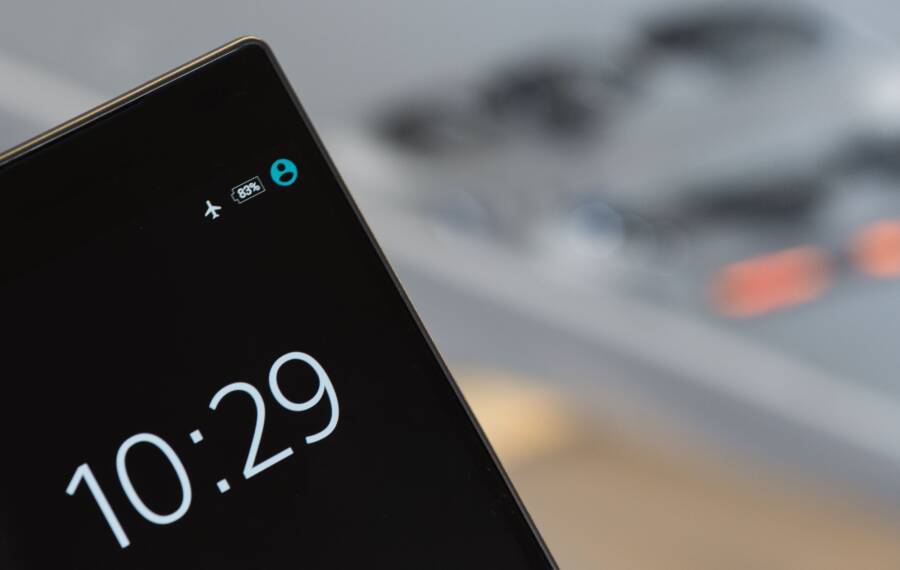
If your smartphone clock constantly drifts after you cross time zones, the issue is almost always a network synchronization error rather than a hardware failure. Your device relies on signals from local cell towers to maintain accurate timing, and roaming between networks or changing cellular providers often disrupts this automatic update process.
You don’t need a repair shop to fix this problem. By manually resetting your date and time settings and forcing the device to re-establish a connection with your local network, you can usually restore perfect synchronization within seconds.
Understanding How Your Phone Syncs Time Automatically
Your smartphone keeps accurate time by communicating with external servers rather than relying on its own internal clock alone. When you travel, the device constantly monitors your location to determine which time zone rules apply to your current coordinates. This process happens behind the scenes through a specific sequence of network requests and satellite signals.
Network Time Protocol and Cellular Signals
Most modern mobile devices use a system called Network Time Protocol (NTP) or a carrier-specific equivalent to maintain precision. When your phone connects to a cellular tower, the network broadcasts a timing signal that tells the device exactly what time it is in the local area. Your smartphone accepts this information and adjusts its internal clock to match the network signal exactly.
This synchronization happens frequently throughout the day to prevent the drift that occurs when physical hardware clocks operate independently. Because your phone talks to a tower in your new time zone, it updates your clock the moment it establishes a stable connection. If you disable your cellular data or remain in airplane mode, your device may struggle to locate this timing signal.
The Role of GPS and Location Services
Global Positioning System (GPS) satellites provide another layer of timing data for your device. While your cellular carrier handles the primary time zone adjustments, GPS signals contain highly precise timestamps that verify the information you receive from the tower. Your phone compares the time provided by the cellular network with the time derived from satellite data to ensure consistency.
If you are traveling in remote areas or switching between roaming partners, this cross-verification process sometimes encounters errors. A minor mismatch between the satellite time and the network time might cause the phone to ignore the update or retain the previous time zone settings. Enabling location services helps the device cross-reference your physical location with the correct time zone offset automatically.
Why Time Sync Fails During Travel
Travel introduces several variables that can confuse the automated clock features on your smartphone. When you cross multiple time zones quickly, the device might maintain a connection to a previous tower or fail to poll for the new network time immediately. Many users encounter this when their device sticks to the “home” network time despite being miles away in a different country.
Roaming restrictions: Your current carrier agreement might limit how your phone interacts with local network signals.
Disabled automatic settings: If you previously toggled off the set time automatically feature, the phone stops listening for external network updates.
Server latency: Occasionally, the carrier’s time synchronization server experiences delays in broadcasting the update to roaming devices.
Checking these settings before you board a flight helps prevent the clock from drifting. If you find the time is still incorrect, you can verify your status by checking if the date and time settings are toggled to the automatic position in your system menu.
Step by Step Fixes for Persistent Time Drift
When your smartphone fails to display the correct time after arriving at a new destination, you can regain control by bypassing the automated network sync. While your device prefers to let the carrier handle clock adjustments, manual overrides often provide the stability needed to force a correction. These steps help you stop the drift and lock in the local time until your hardware restores its normal connection.
Adjusting Date and Time Settings Manually
Disabling automatic time updates stops your smartphone from constantly polling a potentially misconfigured network server. This gives you a blank slate to set the correct time yourself, which remains fixed until you toggle the automatic setting back on. Once you establish a manual baseline, the internal clock usually stays calibrated even if the network signal remains weak.
On an iPhone, open the Settings app and select General. Tap Date and Time, then slide the toggle for Set Automatically to the off position. You will see the current time zone and date fields become editable, allowing you to select your actual location or set the time manually.
Android devices require a similar approach through the system settings menu. Navigate to Settings, select System, and tap on Date and Time. Turn off the switches for Set time automatically and Set time zone automatically. You can then adjust the clock to reflect your current environment. Leaving these options disabled acts as a temporary patch, as it forces the hardware to ignore conflicting data packets from roaming towers that might be providing the wrong time zone offset.
Troubleshooting Network and Airplane Mode Conflicts
Time drift frequently occurs when your smartphone enters a state of digital limbo while transitioning between network towers. Leaving your device in Airplane mode for too long prevents it from receiving the latest synchronization packets from the cell tower. Similarly, a poor or unstable roaming connection often causes the device to drop the time update request before the handshake finishes.
Toggling Airplane mode is a quick way to force a fresh signal handshake. By turning this mode on for ten seconds and then off again, you clear the current network session and compel your phone to re-register with the nearest tower. During this re-registration process, the device sends a fresh request for synchronization data, which often resolves the timing lag.
If you are traveling abroad, check your cellular roaming settings if the clock remains incorrect after a power cycle. Sometimes, the issue stems from a carrier agreement that restricts data access to specific partner networks. Switching your network selection mode from automatic to manual allows you to choose a local provider that broadcasts accurate time signals. A stronger connection to a reliable local tower typically clears the drift issue immediately without further intervention.
Software Updates and Other Hidden Culprits
System software errors often hide behind the screen, causing your smartphone to display the wrong time. If your device recently updated its operating system, bugs in the time management module might persist, even after you arrive at your destination. These hidden software flaws disrupt how your device interprets standard network signals, leading to persistent time drift.
Dealing with Pending Software Updates
A pending system update is a common factor that prevents your clock from synchronizing. Device manufacturers frequently release patches to address regional clock adjustments and network communication bugs. If you have an update waiting in your system settings, the internal processes responsible for time synchronization might remain paused or restricted until the installation finishes.
Before troubleshooting further, check your settings to see if your phone requires a software refresh. Connect to a stable Wi-Fi network and initiate the update process. Once the installation completes, the phone reboots and restarts its core services, which often clears the logic errors affecting your local time.
Third-Party App Interference
Some applications override your system time settings to provide location-based features or to bypass regional content restrictions. If you use a VPN app, a GPS spoofing tool, or a calendar app that forces a specific time zone, these programs might conflict with your phone’s native ability to detect local time.
Check your device for the following to rule out software conflicts:
VPN clients: These tools route your data through a different server, which sometimes tricks the phone into using the time zone of the server location rather than your physical coordinates.
Clock or World Time widgets: Custom home screen widgets sometimes operate with their own internal clocks that do not refresh properly when you move between zones.
Automated automation apps: Programs that trigger actions based on your location can inadvertently lock your phone into a specific time zone configuration.
If you suspect an app is causing the issue, disable it or force-quit the application. Restart your smartphone to see if the system time automatically adjusts once the third-party interference stops.
Corrupted System Cache
Temporary files stored in your system cache sometimes hold onto outdated configuration data, including old time zone markers from your previous travel locations. When your phone attempts to sync, it may reference this stale information instead of reading the fresh signal from the local cell tower. Clearing the system cache forces your device to discard old network handshake data and initiate a clean request. While iOS manages this automatically during a restart, Android users can occasionally clear the cache for specific system services through the application manager menu if the drift continues. Most of the time, a simple device power cycle effectively clears these corrupted temporary files, allowing your phone to reconnect to the network with the correct time.
When to Contact Your Carrier for Clock Issues
Most time synchronization problems resolve through simple settings adjustments on your smartphone. However, if the issue persists after you have toggled automatic time settings and restarted your device, the problem might originate at the network level. Carriers occasionally experience outages or server-side misconfigurations that prevent local cell towers from broadcasting accurate timing signals to roaming devices.
Identifying Persistent Network Synchronization Errors
You should consider contacting your carrier if your device fails to update its time even when you are in a high-coverage area with full cellular signal. When multiple devices in your travel party experience the same time drift while connected to the same local network, this pattern confirms that the local tower or carrier is providing incorrect data. If you have already reset your network settings and the clock remains stuck on your previous time zone, the cellular provider needs to address the synchronization error on their end.
Preparing for Your Carrier Support Call
Before you contact customer service, collect specific details to help the representative diagnose the issue quickly. Providing clear information prevents unnecessary troubleshooting steps you have already performed.
Note the name of the local roaming partner you are currently connected to rather than just your home carrier.
Record the exact time difference displayed on your phone compared to the local time at your destination.
Confirm whether your data connection works, as some synchronization issues link to broader account authentication problems.
Verify if other devices on the same plan show the same time discrepancy.
When to Request a Network Provisioning Refresh
If you have exhausted all standard troubleshooting, ask the support agent to perform a “network provisioning refresh” or “re-provision” your line. This action resets how the carrier tower interacts with your specific smartphone account. It forces the system to re-authenticate your device and pushes a new set of carrier configuration files to your phone. This process often corrects time-zone reporting errors that simple restarts or manual toggles cannot fix. Always confirm that your roaming features are active and that no blocks exist on your account, as these restrictions sometimes interfere with the metadata signals your phone requires to maintain perfect synchronization.
Conclusion
Resolving time drift on your smartphone requires a mix of automatic network polling and manual overrides. When traveling, prioritize resetting your cellular connection before adjusting system settings manually to restore accurate timing.
Follow this checklist to fix your clock during future trips:
Toggle Airplane mode on for ten seconds to force a fresh network handshake.
Verify that your date and time settings remain set to automatic.
Update your operating system if a patch is available.
Disable third-party apps that force specific location or time zone data.
Modern hardware is capable, but it often needs your manual intervention when crossing multiple time zones. Keeping your device software current and managing your network connection status ensures that your local time remains precise wherever you land.