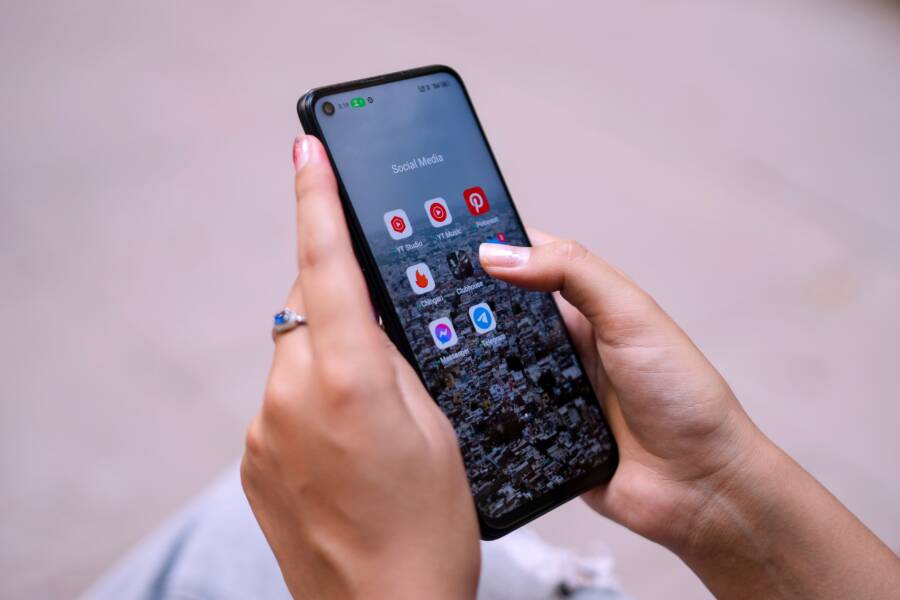
Delayed notifications on your smartphone occur because the device prioritizes battery life over constant network synchronization while connected to Wi-Fi. To fix this, you generally need to adjust power-saving restrictions or update your router settings to allow the device to maintain an active connection.
Most modern operating systems aggressively throttle background data for apps when they detect a static wireless connection. This approach prevents apps from waking up the processor, which saves energy but prevents instant alerts.
You can resolve these interruptions by modifying specific system settings. The following sections walk you through the necessary adjustments to keep your device synced.
Check Your Battery Saver and Background Data Settings
Your smartphone manages power by limiting how apps behave when you aren’t actively using them. While this keeps your battery healthy throughout the day, it often kills incoming alerts. When your phone detects a stable Wi-Fi connection, it might decide that syncing isn’t an emergency, causing your messages or emails to arrive only when you manually open the app. Adjusting these specific energy settings is a direct way to ensure your notifications arrive in real time.
How to Turn Off Battery Optimization for Individual Apps
Battery optimization tools frequently put messaging apps to sleep to conserve energy. By switching your essential apps to an unrestricted mode, you tell your smartphone that these alerts take priority over power saving. You can modify these permissions in a few simple steps.
For Android users, follow this process:
Open your device Settings menu.
Select Apps or Manage Apps.
Tap on the specific messaging app causing issues.
Find the Battery or Battery Usage section.
Choose the setting labeled Unrestricted or Don’t Optimize.
If you use an iPhone, the process is slightly different because iOS manages background activity differently. Go to Settings, tap General, and select Background App Refresh. Make sure this feature is toggled on for your most important apps. While iOS does not have a per-app battery optimization toggle like Android, toggling this setting ensures the system gives your app permission to fetch new data while it sits in the background. Allowing unrestricted access is the best starting point for fixing persistent notification delays.
Enabling Background Data Access for Better Connectivity
Background data limits act like a restricted lane for your apps. If a specific app is blocked from using data while it remains in the background, your smartphone will stop it from checking for new messages until you open the app again. This saves data but defeats the purpose of push notifications.
To verify your data settings on Android:
Navigate to Settings and choose Network or Connections.
Tap on Data Usage or Mobile Network settings.
Select Data Saver and verify it is either off or that your specific app is on the allowed list.
Alternatively, go to the App Info page for your specific messaging app, tap Mobile Data, and ensure Background Data is toggled on.
These settings remain important even if you stay connected to Wi-Fi. Many modern smartphones apply data-saving logic across all network types to keep your device efficient. When you enable background data access, you provide your apps with the open road they need to sync with servers immediately. Check these settings if you still experience delays after updating your battery preferences. A quick check of your data permissions often resolves the sync gap between your router and your device.
Fixing Wi-Fi Settings That Interfere with Notifications
Network configurations on your smartphone often prioritize power efficiency over constant synchronization. When your device enters a low-power state, it may throttle or completely sever its connection to your router to save battery. This behavior creates a gap where your apps fail to fetch incoming messages until you manually unlock the screen. By modifying specific Wi-Fi preferences, you force the system to maintain a persistent link with your local network, which ensures that your alerts arrive exactly when they are sent.
Keeping Wi-Fi Active During Sleep Mode
Many smartphones include an advanced setting designed to cut the Wi-Fi radio when the display turns off. While this feature preserves battery life, it prevents push notifications from reaching your device in real time. Disabling this restriction tells your smartphone that network connectivity takes precedence over minor power savings, allowing your apps to stay synchronized while your phone sits idle.
You can typically find this setting within the Advanced or Wi-Fi Preferences menu of your Android device. Follow these steps to adjust your connection behavior:
Open the Settings app and tap on Network and Internet or Connections.
Select Wi-Fi to view your current network details.
Tap on the menu icon or the gear icon to access Wi-Fi Preferences or Advanced settings.
Look for an option labeled Keep Wi-Fi on during sleep or Keep Wi-Fi on when screen is off.
Set this option to Always.
If you are using an iPhone, the device manages background connectivity differently through the system-wide background app refresh protocols. Because Apple does not offer a manual toggle to keep Wi-Fi active during sleep, your best strategy involves ensuring your router is not dropping the handshake during short intervals of inactivity. If you still face issues, restarting your network settings or ensuring your firmware is updated often provides the necessary stability for push services.
Troubleshooting Router Frequency and Interference
Wireless routers operate on two primary frequency bands, and the one your smartphone chooses can significantly impact your notification stability. The 2.4GHz band covers a longer range but often suffers from congestion because many household appliances and neighboring networks share that same space. In contrast, the 5GHz band provides a faster and more stable connection, though it does not travel through walls quite as effectively.
Interference on these bands frequently causes your smartphone to experience momentary drops in data packets. If your phone frequently switches between frequencies or struggles to maintain a clean signal, the handshake required for push notifications may time out. You can improve your situation by checking these variables:
Assign separate names to your 2.4GHz and 5GHz bands so you can force your smartphone to connect to the more stable 5GHz network.
Use a Wi-Fi analyzer app to see if your neighbors are using the same router channel, then log into your router settings to switch to a less congested channel.
Keep your smartphone within a clear line of sight to the router to minimize signal reflection and interference from physical obstacles.
A congested router channel acts like a crowded intersection during rush hour, where data packets struggle to find an open path to your device. When your router handles too much traffic on a single channel, the latency spikes, causing your apps to miss the initial alert window. By manually selecting a quieter frequency or channel, you provide a clear lane for your smartphone to receive incoming notifications without interruption.
Advanced Software Fixes for Persistent Notification Lags
When standard battery and network adjustments fail, deeper software issues often prevent your smartphone from receiving notifications on time. Temporary system files and hidden conflicts can trap data in a loop, causing alerts to arrive only after you wake the device. Addressing these internal software bottlenecks restores the intended flow of communication.
Clearing System Cache and App Data
Your smartphone generates temporary files to help apps load faster. Over time, these files accumulate and can become corrupted, which confuses the system and slows down background processes. When cache files conflict with new data, your device might fail to trigger a notification because the software cannot correctly process the incoming signal.
Clearing these temporary files is a safe way to reset an app without losing your personal information, such as login sessions or saved settings. Follow these steps to refresh your app environment:
Open your device settings and navigate to the Apps list.
Select the specific app causing the delay.
Tap Storage or Storage and Cache.
Select Clear Cache.
If the problem continues, you can choose Clear Storage or Clear Data. This action resets the app to its initial state, essentially performing a clean install. Note that this step requires you to log in to the app again, but it does not delete your cloud-synced messages or photos. Regularly clearing the cache for high-frequency messaging apps keeps the communication pathway clear and responsive.
Identifying VPN or Firewall Conflicts
Many users rely on VPNs or firewall apps to secure their internet traffic. While these tools protect your privacy, they often create a tunnel that isolates your smartphone from the servers required for push notifications. Some VPN apps force all traffic through a single connection point, which can inadvertently block the specific data packets responsible for alerting you to new messages.
If you suspect your security software is causing the delay, test your connectivity by disabling the VPN or firewall for a short period. If your notifications return to normal, the issue lies in how that app handles background traffic. You can often resolve this by checking the settings within your VPN app for options such as:
Split tunneling: This feature allows you to choose specific apps that should bypass the VPN, keeping your messaging apps connected directly to the local Wi-Fi.
Persistent connection: Some security apps have a setting to maintain an active tunnel, which prevents the connection from timing out during idle periods.
Trusted networks: You can configure the VPN to automatically turn off when your smartphone connects to your secure home or office Wi-Fi network.
Third-party firewalls might also have rules that restrict background data usage specifically for push services. Check the permission list in your firewall app to ensure that messaging services have unrestricted access to communicate with their servers. Adjusting these rules removes the barrier between your device and the notification server, helping your alerts appear the moment they arrive.
When to Consider a Factory Reset or Support Help
A factory reset is the final option to resolve notification delays, as it wipes your data and restores the device to its original state. You should only choose this path if software conflicts remain despite your attempts to clear caches, update firmware, and adjust background permissions. If your smartphone continues to miss alerts after you exhaust these troubleshooting steps, the root cause is likely a deep-seated corruption within the operating system that only a clean slate can fix.
Deciding Between a Reset and Professional Repair
You should perform a factory reset when you suspect software bugs are causing the erratic behavior, but hardware issues require a different approach. If your Wi-Fi radio behaves inconsistently across every device in your home, the problem is your network equipment, not your phone. However, if your smartphone fails to maintain a stable connection while other devices function perfectly, you might face a hardware defect.
Before you commit to a full reset, try these diagnostic checks to confirm the source of the problem:
Compare your notification performance on a different Wi-Fi network to rule out router-specific compatibility issues.
Check if your device has suffered physical damage, such as water exposure or impacts, which could affect the internal antenna.
Review your recent app installations to determine if a specific piece of third-party software triggered the delays.
If you complete a factory reset and the issue persists, contact the manufacturer support team for a formal assessment. They have access to advanced diagnostic tools that can identify hardware failures or firmware inconsistencies that a standard user cannot fix. When your device is under warranty, seeking professional help saves you time and prevents the risk of further damage during manual repairs.
Preparing for a Factory Reset
If you decide that a reset is necessary, you must protect your personal information first. A factory reset removes all data, so your primary goal is to ensure you do not lose contacts, photos, or documents. Most modern systems provide built-in backup features that sync your data to the cloud, but you should verify the status of these backups before proceeding.
Follow these steps to safely prepare your device for a reset:
Connect your smartphone to a charger to prevent it from shutting down during the process.
Navigate to your system backup settings and perform a manual sync to the cloud.
Verify that your two-factor authentication recovery codes are secure, as losing access to these can lock you out of essential accounts.
Sign out of your primary accounts, such as your Google or Apple ID, to prevent activation lock issues after the reset completes.
Once your data is secure, locate the reset option in your system settings. Choose the option to erase all data, which triggers a complete wipe of the internal storage. After the process finishes, set up your device as new rather than restoring from a full backup immediately. This approach allows you to verify if your notifications work properly before you reintroduce your previous apps and configuration files. If the alerts arrive on time without your old apps, one of those programs is likely the cause of your original problem.
Conclusion
Fixing notification delays on your smartphone requires a systematic approach to power management and network stability. Start by adjusting battery optimization settings for your most important apps, then verify that background data access is enabled. If the problem persists, force your device to maintain a persistent connection to the router by modifying Wi-Fi sleep preferences.
Test one setting at a time to identify the exact cause of your connection issues. This strategy helps you pinpoint whether the bottleneck exists within your system permissions, router frequency, or background software conflicts. A properly configured device delivers instant updates once these common software barriers are removed.