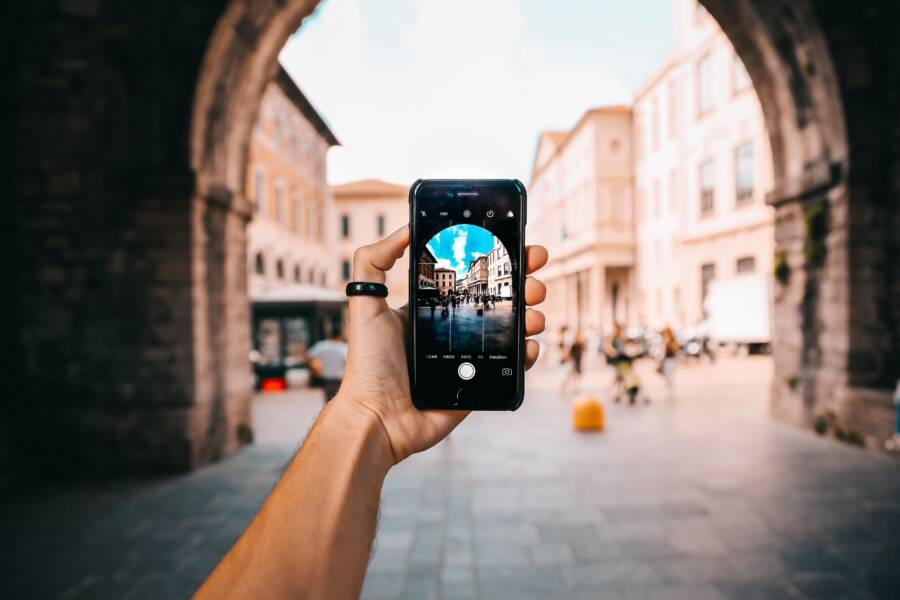
Your smartphone camera settings reset every time you close the app because of aggressive memory management or corrupted cache files. This behavior often happens when the operating system forces the application to clear its temporary data to conserve battery life or storage space.
You can resolve this persistent annoyance by adjusting your background process limits or clearing the stored application data. Most users find that a quick configuration change prevents the camera from reverting to its factory defaults.
Follow these steps to stabilize your preferences and keep your custom smartphone settings saved for good.
Identifying Why Your Camera Settings Reset
Your smartphone camera often reverts to its factory configuration because the operating system prioritizes resources for active tasks. When your device runs low on memory, it closes background applications or clears temporary data caches to maintain speed. This process frequently affects the camera app, which needs to retain user preferences to function as expected. If the system perceives the camera app as inactive or idle, it clears the stored configuration files to free up space.
Aggressive Background Process Management
Modern operating systems manage power consumption by killing background tasks. If you frequently switch between apps, your phone might terminate the camera process entirely to save battery. When you reopen the camera, the system treats it as a fresh launch, loading the default factory settings instead of your saved preferences. This behavior is common on devices with limited RAM, as the system must clear cached data to accommodate new requests.
You can often observe this if your camera settings revert specifically after you have opened several power-hungry apps like mobile games or video editors. These resource-heavy applications force the phone to purge data from less critical apps, which leads to the loss of your custom configurations.
Corrupted Cache and Configuration Files
Temporary files can sometimes become corrupted, which prevents the camera app from reading your saved preferences correctly. When the app attempts to load its startup state, a corrupted configuration file might trigger an error. To protect the software from crashing, the camera defaults to its standard factory state. This creates a loop where the app cannot successfully save or recall your specific settings.
Regularly clearing the cache for your camera application addresses this specific issue by removing the broken files. This forces the app to generate a fresh, clean configuration file during the next startup. Follow these steps to perform this maintenance:
Open the Settings menu on your smartphone.
Select the Apps or Application Manager section.
Locate the Camera app in the list.
Tap on Storage or Storage and Cache.
Select Clear Cache, then restart your camera app.
Recent Software Updates and Firmware Conflicts
System updates occasionally introduce changes to how applications interact with internal storage. Sometimes, a recent update alters the directory where the camera stores its configuration. If the camera app looks for settings in an outdated location, it fails to find them and falls back to default values. These conflicts are usually rectified by the manufacturer through subsequent patches.
Check if your device manufacturer has released a firmware update to address known software bugs. If the issue started shortly after an operating system upgrade, a simple reset of the camera app settings through the app menu might resolve the incompatibility. Staying current with these updates ensures your smartphone camera maintains the intended functionality while keeping your preferences intact across sessions.
Simple Steps to Lock In Your Preferred Photo Quality
You can stop your phone camera from reverting to default settings by correctly configuring the native application interface. While some devices reset automatically due to system memory constraints, others simply require a manual toggle to force the operating system to save your choices. By following a structured approach within your camera settings, you ensure that your resolution, HDR, and format preferences stay active every time you open the app.
Adjusting Native Camera Application Preferences
The first step to maintaining your desired photo quality involves navigating to the camera app menu. On most modern devices, you find this by tapping the gear icon located in the corner of the camera interface. Once inside, look for menus labeled as Camera Settings, Photo Capture, or Format.
Toggle your preferred options for the following settings:
HDR (High Dynamic Range): Enabling this ensures your phone balances highlights and shadows automatically.
ProRAW or High-Efficiency: If your smartphone supports these formats, select them manually. Many devices default to standard JPEG to save space, so changing this to your preferred format prevents the app from switching back.
Resolution and Aspect Ratio: Ensure these are set to your desired output. High-resolution modes sometimes reset when the camera app restarts after a long period of inactivity.
After you select your preferred settings, keep the camera app open for a few seconds before closing it. This brief pause allows the software to commit the changes to the device database. Some versions of Android or iOS require this delay to write the configuration to the internal storage rather than just holding it in temporary memory.
Clearing Cache and Data for Camera Stability
When your camera settings refuse to stick, the culprit is often a corrupted configuration file. Your smartphone relies on small text files to remember your preferences between sessions. If these files contain errors, the operating system ignores them and defaults to the factory-installed settings to prevent the camera app from crashing.
To fix this, you should clear the cache and data, which forces the device to build a fresh, uncorrupted configuration profile. Follow these steps to perform this reset:
Open your smartphone Settings menu and navigate to the Apps list.
Find the Camera application entry in the list of installed software.
Tap on Storage and then select Clear Cache.
For more stubborn issues, select Clear Data or Clear Storage, which returns the app to its exact factory state.
Restart your device completely.
Restarting is a vital part of this process because it clears the active system memory and stops background processes that might be attempting to pull old, broken data. Once the phone turns back on, reopen the camera app and reconfigure your settings. The app will generate a new set of preference files that correctly honor your quality choices. This process stabilizes the application and prevents the erratic behavior where your preferred settings seem to disappear without warning.
Troubleshooting OS Interference and Third-Party Apps
Your smartphone OS acts as the primary gatekeeper for hardware resources. If your camera settings keep resetting, the operating system might be aggressively managing the app’s background processes to save battery or memory. This behavior is common on modern devices, but you can usually override these power-saving mandates to maintain your preferred settings.
Managing Background App Restrictions
When a smartphone detects high battery drain or memory pressure, it often terminates background activities to preserve system stability. If your camera app is included in these automatic restrictions, the system effectively restarts the app whenever you switch tasks. This reset wipes your custom configurations and forces the camera to return to its factory state.
You can check if this restriction is active by visiting your device battery or background process settings. On many models, you need to find an option labeled “Background activity” or “Optimize battery usage” for your specific camera app. Set this permission to “Unrestricted” or “Don’t optimize.” This change tells the OS to keep the app active in memory, which allows it to preserve your settings while you move between other applications.
Some phones also include a “Lock” or “Pin” feature within the app switcher menu. By pinning the camera app, you signal to the OS that this process remains essential and should not be closed during memory cleanup. If you frequently need to jump between your camera and other apps without losing your focus or exposure settings, pinning is a reliable way to keep the session alive.
When to Use Third-Party Camera Apps
Sometimes, the native camera software is too tightly integrated with the system’s aggressive power management. If your smartphone camera continues to reset despite adjusting background permissions, switching to a dedicated third-party camera app is a practical alternative. Professional apps are often designed to lock in specific exposure, white balance, and focus parameters, preventing the OS from reverting them unexpectedly.
Third-party alternatives offer several advantages for photographers who need consistency:
Manual controls allow you to lock settings like shutter speed, ISO, and manual focus that stay fixed even after you exit the app.
Advanced apps often bypass some native processing layers, which keeps your configuration files independent of the system’s factory defaults.
These tools save custom profiles directly within their own app architecture instead of relying on the system-wide settings database.
If you are a casual user, the native camera app is likely sufficient. However, if your work requires consistent settings for video production or long-exposure photography, a third-party app provides the stability you need. Using a professional-grade camera app ensures your setup remains ready to capture photos without needing manual recalibration after every session.
Advanced Fixes for Persistent Setting Issues
Sometimes standard troubleshooting fails to keep your smartphone camera settings from resetting. If your device continues to ignore your preferences after you clear the cache or adjust power permissions, the problem likely stems from deeper system-level conflicts or automated backup restoration. You need to address how your OS handles app configurations and potential software bugs that override your manual choices.
Disabling Automated Cloud Restoration
Many smartphones automatically restore app data from cloud backups whenever you reinstall or update an application. If your camera app has a corrupted configuration file saved in your cloud account, the phone downloads this broken data every time, effectively undoing your manual fixes. You can stop this cycle by disabling the automatic restoration feature for the camera app. Navigate to your cloud settings and verify if the camera application is included in your backup sync. Turning off this toggle prevents your smartphone from pulling old, problematic settings back onto your device.
Resetting System-Wide Camera Permissions
Corrupted permission sets cause the camera to malfunction and default to basic modes. When an app lacks the necessary access to write to your storage, it cannot save your configuration changes. You can force the system to rebuild these permissions by revoking and then re-authorizing access. Go to your privacy settings, locate the camera permissions, and turn off all access. Restart your device before re-enabling these permissions. This process forces the OS to re-establish the link between the camera software and your storage directory, which often clears up hidden communication errors.
Identifying Interfering Security or Antivirus Apps
Certain third-party security apps or system cleaners aggressively monitor app behavior. These tools might view your custom camera settings as suspicious modifications or temporary junk files and purge them automatically. Check your installed antivirus or performance optimization apps to see if they include a “cleaner” or “battery saver” feature that targets your camera app. Adding your camera app to the “ignore” or “whitelist” section of these security tools stops them from interfering with your stored preferences.
Testing in Safe Mode
If you suspect a third-party app is causing the camera to reset, start your device in safe mode. This environment loads only the essential factory software and disables all user-installed applications. Open the camera app while in safe mode and adjust your settings to see if they hold steady. If the settings remain saved throughout your session, a recently installed app is almost certainly the cause of your frustration. You should then uninstall your most recently added apps one by one until the camera behavior returns to normal. This systematic approach isolates the conflict without requiring a full factory reset of your smartphone.
Conclusion
Maintaining consistent camera preferences on your smartphone requires a combination of routine maintenance and smart configuration. Most persistent issues disappear after you clear corrupted cache files, adjust background process limits, or remove restrictive battery optimizations. These simple adjustments restore the expected behavior of your device and stop the camera from reverting to factory defaults.
If your settings still refuse to stick after you perform these steps, a pending system update or a full factory reset is the most effective way to address deep software conflicts. Taking these actions returns your device to a clean state where it can once again save your configurations correctly. You now have the tools needed to stop these interruptions and take full control over your mobile photography experience.