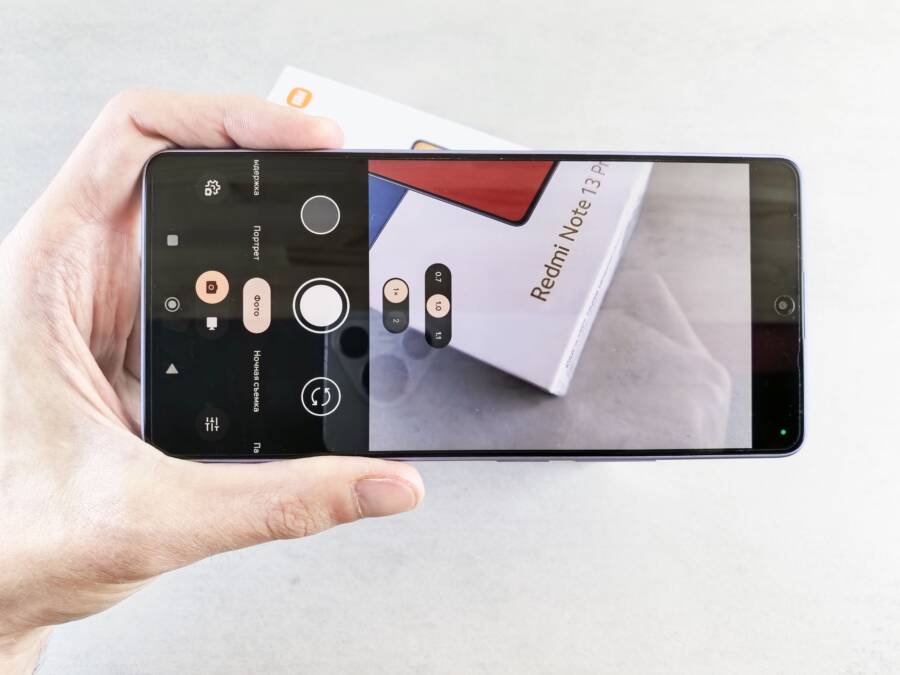
It is incredibly frustrating when you spend time configuring your smartphone camera, only to have every setting revert to default the moment you restart the device. This recurring issue usually stems from a minor software glitch or a permission conflict within the operating system rather than a permanent hardware failure.
You can typically resolve this behavior yourself by following a few targeted diagnostic steps. These methods address the most common culprits behind camera memory loss without requiring professional technical support.
Read on to find the specific fix that works for your model and get your camera settings to stick permanently.
Why Your Smartphone Loses Camera Settings After a Reboot
When your smartphone camera resets its configuration after a reboot, the device is failing to save your preferences to the permanent storage partition. This often happens because the system identifies the camera application as needing a fresh state during the startup sequence. Most of these issues involve background processes that clear temporary data or configuration files that fail to write correctly when the operating system shuts down. Understanding why these resets occur is the first step toward keeping your settings intact.
Common Software Glitches That Trigger Preference Resets
System updates often include automated maintenance scripts that purge old temporary files to keep the smartphone running efficiently. Sometimes, these scripts misidentify your camera configuration file as an obsolete cache item and remove it during a reboot. When the camera app initializes after the restart, it finds no existing configuration file and defaults to its factory settings.
Cache files act as a bridge between your recent adjustments and the app’s permanent data. If a specific cache file becomes corrupted, the app might struggle to read your saved preferences. Instead of forcing a crash, the camera app opts for stability and reverts to default parameters. You can often stop this cycle by clearing the camera app cache manually through your settings menu, which forces the app to create a new, healthy configuration file.
Conflicts Caused by Third Party Camera Apps
Installing multiple camera applications creates competition for hardware resources and system permissions. When you install an alternative camera app, it often requests control over hardware sensors like the flash, focus, and image processing engine. If two or more apps attempt to register as the default controller during the boot process, the operating system might prioritize the native app to avoid hardware errors. This forced prioritization frequently overwrites any custom settings you applied in your preferred third-party application.
These conflicts happen because the smartphone operating system manages camera hardware through a unified interface. Only one app can claim primary access to the image signal processor at any given time. If your chosen app doesn’t have the correct system-level permissions to save its state, the operating system treats it as a temporary guest. Once you restart the device, the system re-evaluates all app permissions, and the lack of proper hooks causes your custom configuration to vanish. You should verify that your preferred camera app has “Auto-start” permissions enabled and that it is not being throttled by battery management settings, as these limitations frequently trigger automatic preference resets.
Simple Troubleshooting Steps to Save Your Camera Preferences
You can often resolve persistent camera settings resets by resetting the application data or ensuring your software is up to date. These steps address common conflicts between your smartphone operating system and the camera hardware. By following the procedures below, you force the system to establish a stable connection between your chosen settings and the application files.
Clearing the Camera App Cache and Data
The camera application stores temporary files, known as cache, to speed up startup times. If these files contain corrupted data, the application fails to save your preferred settings when you restart your smartphone. You should clear this data to remove any conflicting information.
Follow these steps to clear your camera application data:
Open the Settings menu on your smartphone.
Select Apps or Application Manager.
Locate the Camera app in the list of installed programs.
Tap on Storage.
Select Clear Cache first to see if the issue resolves.
If the settings still revert after a reboot, select Clear Data or Clear Storage.
Clearing the cache only removes temporary files, but clearing the storage resets the entire application to its factory defaults. This action deletes all custom configuration files that might be causing the reset issue. Once you perform this step, the camera app will generate a fresh, clean configuration file the next time you open it. You will need to reconfigure your preferred settings one final time, but the app should now retain these changes permanently across future reboots.
Updating Your System Software to Fix Known Bugs
Smartphone manufacturers frequently release firmware updates that address bugs within the system interface. These updates often include patches for permission conflicts that prevent applications from saving state changes to the internal storage. If your camera settings repeatedly reset, your current software version might contain a known error that the manufacturer has already resolved.
To check for pending updates, open the Settings menu and look for a section labeled System Update or Software Update. When you find this menu, tap on Check for Updates to see if a newer version of the operating system is available. Installing these updates ensures that your smartphone uses the latest drivers for the camera hardware and the most stable version of the operating system.
Developers often include specific fixes for third-party application interaction in these patches. If a software update is available, download and install it as soon as possible. This simple action frequently resolves compatibility issues that cause the system to ignore your saved camera preferences. If your camera settings remain unstable even after a full update, you can be confident that the base system is not the culprit and move on to checking specific app permission settings.
Advanced Fixes for Persistent Settings Issues
When standard cache clearing and software updates fail to solve your camera setting resets, you may face deeper conflicts involving background apps or aggressive energy management. These issues often occur because a third-party application or a strict power profile interferes with how your smartphone saves configuration data during a power cycle. Identifying whether these problems stem from software or hardware interaction is the next step in finding a permanent solution.
Testing Your Phone in Safe Mode
Safe mode acts as a diagnostic environment that disables all third-party applications. If your camera settings remain saved after a restart while in this mode, you have proof that a downloaded app is the source of the conflict. This approach helps you isolate whether the issue is a genuine system fault or an unwanted interaction with a program you installed.
To boot your smartphone into safe mode, follow these steps:
Press and hold the physical power button until the power-off menu appears on the screen.
Long-press the “Power Off” or “Restart” icon on the display.
Confirm the prompt to reboot into safe mode when it appears.
Your device will restart with a “Safe Mode” label visible in the corner.
Once you are in safe mode, adjust your camera settings to your preference and restart the smartphone normally. If the settings persist, you must identify which recently installed app is causing the trouble. Begin by uninstalling your most recent camera-related apps or utility tools one by one. Restarting the phone after removing each app helps you pinpoint the exact source of the conflict. If the settings still revert even after you uninstall third-party software, the issue likely resides within your device’s power management profiles.
Checking App Permissions and Battery Optimization
Many modern smartphone operating systems use aggressive battery optimization to extend standby time. This feature monitors how applications behave and frequently restricts their background activity to save power. If your camera application tries to write its final configuration to the internal storage during the shutdown process, battery optimization might terminate the process before the save operation finishes.
You can adjust these settings to ensure the camera application has the necessary freedom to save your preferences:
Navigate to your device settings and open the Battery or Power menu.
Select Battery Optimization or App Launch settings.
Find your camera app in the list of installed programs.
Switch the setting from Optimized or Restricted to Don’t Optimize.
By choosing the unrestricted profile, you prevent the operating system from killing the camera process while it attempts to commit data to your storage. This is particularly helpful if you use a high-performance camera mode that creates large configuration files. Furthermore, verify that your camera app has storage permissions enabled within the App Info menu. Without full access to your internal file system, the app cannot permanently store your preferences, which forces it to reload default settings every time the smartphone initializes.
When It Is Time to Contact Technical Support
You have likely tried the standard fixes like clearing the app cache, checking for system updates, and testing your smartphone in safe mode. If the camera settings continue to reset after every restart despite your efforts, the problem probably sits deeper within the device firmware or the physical hardware components. At this stage, you should transition from troubleshooting the software settings to consulting with professionals who have direct access to diagnostic tools.
Assessing When DIY Repairs Are No Longer Effective
Sometimes the root cause of a settings reset involves corrupted partitions in the internal storage that typical user interfaces cannot touch. If you have already performed a factory reset and the camera still fails to save your configurations, the issue is likely a persistent bug in the operating system build or a failure in the storage controller. Professionals can verify if the storage chip is physically deteriorating or if the system partition requires a complete manual re-flash of the firmware.
Consider contacting support if you notice these specific symptoms alongside the settings reset:
The camera application crashes frequently before or after the settings revert.
Your phone shows other signs of instability, such as random reboots or apps failing to save progress in other utilities.
The system storage reports incorrect capacity or shows frequent “write error” notifications when you try to save photos.
Recent liquid exposure or a physical drop occurred shortly before the camera settings began behaving inconsistently.
How to Prepare for a Support Consultation
Before you visit a repair center or contact customer service, gather all relevant information to speed up the diagnostic process. Technical support agents often require specific details about your smartphone model and the exact steps you have already taken to troubleshoot the issue. Having this information ready prevents the agent from repeating the same basic steps you have already completed.
Prepare these items before you reach out:
Note your current software version and the specific model number found in the Settings menu.
Record a short video or take screenshots showing exactly how the settings revert after a restart.
Create a list of all third-party camera apps or utility tools you have installed recently.
Back up your personal data to an external drive or cloud service, as support technicians often perform a complete device wipe during the repair process.
When you speak with a representative, explain that you have already attempted cache clearing and safe mode testing. Being clear about these past actions helps the technician skip the basic script and move toward advanced solutions like firmware reflashing or hardware diagnostics. If the device is still under warranty, this level of preparation helps you make a strong case for a repair or a replacement unit.
Conclusion
Most camera setting issues on a smartphone stem from minor software glitches or temporary file conflicts that happen during a restart. You can typically solve these problems by clearing the app cache, updating your operating system, or adjusting power management settings to allow the camera to save data correctly.
These steps often restore your device to its proper function without the need for professional help. If you follow this maintenance routine, your preferred settings will remain intact across every reboot.
If the settings continue to reset despite these efforts, contact your device manufacturer for a hardware diagnostic. Persistent data loss may signal a deeper problem with the internal storage or firmware that requires specialized support.