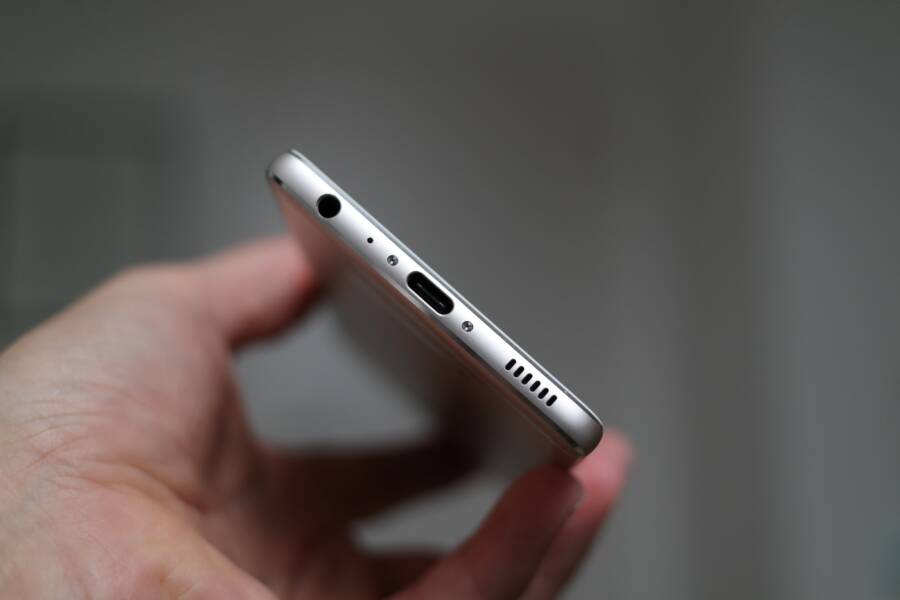
Your charging cable falls out or stops charging the moment you move your smartphone because compressed pocket lint is blocking the port. This blockage prevents the plug from clicking firmly into place, but you can typically clear the debris yourself without paying for a professional repair.
Most people assume their charging port is broken or worn out, yet the issue is usually just a simple buildup of dirt. You likely have the tools to fix this at home in a few minutes.
Follow the steps below to safely clear your port and restore a reliable connection.
The Most Likely Culprit: Compacted Pocket Lint
Most charging issues originate from simple physical obstructions rather than electrical failure. Over time, your smartphone accumulates lint, dust, and fabric fibers inside the charging port every time you slide it into your pocket or purse. This debris packs tightly into the bottom of the connector housing, creating a dense barrier that prevents your cable from seating fully. If your cable feels springy or refuses to click into place, this compacted material is almost always the cause.
How to Inspect Your Charging Port Safely
Before you attempt any cleaning, you need to see exactly what is inside the port. Find a well-lit area or use a bright desk lamp to illuminate the opening. Hold your smartphone so the port faces the light, and use a small flashlight if the ambient light does not provide a clear view. If you wear glasses for close work, put them on to ensure you can see the tiny pins at the bottom of the port.
You will see a small, rectangular tongue in the center of the port. This piece contains the delicate electrical pins required for power and data transfer. Never use metal objects such as needles, safety pins, or paperclips to probe this area. Metal conducts electricity, which risks shorting out your charging circuit, and the hard tip can easily bend or snap the fragile pins. Once those pins are damaged, the port will no longer recognize your charger, and you will face a costly repair at a service center.
Removing Debris Without Damaging Your Smartphone
Once you identify the lint, you must remove it with non-conductive tools. A wooden or plastic toothpick is the safest option because it is soft enough to avoid scratching the internal components. Alternatively, a small, anti-static soft brush can loosen dried dust, though a toothpick remains more effective for pulling out solid clumps of lint.
Insert the tip of your tool gently into the port, working along the edges of the central pin assembly. Use a light hooking motion to pull the debris outward rather than pushing it further into the back of the cavity. If you encounter resistance, stop and reposition your tool. Removing a large piece of lint often takes several small attempts, so be patient while you work the debris out bit by bit. After you clear the bulk of the material, blow a quick burst of compressed air into the port to clear away any remaining fine dust. Test your charging cable again, and you will likely find that it now seats firmly with a satisfying click.
Evaluating Your Charging Cables for Damage
A loose connection does not always stem from a dirty port on your smartphone. Often, the charging cable itself sustains damage that prevents it from seating properly. Inspecting the cable head is a quick way to rule out hardware failure before you attempt more invasive repairs on your device.
Checking for Bent or Corroded Pins
A healthy charging cable head has straight, gold-plated pins that appear uniform and clean. If you look closely at the connector, the pins should align perfectly with the plastic housing. Any deviation or visible warping suggests the cable is compromised. A bent pin cannot make a consistent connection with the internal contacts of your smartphone, which results in intermittent charging as you move the device.
Liquid exposure often causes more subtle damage. If your cable has been wet, corrosion can build up on the metal contacts. This oxidation appears as a greenish or brownish film that creates a high-resistance barrier. Even if the cable looks mostly fine, this film interferes with electrical flow and creates an unreliable fit. You may notice that the phone charges only when the cable is held at a specific angle or pressed firmly into the port.
When to Replace Your Cable Instead of the Phone
If you find that your pins are bent or the contacts show signs of corrosion, the cable is likely at the end of its lifespan. Attempting to fix a mangled connector is dangerous because you might damage the delicate pins inside your smartphone port. Throwing away a damaged cable prevents permanent hardware failure.
Choose your replacement accessories carefully to ensure a long-lasting connection. High-quality cables provide a tighter, more precise fit that resists movement and wear. Look for the following features when purchasing a new cord:
Certified accessories: Labels such as MFi for Apple devices or USB-IF certification for Android indicate the cable meets strict manufacturing standards.
Reinforced strain relief: A thicker rubber or braided collar where the cable meets the head reduces the chance of internal wire breakage.
Proper fit: Generic, cheap cables often have slightly off-center molds that wobble in the port, eventually loosening the internal charging assembly of your smartphone.
Official or high-quality third-party cables minimize stress on your port by providing a snug, secure fit. If you notice your new cable also feels loose, the issue resides within the phone itself. However, starting with a fresh, certified cable is the most logical step to protect your charging port from further strain.
Advanced Troubleshooting When Cleaning Fails
If your charging cable remains loose after you clear out the debris, your smartphone might have a deeper hardware issue. While physical blockages are the most common cause, recurring problems often point toward internal component fatigue or software conflicts. You can isolate these persistent issues by examining the port mounting, testing the power supply, and checking for common system glitches.
Identifying Internal Hardware Failure
A loose port sometimes occurs because the internal connector housing has physically separated from the circuit board. Your smartphone port relies on small solder joints to stay attached to the main board inside the chassis. If you frequently yank on the cable or trip over the cord, these joints become stressed and crack.
You can perform a simple check to identify this structural failure. Gently insert your charging cable into the port and hold it steady. Apply light pressure to the cable head in different directions. If the charging indicator flickers or disappears when you shift the angle of the plug, the internal mount is likely loose or detached. You will recognize this specific problem if the port housing itself feels wobbly or shifts slightly when you touch it. Repairing this usually requires professional soldering services, so avoid forcing the cable further, as this risks breaking the remaining connections on the motherboard.
Ruling Out Power Delivery Issues
Before you assume the port is physically broken, verify that your charging equipment provides a steady current. Sometimes, a faulty wall adapter or a damaged power strip causes intermittent charging that mimics a loose port. Try a different wall outlet first to ensure your source of power is consistent.
Swap your charging brick with another unit to verify the power delivery is not the problem. If your smartphone charges correctly with a different cable and a different wall adapter, your original equipment was likely the culprit. You can also test the charging speed by monitoring the battery icon in your settings menu while the device is plugged in. Consistent power indicates a healthy port, while fluctuating power levels often point toward an unstable power supply or an aging internal battery that cannot maintain a charge.
Managing Software and Sensor Glitches
Occasionally, a smartphone displays charging issues because of software errors or sensor bugs. Your device uses a small controller to negotiate the power flow between the charger and the battery. If this controller encounters a temporary system conflict, it might stop the charging process intermittently.
Try these steps to clear potential software-related charging issues:
Restart your device to clear any background processes that might interfere with charging hardware sensors.
Update your operating system to the latest version, as manufacturers frequently release patches for power management issues.
Check your port for moisture, as most modern devices disable charging if the system detects liquid to prevent a short circuit.
Perform a factory reset only if you have exhausted all other hardware and software troubleshooting options, as this deletes all local data.
If these steps do not improve the connection, the hardware inside your smartphone likely requires a professional inspection. Persistent movement or failure to charge when the cable is plugged in suggests that the internal port pins have reached the end of their functional life.
Practical Tips to Prevent Future Disconnects
Your charging port requires minimal attention, but small habits keep it functioning properly for the life of your smartphone. Most connection issues stem from avoidable debris or physical strain on the connector. You can significantly reduce the risk of a loose port by modifying how you carry, charge, and handle your device daily.
Use Dedicated Storage Solutions
Debris finds its way into your phone primarily through open pockets, purses, or bags. Loose coins, keys, and fabric scraps act as magnets for the lint that eventually clogs your charging port. If you carry your smartphone in a pocket, clean that pocket out weekly.
Turning your phone upside down while inside your pocket also helps. Positioning the port upward prevents dust and fabric fibers from settling into the small opening. Consider using a dedicated compartment in your bag or a protective pouch to isolate your phone from small, abrasive items. These simple physical barriers stop the slow accumulation of debris before it becomes a problem.
Minimize Mechanical Stress on the Port
Most loose ports result from frequent, forceful movement while the device is charging. You often put unnecessary pressure on the internal pins when you use your phone while it remains tethered to a wall outlet. Avoid bending the cable at harsh angles or letting the phone dangle by the cord.
If you charge your phone at a desk or nightstand, ensure the cable has enough slack to move freely. A cable that pulls tightly against the port causes the internal solder joints to fatigue over time. You might also consider using a magnetic charging cable adapter. These devices sit permanently inside your port, allowing your main charging cable to snap on and off magnetically. This design eliminates the need to insert and remove the connector repeatedly, which preserves the life of the port contacts.
Maintain a Consistent Cleaning Routine
Prevention is more effective than waiting for a connection failure. Inspect your port once every few months to catch lint buildup before it compresses into a hard mass. A quick visual check under bright light takes seconds and prevents the need for more aggressive cleaning later.
If you live in a dusty environment or work in construction, you should inspect your port more frequently. You can use a can of compressed air once a month to blow out any loose dust that has settled in the cavity. Keep the straw attachment a few centimeters away from the port to avoid blasting high-pressure air directly onto the delicate pins. Combining these visual checks with occasional air cleaning keeps the electrical contacts clear and ensures a reliable charge every time you plug in your phone.
Conclusion
Most charging connection issues stem from simple debris rather than permanent hardware failure. You can restore your smartphone to full functionality by cleaning the port with a non-conductive tool and verifying that your cable remains in good condition.
Avoid applying unnecessary force when plugging in your device to prevent internal damage. Consistent maintenance keeps your charging port clear and helps your hardware last as long as possible.