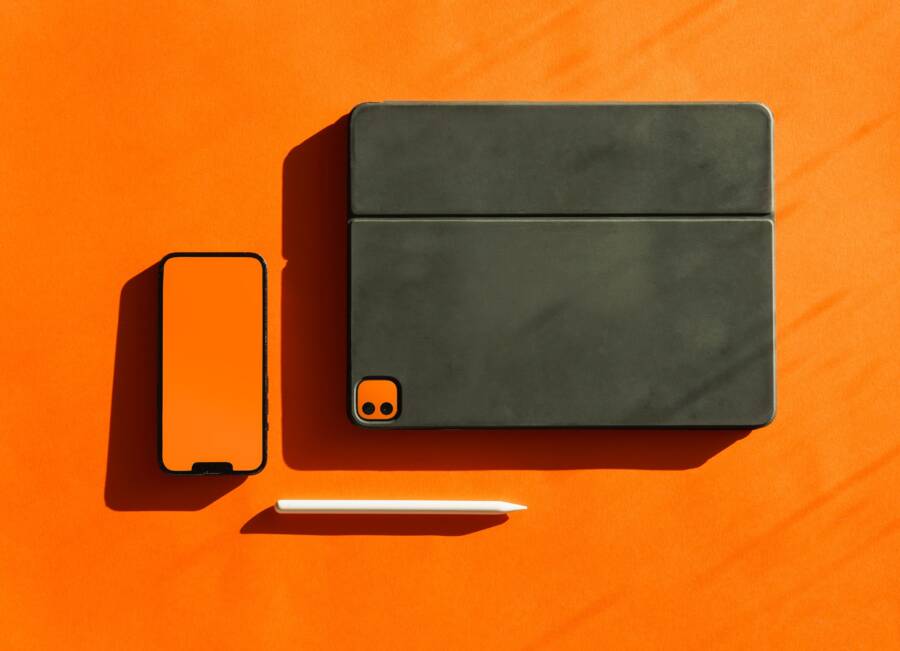
A laggy or unresponsive stylus on your smartphone is usually caused by thick screen protectors, software glitches, or a battery that needs a charge. You can resolve most of these performance issues at home without professional help or specialized tools.
Addressing these common friction points restores the precision you expect from your device. Understanding how to calibrate your input hardware ensures your smartphone works exactly as it should.
Quick Checks for Your Screen and Stylus
Physical issues are often the simplest explanation for a laggy stylus. Before you adjust software settings, you must rule out basic hardware obstructions on your smartphone. Small debris or material interference can easily disrupt the capacitive connection between the screen and the stylus nib.
Removing Screen Interference
A screen protector often creates a barrier that your stylus cannot penetrate. Thick glass protectors or low-quality plastic films reduce the sensitivity of the digitizer beneath the display. If the screen struggles to detect your touch, it will interpret stylus strokes as disjointed or lagging lines.
You can verify if the protector is the issue through a few simple steps. First, ensure the screen surface is clean and free of oils or dust. If the problem persists, check for air bubbles or peeling edges around the perimeter. These gaps create air pockets where the capacitive touch cannot register properly.
If your device supports it, look for a screen sensitivity mode in the display settings. Enabling this option often compensates for the thickness of a tempered glass protector. However, if the lag remains severe, you may need to remove the protector temporarily to see if input performance improves. If the stylus works perfectly on the bare glass, the protector is likely too thick or incompatible with your specific hardware.
Cleaning and Inspecting the Stylus Tip
The physical nib of your stylus is the primary point of contact for every stroke. Over time, this tip accumulates debris, oils, and microscopic grit from the screen. This buildup causes the stylus to skip or fail to register pressure consistently while you write.
Start by inspecting the nib under a bright light. If the tip appears flattened, jagged, or visibly worn, it can no longer glide across the smartphone display with accuracy. A damaged tip creates uneven friction, which the digitizer interprets as an inconsistent signal.
You should replace the nib if it shows signs of physical decay:
Locate the extraction tool that came with your stylus or a small pair of tweezers.
Gently grip the old nib and pull it straight out of the stylus housing.
Align the new replacement nib with the opening and push it in until it clicks or sits flush.
Test the responsiveness on your screen to ensure the connection is firm and consistent.
Regularly wiping the tip with a soft, lint-free cloth prevents the buildup of skin oils that cause ghosting or skipping. If your stylus uses a rubber tip, watch for cracks or dryness. Once the rubber material begins to degrade, it will not track smoothly across the glass surface. Replacing these tips early prevents permanent scratches on your screen and restores the intended input flow.
Adjusting Software Settings to Improve Performance
Your smartphone software acts as the bridge between your physical stylus inputs and the visual response on the display. When this connection slows down, small changes in your settings often resolve the lag without requiring a hardware repair. You can check your display configurations to see if a simple tweak makes your writing or drawing experience more fluid.
Optimizing Touch Sensitivity Settings
Many modern devices include a specific feature designed to increase the digitizer sensitivity for users who utilize screen protectors. This setting compensates for the added thickness of tempered glass or heavy-duty plastic films. When this mode is off, the stylus nib may fail to register light touches, which forces the system to skip inputs or show delayed strokes on your smartphone screen.
You can typically find this option in your primary display menu. Follow these steps to toggle the feature on your device:
Open your smartphone Settings app.
Select the Display or Screen menu.
Look for an option labeled Touch Sensitivity, High Sensitivity Mode, or Screen Protector Mode.
Toggle the switch to the active position.
After you enable this setting, test your stylus by drawing a few slow, continuous lines in a notes application. Most users notice an immediate improvement in how the screen detects the initial point of contact. If your specific model does not have this setting, check for firmware updates, as manufacturers sometimes add improved touch logic through system patches.
Managing Refresh Rates and Power Modes
The refresh rate of your screen determines how many times per second the display updates with new information. Higher refresh rates, such as 90Hz or 120Hz, make your stylus strokes appear much faster because the screen renders your movement more frequently. If your smartphone is currently set to a lower refresh rate to save power, you may perceive a slight delay as the digitizer tries to keep up with your hand.
You can prioritize fluidity by adjusting these settings, but you should also consider the impact on your battery life:
High refresh rates provide the most accurate visual feedback for drawing and note-taking.
Standard refresh rates conserve power but may make fast strokes look choppy or disjointed.
Battery-saving modes often limit the processor speed, which directly causes input lag during intensive tasks.
If you plan a long sketching session, keep your phone plugged into a charger or a portable power bank. This allows you to set the screen to its maximum refresh rate without worrying about a rapid battery drain. When you finish your work, return your settings to the balanced mode to preserve battery health throughout the rest of your day. Checking these configurations ensures your device always provides the best possible response for your creative or professional tasks.
Troubleshooting Connectivity and Battery Issues
Persistent lag often stems from a broken link between your stylus and the smartphone or a dying internal battery. If your device recognizes the stylus intermittently or fails to register pressure, start by investigating these power and pairing configurations.
Reconnecting Your Digital Pen
A stale Bluetooth handshake often causes input delay or random disconnects. When the connection between your accessory and the smartphone falters, resetting the pairing process forces the devices to establish a fresh, stable communication channel.
Follow these steps to clear the old connection and pair your stylus again:
Open the Settings menu on your smartphone and navigate to the Bluetooth section.
Locate your stylus in the list of paired devices.
Tap the icon next to the name and choose Forget or Unpair to remove it from the system.
Turn off Bluetooth on your smartphone, wait ten seconds, and toggle it back on.
Set your stylus into pairing mode according to the manufacturer instructions.
Select the stylus from the list of available devices on your screen to complete the new handshake.
Performing this reset clears out corrupt configuration data that accumulates over time. After you re-pair, test the stylus in a notes app to see if the latency issues disappear. If the connection drops frequently after this process, look for other sources of interference, such as nearby wireless routers or other active Bluetooth accessories.
Checking Stylus Battery Health
A stylus with a depleted battery struggles to maintain a consistent signal with the display. Because active styluses require power to track movement and detect pressure levels, a low charge results in common performance problems. If your strokes appear shaky, disconnected, or lack the expected line thickness variations, the battery is likely nearing the end of its cycle.
Watch for these specific signs that your stylus needs a charge:
Your writing feels jittery or fragmented on the screen.
The pressure sensitivity features stop working, leaving you with lines of a uniform, thin width.
The stylus disconnects abruptly during use or fails to wake up instantly when brought near the glass.
The pairing indicator light flashes a specific warning color or sequence.
Place your stylus in its charging dock or attach it to the magnetic charging point on your smartphone case. Allow it to charge fully before testing the performance again. If the battery does not hold a charge for more than a few minutes, the internal lithium cell may have degraded. Replace the stylus or its internal battery if your specific model allows for such repairs, as a failing power source remains a common hardware culprit for persistent input lag.
When to Contact Technical Support
You should reach out to the manufacturer or a professional repair service when you have exhausted all software and hardware troubleshooting steps. If the stylus still shows inconsistent behavior after you replace the nib, reset the Bluetooth connection, and adjust your display settings, the issue likely resides within the internal hardware of the device. Professional help is necessary if you suspect a manufacturing defect or a deeper system failure that requires expert diagnostic tools.
Recognizing Internal Hardware Failures
Sometimes the problem is not with your settings or the stylus tip, but with the digitizer itself. The digitizer is the layer beneath your screen that senses stylus contact. If you notice specific areas of your screen consistently ignore input while others work fine, this hardware layer may have a physical defect. You cannot fix this with software tweaks or battery resets.
If your smartphone screen suffers from a crack, even a tiny one, it can interfere with the electrical signals required for stylus tracking. Visible physical damage to the display or the digitizer often requires a screen replacement. In these cases, contacting the manufacturer is the best path to regain full functionality.
Seeking Help for Persistent Software Bugs
Occasional glitches happen, but a stylus that stops working every time you update your operating system points to a deeper software incompatibility. If your device consistently loses stylus support after a recent system update, you may be dealing with a firmware bug specific to your model. You can look for official support forums or contact the manufacturer to see if other users report similar experiences.
Representatives can often check if a known patch is available or if you need to perform a factory reset to clear out corrupted files. Before you contact them, document exactly when the lag starts and which apps seem most affected. Providing these details helps the technician determine if the issue is a widespread problem with your specific smartphone version.
Evaluating Warranty and Repair Options
Check the warranty status of your smartphone and stylus before you pay for an expensive repair. Most manufacturers cover functional defects under a standard one-year warranty. If your device is still under coverage, you should contact their support team immediately rather than attempting to open the case yourself. Opening the housing on your own usually voids your warranty and makes professional repair more difficult.
Use this table to decide your next move based on the status of your equipment:
Professional support teams offer the best chance of restoring a malfunctioning stylus. They have access to diagnostic software that sees deep into the hardware, helping them isolate the root cause of the lag quickly. When you choose to reach out, have your serial number and proof of purchase ready to speed up the process.
Conclusion
Most stylus issues on your smartphone originate from simple physical or software barriers. Clearing debris, replacing a worn nib, or toggling touch sensitivity settings usually resolves the input lag. These quick adjustments often restore the precision you need without requiring professional repair services.
When your device responds accurately to every stroke, you regain the full utility of your creative and productivity tools. Take a moment to verify your settings or clean your screen to ensure your hardware is ready for your next project. You can now get back to drawing or writing with the fluid performance you expect from your device.