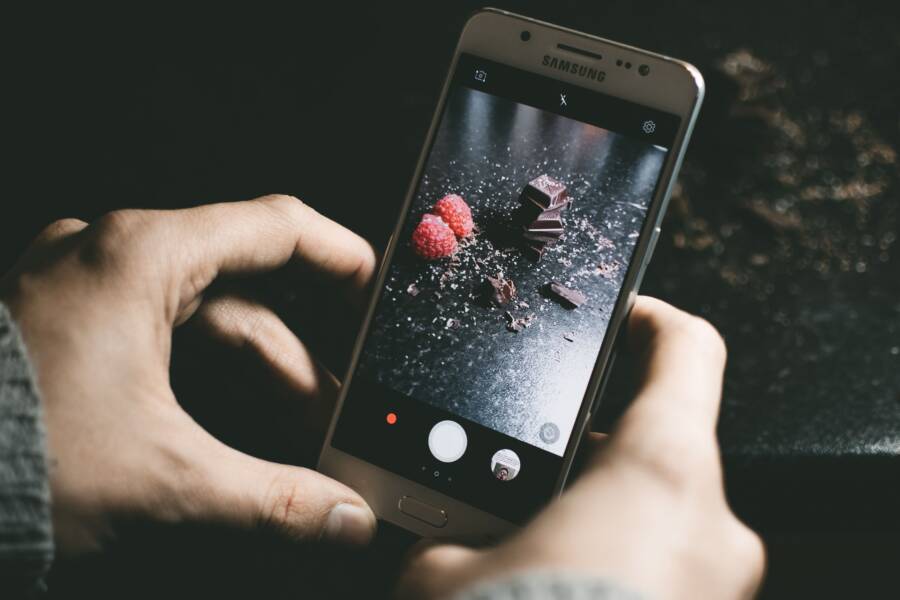
When your camera app crashes while another program runs, your smartphone is likely struggling to manage limited hardware resources. This conflict happens because both applications demand immediate access to the camera sensor or the main processor at the same time.
Your device prioritizes system stability by shutting down one of the competing tasks. Most of the time, this issue arises from background apps that hold onto camera permissions longer than they should. You can often resolve this by closing hidden processes or updating your software to improve memory management.
Follow these steps to stabilize your device and prevent future interruptions.
Understanding Why Multitasking Causes Camera Glitches
Camera app crashes occur when your smartphone lacks the memory to process multiple heavy tasks at once. High-resolution photography requires significant processing power and temporary storage space. When you switch between the camera and other memory-hungry applications, the system often struggles to balance these competing demands.
Memory Bottlenecks and Resource Contention
Your smartphone uses Random Access Memory (RAM) to keep active apps running in the background. Modern camera apps often reserve a large portion of this memory to handle image processing and autofocus data. When you open a demanding app like a video game or a browser with many tabs, the system attempts to reallocate resources.
If the operating system cannot find enough available RAM, it forces a process to close to prevent a complete system hang. The camera often becomes the target for termination because it demands constant, high-priority access to the processor. This sudden stop creates the crash you experience during multitasking.
Conflict Over Hardware Sensor Access
Beyond memory, your camera relies on dedicated hardware sensors to capture images. Most mobile operating systems restrict camera access to one app at a time to protect your privacy and maintain hardware stability. If another app running in the background attempts to pull data from the camera sensor, a permission conflict occurs.
The camera software expects exclusive control over the lens and image signal processor. If another service interrupts this connection, the application may encounter an error it cannot recover from. This leads to an immediate app shutdown rather than a gradual slowdown.
Identifying Culprit Applications
You can determine which applications trigger these crashes by monitoring your system activity. Frequent crashes usually suggest that a specific app is incompatible with your current camera software or is using excessive background resources.
Check your settings menu to see which programs have active camera permissions. Removing unnecessary background access for these apps often resolves the conflict. Furthermore, checking for updates on these programs can fix bugs where the app improperly holds onto hardware resources after you close it. If the problem persists after you update your apps, consider restarting your smartphone to clear out stuck system processes.
Quick Fixes to Resolve Camera Conflicts
You can often resolve camera crashes by managing your active apps and keeping your software current. These issues stem from resource competition between software programs. When your smartphone struggles to process requests, simple adjustments to how you manage background tasks often restore stability.
Managing Background App Activity
Apps running in the background often consume memory and processing cycles. If these apps maintain unauthorized access to your hardware, they cause your camera to crash during use. Identifying these power-hungry programs is the first step toward reclaiming your device performance.
Open your system settings to monitor battery and memory usage. Look for programs that show high consumption levels even when you are not actively using them. If you spot a social media or navigation app at the top of the list, it likely runs too many background processes.
Don’t just swipe apps away to minimize them. Use these methods to fully close problematic tasks:
Open the multitasking view on your smartphone by swiping up from the bottom of your screen or pressing the recents button.
Locate the app that interferes with your camera usage.
Swipe the app card completely off the screen to force a full shutdown.
If an app frequently restarts on its own, access the app info page in settings and select Force Stop to terminate its background services.
Removing unnecessary background permissions also prevents these conflicts. Go into your privacy settings and review which apps have camera access. Disable this permission for any application that does not strictly require it for core functions. This ensures that only the camera app holds the necessary hardware focus when you need to take a photo.
Updating System Software and Camera Apps
Outdated software frequently contains bugs that cause memory leaks or hardware contention. Developers release updates to resolve these specific conflicts and improve how your smartphone handles multitasking. Running the latest version of your operating system and camera software ensures that your device handles resource allocation correctly.
Check for system updates in your phone settings. Manufacturers often release patches that address known stability issues with third-party app interaction. Installing these updates regularly helps your device maintain better control over its sensors and memory.
Visit your application store to verify you have the latest versions of your camera and communication apps. If you find a pending update, install it immediately. Developers frequently patch code that causes apps to hang onto hardware resources longer than necessary.
Follow these steps to maintain optimal software health:
Enable automatic updates for all applications to avoid missing critical fixes.
If the camera crash persists after an update, clear the cache for both the camera app and any associated messaging apps.
Consider uninstalling and reinstalling apps that trigger crashes every time you open them.
Updating your software addresses the root cause of many multitasking failures. It forces the system to replace buggy code with more efficient instructions. This process provides a more stable foundation for your smartphone to balance demanding tasks like photography and heavy app usage.
Advanced Troubleshooting for Persistent Camera Issues
If basic steps like force closing apps or checking for updates fail to stop the crashes, your smartphone might have deeper software conflicts. Persistent issues often stem from corrupted temporary files or hidden system settings that interfere with camera operation. Follow these advanced methods to reset your camera environment and regain control over your photography experience.
Clearing Cache and Data for the Camera App
Your camera stores temporary information to speed up startup times. Over time, these files become corrupted and trigger crashes during multitasking. You can reset these settings to their factory state without affecting your saved photos.
Open your phone settings and tap on the Apps or Application Manager menu.
Find the camera app in the list of installed programs.
Tap on Storage within the app details page.
Select Clear Cache first to remove temporary files.
Tap Clear Data or Clear Storage to reset the app configuration.
Confirm the action if your smartphone prompts you. This process restores the camera to its original state. Your gallery remains untouched, as those images are stored in a separate folder system. After you reset the app, restart your device to ensure the system applies these changes fully.
Checking for App Overlays that Disrupt the Camera
Modern operating systems allow certain apps to draw floating windows or icons over other programs. Common examples include chat heads from messaging apps, battery monitors, or screen recorders. These overlays can block the camera interface or force the system to close the camera app because they compete for screen access and hardware resources.
You can verify if an overlay is causing your camera to fail by temporarily disabling these features. Look for a setting named Display Over Other Apps or Appear on Top in your privacy or security menu. Review the list of apps with this permission and toggle the switch off for any program that creates a floating UI.
If the camera starts working perfectly after you disable a specific overlay, you have found the culprit. Consider keeping this feature off when you intend to use the camera for extended sessions. By limiting how often apps draw on top of the screen, you provide your smartphone with more stability and avoid unexpected software crashes during multitasking.
Preventing Future Camera Crashes on Your Device
Preventing camera crashes requires regular maintenance of your system resources and app habits. When you keep your smartphone clean and updated, you reduce the risk of hardware conflicts and memory shortages. These steps provide a foundation for stable performance during multitasking.
Limiting Resource-Intensive Apps During Photography
High-performance apps like mobile games or video editors demand significant processing power. When these apps run alongside your camera, they force your smartphone to juggle too many tasks at once. To prevent crashes, close demanding programs before you open the camera app.
Check your active apps list to identify software that consumes high amounts of battery or memory. If you must use another app simultaneously, avoid switching rapidly between them. Rapid transitions increase the load on your processor and raise the probability of a system timeout.
Periodic System Restarts
System processes accumulate small errors over time. These minor glitches persist in the memory and eventually impact how your hardware functions. A simple restart clears these temporary faults and reallocates your system resources.
Try restarting your phone at least once a week. This habit refreshes the operating system and helps it manage multitasking more efficiently. A clean system state provides the camera app with the priority access it needs for smooth operation.
Monitoring Storage Space
Your smartphone needs free internal storage to write new photos and videos. If your device reaches its storage capacity, the camera app fails to save data. This often results in a crash during or immediately after you capture a shot.
Review your storage settings regularly to ensure you have several gigabytes of free space. Delete old files or move photos to a cloud service if you notice your storage is nearly full. Maintaining available space allows your phone to handle image processing without interruption.
Verifying Permissions and Software Compatibility
App permissions occasionally conflict if two programs request camera access at the same time. Review your privacy settings to ensure only essential apps have access to your camera hardware. This practice limits unauthorized background attempts to trigger the lens or sensor.
If a specific app causes crashes every time you open it alongside your camera, check for updates in the app store. Developers frequently patch code to fix conflicts between software and hardware. If an update does not resolve the issue, contact the app developer or look for an alternative tool that handles multitasking better on your device.
Conclusion
Minor software conflicts are a natural byproduct of how a modern smartphone manages competing demands for system memory and hardware sensors. You can usually fix these issues by clearing app caches, disabling background overlays, or forcing a restart to restore stable performance.
Consistently updating your operating system and individual applications provides the best defense against these multitasking errors. Keeping your software current remains the most reliable way to maintain a smooth and responsive device experience.