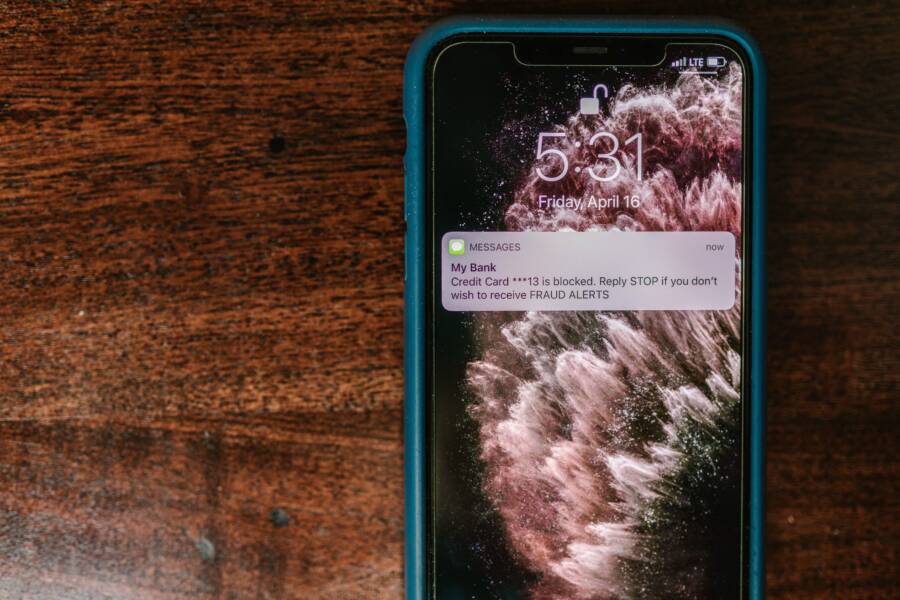
The verify your identity loop is a security measure designed to protect your accounts from unauthorized access. When you get stuck in this cycle on your smartphone, it usually happens because of temporary software glitches, poor network connections, or outdated account settings.
Most people resolve this frustration by clearing their cache, checking their internet connection, or signing out and back into their accounts. These simple steps often restore normal access to your device.
You can fix this persistent error by following the troubleshooting methods below.
Quick Fixes for the Verification Loop
Persistent identity verification requests can freeze your workflow. These loops often stem from minor communication errors between your smartphone and the server. You can usually clear these hurdles with a few manual adjustments to your system settings.
Restarting Your Smartphone to Clear Temporary Glitches
A simple restart is the most effective way to refresh your device. When your smartphone remains on for days, background processes sometimes hang or conflict. Turning the power off and back on clears the volatile memory and stops stuck tasks that might trigger a verification loop.
For iPhone users, press and hold either volume button and the side button until the power-off slider appears. Drag the slider, wait thirty seconds, and then hold the side button to turn it back on.
On Android devices, press and hold the power button until the menu pops up on the screen. Select the restart option from the list. If your phone lacks a restart button, hold the power key for ten seconds to force a shutdown before powering it back up again.
Checking Your Network Connection Stability
Verification requests require a steady connection to send and receive data. If your signal drops mid-request, the server may not receive your authentication token, which leaves your smartphone caught in a loop. A weak connection often prevents the security certificate from validating correctly.
Try switching your network source to isolate the problem. If you use Wi-Fi, turn it off to switch to your cellular data connection. Conversely, if you rely on mobile data, connect to a stable Wi-Fi network. This simple toggle forces your device to refresh its handshake with the authentication server and often breaks the cycle.
Updating Your System Software
Software bugs frequently interfere with security protocols on mobile devices. If your operating system is out of date, it might use older security certificates that servers no longer accept. Updating your smartphone fixes these known bugs and patches vulnerabilities that cause verification errors.
To check for updates on an iPhone, open your settings, tap General, and select Software Update. Your device will automatically scan for new versions.
On an Android device, navigate to your settings menu and tap System or About Phone. Look for a section labeled Software Update or System Update to see if a newer version is available. Installing these updates keeps your security credentials current and prevents unnecessary loops.
Managing Account Settings to Stop the Loop
Fixing a persistent identity verification loop often requires more than just a simple restart. Your account settings act as the gatekeeper for your data, and sometimes those gates get stuck. If your smartphone continues to demand credentials you have already provided, you must refresh the communication between your device and the server. By adjusting your account status and verifying your security contact methods, you can clear the cache of errors preventing your access.
Signing Out and Back Into Your Apple ID or Google Account
Signing out and back in forces your smartphone to discard the current, potentially corrupted authentication token and request a new one. This process acts as a hard reset for your account credentials on your device.
When you sign out, your phone will ask if you want to keep copies of certain data like contacts or calendars. Select the option to keep these on your device to avoid unnecessary re-downloads later. Be aware that this process triggers a temporary delay in syncing new data, such as recent emails or cloud photos, while the system re-establishes the connection.
To perform this on an iPhone:
Open Settings and tap your name at the top.
Scroll down and select Sign Out.
Enter your password to turn off Find My and complete the sign-out process.
Restart your phone before signing back in through the Settings menu.
To perform this on an Android device:
Go to Settings and tap Passwords & Accounts or Users & Accounts.
Select your Google account and tap Remove Account.
Restart your smartphone to ensure the system clears the residual data.
Return to the same menu to add your account again and sync your information.
Reviewing Your Two-Factor Authentication Settings
Security loops frequently occur because the server cannot reach you to confirm your identity. If your listed recovery phone number is outdated or if your list of trusted devices is incorrect, the server will block your login attempt. A mismatched security code or a silent failure to send an SMS verification often keeps the loop active.
Log into your account management portal from a browser on a computer or a different, stable device. Check the security section to see which phone numbers currently receive your verification codes. If you see a number you no longer use, remove it immediately. Add your current mobile number as the primary recovery method and verify it with a test code.
Sometimes, the system sends codes to an old device you previously owned. Removing these retired devices from your trusted list ensures that verification requests only go to your active smartphone. Once your recovery information is current, your device will recognize the new security handshake, which effectively breaks the loop. If the verification request still persists, verify that your date and time settings are set to automatic, as incorrect timing prevents secure server communication.
Advanced Troubleshooting When Nothing Else Works
When you have exhausted basic restarts, network toggles, and account sign-ins without success, the problem likely hides in your system configuration files. These files manage how your smartphone communicates with external servers. Occasionally, they store corrupt data or conflicting instructions that block successful identity verification. Moving to these deeper troubleshooting steps will often clear the path for your device to connect again.
Resetting Network Settings on Your Device
Resetting your network settings removes saved Wi-Fi passwords, paired Bluetooth devices, and custom cellular configurations. It essentially restores the communication layer of your smartphone to its original factory state. This action is effective because it deletes the cached handshake data or corrupted configuration profiles that might be obstructing access to verification servers.
Your personal data, such as photos or apps, remains safe during this process. You will only need to reconnect to your known Wi-Fi networks and re-pair your Bluetooth accessories afterward.
Follow these steps for an iPhone:
Open the Settings app and tap General.
Scroll to the bottom and select Transfer or Reset iPhone.
Tap Reset and choose Reset Network Settings.
Enter your passcode to confirm the action.
Follow these steps for an Android device:
Open the Settings menu and select System or General Management.
Tap the Reset or Reset Options menu.
Select Reset Wi-Fi, mobile, and Bluetooth or Reset Network Settings.
Confirm your choice and wait for the device to restart.
Once the reset completes, try the verification process again. This method frequently resolves hidden conflicts that standard troubleshooting cannot touch.
When to Contact Official Support Services
Sometimes, the persistent verification loop is not your fault. It is possible the error originates on the service provider side, such as a temporary outage of their authentication servers. If you have tried every local fix and your account remains locked, reaching out to official support is the next logical step.
Contact support if you notice any of these signs:
The same error persists on different internet connections and devices.
Your account shows signs of being locked due to too many failed login attempts.
You receive specific error codes that mention server-side restrictions or disabled features.
Official status pages for your service provider show widespread service interruptions.
Have your account details and any specific error messages ready before you reach out. Representatives can check the status of your security flags, manually unlock frozen accounts, and verify if your account is under any administrative hold. Engaging professional support is necessary when the issue is beyond your device control and requires access to the internal records held by your service provider.
Conclusion
The verify your identity loop is a security feature designed to protect your account. It prevents unauthorized users from accessing your sensitive data, even if they have your password. While this process causes frustration when it stalls on your smartphone, it serves a necessary role in maintaining your digital privacy.
You can resolve most loops by checking your internet connection, updating your software, or refreshing your account authentication. These steps restore the handshake between your device and the server. One of these methods will likely fix the error and give you back full access to your smartphone.