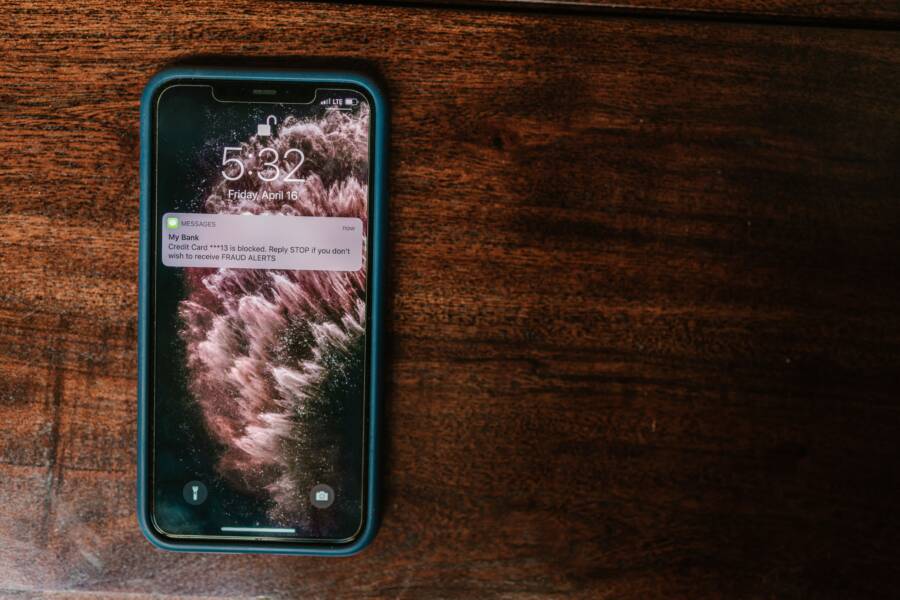
You wake your smartphone only to see two overlapping lock screens staring back at you. This visual glitch is annoying, but it usually stems from a software bug, corrupted system cache, or a faulty third-party customization app. Because a messy lock screen interferes with your ability to check notifications or unlock your device quickly, fixing it is a priority.
Most users resolve this by clearing the system cache or disabling recently installed lock screen apps. If you want to know exactly how to clear up your display and regain a clean interface, follow the steps below.
Understanding Why Lock Screen Glitches Happen
The sight of a double-layered or misaligned lock screen often indicates a breakdown in how the smartphone operating system handles visual overlays. When your device fails to refresh the interface correctly, it keeps the previous frame stuck in the system memory while attempting to render a new one. This behavior creates that jarring, ghosted effect on your display.
Conflicts with Customization Apps
Many users enjoy modifying their smartphone interface with third-party lock screen managers or custom wallpaper engines. These applications inject their own code into the system lock screen process to display custom clocks, widgets, or animations. If the app version is outdated or incompatible with your current operating system, it often struggles to finish the rendering process. The resulting conflict causes the system to hang, leaving the standard lock screen and the custom overlay visible at the same time.
Corrupted System Cache
The system cache holds temporary files that help your device open frequently used screens faster. Over time, these files sometimes become corrupted due to incomplete updates or unexpected shutdowns. When the cache contains bad data regarding your display preferences, the smartphone fails to clear the screen buffer before loading the next image. The device essentially gets confused, layering the old interface data on top of the new one until you force a refresh.
Issues with Software Updates
System updates occasionally bring temporary instability to your user interface. If an installation process finishes prematurely or fails to overwrite old system files correctly, core display drivers may misfire. You might notice the screen glitch occurs immediately after a major OS update. Because the system is still reconciling new background processes with old settings, it may struggle to maintain a clean lock screen state until the OS stabilizes.
Memory Management Errors
Your smartphone relies on high-speed memory to manage active processes and screen states. If your storage is nearly full or you have too many intensive apps running in the background, the system might lack the resources to handle the transition from a black screen to the lock screen. This lag forces the processor to skip steps in the display sequence, causing the screen to show incomplete or duplicate images during the wake-up process. Monitoring your active apps and available internal storage often prevents these performance bottlenecks from affecting your display stability.
Quick Fixes for Persistent Duplicate Lock Screens
When you encounter a double lock screen on your smartphone, your first step should be to isolate the cause. Often, the system is simply confused by overlapping instructions from an external application or a temporary glitch in the memory. You can usually clear the visual artifacts by removing faulty third-party tools or refreshing the system state.
Managing Third-Party Lock Screen Apps
Many users download apps to add custom clocks, weather widgets, or unique animation styles to their lock screen. These apps operate by creating an overlay on top of the native system interface. When the app fails to load correctly or experiences a conflict with a recent OS update, the system displays both the custom overlay and the standard lock screen simultaneously.
If you suspect an app is the culprit, follow these steps to remove the conflict:
Identify recently installed apps that have permissions to modify your display or lock screen settings.
Open your device settings and navigate to the list of installed applications.
Select the suspicious app and tap uninstall to remove it completely from your smartphone.
Restart your device to allow the system to revert to its default lock screen state.
If the issue persists, you might have multiple customization tools competing for control. Check your settings for any apps with accessibility permissions, as these often gain the rights to draw over other windows. Turning off these permissions for non-essential apps can stop the duplication error immediately.
Updating and Resetting Software Configurations
Sometimes, the duplicate screen error exists because your phone software is struggling with outdated files or a temporary memory bug. An operating system update contains patches that fix known display rendering issues. Before you attempt a factory reset, check for pending updates in your system settings. Installing these patches often aligns your display drivers with the latest security and performance requirements.
If your software is already up to date, a soft reset provides a clean start for the user interface. This process clears the system cache and forces the phone to reload all visual elements without deleting your personal data.
To perform a soft reset on most modern devices:
Press and hold the power button until the power menu appears.
Select the option to restart or reboot.
If your device remains unresponsive, press and hold the power and volume down buttons simultaneously for about ten seconds until the screen goes black and the manufacturer logo appears.
This action clears the temporary memory holding the corrupted display instructions. Once the smartphone reboots, the system verifies the integrity of the lock screen interface and should render only one version. If the problem continues after a reboot and update, the underlying system configuration might need a deeper inspection through your device manufacturer support tools.
Advanced Troubleshooting When Standard Fixes Fail
If restarting your smartphone and deleting suspicious apps fails to clear the duplicate lock screen, the issue likely sits deep within the system partition or specific user profile settings. These persistent visual glitches often point to background processes that remain active even after a standard reboot. When basic methods do not restore a clean interface, you need to target system-level configuration files or potential hardware-related sensor conflicts.
Clearing System Cache Partition from Recovery Mode
Standard app cache removal clears temporary data for individual programs, but it misses files stored in the system cache partition. This partition holds data for system updates and interface rendering. If these files contain errors, the phone struggles to draw the lock screen correctly. You can often resolve this by clearing the cache through the system recovery menu.
Turn off your smartphone completely.
Press and hold the volume up and power buttons simultaneously until the recovery logo appears.
Use the volume buttons to scroll to the Wipe Cache Partition option.
Press the power button to confirm your selection.
Select the reboot system option once the process finishes.
This action wipes temporary system files without affecting your personal photos, contacts, or apps. It forces the device to rebuild its interface display data from scratch during the next startup.
Managing Safe Mode Diagnostics
Third-party apps often hide background services that continue to run even after you suspect they are disabled. Safe mode isolates your smartphone by preventing all non-essential third-party software from launching. If the lock screen looks normal while in this mode, you have definitive proof that a downloaded app is causing the conflict.
To enter safe mode, hold the power button until the power off prompt appears on your screen. Tap and hold the power off icon until the phone asks if you want to reboot into safe mode. Once your device restarts, look at your lock screen. If the duplicate overlay disappears, one of your recently installed apps is the culprit. You must uninstall your recent downloads one by one until the normal screen behavior returns permanently.
Addressing Hardware and Sensor Conflicts
Sometimes, the culprit is not the software itself but the hardware sensors that trigger the screen. If your proximity sensor or ambient light sensor sends faulty data to the operating system, the phone may fail to transition between the always-on display and the full lock screen. This failure creates a visual layering effect.
Check for debris or screen protectors covering the front-facing camera area, as these objects often confuse the sensor. If you recently applied a new screen protector, remove it to see if the display error vanishes. If the issue remains after cleaning the sensor area, perform a factory reset as a final attempt to restore the device to its factory state. Back up all your data beforehand, as this process erases your internal storage. If the duplicate screen persists even after a full factory reset, the hardware controller for your display likely requires repair at a service center.
Preventing Future Lock Screen Display Issues
You can minimize the risk of duplicate lock screens by maintaining a clean system environment and monitoring your installed applications. While software bugs happen, most display glitches are avoidable through consistent device hygiene. By adopting a few habits, you keep your interface stable and responsive.
Keep Your Software Updated
Smartphone manufacturers release frequent updates to patch background processes and optimize display rendering. These updates resolve conflicts that cause visual layering. Enable automatic updates in your system settings to receive these patches as soon as they become available. If you choose to update manually, check for notifications once a month. Staying current ensures your display drivers remain compatible with the latest system requirements.
Audit Your Customization Apps
Third-party apps that modify your lock screen are the most common source of display errors. If you install an app for custom wallpapers or interactive widgets, monitor your device for performance changes. If you notice any lag, screen flickering, or duplicate overlays, uninstall the application immediately. It is safer to use built-in features provided by your manufacturer than to rely on unknown developers who may not optimize their code for every phone model.
Maintain Sufficient Storage Space
Your smartphone needs free internal storage to manage cache files and temporary display states. When your storage is nearly full, the system struggles to write new data to the cache partition. This leads to errors where the phone pulls outdated files to fill the gap. Follow these practices to keep your system memory clear:
Delete unused applications and games to free up space.
Clear the cache for high-usage apps like social media and web browsers monthly.
Move large files, such as videos or high-resolution photos, to cloud storage or a computer.
Restart your phone at least once a week to refresh the system memory and clear temporary data buffers.
Monitor Battery and Performance Settings
Some phones have aggressive power-saving modes that terminate background processes prematurely. If the process responsible for clearing the lock screen buffer gets killed, you may see the previous screen remain visible. If you notice recurring display issues, check if your power settings are too restrictive. Adjust your battery settings to allow essential system UI processes to run without interference from energy-saving tools. Taking these steps creates a stable foundation for your display, ensuring your lock screen remains clean and functional.
Conclusion
Duplicate lock screens are almost always the result of software conflicts or corrupted temporary files rather than permanent hardware damage. By methodically removing third-party customization apps and clearing the system cache, you can resolve the visual layering that disrupts your display. These steps force your smartphone to refresh its interface and rebuild its graphics stack from scratch.
Keeping your device running smoothly requires a few simple maintenance habits. You should perform regular updates, monitor your storage capacity, and limit the number of intrusive customization tools you install. Staying proactive with your system settings prevents these display glitches from reappearing. Your smartphone will provide a clean and reliable experience when you prioritize a stable software environment.