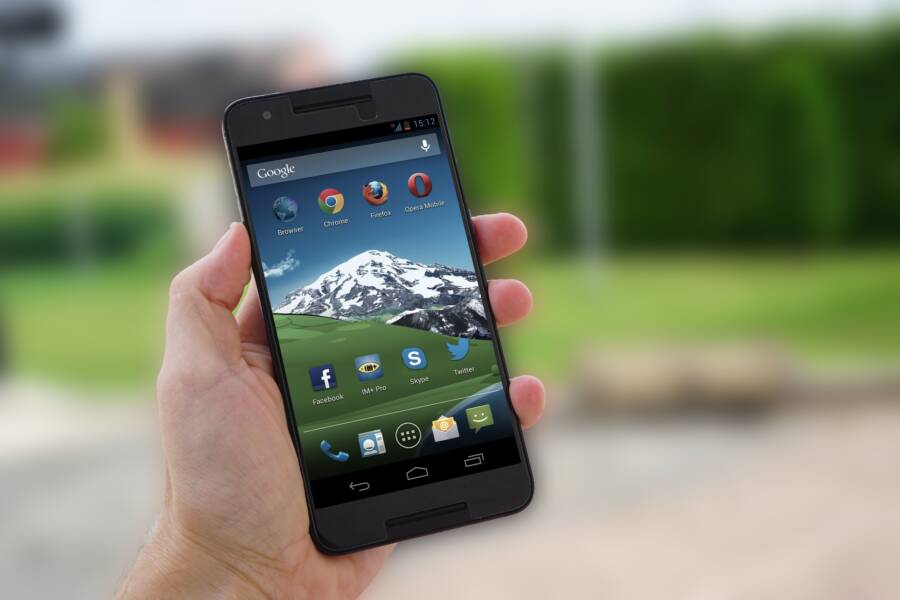
Most phones won’t open downloaded images because of a file problem, an app issue, low storage, or a permission setting. The good news is that the fix is usually simple, and you can often sort it out in a few minutes on an iPhone or Android smartphone.
In many cases, the image file is damaged, the gallery app needs a refresh, or the phone doesn’t have the right access to storage. The steps below start with the easiest fixes first, then move into the deeper checks so you can find the cause without wasting time.
Check the image file before you blame the phone
When a downloaded image will not open, the file itself is often the first place to look. A phone can only display what it receives, so a broken, incomplete, or unsupported file will stop at the same point every time, even on a good smartphone.
Start with the file, then test the app. That simple order saves time and helps you avoid changing settings that are not the real problem.
Make sure the download finished completely
A partial download can leave an image missing data, which makes it fail to open. The file may show up in your gallery or downloads folder, but the app still cannot read it because the image never finished saving.
Try downloading the image again on a strong Wi-Fi or cellular connection. Keep the app open until the download ends, and avoid switching screens too soon. If the file came from a chat app, email, or browser, wait until the transfer is fully complete before tapping it.
A fresh download often fixes the issue right away. If the image opens after that, the first copy was probably interrupted or damaged.
If the file size looks unusually small, treat that as a warning sign.
Look for unsupported image formats
Some phones and gallery apps cannot open every format. Files such as HEIC, WEBP, RAW, or very large TIFF images may need a different app or a newer system version.
Check the file type in the file name or file details. On many phones, the extension appears at the end, such as .heic or .webp. If the format is the problem, use an app that supports it, or convert the file to a more common format like JPG or PNG.
This matters more with images sent from newer cameras or certain websites. A smartphone may show the thumbnail without issue, then fail when you try to open the full file.
A quick reference can help:
If the format is unsupported, the file is fine, but the app is not the right tool for it.
Try the image in another app
The fastest way to check whether the problem is app-specific is to open the same file somewhere else. Try Files, Google Photos, Photos, Gallery, or even a browser if the image is stored online.
If the picture opens in one app but not another, the file is probably okay. The issue then sits with the original app, its cache, or its file support. If none of the apps can open it, the file itself is likely damaged or incomplete.
That simple test gives you a clean answer. Instead of guessing, you can tell whether the image file needs to be replaced or the app needs attention.
Fix the app that should open the image
If the image file looks fine, the next place to check is the app. Gallery apps, file viewers, and photo editors can freeze, cache bad data, or stop reading certain formats after an update. A quick restart, a cache clear, or a fresh install often gets the image opening again.
Force close the app and open it again
A frozen app can get stuck on a bad file request, which keeps the image from loading. Force closing clears that temporary glitch and gives the app a clean start.
On most phones, swipe the app away from the recent apps screen, then open it again. If that does not help, restart the phone and try once more. This simple reset often fixes a one-off error without changing any settings.
Clear the app cache or temporary files
Cache files help apps load faster, but they can also break image previews. On Android, a damaged cache is a common reason a photo app will not open downloaded images or shows a blank preview instead.
Go to the app’s storage settings and clear the cache first. That usually removes temporary files only, so it is safe in most cases. If the app still fails, clear temporary data inside the app if that option exists.
Clearing cache is a safe first step on most Android phones, and it often fixes preview problems fast.
If you use an iPhone, there is usually no cache button for every app. In that case, a restart or reinstall is often the better next step.
Update or reinstall the photo app
An old app version may not support newer image files, especially after a system update or when the file comes from a newer camera or website. Open the App Store or Google Play Store and check for an update first.
If the app is already current and the problem stays, reinstall it. A reinstall removes corrupted app files and gives you a clean copy from the store. After that, test the same image again in the updated app and, if needed, in another photo viewer on the smartphone.
A quick order helps here:
Update the app from the app store.
Reopen the image and test it again.
Reinstall the app if the problem continues.
That process solves many app-side image issues without touching the file itself.
Check storage, permissions, and phone settings
If downloaded images will not open, the problem may sit in the phone settings, not the file. Low storage, blocked permissions, or strict battery limits can stop a smartphone from reading images the right way.
These checks are simple, but they matter. A file can download and still fail to open if the system cannot save it, reach it, or refresh the app that shows it.
Free up space if your phone is nearly full
Low storage can cause downloads to fail, save incompletely, or open very slowly. When a phone runs out of room, it starts dropping small tasks first, and image files are often affected.
Check your storage in Settings, then clear out anything you no longer need. Start with large videos, old downloads, duplicate photos, and apps you never use. If your phone is nearly full, even freeing a few gigabytes can make a difference.
A few quick cleanup steps help:
Delete unused videos and screenshots.
Remove apps you have not opened in months.
Empty the trash or recently deleted folder.
Move large files to cloud storage or a computer.
If a download keeps failing, low storage is one of the first things to check.
After you clear space, try opening the image again. If it loads normally, the phone simply did not have enough room to handle the file.
Give the app permission to access photos and files
On Android and iPhone, denied permissions can block access to downloaded images. The app may show the file name or thumbnail, but it cannot open the image if it lacks access to photos, files, or media.
Open the app settings and check its permissions. Look for access to Photos, Files and media, or Storage, depending on your phone. If the permission is off, turn it on and test the image again.
This matters most after a new install, a system update, or a privacy change. Sometimes a smartphone asks for access only once, and if you tap “Don’t allow,” the app stays blocked until you change it in settings.
On iPhone, check the app’s photo access under Privacy and Photos. On Android, look under App permissions or Permissions in the app info screen. If one app fails but another opens the same file, permission settings are often the reason.
Turn off battery saver or data limits if they interfere
Battery saver and background limits can interrupt downloads or stop media apps from refreshing properly. That can leave an image stuck in a half-loaded state, especially if it came from email, chat, or cloud storage.
If the file still will not open, turn off battery saver and any strict data restrictions for a moment. Then reopen the app and try the image again. If it works, you have found the cause and can adjust the setting later instead of leaving it fully off.
Mobile data limits can also slow or block image syncing. In that case, let the app use background data and try again on Wi-Fi.
Use simple phone fixes that solve many image problems
When a phone won’t open downloaded images, the fix is often basic. A restart, a system update, or a quick check of the clock and connection can clear the problem before you touch deeper settings.
These steps matter because image access depends on more than the file itself. Your phone also needs a stable system, correct time, and a solid link to the internet or cloud storage.
Restart the phone
A full restart can clear temporary bugs that block image opening. It also reloads the file system, refreshes memory, and gives a frozen image viewer a clean start.
That helps when a downloaded picture shows a blank screen, spins without loading, or refuses to open after you already checked the file. Close the phone down fully, wait a few seconds, then power it back on and test the image again.
On an iPhone or Android phone, this simple reset often fixes one-time glitches that build up during normal use. If the problem disappears after the restart, the system had likely gotten stuck on a temporary error.
Update the operating system
System updates often fix bugs tied to downloads, galleries, and media viewing. If your phone software is out of date, the image app may fail even when the file is fine.
Check for updates in Settings on iPhone or Android, then install any available system update before testing the image again. Updates can improve file support, repair download glitches, and smooth out problems with photo viewers and cloud apps.
This step matters when a smartphone starts failing after a newer app or camera format appears. A fresh system version can restore support without changing anything else.
Check the date, time, and internet connection
Wrong device time can break downloads, cloud sync, and file access. Many services use time checks in the background, so if your clock is off, an image may download badly or refuse to open.
Set the date and time to automatic if possible, then test again. Also check your connection, because weak Wi-Fi or unstable mobile data can leave image files incomplete or out of sync.
A quick connection check can save time:
Switch between Wi-Fi and mobile data.
Open another website or app to test the signal.
Turn airplane mode on and off to refresh the connection.
Re-download the image if the first copy looks incomplete.
If the file opens after that, the issue was with the connection or sync, not the image itself.
When the image is in the cloud or a messaging app
If the image lives in iCloud, Google Photos, OneDrive, WhatsApp, Messenger, or email, the problem may be the source file or the sync path, not the phone’s gallery. In those cases, the image often opens only after you download it to local storage or refresh the account that stores it.
This matters because cloud previews and chat previews are not always full files. A smartphone can show a thumbnail, then fail when it tries to load the real image. So the best fix is to check where the image is stored, then pull it onto the phone the right way.
Download the image to local storage first
Some images open only after you save them to the phone. A preview in email, a cloud app, or a messaging app may look complete, but it can still be a temporary copy.
Save the image to Downloads, Photos, or another local folder, then open it from there. If the file opens after saving, the issue was the preview view, not the image itself.
This helps most with cloud links and chat attachments. For example, an image in Google Photos or iCloud may display fine online, but fail in the app until you choose Save to device or Download. The saved file gives your phone a direct copy it can read without relying on the app connection.
Check for sync or account problems
Cloud images can look broken when the account is signed out, sync is paused, or the download failed in the background. The app may show a blank box, a low-quality preview, or a file that never fully loads.
Check that you’re signed in to the correct account, then look for paused sync or failed downloads. If you use iCloud, Google Photos, OneDrive, or Dropbox, refresh the app and try the image again after the account reconnects.
Messaging apps can cause the same issue. A photo in WhatsApp or Messenger may not open if the media file never finished syncing to the device, or if the chat app lost access to storage.
If the image opens on one device but not your phone, account sync is a likely cause.
Use a file manager to find the real file
A file manager helps you confirm whether the image actually downloaded. Check Downloads, DCIM, and any app-specific folders to see where the file landed and whether it exists at all.
On Android, this often clears up confusion fast. A messaging app may say the image is saved, but the file might sit in a hidden app folder instead of the gallery. On iPhone, check the Files app and the Photos app, since saved images may end up in different places depending on how you downloaded them.
Look for a file name, file size, and image type. If the file is missing, the download failed. If the file is present but tiny, incomplete sync or a broken transfer is likely. Once you find the real file, you can test it outside the app and see whether the issue is with storage or with the viewer itself.
What to do if the phone still will not open downloaded images
If the same downloaded image still will not open after the basic checks, the problem is usually bigger than one bad file. At that point, focus on the viewer, the storage path, and the phone itself. A few careful steps can tell you whether you need a different app, a backup, or support.
Try a different image viewer or file repair approach
A third-party photo viewer or file recovery app may open a file the default app cannot. That happens when the built-in gallery app lacks support for the format, or when the file needs a broader repair tool to read damaged data.
Start simple. Install a trusted viewer from the App Store or Google Play Store, then open the image there. Good options often support more file types than the default gallery, which helps with formats like HEIC, WEBP, or certain RAW files. If the image opens in another app, the file is likely usable, and the original viewer is the weak point.
If the file looks damaged, a file repair or recovery app may help, but use caution. These apps cannot fix every broken image, and some only recover a partial preview. Avoid tools that ask for broad access without a clear purpose, and stick with well-known apps with recent reviews.
A simple order works best:
Try the image in a second viewer.
Open it from the file manager, not just the gallery.
Test a trusted recovery app if the file seems corrupted.
If none of those work, the file may be too damaged to open on the phone.
Back up your phone and look for wider problems
When many images fail to open, the phone may have a deeper software issue or storage problem. That is a different situation from one bad download. If several files in different apps act the same way, stop and back up your data before you do more advanced troubleshooting.
Use a cloud backup, a computer backup, or both if possible. That protects your photos, contacts, and messages before you reset settings, clear storage, or reinstall apps. A smartphone can recover from many software issues, but a backup gives you a safe starting point.
Look for patterns while you test:
Images from different apps all fail.
Files open on another device, but not on this phone.
Downloads keep corrupting, even after a restart.
The gallery shows blanks, freezes, or crashes often.
Those signs point to something deeper than a single app problem. In that case, the issue may sit in storage, memory, or the phone’s file system.
Know when it is time for support or repair
Some problems need more than app fixes. If you keep seeing repeated file corruption, app crashes, black screens when opening photos, or download failures across multiple apps, the phone may need service.
Contact the phone maker first if the device is still under warranty or support coverage. Your carrier can also help if the issue started after a network or account change. If the phone has physical damage, storage errors, or repeated system glitches, a repair shop may need to check it in person.
These warning signs deserve attention:
The same image fails after multiple re-downloads.
Several apps crash when you open photos.
The screen turns black or freezes in the photo viewer.
Downloads fail in email, browser, and messaging apps.
The phone reports storage errors or keeps restarting.
If the problem spreads across apps and files, the phone needs a deeper look. That is the point where support or repair is faster than more trial and error.
Conclusion
If a phone will not open downloaded images, start with the file itself, then try the image in another app. After that, clear the app cache and restart the phone, because those fixes solve many cases tied to a bad download, app settings, permissions, or low storage.
A broken phone is usually not the first answer. In most cases, the image just needs the right viewer, a fresh cache, or a clean re-download.
Keep this simple rule in mind: check the file, test another app, clear cache, restart, then move on to permissions and storage if needed.