She Pressed Play on a Strange Audio Track and Within Days Her Financial Reality Started Shifting in Ways She Could Not Explain
>>> See How It Works <<<

If you’re seeing app names display as com.android on your smartphone, it can feel like something’s not right with your launcher or system. This brief guide explains why it happens and how to fix it quickly.
We’ll start with simple, fast fixes that don’t require any tinkering, then move to deeper checks for developers or power users. If nothing else works, we’ll cover when it’s time to switch launchers or reset your device.
By the end, you’ll know exactly what to try first and what to test next, so you can get back to a clean, readable app list on your smartphone without losing time or data.
Why app names appear as com.android on your phone
When you scroll through your home screen, you expect to see friendly app names. If some entries show up as com.android instead, it can be confusing. This section explains how Android decides which label to display, what can go wrong, and how to fix it. You’ll learn what to look for and why a broken label ends up showing the package name. This insight helps you diagnose issues quickly, without guessing.
He Was Drowning in Bills and Burnout Until a Simple Daily Ritual Rewired His Brain for Wealth in Less Than a Week
>>> Start Your Shift Today <<<

What the launcher shows versus the package name
Launchers pull the text for each icon from the app’s declared label, but there are a few places where things can go wrong. The label is defined in the app’s manifest, usually pointing to string resources that contain the human-friendly name. If that label is missing, corrupted, or not found at runtime, the launcher has nothing to display except the package name itself, which is exactly what you see as com.android.
Think of it like a name plate on a door. The app’s manifest and its strings file set the official name, while the package name is more like a folder name used internally. When the displayed label can’t be retrieved, the launcher falls back to the package name. This happens more often with apps that have been updated recently or when a work profile is involved, where resources might be restricted or overridden. For a deeper dive on how manifest labels map to the launcher, see discussions about the label attribute in AndroidManifest.xml. https://stackoverflow.com/questions/23640355/label-attribute-in-androidmanifest-xml
A practical takeaway: if you see com.android, try verifying that the app’s label resource exists and is referenced correctly in the manifest. If a system or vendor launcher is in use, it may behave differently, but the root cause is typically a missing or misreferenced label resource.
Common triggers and what changes might cause this
- App updates that adjust resources: A misalignment between the manifest label and the updated string resource can leave the launcher with no valid label to display.
- Launcher bugs: Some launchers fail to refresh labels after an update, causing a temporary fallback to the package name.
- Work profiles or device administration: Certain profiles hide or enforce specific label behavior, leading to the package name appearing on the home screen.
- Partial installations or corrupted data: If an app’s data gets corrupted or the installation is incomplete, the label may not load, reverting to com.android.
- Icon name customization: Some launchers allow changing the visible label. If a customization fails, the launcher may show the package name as a fallback.
If you want to read more about how to handle launcher label issues and different label names, you can check discussions on how to show full application names on the home screen and related launcher behavior. https://stackoverflow.com/questions/21547709/show-full-application-name-on-home-screen
A quick triage approach:
- Restart the launcher and device to clear transient glitches.
- Review recent app updates and reinstall if necessary.
- Test with a different launcher to see if the problem persists across launchers.
How labels are stored in Android apps
Android uses two key concepts to label an app: the android:label attribute in the AndroidManifest.xml and the string resources it points to. The label can be a direct string or a reference to a resource like @string/app_name. That resource is defined in strings.xml and may vary by language, screen density, or build variant.
If the manifest declares android:label as a reference to a string resource and that resource is missing or malformed, the system has nothing to display for the launcher label. In that case, it may fall back to showing the package name, which explains seeing com.android on the home screen.
For context, this topic has practical guidance in discussions about the right way to define app names and how the launcher reads them. For a broader look at label handling and the potential to set different labels for launcher versus activity, see threads about different label names for launcher and activity titles. https://stackoverflow.com/questions/3488664/how-to-set-different-label-for-launcher-rather-than-activity-title
Another helpful angle is understanding the label attribute itself and how it interacts with manifest declarations. If you’ve ever wondered why a label might be empty or missing, this Stack Overflow thread covers common scenarios and fixes. https://stackoverflow.com/questions/23640355/label-attribute-in-androidmanifest-xml
In practice, ensure that every app you expect to appear with a friendly name has a valid android:label reference that resolves to a real string resource. A missing or misconfigured label is the surest path to seeing the package name on your smartphone. If you want to explore a deeper technical example, you can review how to set a launcher label that is different from the activity title. https://stackoverflow.com/questions/25872778/is-it-possible-to-have-different-label-name-of-launcher-activity-application-n
External reference: a quick look at how label misconfiguration can lead to blank names or package-name fallbacks helps you diagnose and fix issues without uninstalling apps or resetting your device. https://stackoverflow.com/questions/34762078/android-installed-app-section-shows-package-name-instead-of-app-name-for-my-own-ow
Fast fixes you can try in minutes
If you’re seeing app names display as com.android on your smartphone, you don’t have to dig through settings for hours. These quick fixes are designed to lift simple glitches in minutes. They cover the most common causes, from a stuck launcher to misconfigured labels in the app manifest. Start with the easiest and move down the list if the issue persists. Each step is self contained and quick enough to complete during a coffee break.
Restart the phone and update everything
A simple reboot can reset the launcher’s view of all app labels. When you restart, the system reloads the launcher, all apps, and their resources. If a resource reference was momentarily unavailable or the launcher cached an old label, a fresh start often pulls the correct string from the app manifest or string resources.
- Why this helps: Launchers draw labels from the app manifest and string resources. If either is momentarily unavailable or not loaded correctly, the launcher may show the package name instead of a friendly name.
- Quick checks to run:
- Restart the phone: hold the power button, choose Restart.
- After reboot, open the Play Store or your device’s update section to check for app and system updates.
- Install any pending updates for essential apps like the launcher or home screen services.
What to update and how:
- System updates: Settings > System > Software Update (or equivalent on your device). Install any available updates.
- Launcher updates: Settings > Apps > Your launcher (for example, Pixel Launcher or Home) > Update if available.
- App updates: Open Google Play Store > Manage apps and device > Update all if you can, or update critical apps individually.
External reading on updates and label handling:
- How updates can affect launcher labels and common fixes: https://www.howtogeek.com/355154/how-to-clear-an-apps-data-and-cache-on-android-to-solve-common-problems/
Images
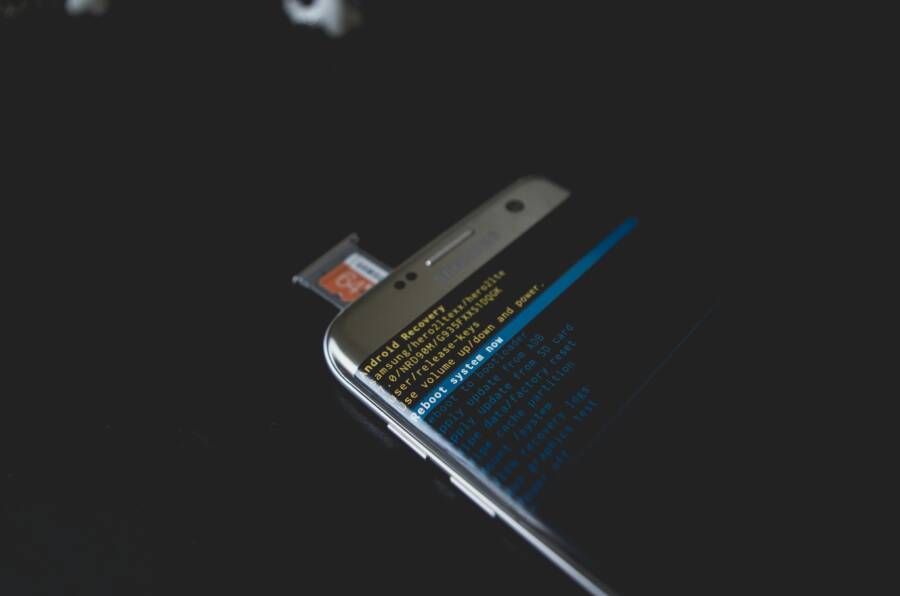
- A smartphone ready for a quick restart can be a reassuring sight during a troubleshooting session.
 Photo by Kelvin Valerio
Clear launcher cache and data
If a launcher’s cache or data becomes corrupted, it can misread labels or fail to fetch resources. Clearing the cache often resolves display issues without impacting your apps’ data. If needed, clearing data resets the home screen layout, which is a small price to pay for correct labels.
- Step by step:
- Settings > Apps.
- Find your launcher (for example, Home, Pixel Launcher, or the well known launcher you use).
- Tap Storage.
- Choose Clear Cache. If the problem remains, choose Clear Data.
- What to expect: Clearing cache resets temporary data used by the launcher. Clearing data will reset your home screen layout and may uninstall any temporary launcher customizations.
Practical note: If you rely on custom icons or layouts, you may need to reapply them after clearing data. This is usually quick, and it ensures the launcher re-reads the correct label from each app.
External reading on clearing app data and cache:
- How to Clear an App’s Data and Cache on Android to Solve Common Problems: https://www.howtogeek.com/355154/how-to-clear-an-apps-data-and-cache-on-android-to-solve-common-problems/
Images
- A clean slate can help the launcher rebind labels properly. (No image required here if not relevant)
Switch to a different launcher
If the issue is isolated to one launcher, trying a different launcher can quickly confirm whether the problem lies with the launcher itself or with the apps. A well known alternative often resolves label issues automatically and may offer tweaks like renaming icons if you want.
- Popular options to try:
- Nova Launcher: Highly customizable and widely trusted.
- Lawnchair: Lightweight and straightforward, good for older devices.
- Microsoft Launcher: Strong cross-platform features and good label handling.
- What to test:
- Install a different launcher from the Play Store.
- Set it as the default launcher for a few minutes and observe the app labels.
- If the labels appear correctly, the original launcher may need an update or a clean reinstall.
Why this helps: Some launchers fetch labels differently or refresh more aggressively, so you might see friendly names immediately after switching.
External references on launchers:
- Best Android launchers in 2025: https://www.tomsguide.com/round-up/best-android-launchers
- Lawnchair vs Nova overview and updates: https://www.androidauthority.com/lawnchair-vs-nova-launcher-3597675/
Images
- Try a popular launcher and compare how labels render.
 Photo by Aaron Hockley
Reinstall affected apps and re-check labels
If specific apps still show com.android after trying the above, reinstall those apps. Reinstalling can restore the app manifest and its label, ensuring the launcher can read the correct name again.
- How to proceed:
- Long-press the affected app icon and choose Uninstall.
- Go to Google Play Store and reinstall the app.
- After installation, let the launcher refresh and recheck the label display.
- Why this works: App labels come from the manifest and string resources. A partial install or corrupted data can break the label resource linkage. A clean reinstall ensures the manifest is loaded fresh.
External reading on reinstalling apps for label fixes:
- How to get the package name of the current launcher in Android: https://stackoverflow.com/questions/25055762/how-to-get-the-package-name-of-current-launcher-in-android
Images
- A fresh install can restore correct metadata for the launcher. (No image needed here if not relevant)
Additional context and quick triage
There Is a Frequency That the Wealthiest Families Have Used for Generations and Most People Will Never Know It Exists
>>> Open the Door <<<

- If you’ve tried all four steps and still see com.android, the issue might lie with a deeper system glitch or a specific app’s manifest misreference. In those cases, testing a different launcher or a full device restart after updates can help.
- Work profiles and device administration can affect label loading. If your device uses a work profile, check with your IT admin whether certain label rules are in effect.
External reading on launcher label issues and work profiles:
- Reinstall EMUI launcher to system: https://xdaforums.com/t/solved-reinstall-emui-launcher-to-system.3890503/
Images
- A quick switch and a restart can save time when diagnosing label issues. (Optional image usage)
If you want to compare notes or read user experiences, these discussions offer practical perspectives on label behavior and quick fixes. External sources provide broader context about how different launchers handle labels and what to expect after updates.
Deeper fixes for developers and power users
If you’ve tried the quick wins and still see app names display as com.android, it’s time to take a deeper look. This section covers checks that developers and power users can run to pinpoint label problems at the manifest or resource level. You’ll verify how android:label is wired, inspect launcher data with targeted commands, and consider scenarios that often trip up labels in controlled environments. A few precise steps can save hours of guessing and keep your smartphone running smoothly.
Check the app manifest and label resources
Start by confirming android:label is defined in the manifest and that it points to a valid string resource. The manifest should reference a resource like @string/app_name, which is defined in strings.xml. If android:label uses a direct string, ensure the text is present and correctly encoded.
Key checks:
- Open the AndroidManifest.xml for the app and look for android:label.
- Verify the label points to a valid string resource, e.g. android:label=”@string/app_name”.
- Inspect strings.xml to confirm the resource exists and contains readable text in the app’s default language.
- Check for resource qualifiers. A label that exists only in certain locales or configurations can cause the launcher to fail to load it in other contexts.
- Ensure there are no missing resources or broken references. A missing string will cause the launcher to fall back to the package name.
Common pitfalls:
- android:label referencing a resource that doesn’t exist or is renamed during a refactor.
- Aapt-generated resources missing due to a failed build or misconfigured flavors.
- Locale-specific strings that aren’t available for the device’s current language.
If you want a deeper dive into how the manifest and resources map to launcher labels, see the Android manifest documentation and related discussions about label handling. For a practical reference on manifest elements and label attributes, check this Android Developers guide: https://developer.android.com/guide/topics/manifest/manifest-element
Thousands of People Were Struggling With Money Until They Discovered This One Ancient Secret Hidden in Sound
>>> Unlock It Now <<<

Takeaway: ensure every app you expect to appear with a friendly name has a valid android:label that resolves to a real string resource. A broken label is a predictable path to seeing com.android on the home screen.
Verify the label with ADB and dumpsys
When you need proof that the label is loaded or failing, use a couple of quick ADB commands. They let you see what the system and the launcher actually read from the package.
Try these commands:
adb shell dumpsys package <package>— look for the label field under the app’s information. Compare the shown label with the expected string resource.adb shell pm dump <package>— scan for the launcher label and resource references. Confirm the label shown by the system matches the app’s manifest.
Guidance for reading results:
- Read the displayed label versus the package name. If the label is blank or missing, the launcher will show com.android.
- If the label appears correctly in dumpsys but not in the launcher, this points to a launcher-side issue rather than the app manifest.
For a quick reference on how to pull and interpret the label via ADB, you can see discussions like “Get Application Name/ Label via ADB Shell or Terminal.” This helps you map what the app declares to what the launcher presents: https://stackoverflow.com/questions/16650765/get-application-name-label-via-adb-shell-or-terminal
If you need an additional method to inspect labels, the official dumpsys tool documentation provides context on what kinds of data you might review: https://developer.android.com/tools/dumpsys
Takeaway: use these commands to confirm where the label is read from and when the package name ends up as a fallback.
Consider launcher bugs and resource issues
Sometimes the culprit isn’t the app at all but the launcher. A stock launcher behaves differently than a third party one, and recent updates can introduce label bugs or caching quirks. Testing with a different launcher is a reliable way to determine if the problem is launcher specific.
Practical steps:
- Install a stock or well-known launcher and observe whether labels display correctly.
- Check for known bugs in popular launcher updates. If a recent patch caused the issue, you may see a quick fix in the next update or a workaround.
- Confirm app resources are intact by clearing only launcher cache data first, then if necessary, performing a full data reset for the launcher.
Testing guidance:
- If the problem disappears with an alternative launcher, the root cause likely lies in the original launcher’s handling of labels or its resource refresh cycle.
- If the issue persists across launchers, the problem most likely resides in the app’s manifest/resource setup or in a device-wide resource loading issue.
External reference on launcher label handling and common fixes provides broader context for how different launchers manage labels after updates: https://www.tomsguide.com/round-up/best-android-launchers
Takeaway: launcher behavior varies. A quick swap can reveal whether the root cause is the launcher or the app.
Special cases: work profiles and signed builds
In managed environments, work profiles and signed builds can alter how labels appear. Labels may be hidden, overridden, or redirected by policy, and packaging changes can affect resource loading in controlled contexts.
Key considerations:
- Work profiles can restrict access to certain resources, causing the launcher to display the package name if the label resource isn’t available in the profile.
- Proper signing matters. If a build is signed differently or the packaging changed, the manifest and resource linking may behave differently on the device.
- In enterprise setups, IT policies may enforce specific label behavior. Confirm whether policies or device admins influence label visibility.
When you’re testing in a work profile, verify:
- The same app in the personal profile shows the expected label.
- Resource paths and qualifiers are consistent across profiles.
- The app’s signing certificate matches the expected signature for the deployment environment.
For deeper context on how signing and packaging influence launcher experience, you can explore discussions around label handling and manifest declarations in various build environments: https://stackoverflow.com/questions/3488664/how-to-set-different-label-for-launcher-rather-than-activity-title
Takeaway: if labels are missing or changed only in a managed context, review signing, packaging, and IT policy influences to restore proper display.
External references provide broader perspectives on label behavior in constrained environments and practical fixes when profiles or builds affect the launcher experience: https://xdaforums.com/t/solved-reinstall-emui-launcher-to-system.3890503/
When to switch launchers or reset
If your smartphone keeps showing com.android for several apps, switching launchers or performing a reset can be practical options. This section helps you decide when to try a new launcher, how to back up before making changes, and when a factory reset might actually fix the issue. Use these steps as quick, action-oriented guidance so you can restore readable app labels without unnecessary downtime.
Test with stock launcher to confirm the issue
Using the device’s built-in launcher is a fast way to isolate the problem source. If the stock launcher displays friendly names while your usual launcher shows com.android, the issue is launcher specific. Conversely, if both launchers produce the same package-name labels, the problem likely lies with the app manifest or system resources.
How to proceed:
- Switch quickly to the stock launcher. On most devices, you can find the option under Settings > Apps > Default apps > Home (or Launcher) and select the device’s preinstalled launcher.
- Observe the app labels for a few minutes. If the stock launcher shows proper names, note which apps misbehave in your regular launcher and test those same apps in another user profile or in Safe Mode if available.
- Keep a mental log of when the labels fail. If failures cluster after a specific update or app install, that clue points to the culprit.
Helpful context: these label issues often come from missing or misreferenced label resources in the app manifest or deviations in how the launcher reads them. For deeper technical context, explore discussions about launcher label behavior and manifest attributes. https://stackoverflow.com/questions/3488664/how-to-set-different-label-for-launcher-rather-than-activity-title
If you’re curious about the general behavior of stock versus third-party launchers, you can also review how launchers handle labels across different environments. https://www.tomsguide.com/round-up/best-android-launchers
Readiness tip: when the stock launcher handles labels correctly, it confirms the problem sits with your current launcher’s caching or labeling logic. If the stock option also shows com.android for the same apps, move to the next fixes and consider a longer reset path.
Back up data and try a new launcher
A safe path is to back up your data, install a new launcher, and set it as the default. This approach preserves your information while letting you verify whether the label issue stays with one launcher or affects any home screen replacement.
Step-by-step safe backup and switch:
- Back up essential data first. Use a built-in backup tool or a trusted third-party app to save contacts, photos, and app data. If you’re unsure, copy important files to a computer or cloud storage.
- Install a new launcher from the Play Store. Popular options include Nova Launcher, Lawnchair, and Microsoft Launcher. For quick access, Nova Launcher is a long-trusted choice with extensive icon and label customization options. You can view Nova Launcher on Google Play here: https://play.google.com/store/apps/details?id=com.teslacoilsw.launcher&hl=en_US
- Set the new launcher as default for a trial period. After installation, press the home button and select the new launcher as the default. You can switch back later if needed.
- Customize icons for readability. Choose larger or bolder label styles, adjust icon sizes, or apply a simple icon pack to improve legibility. Some launchers let you display app names in plain text, while others show only icons.
Why this helps: a fresh launcher may refresh how labels are loaded and displayed. If the issue disappears with the new launcher, you’ve identified the source as launcher-specific. If it persists, the problem is likely rooted in the app’s manifest or device-wide resources.
External guidance on launcher changes and icon readability:
- Nova Launcher details and downloads: https://play.google.com/store/apps/details?id=com.teslacoilsw.launcher&hl=en_US
- A practical look at best Android launchers: https://www.tomsguide.com/round-up/best-android-launchers
If you rely on customized icons, you may need to reapply them after switching. Most launchers save your layout and icon choices if you stay within the same app ecosystem, but a switch can require a quick reconfiguration.
Factory reset as last resort
A factory reset should come only after you’ve exhausted safer options. It wipes the device and returns it to its original state, so back up everything you value before proceeding. A reset can clear stubborn system glitches or misconfigurations that keep the label fallback to com.android.
Before you reset:
- Create a comprehensive backup. Save contacts, messages, photos, app data, and any work-related items. Use cloud backups and local copies to reduce risk.
- Confirm you have a list of essential apps and login credentials. A reset requires reauthentication for many services, so prepare your accounts.
When a reset might help:
- Persistent label issues that appear across multiple launchers and after app reinstalls.
- System-level resource loading problems that don’t respond to cache clearing or app reinstallation.
- After major OS updates where labels could be out of sync with resources.
What to expect and how to prepare:
- The reset will erase all apps and data. You’ll need to restore from your backup and reinstall apps as needed.
- Post-reset, set up the device with your preferred settings and reinstall critical apps first to confirm that labels load correctly from the start.
- Recheck app names after restoring essential tools. If com.android reappears, you’ve isolated the issue to system-level resources or a specific app manifest that survives the reset.
Official guidance and practical backup strategies:
- How to back up and restore your Android device: https://www.pcmag.com/how-to/how-to-back-up-restore-your-android-device
- Back up data and restore Android devices in general: https://www.android.com/help/back-up-your-device/
- Back up or restore data on your Android device: https://support.google.com/android/answer/2819582?hl=en
Important note: a factory reset is a last resort. It can fix stubborn issues but at the cost of time and data restoration work. If you’re unsure, consult a trusted tech guide or backup specialist before proceeding.
Takeaway: reserve a factory reset for cases where multiple launchers fail to correct the labeling and you have a solid backup plan in place. It’s a powerful reset that can restore intended behavior, but it isn’t a casual fix. If you want a safer first step, test with a different launcher or refine label resources in the app manifest.
Conclusion
Start with the quick wins to restore readable labels fast. A restart, a launcher reset, and a quick launcher swap often resolve com.android issues without touching apps or data.
If the problem persists, verify the app manifest and resource labels in a few targeted apps, or try a different launcher to confirm where the fault lies. In many cases a fresh launcher or a clean reinstall of affected apps fixes the mislabeling on your smartphone.
Share what worked for you and any unusual edge cases you encountered. Your feedback helps others spot patterns and find faster paths to a solution.
Most users can fix this without deep technical steps. A well-chosen launcher can prevent this from happening again and keep app names friendly and readable on your smartphone.
Thousands of People Were Struggling With Money Until They Discovered This One Ancient Secret Hidden in Sound
>>> Unlock It Now <<<