What If the Only Thing Between You and the Life You Deserve Is a Hidden Wealth Code Waiting to Be Activated
>>> Open the Door <<<

Ever rush out the door only to find your phone is dead even while it’s plugged in, and you can’t wake it up? That frustration is real, and you’re not alone. In this quick guide, you’ll learn the main causes behind a phone that won’t respond while plugged in and a simple, step by step path to get it back up and running.
We’ll cover common culprits like a dirty port, a faulty cable, software glitches, and battery wear, with practical tips you can try at home before calling in help. Expect clear, actionable steps for both iPhone and Android, so you can fix it fast and get back to your day.
Start with Basic Checks on Cables and Ports
Before you dive into more involved troubleshooting, take a quick look at the most common culprits: the cable, the power adapter, and the charging port itself. A little inspection can save you time and frustration. If your smartphone still doesn’t respond while plugged in after these checks, you’ll be ready to tackle more advanced steps with confidence.
Test Different Cables and Power Sources
Step-by-step, run through a few quick tests to confirm where the issue lies. Start with the simplest changes and note what works and what doesn’t.
- Swap the charging cable. A frayed, bent, or worn cable is the number one reason a phone won’t charge reliably. Try a different cable that is known to work with another device to confirm it’s not the cable itself. If the new cable charges normally, you’ve identified the culprit.
- Try a different power source. Plug into a wall outlet rather than a computer USB port, then try the reverse. Some devices behave differently depending on the source. If you usually charge from a USB port on your laptop, test with a wall outlet and a dedicated wall adapter. If you notice charging behavior shifts, the power source could be the weak link.
- Use a different power adapter. The adapter itself can fail or deliver inconsistent power. Use a known good adapter, preferably one that matches the device’s recommended wattage. If the device charges with a different adapter, the original adapter is likely at fault.
Why this matters: about a quarter of charging issues come from faulty gear, not the phone itself. If you find that a different cable or adapter fixes the problem, you’ve saved yourself a repair bill and unexplained downtime. For additional context on common cable and port issues, check guidance like “Why Your Phone Is Not Charging When Plugged In: Causes and Solutions” from trusted tech sources, which discuss how bad cables and adapters disrupt charging consistency. You can learn more here: https://www.anker.com/blogs/chargers/how-to-clean-charger-port-iphone, and see practical tests you can run with your own gear. Another helpful resource covers signs of damaged charging ports and how to recognize issues beyond cables, which can guide your next steps. https://www.asurion.com/connect/tech-tips/signs-your-charging-port-is-damaged/
Thousands of People Were Struggling With Money Until They Discovered This One Ancient Secret Hidden in Sound
>>> Unlock It Now <<<

Key signs a cable may be bad
- Inconsistent charging: the indicator flickers or charges sporadically.
- Slow top-up: the device charges much slower than usual.
- Physical wear: visible fraying near the connector or kinks along the cable.
- No response with a known-good charger: if a different cable works, the original cable is likely the problem.
What to do next if the problem persists after swapping cables and adapters
- Confirm the device isn’t temporarily misbehaving due to software glitches. If other steps fix the issue, you can skip further hardware checks for now.
- If none of the tested cables or adapters works, consider testing with a different power source again, such as a different outlet or a USB-C port on a different computer. This helps narrow down whether the issue is the cable, adapter, or the power source itself.
For further reading on cleaning and maintenance of charging setups, you can reference general guidance like how to safely clean a charging port and why port cleanliness matters for reliable power transfer. See additional resources here: https://www.asurion.com/connect/tech-tips/how-to-clean-out-your-android-or-iphone-charging-port and https://www.cnet.com/tech/mobile/phone-doesnt-charge-try-this-simple-diy-fix-at-home-first/
What If the Only Thing Between You and the Life You Deserve Is a Hidden Wealth Code Waiting to Be Activated
>>> Open the Door <<<
Clean Your Phone’s Charging Port Gently
A dirty charging port can block the connection between the cable and the phone, making it seem like the device won’t respond when plugged in. Cleaning should be done with care to avoid damage. Debris, lint, and pocket dust accumulate over time and can insulate the pins or push the connector away from a solid contact. When the port is clean, you’ll often notice a steadier, more reliable charge and a stronger handshake between the device and the charger.
- Power off first. Always shut the phone down before probing the port. This minimizes any risk of shorting or startling the device during the cleaning process.
- Use soft tools. A dry, soft-bristled brush, a wooden toothpick, or a can of compressed air used from a safe distance can dislodge debris. Avoid metal objects that could bend or damage the pins.
- Remove lint gently. If you see lint or dust at the port opening, remove it with patience. Work around the edge of the port rather than digging deep into the cavity. If you must, use a tiny bit of isopropyl alcohol on a lightly damp cotton swab and let the port dry completely before trying to charge again.
- Check for debris on the cable end as well. Sometimes the problem is a dirty connector on the charging cable that skews the fit.
Warnings to keep in mind
- Never insert liquids into the port. Liquid can cause corrosion or short circuits.
- Do not apply force. If a connector doesn’t slide in easily, stop. Forcing it can bend or damage pins.
- Don’t rely on cleaning alone if you notice obvious port damage. Dirty ports are a common fix, but structural damage may require professional service.
Why this step matters: port cleanliness accounts for a sizable portion of charging complaints. A clean port restores a solid connection and can eliminate the need for more invasive diagnostics. For additional context on safe cleaning methods and signs your port may be damaged, you can review resources such as “How to Clean Out Your Android or iPhone Charging Port” and related tutorials. See https://www.asurion.com/connect/tech-tips/how-to-clean-out-your-android-or-iphone-charging-port/ and https://www.pandasecurity.com/en/mediacenter/how-clean-your-mobile-charging-port/ for practical, consumer-friendly guidance.
If you’d like more pointers on how to recognize port damage early and when to seek professional help, consider the guidance you’ll find in repair-focused articles like “Android Charging Port Repair” and “Phone Not Charging: Causes and Fixes.” These resources can help you decide whether cleaning is enough or you should schedule a repair. https://iphonerepair4less.com/android-charging-port-repair/ and https://www.asurion.com/connect/tech-tips/signs-your-charging-port-is-damaged/
Force Restart to Clear Software Hiccups
When a phone acts up, a force restart can clear the quick, stubborn software hiccups that block responsiveness. This technique restarts the device without relying on ongoing apps or processes, giving the system a clean slate. It’s a safe, first-line fix you can try before diving into deeper troubleshooting. Below are exact restart methods for iPhone and Android devices, designed to be quick and straightforward.
iPhone Force Restart Steps
If your iPhone is unresponsive or frozen and won’t wake, perform a force restart using the correct sequence for your model. This process does not erase data, but it does reset active software tasks.
- For iPhone 8 and later (including iPhone SE 2nd/3rd gen): quickly press and release the Volume Up button, then the Volume Down button. Next, press and hold the Side button until you see the Apple logo, then release.
- For iPhone 7 and 7 Plus: press and hold both the Volume Down button and the Sleep/Wake (Side) button until the Apple logo appears, then release.
- For iPhone 6s and earlier: press and hold both the Home button and the Sleep/Wake button until the Apple logo shows, then release.
What to expect: the Apple logo confirms the restart is in progress. If the phone doesn’t respond after a few seconds, repeat the sequence once more. After the logo appears, give the device a moment to fully boot before testing. If the device still won’t respond, move on to checking software status or battery health.
Helpful reference: Apple’s official guidance on force restarting iPhone walks through the exact button choreography for each model. You can review the detailed steps here: https://support.apple.com/en-us/118259
Android and Samsung Restart Methods
Android devices can vary by brand, but the core idea remains the same: a forced restart clears stuck processes and brings the system back to a usable state. If your device is frozen or unresponsive, start with a standard power hold, then proceed with model-specific steps if needed. If one method doesn’t work, try another path or consult the manufacturer’s guidance for your exact model.
- Basic forced restart (most Android models): press and hold the Power button for about 7–30 seconds until the screen goes dark and the device restarts. Release once the logo appears.
- Samsung devices (older and newer): hold the Volume Down and Power buttons together for about 7–10 seconds until the device restarts. If needed, try with the Volume Up button included in the combination for other models.
- Safe mode entry hint: if the device restarts but remains unresponsive due to an app conflict, you can boot into Safe Mode to test with only the system apps enabled. The typical path is to press and hold the Power button, then tap and hold Power Off or Restart until Safe Mode appears, and confirm.
If a forced restart doesn’t resolve the issue, check for system updates, as an out-of-date OS can cause stability problems. The steps below outline a general restart approach and how to proceed if the problem persists.
For official Android guidance on fixing a device that freezes or won’t respond, see Google’s help articles. Start with a force restart and then move to broader troubleshooting if needed: https://support.google.com/android/answer/7664998
Additional model-specific references include Pixel and Samsung support pages that cover restart sequences and safe-mode entry. You can review them here: https://support.google.com/pixelphone/answer/6377386 and https://support.google.com/pixelphone/answer/9454904
If you’d like a quick test plan after a restart, verify basic functions like the home screen response, app switching, and rapid launch of a known-good app. If the problem recurs after a restart, it’s often a sign of deeper software issues or a faulty battery, which may require a more thorough check or professional service. For practical tips on app-related freezes and further steps, explore the Pixel and Android help resources linked above.
Adjust Software Settings for Smooth Charging
When a phone acts up while plugged in, the issue can live in the software as much as in the hardware. Adjusting a few settings and performing quick resets often smooths out charging glitches without needing a full device repair. In this section, we’ll cover two practical paths: turning off fast charging and booting safe mode, followed by wiping the cache and resetting settings to clear stubborn software hiccups. These steps are low-risk and can be done by most users in minutes.
Turn Off Fast Charging and Boot Safe Mode
Fast charging is convenient, but in some cases it creates instability or interferes with boot processes. Turning it off gives the device a steadier, slower charge that can help determine if the faster method is the root cause. After disabling fast charging, test a charge and see if the phone responds reliably when plugged in.
- How to disable fast charging on Android
- Open Settings, search for “Fast charging” or “Charging,” and toggle off the feature. If you can’t find the exact label, look under Battery or Device Care sections for charging options.
- Test charge after and note whether the device wakes reliably when plugged in.
- If your device uses a brand-specific UI (Samsung, OnePlus, Pixel, etc.), check the model’s support page for the precise menu path.
- How to disable fast charging on iPhone
- iPhones generally manage charging without a user-facing toggle, but you can disable or limit charging behaviors by using options like Low Power Mode or by applying a standard charger with a lower wattage. If your iPhone still struggles while plugged in, move to the next catch-all steps in this guide.
- Boot Safe Mode (to rule out third-party apps)
- Android: Enter Safe Mode to load only the system apps. If charging and wake-up work normally in Safe Mode, a third-party app is likely causing the issue. The exact steps vary by device; expect to press and hold the Power button, then choose Safe Mode from the menu or hold the Power Off option until Safe Mode appears.
- iPhone: iPhone does not have a classic Safe Mode like Android, but you can achieve a similar result by fully rebooting and disabling apps in the background with a clean boot approach through Settings and app management. See manufacturer guides for model-specific instructions.
Why this helps: disabling fast charging reduces the load on the charging circuit, which can stabilize power delivery. Safe Mode eliminates third-party software as a factor, letting you confirm whether the problem is hardware or software driven. If the phone wakes consistently when in Safe Mode or after turning off fast charging, you’ve pinpointed the cause to a conflicting app or charging profile.
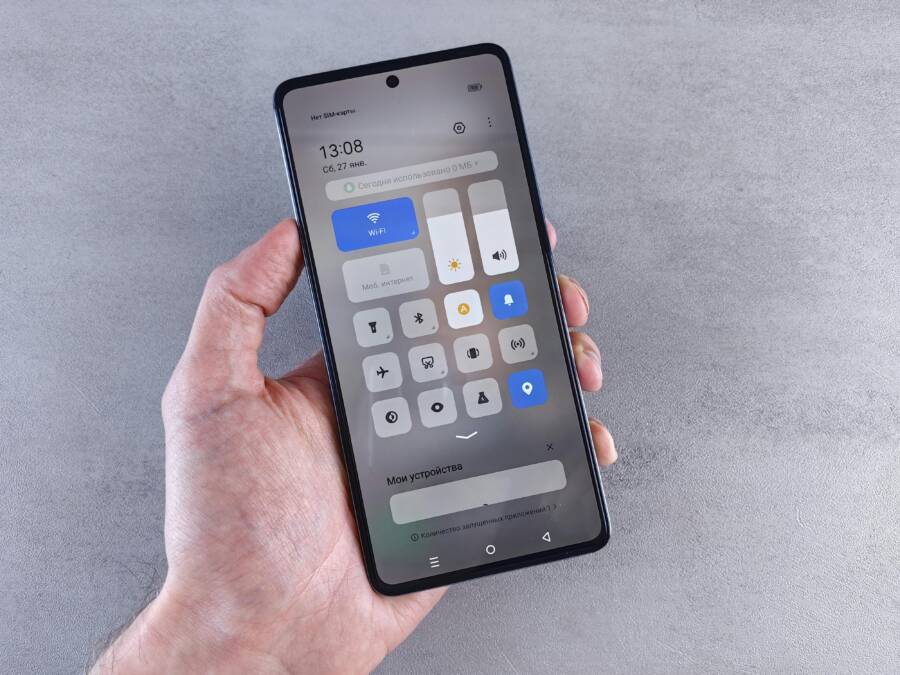
Image:  Photo by Andrey Matveev
If you want deeper guidance, check credible how-to resources that walk through safe mode on Android and the impact of charging settings. For example, Android safety mode tutorials and model-specific restart sequences can be found in official help centers and trusted tech sites:
- Android safe mode basics and model-specific steps
- https://support.google.com/android/answer/7665064?hl=en
- https://support.google.com/pixelphone/answer/2852139?hl
- Device-specific safe mode guidance from Samsung
- https://www.samsung.com/au/support/mobile-devices/using-safe-mode/
Key takeaway: when fast charging is off and the device runs on basic system apps, the charger behaves more predictably. If the problem persists, you’re ready to tackle the next set of resets without guessing at hardware faults.
Wipe Cache and Reset Settings
Temporary files and misconfigured settings can cause a phone to misbehave when plugged in. Wiping the cache partition and resetting certain settings helps remove stale data and restore sane defaults, often with no data loss. Approach this carefully and follow the steps that match your device type.
- Wipe cache partition (Android)
- Power off the device, then boot into Recovery Mode (the exact key combo varies by model). In Recovery, use the volume keys to navigate to “Wipe cache partition” and confirm with the Power button.
- After the wipe completes, reboot the device. The system rebuilds the cache gradually as you use the phone.
- This step does not erase personal data, but some settings may revert to defaults.
- Reset settings (no data loss)
- On Android, you can reset network, display, and app preferences without affecting your files. Go to Settings > System > Reset options > Reset app preferences or Reset network settings. Confirm and allow the phone to restart.
- On iPhone, you can reset all settings to revert to default system configurations. This preserves data but resets settings like wallpaper, notifications, and network preferences. Go to Settings > General > Transfer or Reset iPhone > Reset > Reset All Settings.
- When data loss is a concern
- If you have important app data or configuration, back up first. A quick cloud or local backup ensures you don’t lose custom settings, app preferences, or saved Wi-Fi networks.
Why this matters: cache and misconfigured settings are common culprits for charging instability. Clearing them often yields a clean slate that allows normal charging behavior to resume. If you still see the issue after these steps, the problem may lie in a failing battery, a hardware port, or a more stubborn software issue.
Image:
Photo by Andrey Matveev
Helpful resources for cache wiping and settings resets
- What wipe cache partition means and why it matters
- https://drfone.wondershare.com/android-recovery/clear-cache-partition.html
- General guidance on understanding and performing a cache wipe
- https://techwiser.com/how-to-wipe-cache-partition-on-samsung-galaxy-phones-and-what-happens-when-you-do/
Tips to make the process smoother
- Back up first if you’re concerned about data loss, especially on devices with limited storage.
- Perform one change at a time. After each step, test charging to track what helps.
- If you’re using a corporate or school-managed device, some resets may be restricted. In that case, consult your IT department before proceeding.
Final check after these steps
- Reboot the phone and plug in a known-good charger and cable. Confirm whether the device wakes and responds reliably.
- If you still notice issues, consider a professional battery health check or port inspection. A battery or port replacement can be the difference between a phone that stops charging and one that powers through the day.
For further reading on safe port cleaning and hardware considerations, see the practical guides from reputable outlets that cover charging port health and related maintenance:
- Safe cleaning and port damage indicators
- https://www.asurion.com/connect/tech-tips/how-to-clean-out-your-android-or-iphone-charging-port/
- Additional charging port maintenance tips
- https://www.pandasecurity.com/en/mediacenter/how-clean-your-mobile-charging-port/
If you want a quick scenario to test, try this: disable fast charging, boot into Safe Mode, and then wipe the cache partition. Test charging after each step. If the phone wakes reliably after these adjustments, you’ve ruled out the most common software or peripheral causes and can proceed with more targeted hardware checks if needed.
What If the Only Thing Between You and the Life You Deserve Is a Hidden Wealth Code Waiting to Be Activated
>>> Open the Door <<<
Check Battery Health and Avoid Heat Risks
A healthy battery means fewer wake-up troubles when your phone is plugged in and less chance of heat fueled problems. In this section you’ll learn how to gauge battery health, spot warning signs early, and minimize heat risk during charging. Think of it like keeping fuel and a radiator in good shape so your device stays reliable all day.
How to gauge battery health on iPhone and Android
Understanding battery health helps you decide when to replace or service a device. On iPhone, you can check battery usage and health in Settings. Look for battery health metrics that indicate maximum capacity and peak performance capability. Apple also provides official guidance on battery usage and health to help you interpret these numbers and plan a replacement timeline if needed. For a quick start, see the official iPhone battery health articles and guides.
- iPhone battery health overview: Understand your iPhone battery usage and health
- iPhone battery and performance information: Learn how battery aging can affect performance
On Android, you’ll typically find health data in Settings under Battery or Battery Health, sometimes via the device’s Diagnostics tool. If your stock options don’t reveal everything, third-party apps can offer a deeper view of battery cycles, capacity, and temperature. A solid baseline is to note current capacity, the number of charging cycles, and whether you notice faster drain than before. Check trusted guides like “How to check your battery health and charging cycles on Android” for device-agnostic steps.
- For Android users, check battery health through Settings and optional health apps
- When in doubt, an Android-focused guide can walk you through cycles and capacity
If you want a straightforward read, credible sources from major brands offer clear steps. For iPhone, Apple’s official resources are reliable anchors, while Android-focused guidance from reputable outlets helps with model-specific quirks. See Apple and Android health guidance to align your checks with your device.
Signs your battery health is slipping
Keep an eye out for these telltale symptoms. They signal that a battery replacement might soon be due, especially if you notice heat during charging or rapid, unexplained battery drain.
- Rapid discharge or short daily lifespan
- Battery swelling or warm to the touch during normal use or charging
- Inaccurate battery readings, such as percent jumping or staying the same after minutes of charging
- Longer charging times despite using a healthy charger
- Device throttling or unexpected shutdowns even with a reasonable charge
If you see any of these signs, start planning a battery check with a professional. Healthier devices handle charging more predictably and avoid the heat risks that come with degraded cells.
How heat affects charging and what to do about it
Heat is not just uncomfortable; it can shorten battery life and affect performance. When a phone gets hot while charging, it can slow down power delivery, trigger protective shutdowns, or create lasting battery wear. Preventive steps are simple and often payoff quickly.
- Remove the case during charging if it traps heat. A slim, breathable case helps keep temperatures from climbing.
- Charge in a cool, ventilated space. Avoid charging on soft surfaces like a bed or couch where heat can accumulate.
- Use the right charger and cable. Match wattage with your device’s requirements and avoid third-party fast chargers that aren’t certified.
- Don’t leave the phone charging overnight in a hot environment. Overnight charging is convenient but can amplify heat buildup if the room is warm.
If you notice consistent overheating, it’s wise to pause charging and let the device cool. Reassess with a different charger or outlet. Several credible sources discuss why phones get hot during charging and how to prevent it, including practical fixes and safety tips. For broader context, you can explore guides that cover causes and preventive steps from trusted tech resources.
- “Why Does My Phone Get Hot When Charging: 9 Reasons” for common heat sources and fixes
- Practical tips to prevent overheating while charging from reputable hardware guides
Practical steps to validate battery health without disassembling anything
You don’t need to open the device to gauge health. Use built-in tools and safe checks to confirm you’re not dealing with a bad battery.
- Run a health check inside Settings (iPhone) or Battery/Diagnostics (Android)
- Monitor charge cycles and capacity trends over a couple of weeks
- Compare performance with a known-good charger and cable to rule out peripheral issues
- Look for heat patterns during charging as a quick diagnostic cue
If the health readout shows substantial capacity loss or your phone still behaves oddly after a clean bill of health, it’s time to consider a battery replacement or a professional service. Official support pages and reputable repair guides can help you decide whether a DIY replacement is feasible or if a pro is needed.
When to replace the battery
A replacement is often worth it when battery health drops below a certain threshold or if the device becomes unreliable in daily use. Typical signals include:
- Maximum capacity well below 80 percent
- Frequent unexpected shutdowns, especially under load
- Noticeable swelling or physical deformation of the battery housing
- Inability to sustain a reasonable charge even with known-good accessories
Replacing a failing battery can restore original performance and reduce heat during charging. Always use certified parts and, if possible, have the work done by a reputable technician. Official guidance from device makers provides model-specific recommendations for battery replacements and service.
Quick, device-safe checks you can perform this week
- Inspect the charging port for dust and debris. A clean port supports steady power transfer and reduces heat buildup.
- Swap in a known-good charger and cable to confirm peripheral health.
- Observe whether calibration helps: fully drain and recharge a few times to see if the reported capacity stabilizes.
- Run a light software health check after a clean boot to ensure software isn’t masking a hardware issue.
These checks are low risk and often yield quick wins. If you need a deeper dive, credible sources on battery health and charging best practices offer practical steps and model-specific tips.
Where to turn for authoritative guidance and further reading
- iPhone battery health and usage insights from Apple: Understand your iPhone battery usage and health
- Official iPhone battery performance resources: iPhone battery and performance
- Android battery health guidance from reputable outlets: How to check your battery health and charging cycles on Android
- General charging safety and heat prevention: Why Does My Phone Get Hot When Charging and related safety primers
External resources you can consult as you plan repairs or replacements:
- Apple: iPhone battery and performance
- https://support.apple.com/en-us/101575
- Apple: Understand your iPhone battery usage and health
- https://support.apple.com/guide/iphone/check-battery-health-and-usage-iphd453d043a/ios
- Android health and charging guidance
- https://www.androidauthority.com/check-battery-health-on-android-3337030/
- https://support.google.com/android/answer/7664998
Key takeaway: keeping a close eye on battery health and heat helps you avoid mid-day outages and extends the life of your smartphone. By pairing regular health checks with smart charging habits, you can keep both performance and safety on track. For more on safe port cleaning and related maintenance, see credible guides on charging port care and damage indicators.
When Home Fixes Fail: Get Pro Repair Help
Home fixes can save time and money, but some problems stubbornly resist do-it-yourself work. If your phone still refuses to respond while plugged in after trying the basics, it’s time to bring in a technician. Pro repair not only resolves hardware and software conflicts faster, it also protects valuable data and reduces the risk of further damage. In this section, you’ll learn how to tell when to seek help, what to expect from a repair shop, and how to choose the right service for an iPhone or Android device.
When it’s time to seek professional help
Signs that DIY steps aren’t enough include repeated failures after cable and port checks, persistent wake-up issues despite safe mode or cache wipes, and unusual heat during charging that doesn’t subside. If you’ve exhausted the common fixes—cleaning the port, swapping cables, testing with different power sources, and verifying battery health—professional diagnostics are the next logical move.
- Persistent unresponsiveness: The device doesn’t wake even after a full restart and charging looks normal.
- Inconsistent charging indicators: The charging LED or on-screen indicator acts irregularly for long periods.
- Hardware concerns: You notice port looseness, visible damage, or battery swelling.
- Data protection needs: You want a thorough backup and secure repair without data loss risk.
Getting professional help doesn’t mean giving up on learning. A technician can confirm whether the issue is the charging port, the battery, the motherboard, or a software component that only a trained eye can pinpoint. For many, a charging port repair or battery replacement is enough to restore reliable performance, often with a warranty for peace of mind. If you’re unsure whom to trust, look for shops with transparent pricing, verified reviews, and clear turnaround times. A reputable option in the US commonly offers both quick diagnostics and same-day repairs for certain issues.
What to expect from a pro repair
A good repair shop will guide you through a straightforward process: assessment, scope of work, and a documented quote before any work begins. Expect a clean diagnostic report, a clear breakdown of parts and labor, and a realistic timeline. Most shops will perform a free or low-cost diagnostic to determine whether the problem is hardware or software, then present a repair path.
- Diagnostic phase: Technician tests the charging path, inspects the port for debris, checks the battery status, and verifies software behavior with a known-good charger.
- Repair plan: You’ll receive a work order with the required parts, estimated labor, and the anticipated completion time.
- Data strategy: Ask about data handling. Reputable centers aim to avoid data loss and may offer a backup option if the device needs a more invasive repair.
- Warranty and follow-up: A solid repair comes with a warranty on parts and labor, plus instructions for aftercare.
If you’re curious about the typical scope of professional charging fixes, consider a charging port repair service as a benchmark. These services address bent pins, loose connections, and debris that home cleaning can’t fix. You can find trusted providers that specialize in smartphone charging port repairs and other common fixes, such as battery replacements and screen work. For example, dedicated repair services offer rapid diagnostics and same-day port repairs when feasible, with clear pricing and store locations. You may see options like this described here: uBreakiFix charging port repair. This kind of service helps you avoid risky DIY attempts when the port is physically damaged or torn.
How to evaluate a repair shop
Choosing the right shop reduces surprises and makes the process smoother. Here are practical criteria to guide your decision:
- Credentials and reviews: Look for established shops with verified customer feedback. Positive anecdotes about charging port repairs, battery replacements, and data safety are good signs.
- Pricing transparency: A reputable shop provides a written estimate before work begins. Beware of hidden fees or vague quotes.
- Turnaround time: Ask about same-day service for straightforward fixes. Complex motherboard issues may require longer timelines.
- Parts quality and warranty: Ask which parts are used and what the warranty covers. High-quality, OEM-like parts with a solid warranty are ideal.
- Data handling policy: If data loss is a concern, request steps for safe handling and backup options.
If you want a quick read on what to expect, reputable repair centers often publish practical guides on charging port repairs and related services. For context, you can explore articles like the one on Android and iPhone charging port care and professional repair options. See a representative example here: Android charging port repair guide from a professional service. You’ll find a straightforward discussion of what’s involved, typical costs, and expected timelines.
What a professional repair might cover beyond the port
While a faulty port is a common cause of a phone not responding while plugged in, other components can contribute to the problem. A skilled technician will check:
- Battery health and swap: If the battery can no longer hold charge efficiently, a replacement may be necessary.
- Charging circuitry: The motherboard or charging controller might be defective or damaged.
- Cables and connectors: Even when the port looks fine, the board-level connectors can wear out.
- Software locks or boot issues: Some problems masquerade as hardware faults; a shop can run deeper software tests to rule these out.
Getting a clear, itemized estimate helps you decide whether to proceed with the repair or pursue a replacement. In some cases, a failing battery combined with a damaged port can push you toward a replacement rather than a repair.
Preparing to drop your device off
To streamline the process and reduce the risk of data loss, prepare ahead of time:
- Back up data: Use iCloud or iTunes for iPhone, or Google Drive and local backups for Android.
- Remove sensitive accounts: Sign out of payment apps and banking apps if you’re comfortable.
- Note symptoms: Write down when the issue happens, what chargers you’ve used, and any error messages you’ve seen.
- Bring accessories: Include known-good cables and chargers to assist the diagnostic process.
Some shops offer a diagnostic report within 24 hours. If you’re in a hurry, ask about expedited services or same-day options. A quick, transparent discussion at the start helps set expectations and reduces surprises later.
A quick reference to trusted options in the US
If you’re weighing repair paths, reputable chains and independent shops provide reliable charging port and battery work. For reference, you can explore professional options that emphasize speed and accountability. A well-known service model focuses on smartphone charging port repairs, backed by warranties and clear pricing. This kind of service helps you avoid the trial-and-error approach of at-home fixes and provides a solid path back to reliable power and wakefulness.
- Broad-service chains with nationwide coverage can handle iPhone and Android repairs, including charging-related issues.
- Local independent shops often offer faster turnaround and competitive pricing, with a focus on same-day port repairs.
For readers who want concrete examples, you can review reputable repair service information and guides on charging port work. A representative page on charging port repair demonstrates the typical workflow and expectations when you choose professional help: Smartphone charging port repairs by an authorized repair provider. When selecting a shop, use that type of resource to verify what’s included in the service.
A quick wrap-up
When home fixes fail to restore reliable wake and charge, pro repair becomes a sensible next step. You gain precise diagnostics, professional-grade parts, and often a warranty on the repair. By choosing a reputable shop, you protect your data and improve your odds of a fast, lasting fix. If you want to explore more about professional charging port work, you can review dedicated repair service pages for detailed steps, expected timelines, and cost ranges. For example, a charging port repair page from a reputable provider gives a clear view of what’s involved and how the service is priced.
In the next section, you’ll find a practical plan to minimize downtime while you wait for professional help, plus tips to keep your device safe and usable in the meantime. If you’d like to see model-specific guidance, trusted manufacturer resources can offer step-by-step procedures for iPhone and Android scenarios alike. And remember, when in doubt, a certified technician is the fastest path to a reliable fix. For a deeper dive into professional repair options and what to expect, you can consult these authoritative resources: Smartphone charging port repairs | uBreakiFix by Asurion and Android charging port repair guide.
Conclusion
Fixing a phone that won’t respond while plugged in comes down to a clear, repeatable process. Start with the basics—check cables, adapters and the port—then move to quick software resets. A force restart or a Safe Mode test often reveals whether the issue is software or hardware related. Wiping the cache and resetting settings can clear stubborn glitches without touching your data. These steps cover most cases and buy you time while you decide on professional help if needed.
Keep your plan simple: test with a known good charger, then a different power source, and only then move to deeper troubleshooting. If the device wakes reliably after one adjustment but fails again later, that points to a peripheral issue rather than a core fault. In many situations, a battery check or port inspection from a pro can restore dependable charging and wake behavior.
I appreciate your time and questions in the comments. Sharing your experience helps others troubleshoot faster and builds a clearer path for future guides. If you want more practical steps, check out our upcoming battery health tips and safe charging practices. Your smartphone will thank you for the steady power it needs.
Thousands of People Were Struggling With Money Until They Discovered This One Ancient Secret Hidden in Sound
>>> Unlock It Now <<<