Are your phone photos stuck on your device while Dropbox stays quiet on the cloud? If your camera roll isn’t syncing, you’re not alone, and the problem is often quick to fix. This guide walks you through simple, actionable steps to get your memories backed up again.
In short, you’ll learn how to check your internet connection, verify offline and battery settings, and review Dropbox’s export and camera upload options. You’ll also see how to adjust app permissions and clear any app hiccups that block syncing. By the end, you’ll know exactly what to adjust to restore reliable photo backups from your smartphone.
A common obstacle is settings that quietly block uploads. For many people the issue isn’t a broken app but a small misstep in permissions or battery optimization. We’ll cover those easy fixes first, because they often solve the problem fast. You’ll also get tips for different phone types so you can apply the right steps no matter your device.
This post focuses on practical steps you can act on today. Expect clear, step by step instructions, quick checks you can perform in minutes, and a concise checklist to keep your photos syncing smoothly. If you’re ready to stop worrying about lost memories, this guide will get you back on track with confidence.
Quick checks you can do right away to spark a fix
When your phone photos aren’t syncing to Dropbox, start with fast, practical checks. These quick wins often remove the friction without digging into deeper settings. Treat this like a triage: confirm a solid connection, verify that Dropbox is allowed to back up in the background, and ensure there’s enough space and power to finish the job. If you’re stuck, these steps yield near-immediate results and set you up for a smoother backup going forward. For reference, a helpful Dropbox article covers camera uploads troubleshooting in more depth.
Verify internet connection and data saver settings
A stable connection is the backbone of any sync. First, switch between WiFi and mobile data to see if the issue is network specific. If you’re on WiFi, try turning it off and using cellular data, then do the opposite to compare. Data saver modes can throttle background activity, so disable any data saver or “restricted data” features while you test. Next, check that Dropbox is allowed to use background data. On most phones this means enabling background data or unrestricted data for the Dropbox app in the system permissions. If background activity is blocked, new photos won’t upload even when Dropbox is open.
Tips to test quickly:
- Toggle airplane mode on for 15 seconds, then off to reset the network connection.
- Open a browser and load a page to confirm general connectivity.
- In your phone’s settings, locate Dropbox and ensure background data is allowed and the app isn’t restricted.
If you’re unsure about any of these steps, consult your device’s help guide for where data saver and background data controls live. For deeper network-specific guidance, see the official camera uploads help article from Dropbox.
Confirm Dropbox photo backup is enabled
Camera Upload must be on for uploads to happen automatically. Open the Dropbox app and look for Camera Upload in the Settings. Ensure it is turned on and that the upload destination you want is selected, such as a dedicated Dropbox folder for photos. The app may also offer options to organize uploads by date or by album; pick the setting that aligns with how you prefer to browse later.
Also decide if cellular data can be used for uploads. If you’re on a limited plan, you may want to restrict backups to WiFi only, then test by taking a photo while connected to WiFi. If cellular data is allowed, confirm that the feature is enabled in both Camera Upload settings and the device’s data usage settings. Misconfigurations to look for include:
- Camera Upload off or paused
- Wrong upload destination selected
- Cellular data blocked while WiFi is available If you need more troubleshooting steps, see the Dropbox help article on camera uploads.
A practical tip: keep Camera Upload enabled but review exclusions. Some users exclude certain folders or file types, which can inadvertently block new photos from syncing. A quick review ensures nothing is blocked by mistake.
Check storage space and device battery
Insufficient space or power saving modes can halt uploads midflight. It’s worth a quick peek at both your phone storage and your Dropbox storage balance. On many devices you’ll find storage under Settings > General > Storage or Settings > Storage. You want some breathing room—at least a few gigabytes if possible—to handle a batch of new photos.
For Dropbox space, open the app or sign in to dropbox.com and check the file space indicator. If you’re close to full, consider moving older files off Dropbox or upgrading your plan if you regularly back up large photo libraries.
Power saving modes are another common culprit. On Android, a battery saver mode can restrict background activity, while iOS Low Power Mode reduces background tasks. Disable these modes temporarily while you test the sync, then re-enable them if you don’t want to keep them off. Quick steps for most devices:
- iOS: Settings > Battery > Low Power Mode (toggle off).
- Android: Settings > Battery > Battery Saver (toggle off) or look for per-app restrictions. If you notice the upload starts again after freeing space or disabling power saving, you’ve pinpointed the bottleneck and can plan to avoid it in the future.
If you want extra context or alternative methods, the Dropbox help center has more on syncing issues and how to fix them.
Review Dropbox app permissions and account status
Before you tackle not syncing photos, take a moment to review what Dropbox can access on your phone and which account is currently active. Permissions determine whether the app can see your photos, run in the background, and upload new images automatically. A quick audit often reveals the exact setting holding back your camera backups. This section guides you through permissions on both iOS and Android, then covers account status checks so you know you’re syncing from the right place.
Grant photos and storage permissions on both iOS and Android
Giving Dropbox the right access is the fastest path to a reliable photo backup. Here are clear, platform-specific steps to grant the needed permissions.
- iOS (iPhone and iPad)
- Open the Settings app.
- Scroll to find and select Dropbox.
- Tap Photos and choose All Photos (or Read and Write if it appears).
- Return to the previous screen and enable Background App Refresh if it isn’t already on.
- Open the Dropbox app, go to Account (bottom right) > Settings (top right) > Camera Uploads, and confirm it’s enabled.
- In the Files and Free Up Space settings, ensure Dropbox is allowed to access photos in the background.
- Android
- Open the device’s Settings and go to Apps & notifications (or just Apps) > Dropbox.
- Tap Permissions and enable Storage and Photos/Media/Files.
- In the Dropbox app, navigate to Account > Settings > Camera Uploads and turn it on.
- Return to your device’s Settings, then find Battery or Battery optimization. Exclude Dropbox from battery optimization so background uploads aren’t paused.
- If your phone has a data saver mode, disable or whitelist Dropbox to allow background data.
Notes and quick checks
- Ensure you’re allowing access to photos or media, not just a thumbnail or recent items.
- If you don’t see a requested permission, re-installing the app can refresh the permission prompts.
- For more context on camera uploads basics, see Dropbox’s help article on camera uploads.
These permissions are often the simplest fix. If you’ve already granted access and still have trouble, move to the next steps to confirm the account side of the equation.
Re-link or re-authenticate your Dropbox account
Sometimes the link between the app and your cloud storage needs a fresh handshake. Re-authenticating can resolve token issues and stale session problems that block uploads.
- Sign out and sign back in
- Open the Dropbox app and go to Account > Settings (the gear icon).
- Look for Sign out and confirm. If you’re signed in on other devices, consider signing out from those too.
- Close the app completely, then reopen and sign back in with your credentials.
- If you use two-factor authentication, have your code ready.
- Revoke and refresh permissions
- On your phone, visit the system settings for apps and find Dropbox.
- Revoke any connected apps or permissions if you see an explicit link to third-party access.
- Sign back in to Dropbox and re-authorize the app when prompted.
- In some cases, you may need to refresh tokens from the account security page on dropbox.com. Log in, then navigate to the security section and re-authorize sessions as needed.
- Refreshing tokens and related considerations
- Most updates require re-authentication only after token expiry or a security change. If you notice persistent errors, sign out, wait a few minutes, then sign back in to trigger a fresh token exchange.
- If you’re using a multi-device setup, ensure all devices have current tokens to avoid upload conflicts.
If you want deeper steps or troubleshooting, Dropbox’s guidance on signing in and managing account access is a good companion resource. You can also review how to view devices and log out remotely if you suspect a compromised session or unfamiliar device.
Verify you are using the correct Dropbox account
A common source of confusion is having more than one Dropbox account or shared folders that show different content on the phone. Verify you’re using the intended account and understand how shared access affects what you see.
- Check the linked account on your phone
- In the Dropbox mobile app, go to Account at the bottom and tap the profile or settings icon.
- Look for the email address displayed at the top. This is the account currently active on the device.
- If you have multiple accounts, you can switch between them by tapping Linked accounts or Switch between linked accounts and selecting the correct one.
- Switch accounts if needed
- Sign out of the current account on the phone, then sign in with the desired one.
- If you use two accounts, remember you must be signed in to both on the web or app to switch between them seamlessly.
- After switching, check that Camera Upload is enabled for the active account.
- Shared folders and how they affect what you see
- Shared folders don’t automatically appear in Camera Upload. They show up in your Files or Shared section but won’t create new uploads unless you enable a camera upload path to that folder.
- If you’re expecting new photos to appear from someone else’s shared folder, remember that your own camera uploads still go to your selected destination, not into someone else’s space.
- Quick verification tip
- Open the Dropbox app on another device or via dropbox.com and confirm the same account is listed and active. This helps avoid the common pitfall of mixing personal and work accounts.
If you want additional assurance, Dropbox’s help articles on switching between linked accounts and on managing mobile app settings provide concrete steps and screenshots. For a broader view on how camera uploads work across devices, you can review the official camera uploads overview.
Platform specific steps to fix syncing on iPhone and Android
When camera uploads aren’t pulling your newest memories into Dropbox, the fix is usually a handful of simple settings checks. This section breaks down iPhone and Android concerns separately so you can act quickly without wading through unrelated options. You’ll find clear, step by step actions that install a reliable backup rhythm for your photos. Think of it as tuning your smartphone so Dropbox can do its job in the background.
iPhone specific steps for photo syncing
iOS users often run into three friction points: Photos access, background activity, and iCloud interactions. The goal is to grant Dropbox the right kind of access, keep its background behavior enabled, and minimize conflicts with iCloud. Here are straightforward steps you can take.
-
Grant Dropbox access to Photos in full
- Open the Settings app.
- Scroll to and select Dropbox.
- Tap Photos and choose All Photos (or Read and Write if available).
- Return to the previous screen and ensure Background App Refresh is on.
- Open the Dropbox app, go to Account > Settings > Camera Uploads and confirm it’s enabled.
- In the Files and Free Up Space settings, verify Dropbox can access photos in the background.
Why this matters: with Photos access fully enabled, Dropbox can see new images as soon as you shoot them, rather than waiting for you to select them manually.
-
Keep Camera Uploads active and correctly routed
- In Dropbox, verify Camera Uploads is turned on.
- Confirm the upload destination is the folder you want. If you use multiple albums or year-by-year organization, pick the destination that matches your browsing habits.
- Decide whether to use cellular data. If your data plan is tight, restrict to WiFi and test by snapping a photo while connected to WiFi.
Quick tip: some users inadvertently block uploads by excluding specific folders or file types. A one-minute review ensures nothing critical is blocked.
-
Manage iCloud conflicts and backing context
- If you use iCloud Photos, ensure it’s not competing with Camera Uploads. In some setups, iCloud can reorganize photos in ways that confuse uploads.
- Consider temporarily turning off iCloud Photos if you notice duplicates or missing items after a sync. This reduces conflicts and stabilizes the upload pipeline.
-
Re-check background activity for Dropbox
- Go to Settings > General > Background App Refresh and confirm Dropbox is enabled.
- If you still experience issues, try a quick restart of the iPhone, then re-open Dropbox and trigger a new upload by taking a fresh photo.
-
If problems persist, consult the Dropbox guide
- Dropbox has a focused article on troubleshooting camera uploads in the background. It covers common iOS specifics and how to verify that Dropbox can run without being paused by system limits. See the official guidance for deeper steps and visuals: Camera uploads not working in the background.
Evidence from users and support communities shows that permissions and background refresh are the usual culprits. Once you lock these in, most iPhone syncing issues disappear.
Android specific steps for photo syncing
Android devices vary widely, which is why the most reliable fixes center on permissions, battery optimization, and background data. These steps are designed to be followed quickly and solved once and for all.
-
Ensure Dropbox has all the necessary permissions
- Open Settings > Apps & notifications > Dropbox.
- Tap Permissions and enable Storage and Photos/Media/Files.
- In the Dropbox app, go to Account > Settings > Camera Uploads and switch it on.
- Exit settings and verify you can view new photos in the Camera Uploads destination.
Why this matters: without storage and media access, Dropbox cannot read new photos or save them to the cloud.
-
Exclude Dropbox from battery optimization
- Open Settings > Battery > Battery optimization.
- Find Dropbox in the list and set it to “Not optimized” or “Unrestricted” so it can run in the background.
- If your device offers per-app battery restrictions, remove Dropbox from those lists as well.
Why this matters: battery optimization can pause background tasks to save power, which blocks fast uploads.
-
Allow background data for Dropbox
- In the same Data usage or Data saver area, ensure Dropbox is allowed to use data in the background.
- If you use a data saver mode, whitelist Dropbox or temporarily disable data saver while testing.
Why this matters: background data allows uploads to proceed even when you’re not actively using the app.
-
Verify Camera Uploads are configured to run on cellular or WiFi
- Open the Dropbox app, navigate to Account > Settings > Camera Uploads.
- If you want automatic backups from mobile data, enable it, then confirm that the device’s own data usage settings permit ongoing background activity for Dropbox.
- Perform a test by taking a photo and watching for an upload.
-
Restart and recheck after changes
- Restart the Dropbox app or the device if uploads still lag.
- Reopen Dropbox and trigger a fresh upload by snapping a photo.
-
Reference guidance for Android specific issues
- Dropbox’s help article on camera uploads fixes is a practical resource that walks through many Android-specific scenarios, including background process handling and step-by-step checks: Troubleshoot issues with camera uploads.
-
When to consider broader account checks
- If you’re using multiple devices, ensure each one has current tokens and is connected to the same account. Conflicts can appear as missing uploads.
-
Extra safeguard: keep an eye on space and power
- Make sure your device has adequate free space for new photos.
- Disable any aggressive battery modes when testing; you can adjust later to preserve power while maintaining reliable backups.
How to know you’re on the right track
- The Dropbox camera uploads toggle stays on across device reboots.
- New photos appear in the designated Dropbox folder within a minute or two after capture.
- Tests with WiFi and cellular data show consistent results across networks.
If you want deeper context, Dropbox’s official camera uploads troubleshooting pages cover a wide range of scenarios and provide screenshots that map to real-device steps. These resources are reliable partners as you fine tune the syncing experience across iPhone and Android. You can also explore community discussions for device-specific nuances and a few edge cases that pop up on certain models.
Advanced fixes and best practices to prevent future issues
Keeping Dropbox reliably syncing your photos requires more than quick fixes. This section shares proactive steps to minimize future hiccups, protect backups, and keep your smartphone in sync with confidence. Think of it as a preventative playbook: the moment you set these up, you reduce the chances of repeat problems. You’ll learn how to optimize cache, app updates, camera upload behavior, and network trust so your memories stay protected across devices.
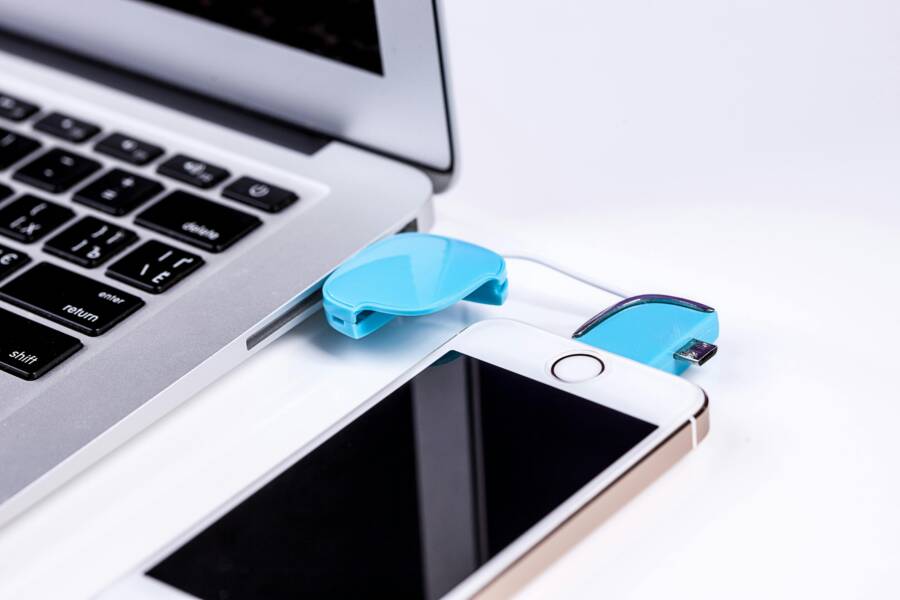
 Photo by Pixabay: Close-up of a laptop and smartphone connected via USB cable for data transfer
Clear cache, reinstall, and update Dropbox
Over time, cached data can become stale or corrupted, causing slow performance or odd upload behavior. Clearing the cache removes temporary files that might block new photos from syncing. Reinstalling Dropbox provides a clean slate by removing lingering settings or permissions that could be misconfigured. Finally, staying current with the latest version of Dropbox ensures you have the newest bug fixes and improvements for camera uploads.
What to do and why it matters:
- Clear cache on iPhone and Android
- iOS: There is no direct system cache clearing for apps; offloading the app or reinstalling achieves the same effect.
- Android: Go to Settings > Apps > Dropbox > Storage > Clear Cache. This resets temporary data that can interfere with uploads.
- Reinstall Dropbox
- Uninstall the app, restart the device, then install it again from the App Store (iOS) or Google Play (Android). A fresh install prompts clean permission prompts and can fix stubborn hiccups.
- After reinstalling, re-enable Camera Uploads and verify the destination folder.
- Update to the latest version
- Open the App Store or Google Play and check for updates. If an update is available, install it. New releases often fix device-specific issues and improve background syncing.
- Quick verification steps
- Take a photo and wait a minute to confirm it shows up in Dropbox.
- Test on both WiFi and cellular data to confirm consistency.
Helpful context from Dropbox’s own guidance can be useful here. For a deeper dive, see the official camera uploads fix article. It covers common edge cases and how to approach them systematically.
Possible quick win: schedule a monthly cache refresh and round of checks to ensure nothing in the background has drifted out of sync. This habit reduces the chance of surprises when you need a fast backup.
Manage camera upload settings and selective sync
Camera Upload and selective sync shape what gets backed up and when. Misaligned settings can quietly block new photos or waste space with unnecessary backups. A disciplined setup keeps your gallery safe without overloading your cloud.
What to configure and why:
- Camera Upload on the right path
- Ensure Camera Upload is enabled on the account that you actively use on your phone. Configure the destination folder to match your organization system.
- Decide on data usage: allow uploads on cellular if your plan permits, or restrict to WiFi to save data.
- Selective sync basics
- Use selective sync to limit uploads to essential folders. This reduces storage waste and speeds up initial backups while you fine-tune your workflow.
- If you rely on the full photo archive, keep Camera Upload active for all photos but periodically review which folders are included to avoid surprises.
- Consistency across devices
- If you use multiple devices, confirm that the same account and Camera Upload settings are active on each one. Token changes or permission differences can cause delays.
Quick tips to boost reliability:
- Schedule a routine to review Camera Upload settings after major OS updates.
- Disable any exclusions that might inadvertently block new photos from uploading.
- Periodically test with a few new photos to ensure they flow smoothly to Dropbox.
If problems crop up again, the Dropbox help center offers targeted troubleshooting for camera uploads and selective sync to guide you through device-specific steps.
Network tricks and avoiding VPN pitfalls
A stable network is the backbone of reliable syncing. Even with perfect app settings, a flaky network or VPN can turn photo backups into a slow drip or a complete stall.
Practical network practices:
- Test across networks
- Switch between WiFi and cellular data to identify network-specific issues.
- A quick test is to load a webpage on the device to confirm general connectivity before testing Dropbox.
- VPN and firewall awareness
- VPNs can route traffic in ways that block or delay uploads. Temporarily disable VPN during tests to see if performance improves.
- If a VPN is required, choose a trusted server and check Dropbox access permissions in the VPN app or router settings.
- Data saver and background activity
- Some networks throttle background data. Ensure Dropbox is whitelisted in any data saver or firewall rules on your device and router.
- Isolate the issue
- If you suspect the network, try a different network (a coffee shop, a friend’s hotspot, or a tethered mobile hotspot) to confirm where the drop occurs.
- Consistent testing approach
- After any network change, trigger a fresh upload by taking a photo and monitoring the upload progress in the Dropbox app.
For deeper guidance, you can reference Dropbox’s network and background data help resources. They explain how device-specific network settings interact with camera uploads and background activity.
Putting it all together, these advanced practices help you prevent future drops in your photo backups. By keeping the cache clean, maintaining up-to-date apps, tuning camera upload behavior, and ensuring a reliable network, you create a sturdy foundation for dependable syncing across your devices. If you want a quick refresher on camera uploads issues, the official help articles linked here provide step-by-step visuals and context to support your setup. Use them as a reference when you’re configuring or auditing your smartphones for the long haul.
When to contact Dropbox support and what to gather
If your photos still won’t back up after trying the quick fixes, it’s time to reach out for direct help. The right questions and the exact information you provide can shorten the troubleshooting cycle. This section explains when to escalate to Dropbox support and lists the concrete data you should gather before you contact them. Think of it as building a precise ticket that helps agents reproduce the issue quickly and offer a solid solution.
When to contact support
- You’ve completed the basic checks but uploads still fail consistently across multiple networks and devices.
- Camera Uploads are enabled, but new photos never appear in the designated folder, despite clear indications of activity in the app.
- You see error messages or login issues that persist after re-authenticating and token refreshes.
- You suspect account or device-specific conflicts, such as token mismatches on several devices or unexpected Shared Folder behavior.
- You’ve updated the app to the latest version, restarted the device, and cleared cache without any improvement.
If any of these apply, a support ticket will help you get a targeted solution. Dropbox’s own camera uploads guidance is a reliable companion resource while you prepare to reach out. See their camera uploads fix article for deeper, device-specific steps you can try in parallel: Camera uploads fix.
What to gather before you contact support
A well-structured report speeds up resolution. Gather details that show the problem, what you’ve already tried, and the exact environment where it happens.
- Device details
- Model and operating system version
- Dropbox app version
- Whether you’re using iOS or Android, and if you have a second device, note its model and OS as well
- Account and access information
- The email address tied to the Dropbox account
- Whether you use a single account or multiple linked accounts
- If you use two factor authentication, have your code ready
- Problem description
- A concise timeline of events (what you did, when you expected a backup, and what actually happened)
- Whether the issue occurs for all photos or only certain folders, file types, or dates
- Any error messages shown in the app and the exact wording
- Environment and network context
- WiFi or cellular usage, and whether you tested both
- VPN status, firewall rules, or data saver modes in use
- Whether the problem occurs at home, at work, or on the go
- Troubleshooting steps already performed
- List the exact steps you tried (e.g., re-authenticate, disable battery optimization, reinstall)
- Include outcomes and any patterns you noticed (like “uploads resume after a reboot but stop again after a few minutes”)
- Evidence and logs
- Screenshots of the Camera Uploads settings and any errors
- A short video or a series of screenshots showing the upload progress and failure point, if possible
How to present your report clearly
- Be precise but brief. A well crafted paragraph can convey the core issue without drowning in detail.
- Use bullet points for steps you’ve taken. This helps support agents scan the report quickly.
- Include dates and times in your local zone so agents can correlate with server-side logs.
- If you mention a specific device pair or app setting, include exact names and paths (for example, Settings > Account > Settings > Camera Uploads).
What to expect after you file
- Acknowledgement from the support team usually arrives within a business day.
- You may receive follow-up questions or requests for logs. Prompt replies keep the process moving.
- In many cases, agents provide a targeted step-by-step fix or a workaround you can apply right away.
Helpful context from Dropbox resources
- For a structured troubleshooting path that covers many common scenarios, start with the official camera uploads fix article. It aligns with the steps you already tried and adds device-specific advice. You can review it here: Camera uploads fix.
- If the issue seems rooted in background activity, the camera uploads not working in the background article offers deeper context on Android and iOS nuances. See Camera uploads not working in the background.
Quick tip to avoid future escalations
- Before you contact support, confirm you can reproduce the issue with a single, fresh photo taken moments before the test. This makes it easier for agents to observe the behavior and rule out external factors.
Images to illustrate this section
- A clean, friendly image can accompany your support steps. For example, a photo showing a person checking a phone or a computer screen with the Dropbox app open can help readers relate to the process.
Photo by MART PRODUCTION: Professional call center agents working on laptops in a bright modern office.
Photo URL: https://images.pexels.com/photos/7709271/pexels-photo-7709271.jpeg?auto=compress&cs=tinysrgb&dpr=2&h=650&w=940
External resources you may find useful when preparing your report
- Troubleshoot issues with camera uploads: https://help.dropbox.com/create-upload/camera-uploads-fix
- Camera uploads not working in the background: https://help.dropbox.com/create-upload/upload-not-working-in-background
Conclusion
Fixing Dropbox not syncing photos from your smartphone is usually about a few small checks done in order. Start with quick network tests, confirm Camera Uploads are enabled, and verify permissions and battery settings. If issues persist, re-authenticate, review the correct account, and ensure your device has enough space. Keeping a clean cache and updating the app helps prevent future hiccups.
Quick checklist to try in order
- Verify internet connection and disable data saver while testing
- Confirm Camera Uploads are on and set to the right destination
- Check permissions for Photos/Media and Background Activity
- Ensure battery optimization is off for Dropbox
- Re-authenticate your account and verify you’re on the correct Dropbox account
- Clear cache or reinstall the app if needed
- Confirm there is enough device and Dropbox storage space
- Test by taking a fresh photo and watching for a quick upload
Remember to back up photos regularly so memories stay safe no matter what. If problems return, revisit this guide and run through the list again. Your backups will be ready when you need them. Keep going with your smartphone workflow, and your photos will find their home in Dropbox with minimal fuss.