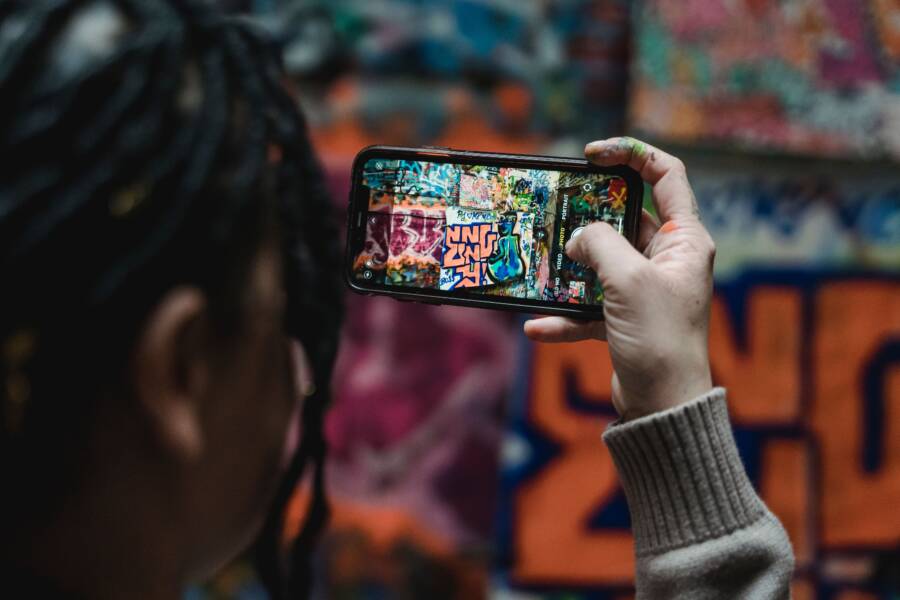
Accidental burst photos happen when you hold the shutter button on your smartphone a fraction of a second too long. This common frustration usually stems from a persistent user habit or a specific camera setting rather than a hardware defect.
You can easily regain control of your camera and stop these unwanted rapid-fire shots by adjusting your device settings or changing your capture technique. Follow these steps to ensure every tap results in a single, high-quality image instead of a crowded gallery.
Understanding Why Burst Mode Triggers Automatically
Smartphone cameras prioritize speed so you never miss a fleeting moment. When you hold the shutter button down, the software interprets this action as a request to capture a rapid sequence of frames. This feature is intended for action shots, such as a moving car or a jumping pet, where timing is unpredictable. However, it often triggers unintentionally during casual photography when your finger lingers on the button a millisecond too long.
Physical Pressure and Timing Sensitivity
The primary cause of unwanted burst photos is the physical duration of your finger contact. Most modern devices feature highly sensitive touchscreens that detect pressure changes instantly. When you hold your finger on the shutter icon for even a fraction of a second, the software switches from single-capture mode to continuous-burst mode. This sensitivity is a design choice intended to remove any lag between intent and action, but it leaves little room for hesitation.
If you find your gallery filled with duplicates, your natural tendency to steady the smartphone while tapping might be the culprit. Users often apply pressure to the screen while trying to maintain a firm grip. This extra stability keeps the photo crisp but inadvertently signals the camera software to keep firing. Switching your technique to a quick, light tap can often solve the problem immediately without needing to change any software settings.
Software Defaults and Gesture Controls
Beyond your physical technique, certain smartphone configurations treat the shutter button as a multi-purpose tool. Some devices assign specific gestures to the shutter icon, such as sliding to the left or right to switch between capture modes. If your tap is slightly off-center or involves a minor sliding motion, the software may interpret this as a command to initiate a burst sequence.
These gesture-based shortcuts are common in modern camera interfaces because they allow for quick transitions between different shooting styles. If your device has high-frequency touch polling rates, it will detect these micro-movements with extreme accuracy. While this benefits professional photographers who need to switch modes without navigating menus, it creates friction for those who only want a single, clean image. Checking your camera settings menu often reveals whether you can disable these gesture shortcuts or adjust the responsiveness of the shutter button to suit your specific touch patterns.
Quick Fixes for Camera Settings on iOS and Android
Adjusting the software behavior of your smartphone camera is often the fastest way to stop unwanted burst photos. While hardware sensitivity plays a major role, camera software on both iOS and Android includes specific settings that govern how the shutter button responds to your touch. By modifying these settings, you gain more control over the capture process and prevent the camera from misinterpreting a simple tap as a request for a rapid-fire sequence.
Adjusting Shutter Button Behavior
Most smartphone manufacturers include specific options to lock or disable burst mode gestures. On newer iPhone models, for instance, the camera app uses a gesture where you slide the shutter button to the left to capture a burst. If you find yourself triggering this accidentally, you can use the Volume Up button to capture single images instead. Access this in your settings by navigating to the Camera menu and ensuring the Use Volume Up for Burst option is disabled.
Android devices offer even more variety depending on the brand. Many manufacturers include a specific toggle within the camera settings menu to control what happens when you hold the shutter button.
Open your camera app and locate the settings icon, usually represented by a gear symbol.
Look for an option labeled Shutter Button or Gesture Controls.
If an option like Press and Hold for Burst is visible, toggle it off.
Select the option that changes the behavior to Quick Take or simply locks it to single-shot mode.
These adjustments change how the software interprets your input. When you disable the hold-to-burst feature, the camera will ignore the duration of your touch. Even if you press the shutter for a full second, the system will prioritize capturing a single, high-quality image rather than a series of frames. This simple change allows you to maintain a firm grip on your device without worrying about the camera software filling your storage with duplicate shots.
Checking for Third Party Camera App Conflicts
Downloaded camera apps frequently override default system settings to provide extra features. If you prefer using a third-party application from the Play Store or App Store, the burst mode functionality might be hard-coded into that specific app. These developers often prioritize speed and action shots, meaning they may not include an option to disable burst mode altogether.
Persistent issues with burst photos often stem from these apps running in the background or imposing their own gesture controls. If your default camera works fine but a specific third-party app creates constant burst sequences, consider these steps:
Check the settings menu inside the specific third-party camera app for a dedicated burst mode toggle or shutter sensitivity slider.
Reset the app preferences or clear the cache for that application to remove any customized capture configurations.
Uninstall the app temporarily to determine if the burst mode issue disappears when you return to the default system camera.
If the problem stops after uninstalling the app, you have identified a software conflict. Some apps are designed to be highly aggressive with their capture triggers, making them unsuitable for users who prefer precise, single-frame photography. In these cases, it is usually better to stick with the stock camera software that came pre-installed on your smartphone, as these are tuned to work with your specific hardware and typically offer more refined control over touch inputs.
Hardware and Case Issues That Cause Accidental Bursts
Your smartphone hardware design and protective accessories often contribute to accidental burst photos. While you may focus on your shooting technique, the physical interface between your finger and the device remains a frequent culprit. A poorly fitted case or a layer of debris on your screen acts as an intermediary that disrupts how the camera software interprets your touch input. Identifying these physical barriers helps you stop rapid-fire sequences before they happen.
Cleaning Your Screen and Protecting the Sensor
A dirty screen creates invisible barriers that trick your display into registering incorrect touch commands. Fingerprint oils, moisture, or dust particles cause capacitive screens to misinterpret a single tap as a long press or a swipe. When the screen remains smudged, the touch-sensitive layer struggles to distinguish between intentional gestures and incidental contact. This often leads the camera app to trigger burst mode because the software perceives your finger as remaining on the shutter button longer than intended.
Keeping your screen clear is a simple habit that prevents many unintended inputs. Use a clean, lint-free microfiber cloth to wipe the surface regularly. Avoid using harsh household cleaners or paper towels, as these damage the oleophobic coating or leave behind abrasive fibers. A light, circular motion removes oils without applying pressure that might trigger the shutter button.
Screen protectors also introduce issues if they are thick, damaged, or poorly installed. A screen protector that does not sit flush against the glass creates a gap where air pockets form. These pockets generate ghost touches, where the screen registers contact that is not actually there.
Follow these steps to keep your interface accurate:
Power off your smartphone to prevent accidental commands while cleaning.
Dampen a corner of your microfiber cloth with a small amount of distilled water if you see stubborn spots.
Gently wipe the entire surface, focusing on the area around the camera shutter icon.
Inspect your screen protector for bubbling or peeling edges that might be registering as constant, light pressure.
If you notice your screen reacts erratically even after a thorough cleaning, consider removing the screen protector. Many modern smartphones use reinforced glass that handles daily use well on its own. Using a high-quality, ultra-thin protector reduces the gap between your finger and the digitizer, which helps the system correctly register your taps.
Evaluating Case Obstructions and Pressure Points
A bulky or ill-fitting protective case exerts unintentional pressure on the edges of your display. If the lip of your case sits too close to the shutter button, your thumb might press against the edge of the case material while reaching for the button. This physical resistance makes it harder to execute a clean, quick tap, causing your finger to hover or drag on the button area longer. The smartphone then reads this hesitation as a command to start a burst sequence.
Inspect your case to see if it interferes with your natural grip or the accessibility of the shutter icon. You want a design that offers protection without hindering the way you naturally hold the device. Some cases feature beveled edges that provide more clearance around the screen, which eliminates the need to reach over a raised border. If your current case forces your finger into an awkward angle, it is likely the root cause of your unwanted rapid-fire photos.
Replacing a restrictive case with a more minimalist option often improves your shooting accuracy immediately. You should also check if the case is loose, as a shifting frame occasionally places pressure on the digitizer near the shutter button. A case that fits snugly keeps the hardware stable and ensures your touch commands are deliberate rather than accidental.
Troubleshooting Persistent Software Glitches
When your camera app continues to capture bursts despite your best efforts, a software glitch is often responsible. Persistent errors usually arise when background processes conflict, cache files become corrupted, or system firmware requires an update. Addressing these technical roadblocks requires a systematic approach to isolate the software causing the interference.
Clearing System Cache and App Data
Corrupted temporary files are common culprits for unresponsive or erratic camera behavior. Every app stores small pieces of data to load quickly, but these files sometimes accumulate errors that force the shutter button to behave unexpectedly. Clearing this data resets the app to its original factory state without deleting your precious photos.
On many Android devices, you can perform this reset through the system settings menu. Navigate to the applications manager, select your camera app, and tap on storage. You will find buttons to clear the cache and clear data. Performing these actions forces the application to rebuild its temporary files, which often resolves hidden conflicts that trigger burst mode.
iPhone users handle this differently because the operating system manages data more strictly. You cannot clear the cache for the native camera app independently. Instead, perform a forced restart of the smartphone. This clears the volatile memory and stops any background tasks that might be hanging or causing the camera software to glitch.
Updating Firmware and App Versions
Software developers frequently release updates to fix known bugs that affect camera shutter sensitivity. If your smartphone runs on outdated firmware, it might contain flaws that misinterpret how long your finger remains on the screen. Checking for system updates ensures your device has the latest patches for the camera interface.
Open your device settings and locate the software update section.
Check if a new version of the operating system is available for download.
Install the update and restart your device once the process finishes.
In addition to system updates, ensure that any third-party camera apps you use are current. Developers push updates specifically to address reported bugs like unwanted burst triggers. Visit the app store on your phone to check for pending updates. If an app has not received an update in a long time, consider switching to an alternative that is actively maintained.
Identifying Background Process Conflicts
Sometimes another app running in the background causes your camera to behave erratically. If you have applications that use the camera, such as social media platforms or video calling tools, they might be competing for control over the shutter sensor. This competition can cause the primary camera software to lose its calibration for a simple tap.
To identify if a background process is to blame, try booting your smartphone into safe mode. Safe mode disables all third-party applications and allows you to test the default camera app in isolation. If the burst mode issue disappears in safe mode, you know that a recently installed app is causing the conflict. Remove your most recent installations one by one until the camera returns to normal functionality. This process takes time, but it reliably uncovers the software interfering with your photography experience.
Conclusion
Stopping unwanted burst mode is a matter of adjusting your software settings and refining your physical interaction with the device. Start by toggling off burst gestures in your camera settings, then check that your screen and protective case aren’t causing phantom inputs or accidental pressure.
These simple adjustments ensure your smartphone shutter responds only when you intend it to. You now have the control needed to keep your gallery clean and your storage organized.