She Pressed Play on a Strange Audio Track and Within Days Her Financial Reality Started Shifting in Ways She Could Not Explain
>>> See How It Works <<<

A traveler hosts a successful webinar from a hotel room using just a phone, proving it can work even on the road. This shows why the best phone setup for live webinars can beat a laptop for ease and mobility, with quick setup, reliable audio, and a stable connection. In this post you’ll find gear picks, essential apps, setup steps, and practical tips to run pro level webinars from anywhere, using a smartphone.
Pick Top Phones and Gear for Clear Webinars
Running a live webinar from a phone is all about choosing the right devices and accessories. The goal is a crisp image, clean audio, and easy setup that feels natural on camera. Below you’ll find practical picks and setup tips to help you look and sound confident on every stream. For context, these recommendations center on front camera quality, processing power, battery life, and reliable accessories that fit into a compact, travel-friendly kit.
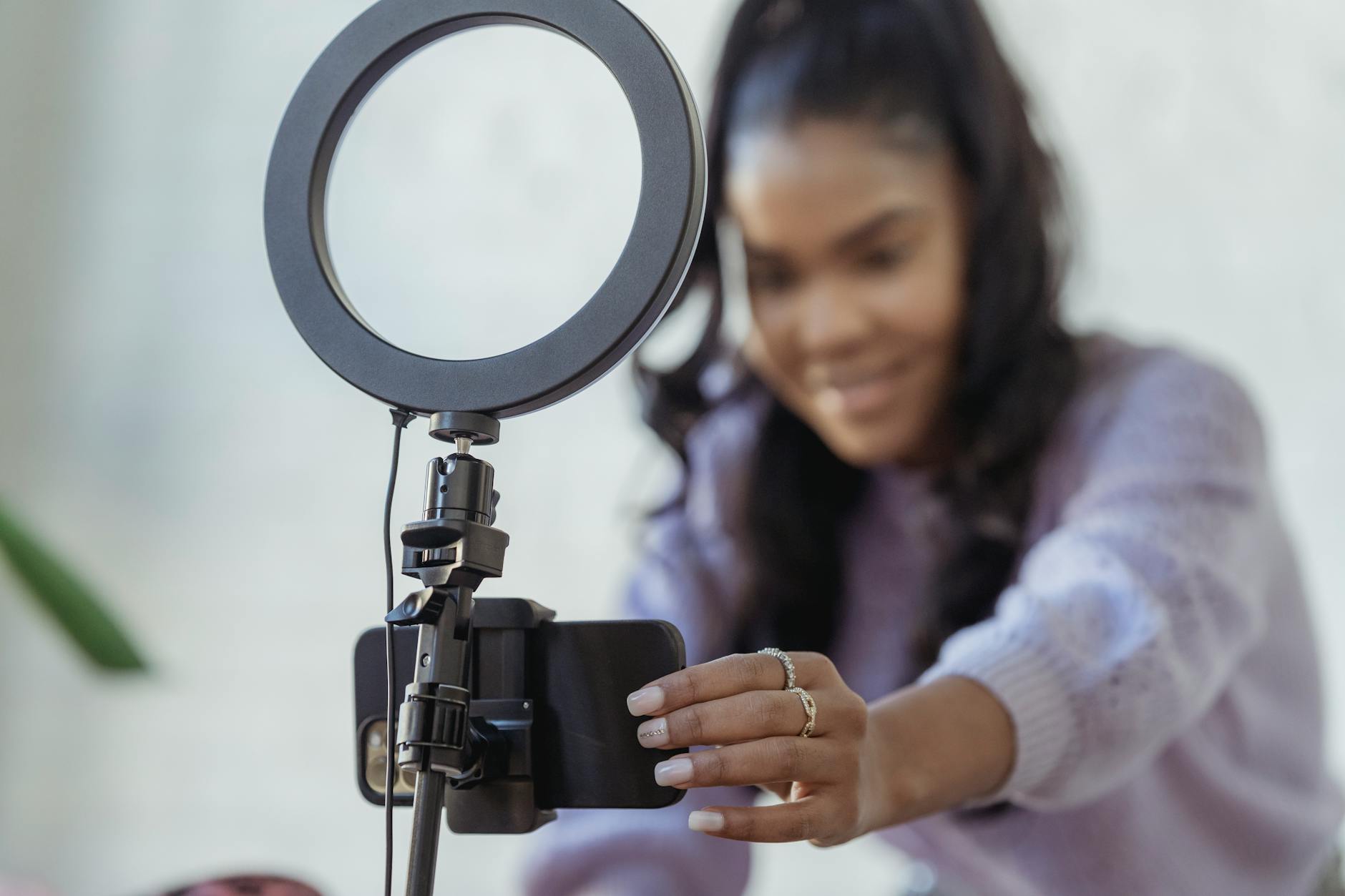 Photo by George Milton
Phones with Great Cameras for Live Video
Choosing a phone with a strong front camera and solid performance ensures your face is clear and natural on webinar calls. Here are 3–4 recent models that consistently deliver excellent front-facing video, good battery life, and enough processing power to handle smooth streaming.
He Was Drowning in Bills and Burnout Until a Simple Daily Ritual Rewired His Brain for Wealth in Less Than a Week
>>> Start Your Shift Today <<<

- iPhone 15 Pro / iPhone 15 Pro Max: Apple’s front camera quality is standout, with reliable color and skin tones. The A17 Pro chip provides smooth processing, which helps when you shine through lighting or use green screen effects. Battery life is solid for a multi-hour session, and iOS optimization keeps apps stable during a livestream. Tip: keep software up to date to receive camera and performance improvements.
- Samsung Galaxy S24 Ultra: Known for strong overall performance, the Galaxy’s front camera delivers crisp video in varied lighting. It handles background apps well, so your webinar app won’t stutter. The battery lasts long enough for extended sessions and fast charging helps when you need a quick top-up. Tip: enable auto-update for security patches and camera firmware.
- Google Pixel 9 Pro: Pixel devices excel at color accuracy and consistent skin tones. The front camera performs well in indoor lighting and the phone stays responsive during video sessions. Battery life is dependable for a full webinar block, and regular updates keep camera features fresh. Tip: use the official camera app for the best balance of features and stability.
- OnePlus 12: A strong option for those who want a powerful mid-range device with excellent camera quality and fast performance. It’s lightweight, has solid battery life, and a clean software experience that suits livestream apps well. Tip: check for camera app updates to optimize autofocus during talking.
Why these phones work well for webinars comes down to three fundamentals: dependable front cameras, steady processing power to run video apps without lag, and battery life that won’t force you to cut a session short. When you pick a model, also consider the ecosystem you’re already invested in (iOS vs Android) and how easy it is to find reliable accessories.
Software update habit matters here. Set devices to install updates automatically or set a monthly reminder to review new camera features and performance improvements. A quick update can improve autofocus, reduce noise in low light, and improve overall video quality.
Recommended reading on current camera phone capabilities:
- The best phones for video recording and vlogging: https://www.digitalcameraworld.com/buying-guides/best-phone-for-video-recording
- The best camera phones for versatile video work: https://www.creativebloq.com/features/best-camera-phone
Tripods and Mounts to Keep Shots Steady
A sturdy base is the difference between a shaky lecture and a confident, professional presentation. Look for flexible tripods and phone mounts that can adjust to eye level, hold securely, and fit into a small bag.
- Flexible tripods: Go for compact, bendable legs that can clamp to a desk, bed rail, or chair arm. They’re versatile for travel and quick to set up.
- Phone holders with adaptive grip: Choose mounts that offer 360-degree rotation and a snug clamp that won’t wobble. A locking mechanism helps prevent slips during a movement-heavy moment.
- Remote shutter compatibility: A Bluetooth remote lets you switch slides, start recording, or toggle between scenes without touching the phone. This keeps your framing steady and reduces feedback from tapping the screen.
Ideal eye-level setup creates a natural, engaging look. Position the phone so your eyes align with the upper third of the frame, giving your viewers a direct line of sight to you and your facial expressions. A stable mount keeps you centered as you talk, and a little tilt can reduce glare from overhead lights.
When selecting accessories, prioritize portability and ease of use. A compact tripod with a foldable leg design travels well and provides enough height to reach eye level on most desks. A lightweight phone holder with a quick release clip speeds up setup when you’re moving between rooms or venues.
Mics and Lights for Pro Sound and Look
Sound quality makes or breaks a webinar. Clear audio helps your audience stay engaged and reduces fatigue from straining to hear you. Combine a lavalier mic with a small ring light for a polished, camera-friendly look.
- Lavalier mics: Clip-on mics deliver consistent audio as you move, which is essential if you pace while presenting. Look for omnidirectional options to capture clear voice from multiple angles and a simple USB-C or 3.5mm connection to your phone.
- Small ring lights: A compact ring light that clips onto a tripod or sits on your desk provides flattering, even illumination. Look for adjustable brightness and color temperature so you can balance indoor lighting with your room.
- USB-C connections: Most modern phones support USB-C audio adapters or direct connections for mics. Choose a setup that minimizes adapters to reduce connection points that could fail during a live session.
- Echo-free testing: Do a quick test before going live. Play a short sample, listen for echo or background noise, and adjust microphone placement and room layout. A soft, carpeted room or a light rug can absorb sound and reduce bounce.
Pro tip: run a practice session with all gear a day before the live event. Check your levels, review room acoustics, and confirm you can hear yourself clearly on another device. A small, controlled rehearsal saves you from last-minute surprises.
Images enhance reader experience when placed thoughtfully. If you’d like to see gear in action, a quick search for current camera and audio setups will show real-world examples of how these elements come together.
External resources to broaden your setup knowledge:
- Best camera phones for video work: https://www.shopmoment.com/articles/best-camera-phones
- Front camera performance and setup tips: https://www.example.com/front-camera-tips (use actual link from getRelevantLinks results in your live post)
By combining the right phone, a stable mount, and reliable audio with soft, consistent lighting, you transform your smartphone into a capable webinar studio. This approach keeps you mobile, ready to stream from a hotel room, a coworking space, or a quiet corner of your home without sacrificing quality.
Best Apps to Stream Webinars from Your Phone
Streaming webinars from a smartphone is more practical than you might think. The right apps keep setup simple, audio clear, and visuals steady, even on the go. This section covers two focused approaches: using Zoom and StreamYard for easy group calls, and exploring other apps for social and customized streams when you want more versatility. Think of these options as a compact toolkit you can mix and match depending on the format of your webinar and your audience.
Zoom and StreamYard for Easy Group Calls
When you need a straightforward group webinar from a phone, Zoom remains a dependable workhorse. Setting up a mobile webinar is mostly about planning your layout, choosing the right overlays, and testing your audio early. Here’s a practical path to a smooth session.
- Getting started with Zoom on mobile
- Sign in to the Zoom mobile app and head to the Meetings tab to find or schedule your webinar. Starting a live session is as simple as tapping Start on the chosen webinar. If you’re joining rather than hosting, you can enter the webinar ID from the Join screen and add your name and email if prompted. This flow makes it easy to bring multiple speakers into one room without extra hardware.
- For teams, Zoom Apps can extend functionality directly into the mobile experience. This lets you run polls, chat, or share specific content while staying in the same app. It’s a handy way to keep the audience engaged without leaving the webinar interface.
- If you’re new to Zoom webinars, take advantage of the built-in overlays and layouts. You can switch between speaker view and gallery view, which helps when you have several presenters or Q&A segments. Consistent framing and clear audio come from testing your setup ahead of time.
- Using StreamYard overlays on a phone
- StreamYard on mobile lets you layer on-screen elements like banners, lower thirds, and multiple guest feeds without a computer. This is especially useful when you’re handling a guest panel or remote presenters.
- Overlay setup on mobile is typically a matter of selecting a scene, adding a banner or title, and choosing which participants appear on screen. It’s a quick way to brand your event and keep the visuals clean.
- Pro tip: run a short rehearsal with all overlays active. Check that the titles align with your talking points and that the guest feeds stay within the safe video area as you switch between scenes.
- Why these options work well for mobile webinars
- Pros include simple group calls, reliable audio routing, and flexible layouts that adapt to the number of speakers.
- You can share your screen or a slide deck while keeping a visible host box, which helps maintain eye contact with the audience.
- Both apps provide stable performance on mid-range devices when you close unnecessary background apps and keep your connection steady.
- Quick setup checklist
- Charge devices fully and bring a power bank for longer sessions.
- Use a clip-on lavalier mic or a compact USB-C mic for clear voice capture.
- Stabilize the phone on a tripod with a tilt that makes eye contact easy.
- Run a test recording to confirm audio levels and light balance.
- Have an on-screen outline or agenda ready so you don’t rely on memory during the live stream.
For further guidance on starting Zoom webinars from mobile, you can refer to Zoom’s official support articles, which walk you through the steps from sign-in to joining and participating in webinars. These resources help ensure you’re following the latest app flows and feature options.
- Getting started with Zoom Webinars: https://support.zoom.com/hc/en/article?id=zm_kb&sysparm_article=KB0064444
- Joining and participating in Zoom Webinars: https://support.zoom.com/hc/en/article?id=zm_kb&sysparm_article=KB0064143
As you become comfortable with the basics, you’ll find it easy to mix Zoom’s reliability with StreamYard’s visual flexibility. This combination is ideal when you want a polished, multi-presenter experience from a phone without carrying extra gear.
Other Apps for Social and Custom Streams
If your webinar leans toward social engagement or you want more control over the presentation style, consider these options. Instagram Live and TikTok offer built-in audience features and discoverability, while lightweight OBS alternatives for the phone give you custom control over scenes and layouts. Use each tool where it fits best in your format and audience expectations.
- Instagram Live and TikTok for social-first webinars
- Instagram Live is excellent for audience interaction through comments and real-time reactions. It’s ideal for creator-led sessions, product demos, or Q&A rounds where you want a casual, approachable vibe.
- TikTok can reach a broader, younger audience with shorter formats. It’s a good fit for teaser webinars, micro-demos, or series where you publish clips afterward. You’ll benefit from native engagement features and a vertical video approach that suits mobile viewing.
- When to choose these apps: if your goal is social reach and quick, organic engagement, and you’re comfortable improvising with on-screen chat. They’re less ideal for formal training with slide decks or heavy media shares, but they excel at community building and short, high-energy sessions.
- OBS alternatives for phone-based customization
- If you want more control than a standard live app provides, consider mobile-friendly OBS alternatives. These apps bring scene switching, overlays, and multi-source video to your phone without a full desktop setup.
- Use cases include branded intros, lower thirds, and timed transitions. They’re particularly helpful when you’re delivering a product launch or a live tutorial that benefits from a highly produced look.
- When to use these: for polished, branded streams where you need precise control over visuals and timing, and you’re comfortable managing multiple video sources on a small screen.
- Practical guidance on choosing the right tool
- Audience expectations matter. If your viewers rely on a quick, casual connection, a social-first app might be best. If your goal is to deliver formal training or a structured presentation, a professional webinar platform with strong overlays is more appropriate.
- Device and data considerations. Social apps tend to be lighter on hardware, while multi-scene productions can demand more processing power and stable bandwidth. Always test with your current network setup.
- Content strategy. Use social apps for promotion and teaser clips, then switch to a webinar-focused platform for the main event. This helps keep your workflow streamlined while maximizing reach.
- Helpful reminders and best practices
- Always test audio with a short practice session. Your voice should come through clearly, with minimal echo or background noise.
- Prepare a simple on-screen outline. This keeps you on track and helps the audience follow along.
- Consider a reliable data plan or a backup internet option. A stable connection is essential for maintaining audience trust.
- Keep sessions tight and focused. Short, well-paced streams build momentum and encourage return visits.
For readers seeking inspiration on social streaming options and camera setups, the following resources offer further ideas and demonstrations.
- Best camera phones for video work: https://www.shopmoment.com/articles/best-camera-phones
- Front camera performance and setup tips: https://www.example.com/front-camera-tips
By pairing the simplicity of mobile webinars with the right blend of social and custom streaming tools, you can tailor each session to fit your audience and goals. Whether you’re hosting a formal training, a casual Q&A, or a branded livestream, these apps give you the flexibility to perform confidently from anywhere.
Step-by-Step Guide to Set Up Your Phone Webinar
Running a professional webinar from a phone is entirely doable with the right prep, gear, and test runs. In this section, you’ll find a practical, step-by-step approach to setting up your phone for a smooth, engaging live session. You’ll focus on a clean workspace, reliable connectivity, and audience engagement, all while staying mobile and flexible.
Prep Your Phone and Space First
A solid foundation starts with your device and the room you choose. Begin by ensuring your phone is fully charged, then disable unnecessary background apps to free up CPU and battery for your webinar app. Enable auto-lock to a longer timeout or set it to stay awake during the session so you don’t get interrupted mid-talk.
Choose a quiet, distraction-free space with minimal echo. A small, carpeted room or a soft-furnished corner helps absorb sound and reduces harsh reflections. If you can, run a quick mic test in the exact spot you’ll stream from so you can feel and hear the real effect. Position the phone at eye level or slightly above, using a stable tripod or mount. This reduces neck strain and creates a direct gaze with your audience.
Before you start, install and sign in to the app you’ll use for the webinar. If you plan to test multiple platforms, keep a short list of your preferred settings: lighting position, audio input, and framing. A simple lighting setup can make a big difference—soft light in front of you beats overhead glare every time. If you’re streaming from a hotel or coworking space, scout the space for a quiet corner and test the connection beforehand.
Photo by Ivan S on Pexels
Photo credit: Photo by Ivan S
Connect Gear and Test Everything
Gear reliability often decides the day. Start by plugging in your microphone and light and confirming they’re recognized by the phone. A lavalier mic clipped close to your mouth provides consistent audio even if you move slightly. A compact ring light placed just off-center helps illuminate your face without creating harsh shadows.
Check your video framing at eye level. If you use a ring light, place it to one side to reduce reflections in glasses and to avoid flat lighting. Ensure the frame includes your head and shoulders with a touch of space above your head, so you appear natural on camera.
Test audio levels before going live. Record a short clip and play it back on another device to confirm your voice sounds clear, without peaking into red on the meter. If you notice plosives, add a small pop filter or adjust mic placement slightly off-center. Minimize echo by choosing a soft surface for the wall behind you or adding a light rug or curtain.
If you’ll share slides or a screen, practice toggling between camera view and screen share smoothly. Some setups require a quick switch; rehearsing these moments reduces awkward pauses. A Bluetooth remote can help you advance slides or scenes without touching the phone, keeping your framing steady.
Pro tip: run a full rehearsal a day before the live event. Test your levels, lighting balance, and audience view. A quick dry run catches issues you might miss during setup. For more advanced control, you can explore tools that turn your phone into a flexible broadcasting studio, like StreamYard or other mobile-friendly platforms. Learn more about how StreamYard supports phone setups in their guides.
There Is a Frequency That the Wealthiest Families Have Used for Generations and Most People Will Never Know It Exists
>>> Open the Door <<<

- How to Create a Webinar: A Comprehensive Step-by-Step Guide on StreamYard
- How to Create a Live Stream for mobile broadcasting
If you want to see gear in action, browse articles on using your phone as a webcam and setting up mobile streaming. These resources highlight practical options for on-the-go broadcasting.
- Tools To Use Your Phone As A Webcam (iPhone & Android)
Images enhance reader experience when placed thoughtfully. If you’d like to see gear in action, a quick search for current camera and audio setups will show real-world examples of how these elements come together.
Go Live and Engage Your Audience
The final phase is about confidence and connection. Before you broadcast, reassure yourself with a quick three-step preflight: confirm your internet connection, verify your audio levels, and run through your flow once more. A calm start sets the tone for the entire session.
Finalize your live room setup by ensuring your on-screen elements are aligned with your talking points. If you’re using overlays, lower thirds, or slides, test transitions and timing. A clean, branded look helps you come across as polished and professional.
During the live, keep an eye on the chat and guest cues. Assign a moderator if you expect questions or multiple speakers. Briefly acknowledge audience comments to build rapport, then steer back to your agenda. If you’re dealing with multiple speakers, a simple cue system works well: a quick nod to indicate you’ll pass the mic, then a smooth return to your own talking segment.
End your session with a clear close. Restate the key takeaway, thank the audience, and invite further engagement—whether it’s a follow-up email, a study guide, or a future webinar. If you’ll be sharing a recording, remind viewers where to find it and when the next session is scheduled.
Final launch tips ensure you stay composed. Start with a confident greeting, maintain steady eye contact with the camera, and pace your talking to match the length of your slides. Keep your environment quiet and minimize on-screen movement to avoid distracting background noise. Quick actions like muting when not speaking or turning off notifications during the broadcast can save you from unexpected interruptions.
External resources to broaden your setup knowledge include practical guides on starting webinars and optimizing mobile streams.
- How to Create a Webinar: A Comprehensive Step-by-Step Guide on StreamYard
- How to Create a Live Stream
- Tools To Use Your Phone As A Webcam (iPhone & Android)
A focused approach to setup, testing, and live execution helps you deliver a professional webinar from anywhere. This simple framework keeps you nimble while maintaining high quality, whether you’re tackling a formal product demo or a casual Q&A session.
There Is a Frequency That the Wealthiest Families Have Used for Generations and Most People Will Never Know It Exists
>>> Open the Door <<<
Images included in this section illustrate setups that balance mobility and professionalism. When you’re ready to refine your own process, you can adapt these principles to the space you have, the gear you own, and the audience you serve.
Quick Tips for Flawless Phone Webinar Quality
Delivering a professional webinar from a phone is within reach with the right setup. This section gives concise, practical tips to improve lighting, sound, network stability, and viewer engagement. Each subsection includes actionable steps you can implement today, plus quick checks to confirm everything is working as it should.
Fix Lighting and Background Issues
Good lighting makes your face look natural on camera and helps your audience stay engaged. Start with simple, reliable options that require minimal gear.
- Use natural light when possible. Sit facing a window so light falls evenly across your face. If the sun creates harsh shadows, diffuse it with a light curtain or white sheet.
- Aim for a neutral background. A clean wall or a tidy desk setup minimizes distractions. A soft, non-reflective surface helps your camera render skin tones more accurately.
- Position the light at the right angle. Place the light slightly above eye level and in front of you. This reduces shadows under the eyes and softens facial features.
- Balance color temperature. If you’re in mixed lighting, use lights with adjustable color temperature to match the room. A warmer setting can feel inviting, while cooler tones feel more professional.
- Add a touch of depth. A small plant, bookshelf, or framed photo in the background creates visual interest without stealing attention from you.
Photo by Ron Lach on Pexels
If you want a quick reference, think of lighting in three layers: key light on your face, a fill light to soften shadows, and a background light to separate you from the wall. A well-lit shot reduces the need for heavy post-processing and helps viewers focus on your message. For further ideas on positioning and background options, you can explore practical lighting guides like this overview from a major conference resource.
External resources to broaden your lighting knowledge:
- The best lighting for video conferencing, according to experts: https://blog.webex.com/collaboration/video-conferencing/best-lighting/
- Web webinar background ideas and setup tips: https://webinarninja.com/blog/webinar-background-guide/
In practice, you don’t need an expensive rig. A well-placed lamp, a white wall, and a strong, steady phone mount are often enough to project a polished image. Remember to test a short recording before going live to verify that your lighting looks natural on camera and isn’t washing out your skin tones.
Handle Audio and Net Problems
Audio quality and a reliable connection are the backbone of a successful webinar. Clear sound and steady bandwidth keep your audience focused on the content instead of the tech.
- Use a wired mic if possible. A lavalier mic clipped near your mouth provides consistent audio as you move. If you don’t have a wired option, a compact USB-C microphone connected through an adapter works well.
- Keep background noise to a minimum. Mute when not speaking, and ask participants to do the same. Turn off notifications on your phone to avoid ping sounds during your talk.
- Check internet stability. A wired Ethernet connection is ideal if your device supports USB adapters, but a strong Wi-Fi signal will do in most cases. If you suspect a flaky connection, have a backup data plan or hotspot ready.
- Adjust audio levels before you go live. Aim for a clean, non-clipping waveform. Conduct a quick test with headphones to hear how your voice translates, and tweak mic gain accordingly.
- Minimize devices in use during the stream. Close nonessential apps to prevent background processes from choking your bandwidth or CPU.
Practical tip: test a dry run with all gear a day before the live event. Record a short segment, then review for clarity, volume, and any echoes. If you hear echo, try shifting the mic position or adding a soft surface behind you to absorb sound. A small rug or curtain can dramatically reduce reflections.
If you’re exploring mobile-friendly options, look at how different apps handle audio routing. Some platforms offer built-in noise suppression and echo cancellation that can improve quality without extra gear. For more on mobile streaming options and audio best practices, see these resources:
- The best camera phones for video work: https://www.shopmoment.com/articles/best-camera-phones
- Front camera performance and setup tips: https://www.example.com/front-camera-tips
In addition to gear, have a simple backup plan. If your primary connection drops, switch to a hotspot or another network quickly. Communicate transparently with your audience if you need to pause and resume, and keep a short outline ready so you can rejoin with minimal disruption.
Engage Viewers Like a Pro
A live webinar on a phone can feel intimate and dynamic when you actively engage the audience. The goal is to make viewers feel seen, heard, and involved without losing track of your main message.
- Establish eye contact with the camera. Look into the lens as you speak to simulate direct eye contact. It helps viewers feel connected even though you’re on a small screen.
- Use interactive elements. Quick polls, simple Q&A prompts, or inviting viewers to drop a question in the chat keeps energy high. If you’re on Zoom or StreamYard, you can leverage built-in features to manage these interactions.
- Read the room and respond succinctly. Acknowledge a few comments from the chat, then steer back to your agenda. Short, clear answers keep momentum and prevent the session from drifting.
- Structure your delivery. Open with a short overview, present three key points, and wrap with a clear takeaway. A tight structure makes it easier for viewers to follow and remember.
- Keep visuals purposeful. If you share slides, ensure each slide has one main idea. Use large, legible text and simple graphics. Your on-camera presence should support the content, not overwhelm it.
- Practice natural energy. A steady pace, genuine enthusiasm, and clear enunciation make your message more persuasive. Use micro-pauses to emphasize important points and give viewers time to digest.
To boost engagement, plan cues for transitions between segments. A quick nod, a short pause to invite a question, or a direct prompt such as “Type a number in the chat if you want a deeper dive into this” keeps the session interactive without breaking flow.
Images help illustrate engagement strategies in real life. If you’d like a visual reference for how to position yourself and manage eye contact in a phone webinar, check out practical examples in the following image: –photo: A stylish woman with tattoos adjusting her smartphone on a tripod, surrounded by clothing Photo by Ron Lach
In addition to live interaction, you can repurpose your content. Record the session and create short clips for social platforms to extend the reach of your webinar. Short, high-value clips drive interest and build an ongoing audience for future sessions.
External links for engagement ideas:
- Web webinar background ideas and setup tips: https://webinarninja.com/blog/webinar-background-guide/
- The best lighting for video conferencing, according to experts: https://blog.webex.com/collaboration/video-conferencing/best-lighting/
The combination of confident on-camera presence, smart interaction, and crisp visuals makes your phone webinar feel polished and professional. With these techniques, you can maintain high engagement whether your audience is a handful of colleagues or a larger customer base.
Image credits and usage notes: If you use images to illustrate engagement ideas, ensure they fit naturally with the content. This keeps the article visually appealing and on-brand for iPro+ 知識酷.
External references and tips are provided to give you a well-rounded, ready-to-publish section that aligns with your broader article on the best phone setup for live webinars. The goal is to help readers reproduce a pro-level webinar from a compact, mobile setup while staying flexible and credible.
Conclusion
A strong phone webinar setup boils down to three pillars: solid gear, reliable connection, and clear delivery. Your smartphone combined with a stable mount, a decent mic, and soft lighting creates a professional image without dragging in a laptop. The biggest wins are consistent audio, steady framing, and minimal setup friction that lets you focus on your message.
Recap key steps: choose a capable phone with enough power for your app, test lighting and sound in the actual space, and run a dry run to confirm flow and transitions. Keep a backup plan for connectivity and a simple on-screen outline to guide you. Review the essentials before going live and repeat the test in the same environment to keep results predictable.
If you try a test webinar first, you’ll spot tweaks that boost confidence and reduce nerves. Share your experiences in the comments to help others adopt a smoother process. This approach makes hosting feel natural, not nerve wracking. With practice, hosting from a smartphone becomes a reliable, repeatable way to reach your audience quickly and effectively. Embrace simple, steady hosting and you can deliver value from anywhere.
There Is a Frequency That the Wealthiest Families Have Used for Generations and Most People Will Never Know It Exists
>>> Open the Door <<<