Are you recording YouTube videos on a phone and unsure where to start? The right settings can make a big difference in how your video looks and sounds, even with a simple smartphone. This guide explains the essential options and shows you practical, step by step steps you can follow.
In this post you’ll learn why phone settings matter for YouTube and what to adjust first. You’ll get a clear overview of how to balance video quality with ease of use, so your content stays consistent as you grow. By the end, you’ll have a solid plan for choosing the best phone settings for recording YouTube videos. Smartphone setup that works in the real world is within reach.
Choose the Right Resolution and Frame Rate for YouTube
Choosing the right resolution and frame rate can dramatically affect how your videos look and how easy they are to publish. For beginners, it’s best to keep things straightforward: pick a standard resolution that matches your phone’s capabilities, and choose a frame rate that fits the type of content you create. This section breaks down the essentials so you can make confident, repeatable choices for every video.
Understand YouTube supported resolutions and aspect ratio
YouTube supports a range of resolutions, but the most common and practical choice for beginners is 1080p in a 16:9 aspect ratio. A 16:9 frame fits typical phone and computer screens and fills the player without awkward bars. If you shoot in a different aspect ratio, YouTube will adjust the player to the best fit, but you might miss on-screen content or have black bars.
- 16:9 (widescreen) is ideal for most talking head videos, tutorials, and vlogs.
- 9:16 (portrait) works well for phone-first formats and short form content; you may need to crop or add letterboxing for standard players.
- 1:1 (square) can be useful for certain social feeds, but it’s less common for full YouTube playback.
Practical tip: aim for 1080p with a 16:9 frame when you’re just starting out. It delivers crisp quality, loads quickly, and is widely supported. If you must shoot in 9:16 to match a specific platform, plan for editing to reframe for YouTube. For reference, YouTube’s guidelines emphasize the 16:9 standard for most videos, with automatic scaling for other aspect ratios when needed. You can read more about the official guidelines here: Video resolution and aspect ratios on YouTube Help. You’ll also find a broader look at formats and expectations in YouTube’s video and audio formatting specifications.
Useful link: https://support.google.com/youtube/answer/6375112?hl=en&co=GENIE.Platform%3DDesktop
Choosing 1080p versus 4K on a phone
1080p is the sweet spot for most phone videos. It looks great, uploads quickly, and doesn’t demand excessive storage or processing power. 4K offers finer detail but creates much larger file sizes and longer export times. If your phone storage is limited or your editing app struggles with large files, 1080p is the safer choice.
- Storage needs: 4K files are roughly four times larger than 1080p for the same duration. If you’re recording frequently, you’ll run through storage faster.
- Processing time: Exporting 4K can take longer on phones with modest specs, which can slow your publishing workflow.
- Viewer experience: Most viewers watch on mobile devices where 1080p already looks sharp. 4K shines on bigger screens or when viewers zoom in, but the benefit is not always noticeable on typical phones.
Recommendation: start with 1080p. If you upgrade to a high-end device or need ultra-detail for a specific niche, consider 4K for special projects. For official guidance on formats and minimums, YouTube outlines recommended resolutions and aspect ratios in their help resources.
Useful link: https://support.google.com/youtube/answer/4603579?hl=en
Frame rate choices for different videos
Frame rate affects how smooth your motion appears and how much space your video uses. The most common choices are 24, 30, and 60 frames per second (fps). Pick the one that matches the type of content you shoot and keep it consistent.
- 24 fps is cinema-like. It’s great for talking head videos with light movement or tutorial segments where a traditional film feel is desired.
- 30 fps works well for most YouTube content, including vlogs and screen recordings. It feels natural and keeps motion smooth without huge file sizes.
- 60 fps shines for action, fast movement, or sports clips. It delivers ultra-smooth motion but uses more space and heavier processing.
Practical examples:
- A simple talking head guide or voiceover with occasional gestures: 30 fps.
- A cooking demo with quick whisking and fast camera moves: 60 fps can capture the motion cleanly.
- A straightforward talking video with minimal motion: 24 fps provides a classic look with smaller file sizes.
Higher frame rates mean bigger file sizes and longer processing times. If you’re just starting, 30 fps is a reliable default. Reserve 60 fps for segments where motion is a key part of the viewing experience.
Practical tips for consistent quality across clips
Consistency makes your channel look professional and helps YouTube process your video more efficiently. Stay with the same resolution and frame rate across your entire project, from shooting to editing to exporting.
- Set it once: Decide on 1080p and 30 fps as your standard and stick with them for all clips in a video.
- Match your settings in post: When you edit, keep the timeline resolution the same as your export resolution. Don’t mix 4K footage with 1080p exports unless you’re upscaling and know what you’re doing.
- Be mindful of motion: If you switch between shots with different frame rates mid-video, you can create jarring transitions. Aim for uniformity across cuts.
Consistency helps YouTube apply the right processing settings and keeps the viewer experience steady. You’ll notice fewer processing hiccups and a cleaner final product when your source footage shares a common resolution and frame rate.
Useful link: https://support.google.com/youtube/answer/6375112?hl=en&co=GENIE.Platform%3DDesktop
Stabilize, Frame, and Focus for Crisp Video
When you’re recording on a phone, tiny movements can ruin a smooth shot. The right combination of stabilization, a steady frame, and locked focus and exposure helps your video look polished and professional. In this section, you’ll learn practical steps to keep your footage crisp from the first take to the final export.
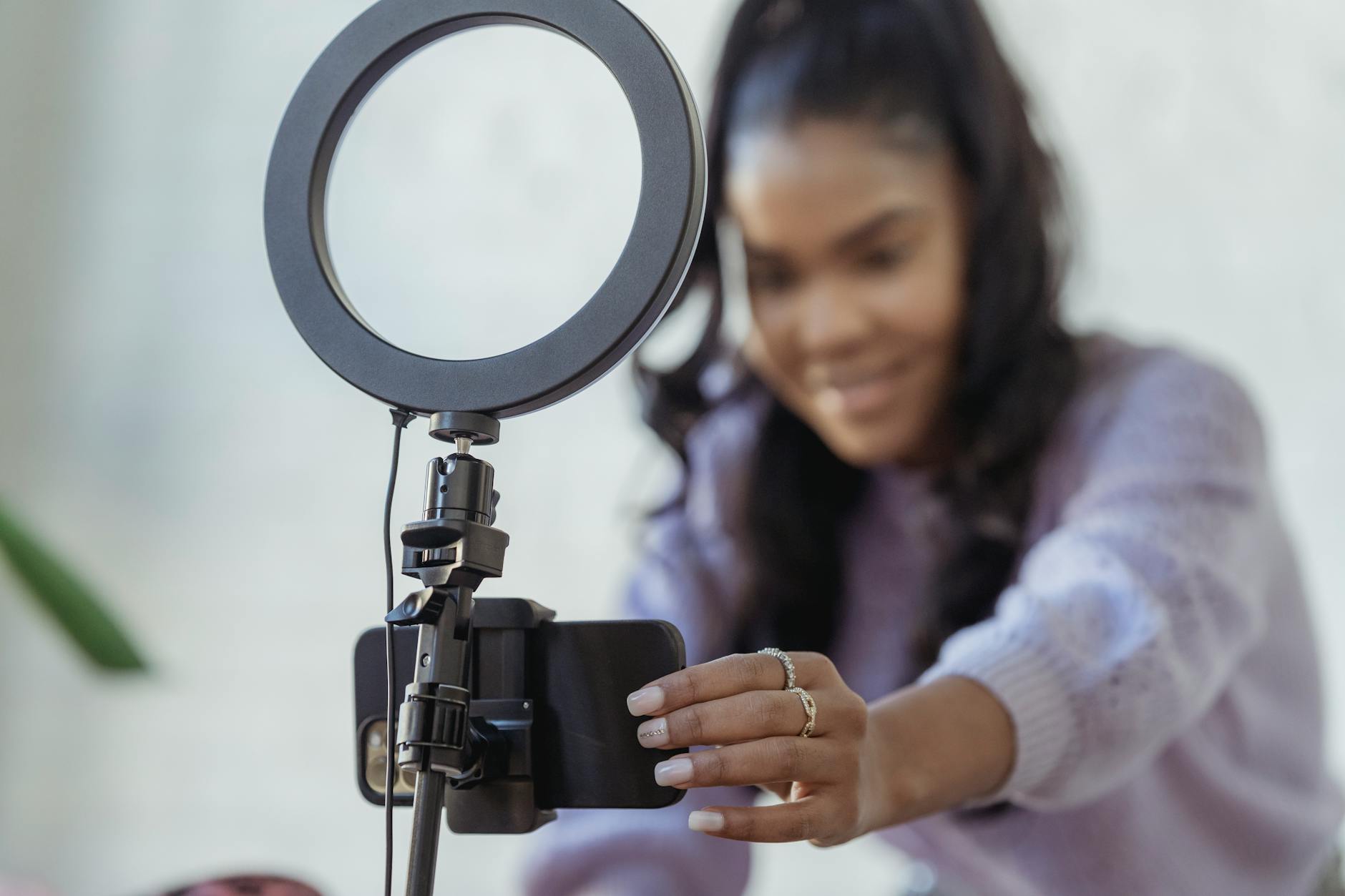 Photo by George Milton
Enable stabilization options on phone
Stabilization keeps your video steady as you move or breathe. Most modern phones offer two types: optical stabilization (OIS) and electronic stabilization (EIS). Here’s how to find and use them on common devices:
- iPhone:
- Open the Camera app and go to Video mode. If your model supports it, you’ll see a toggle for “Video Stabilization” in the options or in the Cinematic mode settings on newer models. For footage shot in motion, keep OIS enabled by default; you’ll notice less shake when you pan or walk.
- If you enable Pro or Cinematic modes, stabilization is usually built in and integrated with the lens system.
- Android:
- Open Camera, switch to Video mode, and look for options like “Stabilization,” “Electronic Image Stabilization (EIS),” or “Video Stabilization.” It may be tucked under Settings > Stabilization or under Advanced features.
- Some devices offer OIS on the lens itself and EIS at the software level. If both exist, leave both on for the smoothest results.
- Practical tip: test both types if your phone supports them. Record a short clip while walking and compare. If you see vertical wobble or ghosting during rapid movement, adjust the setting to prioritize the type that minimizes it.
If you’re using an external microphone or tripod, stabilization still matters. A small, portable tripod or a grip can dramatically reduce micro-movements. When you add motion, aim to keep it deliberate and slow to preserve the illusion of stability.
Useful link: https://support.google.com/youtube/answer/6375112?hl=en&co=GENIE.Platform%3DDesktop
Lock exposure and focus to avoid flicker
Exposure and focus lock stop the camera from re-adjusting brightness or framing while you record. Flicker and subtle shifts can distract viewers and force you to crop or re-shoot. Here’s how to lock both on typical phones:
- How to lock focus:
- Tap and hold on the main subject until you see a lock or focus square. The camera will hold the focus at that distance, so your subject stays sharp as you move.
- How to lock exposure:
- After locking focus, adjust the exposure slider if your phone shows one. Locking exposure prevents the camera from brightening or darkening as lighting changes, such as moving between windows or lamps.
- When to use it:
- In tutorials, talking-head segments, or demonstrations, lock focus and exposure at the start. Re-check if you reframe or lighting changes dramatically.
- Quick tip: avoid automatic brightening when you pass from a bright window to a shadowed area. Lock exposure to keep a consistent look across the clip.
Why it matters: without locks, your video can flicker as the phone tries to optimize brightness. This creates a distracting effect that can be hard to fix in post. Locking exposure and focus gives you consistent color and sharpness from frame to frame.
Useful link: https://support.google.com/youtube/answer/4603579?hl=en
Use grid lines and a level to frame your shot
A steady, well-framed shot makes your video more engaging. Grid lines and a built-in level help you compose quickly and consistently.
- Enable grid lines:
- Go to your camera app settings and turn on the 3×3 grid. The intersecting lines help you place the subject along rule of thirds, balance the frame, and avoid awkward cropping.
- Use the level feature:
- Some phones include a built-in digital level or a horizon line. Turn it on to keep the camera perfectly horizontal. A level shot feels calm and professional, especially for talking-head videos.
- Framing tips:
- Keep your eyes near the top third of the frame, not dead center.
- Leave a bit of space above your head for a natural look.
- If you’re showing a desk or workspace, align the horizon with the grid lines to avoid a tilted backdrop.
- Quick exercises:
- Set up your shot, enable grid and level, and record a 5-second pan left to right. Review the clip to ensure the horizon stays straight.
A well-framed shot reduces post-production work and helps you present a more credible, polished channel.
Useful link: https://support.google.com/youtube/answer/6375112?hl=en&co=GENIE.Platform%3DDesktop
Avoid digital zoom to preserve detail
Digital zoom simply enlarges the image, which reduces sharpness and introduces artifacts. The better approach is to physically move closer to your subject or crop the video later in editing.
- Move closer:
- Take a step or two closer to your subject if possible. A closer frame often yields more natural lighting and sound balance.
- Crop in post:
- In your editing app, crop to the desired framing after recording. This preserves the full resolution during capture and avoids interpolation artifacts.
- If you must zoom:
- Use the lens with optical zoom if your phone supports it. OIS helps, but keep zooming to a minimum to preserve details.
Why this matters: you’ll keep more detail and color fidelity, making your video look sharper on screens of all sizes. Post-cropping flexibility also helps you adjust framing without risking blurry footage.
Useful link: https://www.instructables.com/Get-EIS-Electronic-Image-Stabilization-on-Any-Andr/
By following these stable framing and focus practices, your videos will look clearer and more professional from the first frame. A steady baseline makes it easier to maintain consistency across your channel, which viewers appreciate. If you want, I can tailor these steps to your specific phone model and shooting style, so you get the exact settings that fit your workflow.