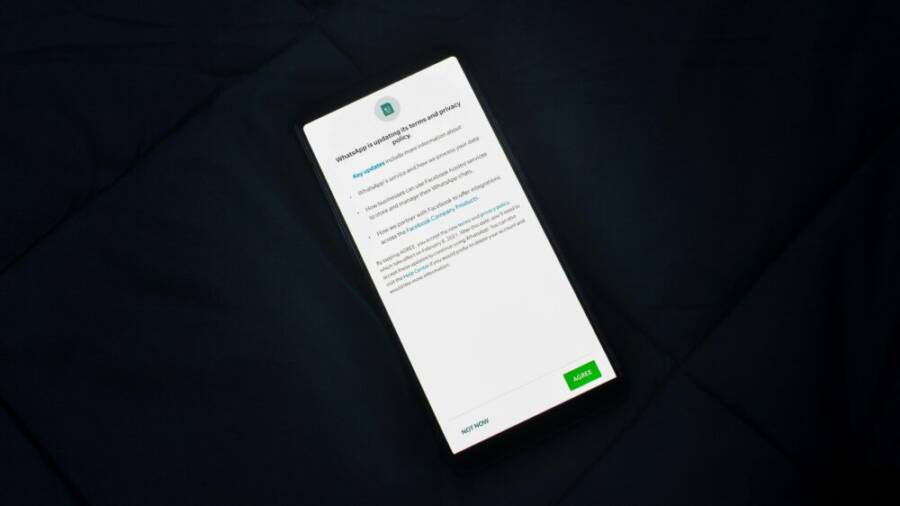
Protecting your privacy matters more than ever when you use apps on a smartphone. Every tap, photo, or location check can expose pieces of your life to apps, advertisers, and sometimes third parties. This introduction shares practical ways to guard your data without slowing you down.
Apps can access a surprising range of data behind the scenes. Location, microphone, photos, contacts, and even device identifiers can be visible with a few granted permissions or weak defaults. You’ll learn how to spot these requests, limit what an app can see, and reset permissions if needed, so your phone serves you instead of strangers.
This post covers clear, doable steps you can take on both iPhone and Android. You’ll find simple checks to tighten privacy, explain why each setting matters, and show how to test that your changes work. By applying these tips, you’ll keep your information safer while you browse, chat, and use everyday apps on your smartphone.
What you’ll gain includes fewer data leaks, better control over what apps know about you, and a more private baseline for daily use. We’ll outline practical workflows, from quick permission audits to ongoing privacy habits. With these methods, you can enjoy modern smartphones while staying in control of your personal information.
What Apps Can See About You and Why It Matters
Apps request access to your smartphone’s features and data to work. But they often ask for more than they need. This can expose your location, conversations, and contacts without you noticing. Know what they see so you can limit risks and keep control.

Photo by Rahul Shah
Key permissions that matter
Most apps ask for these permissions right away. They let apps read sensitive info. Check each one before you approve.
Here’s a quick breakdown:
| Permission | What it reveals | Grant when reasonable |
|---|---|---|
| Location | Your real-time position or travel history | Navigation apps or local weather only. Deny for games or social media. |
| Camera | Photos, videos, or live feed from your lens | Scanners or video calls. Deny for note apps. |
| Microphone | Audio recordings, voice commands, or background listening | Voice recorders or calls. Deny fitness trackers. |
| Contacts | Names, numbers, emails of people you know | Messaging apps. Deny shopping or game apps. |
| Photos | Your pictures, videos, and metadata like dates | Photo editors. Deny cloud storage unless needed. |
| Device ID | Unique phone identifier for tracking across apps | Rare cases like banking. Deny most apps. |
For details on Android permissions, see the official overview. Apps like these might use microphone access to listen without clear reason. Always pick “while using the app” over “always” if possible. This cuts constant spying.
What data apps collect
Apps grab data beyond permissions. They log your habits to run features or sell to others. You share this every time you open them.
Common types include:
- Location data: Tracks where you go. A ride-sharing app uses it to pick you up. But a flashlight app might send it to advertisers for nearby deals.
- Usage data: Notes what you tap and how long you stay. News apps refine feeds with it. Games sell patterns to target ads for similar titles.
- Device identifiers: Like your phone’s ID or IP address. Links your activity across sites. Streaming apps check it for region locks.
- Contacts: Pulls your address book. Email apps sync it for quick sends. Others build profiles on your network.
- Photos: Scans images for faces or places. Editing tools improve quality. Social apps tag friends automatically.
- Sensor data: Accelerometer or gyroscope reads. Fitness apps count steps. Some send it to guess your routine for personalized offers.
Think of it like a diary. Apps read entries for useful tips but also copy pages for strangers. Limit this by reviewing app settings often.
How tracking works across ads and analytics
Apps send your data to outside companies. Ad networks like Google or Facebook get pieces to match ads to you. Analytics firms track trends to tweak app performance.
You install a free game. It notes your location and device ID. That info goes to an ad server. Soon, you see shoe ads because past location data shows you near stores.
Analytics work the same. An app shares usage stats. Developers fix bugs with it. But they bundle device details too. This builds a profile over time.
Data flows fast. One app shares with ten partners. They connect dots across your smartphone. Turn off personalized ads in settings to slow it. Check McAfee’s guide on permissions for more on risks. You stay private when you block these shares.
Privacy Settings You Should Tweak Now
Small changes add up to big protection. This section walks you through practical privacy tweaks you can apply right away on both iPhone and Android. Each subsection includes quick steps so you can finish in minutes and keep your data safer as you use your smartphone every day.
Limit app permissions for each installed app
Apps keep permissions long after you forget them. They can access camera, location, or contacts even when you aren’t actively using them. Revoke the unused rights to close those data gaps.
On your iPhone
- Open Settings and tap Privacy & Security.
- Choose a category such as Location Services, Photos, or Microphone.
- Scroll to the app, select Never or Don’t Allow, and repeat for other apps.
- For full control, go to Settings > [App Name] to review any remaining options.
On Android
- Open Settings > Apps and select See all apps.
- Pick an app and go to Permissions.
- Turn off items you don’t need, like Camera, Microphone, or Contacts.
- If an app doesn’t function without a permission, consider whether you can use a different app or limit its usage.
Make this a regular habit. Review permissions every few months and delete apps you no longer use. Apple’s official steps provide more detail if you want to dive deeper: https://support.apple.com/en-us/102531
Photo by Stefan Coders on Pexels
- Photo credit: Photo by Stefan Coders — https://www.pexels.com/@stefan-coders-1019774
Turn off ad tracking and personalized ads
Ad networks build profiles by linking your activity across apps. Turning off ad tracking reduces how much data advertisers collect about you.
iPhone users
- Go to Settings > Privacy & Security > Tracking.
- Turn off Allow Apps to Request to Track.
- Then, open Settings > Apple Advertising and switch off Personalized Ads.
Android users
- Open Settings > Google > Ads.
- Disable Personalized ads.
- You can also reset your advertising ID from this screen.
This reduces the ability of advertisers to correlate your activity across apps. You can also review your ad preferences on Google’s ad settings page: https://support.google.com/android/answer/13433504?hl=en
Restrict background activity and data usage
Background activity lets apps refresh content and collect data even when you’re not actively using them. Limiting this reduces data leakage and saves battery.
On iPhone
- Go to Settings > General > Background App Refresh.
- Set it to Wi-Fi or Off.
- For individual apps, open Settings > [App] and toggle Background App Refresh off if available.
On Android
- Settings > Network & Internet > Data usage > App data usage.
- Tap an app and turn on Restrict background data.
- For broader control, use Battery > App restrictions to cap background activity.
Limiting background activity helps keep location and usage data from being collected in the background. Check your settings after major app updates to ensure nothing sneaks back in. Apple’s guidance on background refresh offers more context: https://support.apple.com/en-us/102524
Use private networks and DNS options
Encrypting your traffic and using private DNS adds an extra layer of protection, especially on public networks.
Android Private DNS
- Settings > Network & Internet > Private DNS.
- Choose Private DNS provider hostname (for example, dns.google or one.one.one.one).
iPhone options
- iCloud Private Relay (requires iCloud+): Settings > [Your Name] > iCloud > Private Relay.
- Or add a VPN profile for system-wide protection.
VPNs are useful on public Wi-Fi and when you want extra peace of mind. Look for trusted providers and enable protection whenever you connect to unfamiliar networks. For a quick setup primer, see Google’s Private DNS setup: https://support.google.com/android/answer/9069985?hl=en
Final tip: test your connection after enabling Private DNS or a VPN. A simple speed check and a quick site visit can confirm things are routing as expected. For more, explore Apple’s Private Relay guidance: https://support.apple.com/en-us/HT212614
If you prefer a quick visual, this image illustrates the idea of securing a connection on the go. (Image credit as above)
External resources to explore as you build daily privacy habits:
- Apple permissions overview: https://support.apple.com/en-us/102531
- Android permissions and privacy basics: https://developer.android.com/guide/topics/permissions/overview
- Google Ads privacy settings: https://support.google.com/android/answer/13433504?hl=en
By applying these settings, you’ll reduce the amount of data your apps can access and slow down the data trail that follows you across the web. Use these tweaks as a baseline, then tailor them to your daily routines and the apps you rely on most. You’ll gain better control over your privacy without sacrificing essential functionality.
Strengthen Device and Account Security
Securing your device and accounts isn’t a one off chore. It’s a daily habit that reduces risk with minimal friction. In this section, you’ll find practical, no-nonsense steps to lock down access, guard credentials, and make it harder for others to pry into your digital life. Think of it as building a strong perimeter for your smartphone and the services you rely on.
Use screen lock and biometrics
A strong screen lock is the first line of defense. Combine it with biometrics like fingerprint or face recognition to speed up everyday use without weakening security. Both iPhone and Android offer reliable options, and you can back up with a passcode if biometrics fail.
- Why it matters: biometrics are convenient, but they should not replace a robust passcode. If your device is lost or stolen, the passcode remains a safety net that prevents unauthorized access when biometrics aren’t available.
- How to enable on iPhone:
- Go to Settings > Face ID & Passcode (or Touch ID & Passcode on older devices).
- Turn on Face ID (or Touch ID) and set a strong passcode as a backup.
- For added protection, enable Require Attention for Face ID and consider requiring a passcode after a short inactivity period.
- Helpful guide: Apple’s instructions for setting up Face ID.
- How to enable on Android:
- Open Settings > Security or Biometrics & security.
- Choose Fingerprint or Face recognition and follow the on-screen steps to enroll.
- Set a strong screen lock as a backup passcode.
- If your device offers it, enable “Require unlock with PIN after screen off” for extra protection.
- A practical walkthrough is available from a reliable Android biometrics guide.
- Quick tip: keep your biometrics fresh. If you update your appearance or wear a mask frequently, re-enroll your biometric data to maintain reliable recognition.
- Best practice: use a passcode as a fallback, with a long, random sequence you don’t reuse elsewhere.
Image: Close-up of a smartphone displaying a biometric setup screen Photo by RDNE Stock project — https://www.pexels.com/@rdne
Review connected accounts and app authorizations
Your Google, Apple, and social accounts can grant apps more access than you intend. Periodic reviews help you revoke permissions for old or unused apps, reducing attack surfaces.
- Start with your main accounts:
- Google: check app permissions, third-party access, and security activity.
- Apple: review apps with access to your iCloud data and sign-in with Apple settings.
- Social accounts: audit connected apps on platforms like Facebook, Instagram, and Twitter.
- How to revoke access:
- Google: open your Google Account settings, go to Security > Third-party apps with account access, and remove anything you don’t recognize.
- Apple: Settings > [your name] > Security > Apps Using Apple ID to manage permissions.
- Social platforms: navigate to the connected apps section and remove old apps or ones you rarely use.
- Ongoing hygiene:
- Set a quarterly reminder to audit permissions.
- For apps you rarely use, consider revoking access or uninstalling the app altogether.
- Quick check resources:
- For Android permissions basics, see the official overview. https://developer.android.com/guide/topics/permissions/overview
- An accessible guide to Android biometrics and permissions: https://www.asurion.com/connect/tech-tips/android-face-recognition/
Image: A person reviewing app permissions on a smartphone screen Photo by Stefan Coders — https://www.pexels.com/@stefan-coders-1019774
Enable location controls and Find My Device features
Location sharing can be incredibly useful, but default settings often expose more than you need. Taming location data helps protect privacy while keeping essential features available.
- Stop sharing location by default:
- iPhone: Settings > Privacy & Security > Location Services. Set to While Using or Never for apps that don’t need location.
- Android: Settings > Location > App permissions, and restrict location for apps that don’t need it.
- Turn on Find My Device features:
- iPhone: Settings > [Your Name] > iCloud > Find My iPhone. Ensure Find My iPhone and Send Last Location are ON.
- Android: Settings > Google > Find My Device. Turn it on and verify the device is visible in your Google account.
- Quick actions:
- Regularly verify location permissions for key apps like maps and ride-hailing, then remove for games or social apps.
- If you’re on public networks, avoid sharing live location in apps that don’t require it.
- Additional guidance:
- Apple’s Find My iPhone and related privacy settings guide: https://support.apple.com/en-us/HT204033
- Google’s Find My Device setup tips: https://support.google.com/android/answer/7328660
Image: Map pin icon representing location controls (No image credit needed if not used)
Two factor authentication and strong passwords
Two factor authentication (2FA) adds a second layer of defense beyond just a password. When 2FA is enabled, even if someone guesses your password, they still need a second factor to sign in.
- Why 2FA matters: it dramatically reduces the chance of account compromise, especially for critical services like email, banking, and cloud storage.
- How to set up 2FA:
- Use authenticator apps (for example, Google Authenticator or Authy) rather than SMS when possible.
- Enable 2FA on your core accounts first: Google, Apple, major social networks, and banking apps.
- Keep backup codes in a secure place and update them if you rotate devices.
- Strong, unique passwords:
- Use a passphrase or a random password with at least 12 characters, mixing letters, numbers, and symbols.
- Avoid reusing passwords across sites.
- Password manager:
- A password manager stores and autofills complex passwords, reducing the need to remember them all.
- It also suggests strong passwords and can alert you if a password is exposed in a data breach.
- Practical setup examples:
- For iPhone and Apple ID accounts, enable 2FA via Settings > [your name] > Password & Security.
- For Google accounts, turn on 2-Step Verification in the Security section of your Google Account.
- Helpful resources:
- How to enable and manage 2FA with biometric options on iOS and Android:
- iOS/Face ID and Passcode setup: https://support.apple.com/en-us/108411
- Android biometric setup and 2FA considerations (video or guide): https://www.asurion.com/connect/tech-tips/android-face-recognition/
- YNAB’s guide on enabling and disabling Touch ID / Face ID for app access: https://support.ynab.com/en_us/how-to-enable-and-disable-touch-id-face-id-and-app-lock-SyjrFNtR5
- How to enable and manage 2FA with biometric options on iOS and Android:
Image: A person using a phone with a password manager app on screen Photo by RDNE Stock project — https://www.pexels.com/@rdne
Tips to keep your credentials safe
- Use a single trusted password manager across devices.
- Enable biometric unlock for the password manager, not just the device.
- Review 2FA recovery options and keep recovery codes secure.
External resources to strengthen your practice
- Apple permissions overview: https://support.apple.com/en-us/102531
- Android permissions and privacy basics: https://developer.android.com/guide/topics/permissions/overview
- Google Ads privacy settings: https://support.google.com/android/answer/13433504?hl=en
If you want to test your setup, try signing out of one service on a test account and attempt a login with 2FA enabled. You should be prompted for the second factor, not just your password. This quick check confirms your protections are active.
Images and visuals
- For readers who want a quick visual, the above setups resemble simple toggles and prompts you’ll see on iPhone and Android screens. The practical steps are straightforward and designed to minimize friction while keeping your data safer.
External note on images
- If you’d like to include a visual, the image below fits well with this section. Photo by RDNE Stock project on Pexels.
This section keeps your device and accounts locked down with minimal effort. Implement these steps, review them regularly, and you’ll enjoy a calmer, more private smartphone experience.
Platform Specific Tips and Quick Audits
This section tightens the focus on practical, platform specific actions you can take now. You’ll find quick audits you can run in minutes, plus targeted tweaks that make a real difference on iPhone and Android. Treat these as a fast lane to a safer smartphone experience, with checks you can repeat monthly.
iPhone privacy quick start guide
Start with the core controls that shape what apps can see and share. A fast audit helps you spot permission creep and reset settings that have drifted over time. The goal is to keep essential features working while minimizing data exposure.
- Check Location Services first. Go to Settings > Privacy & Security > Location Services. Review each app and set it to While Using the App, Ask Next Time, or Never as appropriate. A few apps truly need location in the background, but most don’t. For a quick path, see Apple’s guidance on managing location and privacy: About privacy and Location Services in iOS, iPadOS, and …
- Review permissions by category. In the same Privacy & Security area, look at Camera, Microphone, Photos, and Contacts. Revoke unused rights and keep only what helps the app function. If an app isn’t essential, consider removing its access altogether.
- Inspect System Services and analytics sharing. Limit sharing of diagnostic and usage data. Disable anything you don’t need, and keep iOS up to date to benefit from privacy improvements built into the system.
- Manage app tracking transparency. If you see “Allow Apps to Request to Track,” decide per app whether tracking is necessary. Apple provides ongoing controls and explanations for why these permissions matter: Turn Location Services and GPS on or off on your iPhone …
Tip: Use a quick privacy pass each week to confirm no new permissions have appeared for apps you rarely use. This ensures you aren’t unwittingly widening the data trail.
External reference you can consult during setup:
- Apple privacy controls overview: Privacy – Control
Android privacy quick start guide
Android users have a robust set of controls right in the Settings app. A structured quick audit helps you reclaim control without slowing down your day.
- Start with app permissions. Settings > Apps and notifications > See all apps. Open each app and review Permissions. Turn off anything you don’t need, especially Camera, Microphone, and Contacts for apps that don’t require them.
- Tidy background data and battery usage. Go to Settings > Apps > Special app access or Battery > Background restrictions. Limit background activity for apps that don’t need to refresh constantly.
- Tame ad personalization and data sharing. Open Settings > Privacy > Ads and disable Personalized ads. Reset your advertising ID if you want a fresh start.
- Check the Google Account privacy center. Review what data is stored with Google and how it’s used. You can tighten controls over activity controls, ad settings, and data saved to your account. For a solid primer on Android permissions, consult the official overview: Android permissions and privacy basics
If you manage a Google account, you’ll want to review privacy settings in the account menu as well. This helps you limit data shared with apps and services beyond the phone itself.
Review app store, browser, and search privacy settings
Your privacy footprint expands through the way you download apps, browse, and search. A quick audit here can dramatically reduce data collection and advertising tracking.
- App stores
- Review what apps are allowed to install and what permissions they request at install time.
- Turn on or confirm “tighten privacy” options where available, and avoid sideloaded apps from untrusted sources.
- Browsers
- Enable tracking protection or private browsing modes by default.
- Disable third-party cookies, or set the browser to block cross-site tracking.
- Search engines
- Use a search engine with strong privacy options or enable “private results” where available.
- Clear cookies regularly and consider a separate privacy-focused browser for sensitive queries.
Practical guidance from platform creators helps you tailor these settings for everyday use. For iPhone users, your privacy choices at the system level filter into every app you install. Consistently reviewing these controls makes a big difference over time.
Run a monthly privacy audit
Consistency matters more than perfect settings once. A monthly audit keeps your privacy baseline current and reduces risk from changes in apps or OS updates.
-
- Review permissions across the most-used apps. Revoke any permission you don’t actively need.
-
- Check connected accounts. Revoke access for apps you no longer use and confirm recovery options are current.
-
- Test privacy features. Run a quick check to ensure tracking protection, private DNS, and any VPNs you rely on are functioning.
-
- Inspect data sharing. Look at what data is sent to ad networks and analytics providers. If you see heavy sharing, tighten settings or switch to more privacy-friendly alternatives.
-
- Update devices. Install OS and app updates promptly to benefit from privacy improvements.
If you want a quick visual reference for iPhone privacy controls, Apple’s location services and privacy guides are reliable starting points: Manage Location Services settings
Additional external resources to strengthen your practice:
- Apple permissions overview: Apple permissions overview
- Android permissions and privacy basics: Android permissions and privacy basics
- Google Ads privacy settings: Google Ads privacy settings
Small, steady checks build a quiet but effective privacy routine. Use the monthly audit to confirm you’re still in control and adjust as your daily routines change.
Quick wins you can implement today
- Disable ad personalization on both platforms and review your Google and Apple account ad settings.
- Limit background activity for non essential apps to save data and battery life.
- Enable a private DNS or a trusted VPN when using public networks.
- Install and regularly use a password manager to keep credentials strong and unique.
These steps create a strong privacy baseline without turning your phone into a fortress. They’re designed to be simple, repeatable, and effective for a wide range of daily activities on both iPhone and Android.
If you want a quick cross platform reference during setup, Apple’s privacy guidance and Android permissions basics offer clear, actionable directions:
- Apple privacy controls: About privacy and Location Services in iOS, iPadOS, and …
- Manage Location Services settings: Manage Location Services settings
- Android permissions overview: Android permissions and privacy basics
By adopting these platform specific tips and maintaining a monthly audit, you’ll keep data exposure to a minimum while preserving the features you rely on every day.
Conclusion
A few focused steps can greatly reduce data exposure while using apps on your smartphone. Start by limiting app permissions, turning off ad tracking, and enabling a private DNS or VPN for safer connections; then add two factor authentication and a password manager for stronger account defenses. Choose three actions to begin with and build from there, keeping your smartphone privacy habits simple and repeatable. Prioritize consistency over complexity, and let privacy remain a natural part of daily use. Review privacy settings today to keep your data secure and your smartphone experience smooth.