She Pressed Play on a Strange Audio Track and Within Days Her Financial Reality Started Shifting in Ways She Could Not Explain
>>> See How It Works <<<

Ever run into a payment stop on your phone when you just want to tap and go? This guide covers both Apple Pay and Google Pay, explaining common reasons they stop working and giving quick, practical steps you can try today. Whether you’re at checkout, on public transit, or paying a friend, you’ll learn simple fixes and when to reach out to your bank or device support.
Quick checks you can do in minutes to fix Pay not working
If Apple Pay or Google Pay isn’t working, you don’t have to dive into a long troubleshooting session. These quick checks can solve most freezes or errors in just a few minutes. Start with the basics and move to a deeper look only if needed. This section covers device status, network readiness, and card region settings to get you tapping again fast.
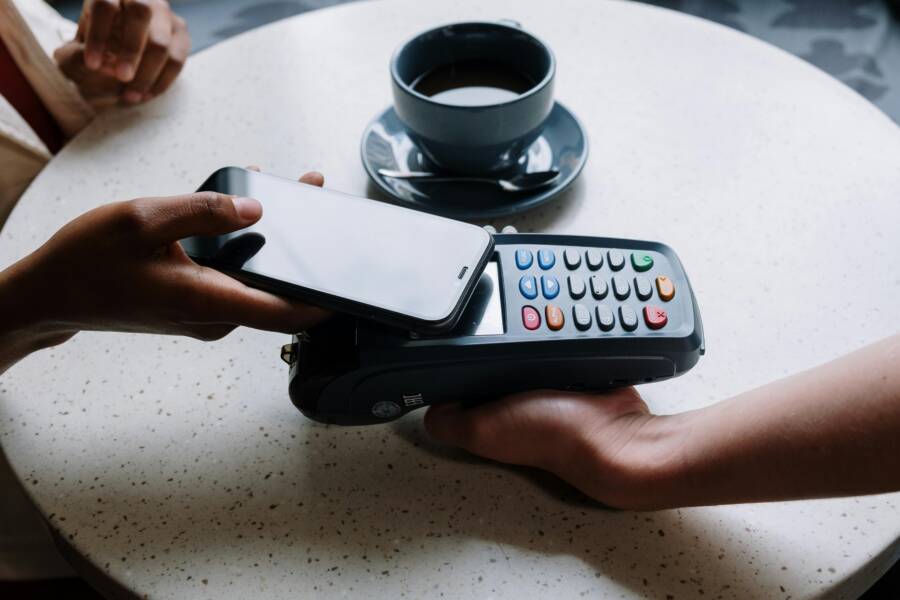
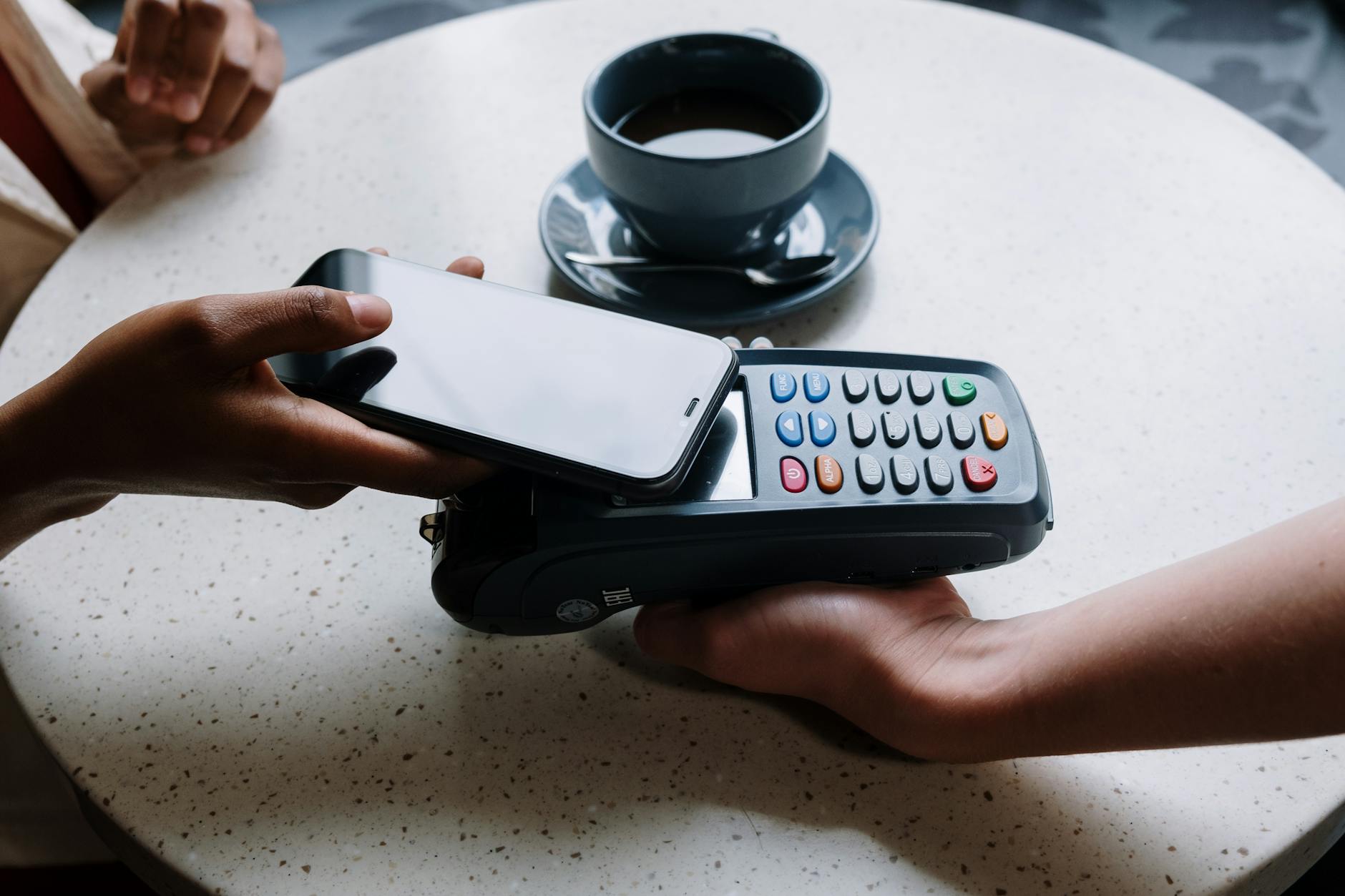 Photo by cottonbro studio
Verify your device and account status
Before you assume a fault with the wallet, confirm the essentials are in place. An up-to-date operating system is crucial for Apple Pay and Google Pay to function smoothly. Check that your region or country is supported for your chosen wallet and that the card you plan to use is active with the issuer. Also verify you are signed in to the correct account on your device and that the wallet app is installed and enabled.
Thousands of People Were Struggling With Money Until They Discovered This One Ancient Secret Hidden in Sound
>>> Unlock It Now <<<

- Check your OS version: go to Settings > General > Software Update on iPhone or Android’s Settings > System > Software Update. If an update is available, install it. This keeps the wallet compatible with new security tricks and features. For Apple Pay, ensure your device is running a supported iOS or iPadOS version; for Google Pay, make sure your Android version supports the wallet.
- Confirm region support: Apple Pay and Google Pay are not available in every country. If you’ve recently moved or changed regions in your account, you may need to adjust settings. Apple’s country and region availability lists show where Apple Pay works. Google Wallet supports country-specific payment methods, so check that your country is supported.
- Verify the card is active: contact your card issuer to confirm the card is valid, not blocked, and eligible for digital wallet use.
- Sign-in and wallet status: ensure you are signed in to the correct Apple ID or Google account on the device. Open the Wallet or Google Wallet app to confirm it’s set up for your account and that your card is present and active.
- App installation and enablement: confirm the wallet app is installed and that it has the necessary permissions (NFC, location if required, and screen lock). If you recently updated your OS, you might need to re-enable these permissions.
Helpful references:
- Countries and regions that support Apple Pay.
- Set up Apple Pay and Find supported payment methods for Google Wallet.
Check network and app readiness
A rock-solid connection makes all the difference. If the device can’t reach the payment servers, you’ll see errors or timeouts at checkout. Make sure your network is stable, watch for pending system or wallet app updates, and ensure the wallet apps have the required permissions.
- Test a stable connection: switch to a reliable Wi-Fi network or a strong cellular signal. If possible, try a different network to rule out local issues.
- Update the apps and OS: check for updates to the Wallet app on iPhone or Google Pay/Google Wallet on Android. Updates often fix bugs and security issues that block payments.
- Check app permissions: the wallet apps typically need NFC, camera, location, and notification permissions. Review these in Settings and grant what the apps require.
- Permissions and privacy prompts: if you’ve denied any essential permission in the past, grant it now. Also ensure there are no conflicts with battery optimization or background activity that might pause the app.
- Quick test: perform a small test payment with a known good network, like your home Wi-Fi, to confirm the issue isn’t device-wide.
If you still have trouble after updates, consult the official support pages for Apple Pay and Google Wallet. They offer step-by-step checks for common network and permission problems.
Useful links:
Thousands of People Were Struggling With Money Until They Discovered This One Ancient Secret Hidden in Sound
>>> Unlock It Now <<<
- Fix problems with tap to pay transactions (Google Wallet support).
- Set up Apple Pay (Apple Support) and Countries and regions that support Apple Pay.
Inspect payment cards and region settings
The wrong card status or a region mismatch is a common culprit. A quick check of the card with the issuer, compatibility of the card type with your wallet, and alignment of device region with the card’s issuing country can clear most problems.
- Verify card status with the issuer: ensure the card is active, not suspended, and eligible for digital wallet use. Some banks require enabling digital wallet use for new cards.
- Confirm card type compatibility: not all cards are accepted by every wallet or merchant. Check that your card type (credit, debit, prepaid) is supported by the wallet you’re using.
- Region vs issuing country: your device’s region should match the card’s issuing country for smooth payments. If you’ve moved or changed regions, you may need to adjust both your device settings and wallet country.
- Wallet readiness for the card: if the card isn’t appearing in the wallet, try removing and re-adding it. This refreshes the token and can fix authorization issues.
- Merchant and contactless limits: some cards have limits on contactless payments. If you’re near a limit, you may need to use your physical card or app-based authentication to complete the purchase.
For deeper guidance on supported methods and setup, refer to:
- Set up Apple Pay and Countries and regions that support Apple Pay.
- Find supported payment methods for Google Wallet.
Apple Pay not working on iPhone or Apple Watch: practical fixes
When Apple Pay or the Apple Wallet stops behaving, tapping to pay can feel like a detour instead of the quick win it should be. This section lays out practical, easy-to-follow fixes you can apply today. You’ll learn how to verify Wallet setup, refresh your payment relationships, and ensure your devices stay in sync. Think of it as a straightforward map to get back to fast, contactless payments with confidence.
Make sure Apple Wallet is set up correctly
A solid Wallet setup is the foundation. If your default card, biometrics, or app permissions aren’t configured right, payments can stall at checkout. Start by confirming your default card and enabling the biometric methods you rely on, then verify Wallet has permission to make payments.
- Set a default card: Open Wallet, select the card you want as the default, and confirm it’s marked as the primary payment method.
- Enable Face ID or Touch ID: On iPhone, go to Settings > Face ID & Passcode (or Touch ID & Passcode) and ensure the wallet authentication is enabled for payments. On Apple Watch, make sure you’ve enabled Wrist Detection and that your watch is unlocked when making payments.
- Wallet permissions: Ensure Wallet can perform payments and that NFC access is allowed. If you recently updated iOS, re-check these permissions because updates can reset them.
- Check that Apple Pay is enabled in Wallet: Open Wallet and confirm your cards appear and are active. If there are passes or cards that are locked, resolve those first, since a locked pass can block a payment.
- Quick validation: perform a small test transaction with a familiar merchant to confirm the setup works end to end.
Helpful references:
- Change your Wallet & Apple Pay settings on iPhone.
- Set up Apple Pay.
- Make purchases using Apple Pay.
Reset Apple Pay relationships and re add cards
Sometimes the tokens that authorize payments become stale. Removing cards and re-adding them forces Wallet to re-establish a fresh link to the issuer, which fixes a range of authorization and token issues.
- Remove cards: In Wallet, tap a card, then choose Remove This Card. Do this for every card you plan to use with Apple Pay.
- Re-add cards: Use the same process you used to add the card originally. You’ll typically scan the card or enter its details, then verify with your bank or card issuer.
- Verify with the issuer: After re-adding, confirm the card is active and eligible for digital wallet use. Some banks require a quick authentication step or a new verification code.
- Quick test: run a small payment with a trusted merchant or test terminal to confirm the card is functioning correctly on both iPhone and Apple Watch if you pair devices.
- What to watch for: watch for token errors or a mismatch between a card’s status in Wallet and the issuer’s records. If you see a persistent error, sign out of iCloud and sign back in, then re-add cards.
For deeper guidance on supported methods and setup, refer to:
- Remove payment cards from Apple Wallet on iPhone.
- Set up Apple Pay.
- Make purchases using Apple Pay.
Check device and watch sync issues
A clean sync between iPhone and Apple Watch is essential for seamless Pay experiences. If the devices aren’t paired correctly or Wallet data isn’t syncing, you’ll see missing cards, failed taps, or status mismatches.
- Ensure proper pairing: On your iPhone, open the Apple Watch app and confirm the watch is listed as connected. If there are any pairing alerts, follow the prompts to re-pair the devices.
- Update both devices: Keep iPhone iOS and watchOS up to date. New releases fix known bugs and improve Wallet synchronization.
- Confirm Wallet settings are synchronized: Wallet should reflect the same set of cards on both devices. If a card appears on the iPhone but not on the Watch, try removing and re-adding that card on the Watch.
- Test payments on both devices: After a sync, perform a tap to pay on your iPhone and then on your Apple Watch at separate readers to confirm both work as expected.
- Check implications of other apps: Sometimes third-party apps or background processes can interfere with Wallet. Ensure Wallet has permission to refresh in the background and isn’t restricted by battery-saving modes.
If you still have trouble after updating, consult the official support pages for Apple Pay and Wallet synchronization. They offer guidance for common sync issues between iPhone and Apple Watch.
Useful references:
- Wallet will not sync from iPhone to watch.
- Remove cards and passes in Wallet on iPhone.
- Change your Wallet & Apple Pay settings on iPhone.
Additional context and practical tips from the community and support sites can help you identify subtle causes, such as regional restrictions or card issuer limitations that only show up after a device refresh. For example, if you recently moved or changed regions, you may need to update both your device settings and wallet country to keep everything aligned. Apple’s official setup pages remain the most reliable source for confirmation on supported regions and card types.
External resources you may find valuable:
- Set up Apple Pay.
- Change Wallet and Apple Pay settings on iPhone.
- Make purchases using Apple Pay.
- Apple Watch wallet sync discussions for real-world scenarios.
Note: If you rely on smartphone-based payments for travel or daily commutes, keeping both devices updated and paired saves time and frustration. A quick quarterly check of Wallet settings and permissions helps maintain reliability, so you’re always ready to tap and go.
Links and references:
- https://www.apple.com/support/
- https://support.apple.com/en-us/guide/iphone/iphf8b1fc01e/ios
- https://support.apple.com/en-us/guide/watch/watc1a1d1a/ios
Google Pay not working on Android: practical fixes
If your Android phone won’t let you pay with Google Pay, you’re not alone. Small glitches with cards, apps, or settings can stop every tap from working. This section focuses on practical, easy steps you can take to get Google Pay back in action. You’ll learn how to verify app and device readiness, refresh your payment methods, and confirm that merchants will accept your method. Think of it as a quick, step-by-step tune-up for smoother payments in everyday life.
Update the Google Pay app and device software
Keeping both the Google Pay app and your device software current is the backbone of reliable payments. Software updates patch bugs, improve security, and ensure compatibility with new card tokens and payment tech. Start by checking for the latest app version, then make sure your Android OS is up to date. If updates are available, install them and test Google Pay again. A fresh update can fix underlying issues that cause taps to fail or cards to appear offline.
- Check for the latest Google Pay version: open the Google Play Store, search for Google Pay, and select Update if it’s shown. If Update isn’t present, your app is current.
- Update Android OS: go to Settings > System > Software Update. Install any available updates to keep security and payment features aligned.
- Why it helps: updates refresh security tokens, fix NFC quirks, and improve compatibility with issuer systems. A phone that hasn’t updated in a while is more prone to payment hiccups.
If you prefer guidance from official help, you can consult Google’s guidance on fixing payment issues and Android support pages. See: Fix problems with tap to pay transactions and Android support resources.
- External resources:
- Fix problems with tap to pay transactions – Google Wallet
Re add cards and verify payment methods
Sometimes a card token can become out of date or a card simply needs to be refreshed in the wallet. Removing and re-adding cards forces Google Pay to re-establish a secure link with the issuer. Set a default payment method that you’ll use most often and confirm the card status with the issuer to prevent unexpected declines at checkout.
- Remove and re-add cards: In Google Pay, remove the card you want to use, then add it back by scanning or entering details again.
- Set a default payment method: In Google Pay, designate the card you want as the primary method. This helps avoid delays at checkout when the terminal expects a default card.
- Verify card status with issuer: contact the bank or card issuer to confirm the card is active, not suspended, and eligible for digital wallet use. Some issuers require re-verification after an update or regional change.
- Confirm region compatibility: ensure your device region and the card’s issuing country align. If you’ve moved or changed regions, you may need to adjust settings in both Google Wallet and the device.
- Quick validation: make a small test purchase with a trusted retailer or online checkout to confirm the re-added card works as expected.
Helpful references to guide you through the process include official support pages for Google Wallet and Android. For example, you can read about fixing tap to pay issues and how to manage payment methods for Google Wallet.
- External resources:
- Fix problems with tap to pay transactions – Google Wallet
Test payments and merchant acceptance
After you’ve updated, refreshed cards, and confirmed settings, run a quick test. A small payment at a trusted merchant or a low-value online checkout helps confirm the fix without risking a larger purchase. Remember, not every terminal supports every method, so you might see differences by store or device.
- Do a controlled test: choose a familiar retailer that you know accepts Google Pay and run a tiny transaction.
- Try online checkout: complete a small order on a trusted site that accepts Google Pay.
- Pay attention to terminal compatibility: some readers only accept certain wallets or card types. If a reader is picky, switch to another payment method or card that you know is supported.
- If a test fails: recheck the card status with the issuer and ensure NFC is enabled on the device. Occasionally, a momentary service outage could also cause a hiccup that resolves within minutes.
If you still have trouble after trying these steps, consult the official help pages for Google Wallet and Google Pay. They offer targeted guidance for network issues, card setup, and merchant acceptance.
- External resources:
- Fix problems with tap to pay transactions – Google Wallet
Note: You can weave in one or two optional reminders about using a dependable smartphone for payments. For most users, a well-supported Android device with current security patches will deliver the most reliable tap-to-pay experience. If you want more formal guidance, see Google Wallet’s official support pages linked above.
When both Apple Pay and Google Pay still fail: deeper troubleshooting
Sometimes the issue isn’t with your phone or the wallet app alone. It can be a larger snag that affects both wallets at once. In this section, you’ll find deeper troubleshooting steps to identify and resolve those stubborn problems. We’ll cover service outages, payment network blocks, and practical ways to confirm whether the fault is at the issuer, the network, or the device. If you’ve tried the quick fixes and nothing works, this is the path to more reliable answers.
 Photo by Kelvin Valerio
Check for system wide issues and outages
If both wallets fail at the same time, the problem might lie with a service outage or a payment network block. Major networks process transactions for Apple Pay and Google Pay behind the scenes, and a disruption can halt taps across banks and merchants. Start by checking status pages for Apple, Google, and your card networks or issuer.
He Was Drowning in Bills and Burnout Until a Simple Daily Ritual Rewired His Brain for Wealth in Less Than a Week
>>> Start Your Shift Today <<<

- Apple system status: Apple maintains a dedicated status page where you can see the health of services like Apple Pay and Wallet. If Apple is reporting an outage in the Apple Pay area, your iPhone or Apple Watch won’t complete taps until the service is back online. See: Support – System Status.
- Apple developer status: For developers or power users, the System Status page on the Apple Developer site provides broader visibility into services that could impact Wallet. See: System Status.
- Google Pay status: The Google Pay API Status Dashboard shows current incidents or service disruptions. If Google Pay is affected, you may see random failures or delays across apps and terminals. See: Google Pay API Status Dashboard and Google Pay API Status Dashboard.
- Payment networks and issuers: Banks, debit networks, and card networks like Visa, Mastercard, and American Express publish status pages. A temporary outage there can block tokenization or verification, even if the wallet apps look fine. Useful references include the Mastercard API Status page and general status resources from major networks. See: API Status – Mastercard Developers and Mastercard outages.
If you find an outage, patience is often the answer. Outages are usually resolved quickly, but they can last longer in some regions or for specific card methods. During an outage, you’ll need an alternate payment method or a backup card until service is restored.
Consider account or payment network problems
Even when networks are up, the fault can live in your account, your card, or a merchant restriction. Examples include a bank hold on the issuer side, a card nearing expiry, or a merchant that has limited contactless acceptance. Here’s how to verify and resolve these scenarios.
- Bank holds or security blocks: Banks may place a temporary hold after unusual activity or for security checks. Contact your issuer to confirm there’s no block on digital wallet use for the card you’re attempting to tap.
- Card expiry or renewal: Check the card’s expiry date. If a card is expired, you’ll need a new card from the issuer and re-add it to your wallet.
- Merchant restrictions: Some merchants restrict contactless payments to certain card types or limit the number of transactions per day. If a single merchant keeps failing, try another store to confirm whether the issue is merchant-specific.
- Region and issuer compatibility: If you moved or changed regions, card issuers may restrict digital wallet usage. Verify that the card and device region match the issuing country.
- Simple way to contact the issuer: Call the customer service number on the back of the card or use your issuer’s official app to open a secure message. Explain you’re trying to use Apple Pay or Google Pay and ask them to confirm the card is enabled for digital wallets and not under any temporary block.
Key references to keep handy during calls or chats with support include your card’s status pages and wallet setup guides, such as:
- Apple Pay setup and region guidance.
- Google Wallet payment method management.
- Card issuer contact options for digital wallet enablement.
If you’re unsure where to start, a quick message or call to the issuer usually clears up most holds or restrictions within a business day.
Image note: A calm, direct explanation helps readers relate this to everyday usage. If you want to illustrate issuer checks in your article, use a photo showing a person contacting a bank or using a banking app.
Verify card and region settings with the issuer
If the system status pages are all green, the next suspect is your card itself or the region your device is configured for. A mismatch here can stop both wallets from working, even when networks are fine.
- Confirm card status with the issuer: ensure the card is active and eligible for digital wallet use. Some banks require enabling wallet use for new cards.
- Check card type compatibility: not every card type is accepted by every wallet or merchant. Make sure your card (credit, debit, prepaid) is supported.
- Align region and issuing country: the device’s region should match the card’s issuing country. If you’ve moved, update both wallet and device settings to reflect the new region.
- Refresh the wallet’s card entries: if a card isn’t appearing or shows a token error, remove and re-add it in the wallet to re-establish the link to the issuer.
- Be mindful of limits: some cards have contactless limits that reset after certain thresholds or require extra authentication for larger payments.
Practical tip: before jumping to drastic resets, call the issuer to confirm the card is still enabled for digital wallets and that there are no temporary holds. This often resolves the problem without further steps.
For deeper context on supported methods and setup, visit:
- Set up Apple Pay and Countries and regions that support Apple Pay.
- Find supported payment methods for Google Wallet.
If you’ve recently changed regions or carriers, you’ll want to re-check both device and wallet settings. Apple’s official setup pages remain a reliable reference for region and card-type support.
Image note: If you feature a map or region-related graphic, it can help illustrate how regional settings impact wallet availability.
External references:
- Apple System Status: https://www.apple.com/support/systemstatus/
- Apple System Status for developers: https://developer.apple.com/system-status/
- Google Pay status: https://pay.google.com/status/summary
- Mastercard API status: https://developer.mastercard.com/api-status
Note: If you rely on smartphone payments for travel or daily commutes, keeping both devices updated and region-aligned saves time and frustration. A quick quarterly check of Wallet settings and permissions helps maintain reliability, so you’re always ready to tap and go.
Photo: Close-up of a smartphone with a payment screen and a card reader in the background can visually convey the idea of troubleshooting a tap to pay issue.
Photo by Kelvin Valerio: https://www.pexels.com/@kelvin809
External resources:
- Apple Pay setup and status references
- Google Wallet payment method management
- Merchant acceptance and regional guidance
Links and references:
- https://www.apple.com/support/
- https://support.apple.com/en-us/guide/iphone/iphf8b1fc01e/ios
- https://support.apple.com/en-us/guide/watch/watc1a1d1a/ios
- https://pay.google.com/status/summary
- https://developers.google.com/pay/api/status
- https://downdetector.com/status/google-pay/
- https://developer.mastercard.com/api-status
- https://downdetector.com/status/mastercard/?v=2024
Prevent future issues and best practices for reliable mobile payments
Keeping Apple Pay and Google Pay reliable requires a proactive routine. The goal is to minimize surprises at the checkout and ensure your wallet stays ready for tap and go payments. In this section, you’ll find practical habits and settings that prevent common hiccups and keep your mobile payments humming along smoothly.
Keep software up to date and manage backups
Automatic updates are your first line of defense. When OS and wallet apps update automatically, you get the latest security protections and compatibility fixes without thinking about it. Pair this with thoughtful backups, and you’re less likely to lose access to your wallet data during a device switch or a reset.
- Enable automatic updates: turn on software updates for your device and wallet apps. This reduces the chance of running into unsupported features or token errors.
- Backup wallet data where possible: use your platform’s built in backup options to protect card tokens, passes, and wallet configurations. Regular backups mean you can recover quickly if you replace a device or restore from a reset.
- Keep a recovery method on hand: note down or securely store recovery options provided by your issuer or wallet provider. A quick recovery path saves time and frustration if you ever need to re authenticate or re add cards.
- Verify compatibility after updates: a major OS upgrade can reset permissions or disable necessary features like NFC. Recheck that Wallet has permission for payments, NFC access, and any required background activity.
Practical reference: if you want a deeper dive into payment app practices, see guidance on Apple Pay setup and region support. For Google Pay, consult general payment method management and safety resources.
Helpful references:
- Apple Pay setup and region guidance.
- Find supported payment methods for Google Wallet.
Set up notifications and payment alerts
Notifications are the alert system for your wallet. They catch problems early and give you a chance to act before a failed purchase becomes a scene at the checkout. Turn on the right alerts for both Apple Pay and Google Pay so you’re never left guessing why a tap didn’t work.
- Enable decline alerts: you’ll know immediately when a payment is declined and can retry with a backup card or fix the issue with your issuer.
- Turn on suspicious activity notices: quick warnings about unusual authorizations help you spot fraud early and protect your cards.
- Enable wallet transaction confirmations: receipts for every payment confirm that the transaction went through and give you a trail for any disputes.
- Keep alerts visible but not overwhelming: prioritize essential updates from the wallet app and issuer without turning on every possible notification.
To make notifications work smoothly, ensure your device allows the wallet app to send push alerts and to refresh in the background. If you ever change regions or carriers, verify that alerts still function and reflect the correct account.
Useful references:
- Keep your payment info safe with Google Pay Help.
- Change notification settings on iPhone.
Why this matters: a quick glance at your notifications can reveal a blocked card, a token renewal needed, or a regional restriction that blocks digital wallet use. A smartphone is only useful if it tells you when something needs attention.
Link examples for further reading:
- Keep your payment info safe – Google Pay Help
- Change notification settings on iPhone
Closing thought: proactive alerts turn silent failures into quick fixes. With clear cues, you can address issues before they impact a purchase.
Notes on integration and practical tips:
- If you manage multiple cards, consider setting a preferred default but keep a backup option ready in case the primary card hits a problem at a busy store.
- Periodically review which alerts you actually use. Some merchants may trigger minor notifications that you can safely mute.
External context you may find helpful:
- Apple’s guidance on Wallet and Apple Pay settings
- Google Pay safety and security features
In practice, this approach keeps your smartphone payments resilient. You’re less likely to miss a payment window, and you’ll know exactly where to look when something goes wrong.
References you can explore:
- Apple Pay setup and status guidance
- Google Wallet payment method management
By adopting these habits, you ensure your mobile payments stay reliable day after day. The combination of timely updates and smart alerts creates a dependable tap and go experience, whether you’re at the corner store or on the road.
Conclusion
If Apple Pay or Google Pay stops working, a simple sequence of checks often fixes the issue quickly. Start with basic status tests on your smartphone, confirm card activity with the issuer, and ensure the wallet has NFC and necessary permissions. Update the wallet apps and your device, then refresh cards by re-adding them if needed. Check for regional or issuer limits and test payments after each change.
When problems persist, verify system status pages for outages and confirm your card and region align with the wallet. If you still can’t tap to pay after trying these steps, reach out to your bank or device support for deeper help. Your smartphone payments should be a fast, reliable part of daily life.
Have you tried these fixes yet? Share your results or ask questions in the comments so I can help you troubleshoot further.
She Pressed Play on a Strange Audio Track and Within Days Her Financial Reality Started Shifting in Ways She Could Not Explain
>>> See How It Works <<<