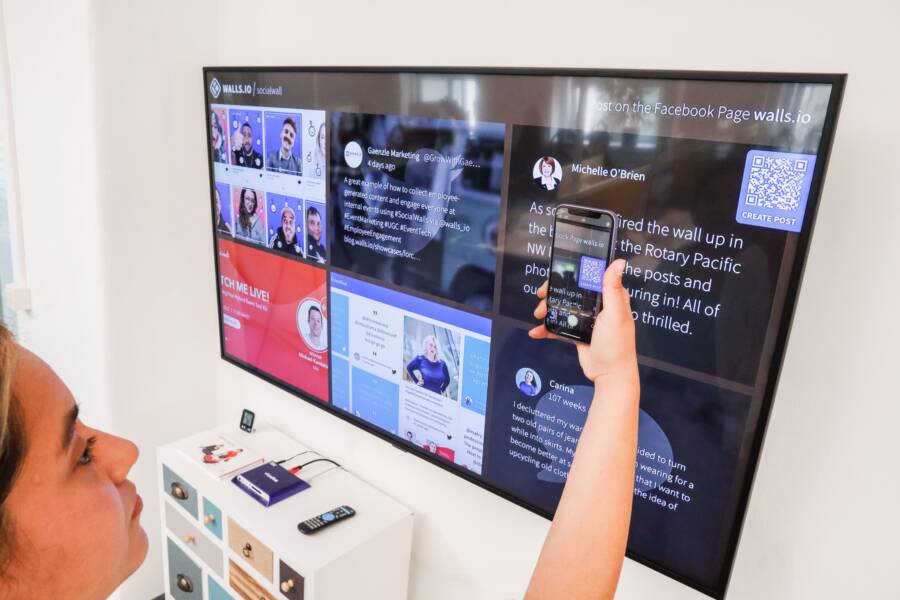
Sharing a Wi-Fi QR code is the fastest and most secure way to connect guests to your network. You eliminate the need for visitors to type long, complex passwords into their smartphone manually.
This simple method removes the frustration of sharing credentials, which makes hosting easier and improves guest comfort. Everyone stays connected instantly without exposing your private password on a piece of paper or through repeated verbal requests.
You can set up this code in under a minute using built-in tools or basic web generators. Below are the steps to generate your own code for any smartphone user visiting your home or office.
Understanding the Benefits of Guest Wi-Fi QR Codes
Generating a QR code for your network provides practical advantages for both home and business environments. You gain better control over who connects to your private resources while removing common barriers for your visitors. This setup works on any modern smartphone, allowing people to join your network in seconds without needing to ask for help or manual input.
Improving Security by Limiting Password Exposure
Writing your Wi-Fi password on a sticky note or whiteboard creates a significant security risk. Anyone walking past your desk or home office can record the credentials, which leads to unauthorized network access later. Guests often take photos of these written passwords or share them with others without your permission.
QR codes solve this problem by keeping your password hidden from the user. When a visitor scans the code with their smartphone, their device receives the connection instructions through an encrypted string of data. The person never sees the actual password characters on their screen.
This approach provides three specific security benefits:
- You prevent accidental exposure to people who do not have your consent to use the network.
- The password remains private even if a guest allows others to handle their smartphone.
- You can rotate your password periodically without needing to manually update paper signs or printed materials.
Your network stays protected because you only provide access through a controlled scan. Since the guest never reads or writes down your credentials, they cannot pass that information along to anyone else. This containment keeps your private network traffic away from unwanted users.
Saving Time for You and Your Visitors
Manually typing a long, complex Wi-Fi key is a frequent source of frustration for visitors. You likely have a mix of uppercase letters, numbers, and symbols to ensure network protection. Expecting guests to type this string accurately on a small smartphone screen often leads to multiple failed attempts and wasted time.
The scan-and-go experience eliminates this friction entirely. A visitor simply opens their camera app, points it at the QR code, and taps the prompt that appears on their display. Their phone handles the connection process in the background.
Consider the time saved during common social or professional situations:
- Hosting gatherings: You avoid the repetitive task of reciting a complex password to every single person who walks through your door.
- Office meetings: Clients connect to your guest network the moment they arrive without interrupting your presentation to ask for login details.
- Vacation rentals: Guests enjoy an immediate, frustration-free start to their stay, which prevents early calls to your support line.
This method replaces the manual data entry process with a single gesture. You and your visitors avoid the common cycle of guessing, checking, and re-typing network keys. Because the smartphone manages the handshake process, the connection is always accurate on the first try.
How to Create a Guest Wi-Fi QR Code Quickly
Creating a Wi-Fi QR code is a practical way to manage network access for your guests. You avoid the clutter of written passwords and the frustration of manual entry on a smartphone. The process relies on identifying your existing network details and using a reliable tool to convert them into a scannable image.
Gathering Your Network Credentials
Before you generate a code, you need accurate information about your network. Your smartphone requires the exact service set identifier, known as an SSID, to find the connection. You must also select the correct security protocol for your router. Most modern home networks use WPA2 or WPA3 encryption. You can usually find these settings by logging into your router administration page or checking the sticker on the back of the device.
Accuracy is vital because the smartphone will not connect if a single character is incorrect. Check for capitalization and special symbols in your network name. Similarly, your Wi-Fi password is case-sensitive. If you provide a password with an incorrect case, the device will simply fail to connect without providing a helpful error message. Once you have the precise SSID and password type ready, you can proceed to the generation phase.
Using an Online Generator Tool
Several web-based tools allow you to create your QR code for free. Choose a service that does not require you to create an account or provide personal data. A safe generator simply takes your input and renders the image locally within your browser. Once you find a reputable site, look for the input fields labeled for network name, password, and encryption type.
After you enter the details, the generator will produce a unique QR image. Follow these steps to complete the process:
- Enter your network SSID exactly as it appears in your phone settings.
- Select your security type, such as WPA, WPA2, or WPA3, from the provided menu.
- Type your network password carefully, paying attention to symbols and case.
- Click the generate button to create your custom image.
- Save the image to your smartphone or computer so you can print it later.
Many tools also offer customization options like changing the color or adding a frame. Avoid overcomplicating the design, as high contrast works best for smartphone camera sensors. Once the image is saved, you can print it or display it on a tablet. Your visitors will appreciate the speed of this setup, and your network remains secure behind a simple, scannable barrier.
Best Practices for Printing and Displaying Your Code
Effective placement and clear presentation determine how often your guests successfully connect to your network. A high-quality printout prevents scan failures and saves your guests from unnecessary troubleshooting. Focus on high-visibility zones to ensure your visitors find the network details exactly when they need them.
Where to Place Your Wi-Fi Sign
Place your printed Wi-Fi sign in areas where guests naturally stop or spend time. Entryways are ideal because visitors often look for network details immediately upon arriving. A sign mounted near the front door or in the hallway catches their attention before they even settle in.
Living rooms and guest bedrooms are also effective locations. Place a small frame on a side table or a bedside stand to provide constant, easy access. Consider these common spots to improve guest comfort:
- Near the coat rack or entryway console table.
- On a coffee table next to guest magazines or remotes.
- Taped inside a guest room binder or placed on a nightstand.
- Near your home office desk if guests frequent your workspace.
Keep the sign at eye level to make it easy for any smartphone user to locate. You avoid forcing guests to wander through your home or ask for help by choosing these intuitive locations. A well-placed sign serves as a helpful host even when you are busy.
Making the Code Easy to Scan
A sharp, high-contrast image is the primary factor in a fast scan. Your smartphone camera needs clear lines and distinct corners to interpret the data correctly. Use a laser printer for the best results, as inkjet printers can sometimes bleed ink and blur the small, complex patterns within the code.
Follow these tips to ensure your printer settings and materials work well with mobile hardware:
- Use plain white paper with a matte finish to prevent glare from overhead lights.
- Scale the code so it measures at least two inches by two inches on the page.
- Keep the printout flat; wrinkles or folds distort the QR pattern and prevent the camera from focusing.
- Place the sign in a well-lit area so the smartphone sensor captures the image without shadows.
Avoid placing your printed code behind thick glass or reflective plastic frames. These materials create glare that confuses the auto-focus feature on most smartphone devices. If you choose to protect the sign, use non-glare acrylic or simply laminate the paper. A matte finish helps the camera identify the edges of the QR code in almost any lighting condition. Your guests will connect to the network on the first attempt when the image is clean, flat, and free of reflections.
Common Questions About Wi-Fi QR Codes
Users often have practical concerns when they first start using QR codes to manage network access. Most questions focus on device compatibility, security limits, or how to handle changes in network settings. Getting clear answers helps you feel more confident when setting up these codes for your own smartphone or your visitors.
Does every smartphone support Wi-Fi QR code scanning?
Most modern devices handle these codes natively without extra software. If your smartphone runs Android 10 or later, the built-in camera app detects a Wi-Fi QR code and provides a connection prompt automatically. Apple devices running iOS 11 and newer include the same capability within the standard camera interface.
You might encounter older devices that lack this feature. In these cases, your guests should download a dedicated QR scanner app from their respective app store. Once they install a compatible scanner, the app reads the code and allows them to join the network. Most people already have a scanner installed, so this rarely causes a significant delay.
Will changing my router password break the QR code?
A QR code is simply a visual representation of your network name, password, and security type. If you update your router password or change the network security settings, the old QR code becomes obsolete immediately. Your visitors will attempt to use the outdated credentials, which results in a connection failure.
You must generate a new QR code whenever you modify your network settings. It is helpful to keep a digital copy of your generator link or a template file saved on your phone. This habit allows you to print a new sign in seconds whenever you update your home network.
Are these codes safe for public or business use?
Using a QR code is a secure practice because it keeps your actual password hidden from view. Visitors only see the encoded data rather than the characters typed into the router. This method prevents people from writing down your password or sharing it with others who did not receive your consent.
However, you should keep the printed sign in a controlled environment. If you display the code in a high-traffic lobby, consider using a guest network that keeps visitor traffic separate from your primary devices. This setup provides an extra layer of protection while still offering the convenience of a quick scan.
What should I do if the scan fails?
Scanning issues usually relate to the quality of the print or the lighting in the room. A blurry image or one with excessive glare will prevent the smartphone camera from identifying the pattern. First, ensure the room has bright, even lighting. If the image remains difficult to read, check the paper for folds or ink smudges that might distort the code.
Some devices also struggle if the printed code is too small. Try resizing the image to ensure the pattern is crisp and occupies enough space on the page. If a specific guest still cannot connect, verify that their smartphone is within range of the router and that they have not disabled Wi-Fi on their device. Occasionally, a simple restart of their smartphone resolves minor software glitches that interfere with the initial connection attempt.
Conclusion
Using a QR code to share your network credentials removes the friction of manual data entry. Your visitors gain instant access to your Wi-Fi without needing your password in plain sight. This method improves security while saving time for everyone who enters your home or office.
Take a few minutes today to generate your own code. Store the image on your smartphone or print it for your next guest. This simple update makes a notable difference in how you manage your network access.