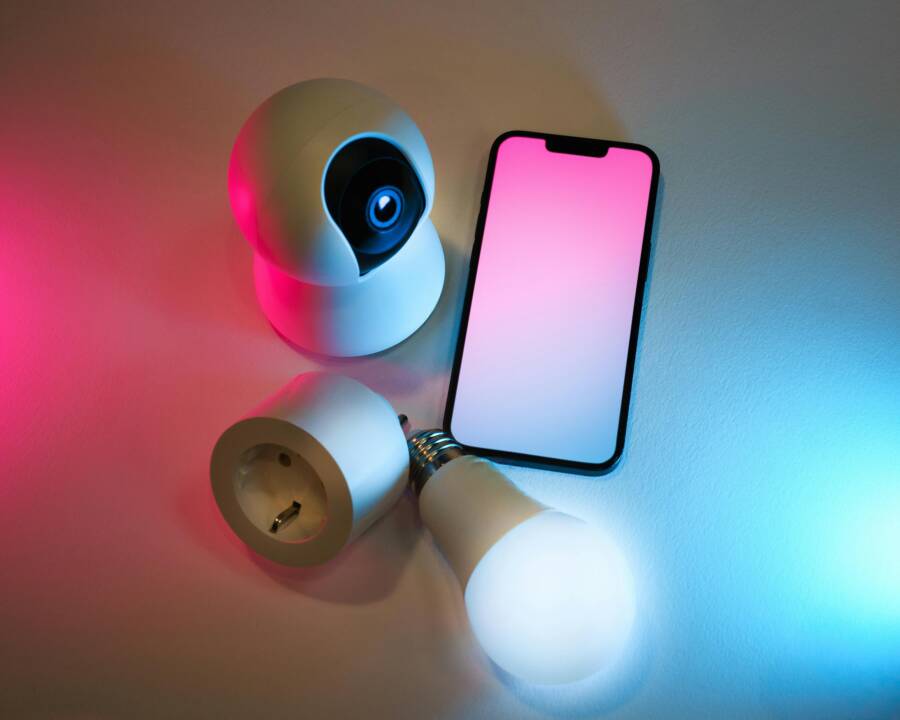
Smart home routines rely on a quiet signal from your phone. When that signal vanishes, lights stay dark, cameras don’t arm, and routines that should run on your schedule falter. If you notice automations failing only when you’re nearby or when you expect your phone to trigger them, the issue likely sits in your device rather than the smart home hub. This guide walks you through practical checks and fixes to get things humming again.
Think of your phone as the control center for many automations. A small misstep in permissions, power settings, or network configuration can disable triggers for days. The goal is to restore a reliable link between your phone and your smart hub without overwhelming you with jargon. Let’s start with the basics and move to deeper checks, with simple steps you can follow today.
How phones influence smart home automations
A lot of automations hinge on the phone’s presence, location data, or activity signals. When you leave work, a geofence trigger might turn on lights. When your phone detects bedtime, a routine could activate the thermostat or mute alerts. If the phone isn’t sending that signal, the automation won’t fire even if all other devices are ready.
Key points to keep in mind:
- Geofencing is location based. It depends on accurate location data and a reliable connection to the automation hub.
- Background activity is essential. The automations app must run in the background to send the trigger when you move.
- Notifications may act as the handoff signal. Some setups rely on a push from the app to confirm a change in state.
With this in mind, start with the basics before diving into advanced settings. A quick reset of the obvious culprits often solves the issue.

Photo by Jakub Zerdzicki
Start with the basics: confirm the phone and network
- Check that the automation hub or bridge is online. If the hub shows a red light or a warning in its app, fix that first.
- Verify your phone is signed into the same account the hub uses. A switch in account can break triggers.
- Confirm the phone has a stable internet connection. If you’re relying on mobile data, test with Wi-Fi for comparison.
- Ensure the smartphone and hub are on compatible network bands. Some older hubs don’t handle certain Wi-Fi standards well.
If any of these steps reveal a problem, resolve it and test the automation again. If everything looks good here, move to permission and presence checks.
Dive into permissions and location services
Permissions are the quiet gatekeepers of automation. A missing or misconfigured permission can stop triggers in their tracks.
- On iOS devices, review Location Services for the automation app. Set it to Always if possible, or at least While Using the App. Enable Precise Location if your system uses fine-grained positioning.
- On Android devices, check Location permissions and ensure the app is allowed to run in the background. Disable battery optimization for the automation app to prevent it from being put to sleep during a trigger.
- Verify Bluetooth is enabled if your automations rely on proximity. Some hubs use Bluetooth to confirm device presence when Wi-Fi is unstable.
- Confirm the phone’s OS hasn’t blocked background activity for the automation app during sleep hours. If it has, adjust the settings to allow continued operation.
A good rule of thumb is to permit location access and background activity consistently. After updating permissions, test a trigger to see if the automation fires when you expect.
Battery saver and app background limits
Phone power management can quietly halt automation signals.
- On iOS, check if Low Power Mode is on. While it saves battery, it can reduce background tasks. If you must enable it, consider keeping the automation app active in the background at the cost of some battery life.
- On Android, disable battery optimization for the automation app. Some manufacturers aggressively manage background tasks for power savings; whitelisting the app helps.
- Watch for “Sleep” or battery saver modes that restrict background data. Tuning these settings often resolves intermittent failures.
After adjusting, run a test while you move away from or back toward your home to see if triggers reappear.
Notifications and Do Not Disturb settings
Push signals sometimes rely on notifications arriving promptly.
- Check Do Not Disturb and Focus modes on iOS. If a Focus mode blocks notifications from the automation app, geofence triggers or status updates won’t reach the hub.
- On Android, Inspect Do Not Disturb and any app-specific notification settings. Ensure the automation app can post notifications and run in the background while DND is active.
- If your hub uses notification-based triggers, confirm the app is allowed to display alerts. A blocked alert can break the handoff to the automation system.
A quick pause on DND modes can verify whether these settings were the root cause. If you use a lot of Focus modes, consider a dedicated automation profile that stays active in the background.
Network and VPN considerations
Network quirks can block the path between your phone and the cloud or hub.
- If you use a VPN, try temporarily disabling it to see if automations order through without it. Some VPNs route traffic in ways that disrupt the hub’s services.
- Ensure the phone and hub can reach the internet without restriction. Corporate networks or hotel networks often block certain ports used by smart home services.
- Check for firewall rules on the router that might block certain devices. It’s rare, but some networks restrict ring or cloud traffic needed by automations.
If you rely on mobile data for triggers, test a few tasks over a stable Wi-Fi connection. Consistent internet access makes automations more dependable.
Platform specific checks: HomeKit, Google Home, and more
Different ecosystems have their own quirks. A focused check helps pinpoint issues faster.
- Apple HomeKit
- Ensure the Home app has permission to use your location and that location services are enabled.
- Confirm the Home hub (like Apple TV or HomePod) is online and signed into the same iCloud account.
- Check HomeKit automations in the app; ensure the trigger is still valid and not set to an old device or scene.
- If geofence is involved, reconfigure location settings and re-test with a friend or family member’s phone to confirm it isn’t a device-specific issue.
- Google Home
- Make sure the Google app has location access and background activity allowed.
- Revisit Routines to confirm the phone presence trigger is still enabled and linked to the correct devices.
- Confirm the hub and devices respond to voice and app commands in Google Home. If not, re-link the account or re-add devices.
- Samsung SmartThings and others
- Review presence sensors and the phone’s role in those automations. Some setups use the phone to confirm presence, while others rely on cloud signals.
- If automations rely on a specific app, reinstall or update it to the latest version and re-authenticate.
A quick audit across platforms helps identify if the issue is local to one ecosystem or a broader connectivity problem.
Testing strategies and practical tips
Testing is where you separate symptoms from real causes. Use controlled tests to isolate the problem.
- Create a simple test automation that you know should fire in a normal scenario, such as “when I leave home, turn on hallway lights.” Then perform that action and observe whether the trigger fires.
- Use logs and event histories in the hub app. Look for timestamps that align with your movements. If you don’t see a signal, the phone isn’t sending the trigger.
- Test both directions. For example, if you’re testing geofencing, also test returning home. Some systems behave differently on exit versus entry.
- Try an alternative trigger. If a geofence fails, switch to a manual trigger or a fixed schedule temporarily to verify the lights and sensors themselves are functioning.
- Check for software updates. A bug in either the automation app or hub firmware can break triggers. Update if a patch is available.
If you find the automation fires when you test from a home network but not from a mobile network, the culprit is likely the phone’s network path or remote access settings.
Quick troubleshooting checklist
- Confirm hub status is healthy and online.
- Verify your phone is on the correct account and connected to the internet.
- Review location permissions and background activity for the automation app.
- Disable battery optimization for the automation app.
- Check Do Not Disturb or Focus modes that could block signals.
- Test with a controlled scenario and review logs for clues.
- Temporarily disable VPN or network restrictions to test connectivity.
- Update apps and hub firmware to the latest version.
Using this checklist regularly can prevent minor issues from becoming persistent outages.
Practical tips to improve long term reliability
- Keep your automation apps in the foreground when you’re actively using the system, but avoid leaving them overly dependent on that state. Balance is key for reliability.
- Periodically review automation rules to ensure triggers still align with real-life routines. A minor change in daily patterns can render a rule obsolete.
- Consider adding non-phone triggers as a backup. Routines that depend solely on the presence of a phone are fragile; complement with time-based or sensor-based triggers.
- Document the setup. A simple note with the hub version, app version, and a few common troubleshooting steps helps if you need to hand off the guide to a family member or a tech buddy.
These practices encourage stability and make it easier to identify when a change in your routine breaks a trigger.
Conclusion
Smart home automations that stall because of your phone are frustrating, but the fixes are usually straightforward. Start by confirming the basics: the hub is online, the phone is signed in, and the network is stable. Then dig into permissions, background activity, and battery settings. Don’t overlook Do Not Disturb modes and VPN configurations, since they often block the signal that starts a scene or routine.
If you still hit a wall, check platform specific settings for HomeKit, Google Home, or other ecosystems. Testing with a simple scenario and reviewing event logs can quickly reveal where the breakdown happens. With a little methodical checking, you can restore reliable automations and keep your smart home responsive to your everyday life.
Remember, the phone is a tool in a larger system. When you tune its settings, you unlock a smoother, more dependable smart home experience. If you’ve run through these steps and still face issues, note what you changed and try a fresh setup of a core automation. A clean start often reveals a hidden misconfiguration you can correct, restoring harmony between your phone and your home.
—
If you found this guide helpful, consider sharing it with friends who are tweaking their smart home setups. And if you have a unique scenario or a clever trick that helped you resolve a stubborn automation problem, drop a comment and share the knowledge with the iPro+ 知識酷 community.