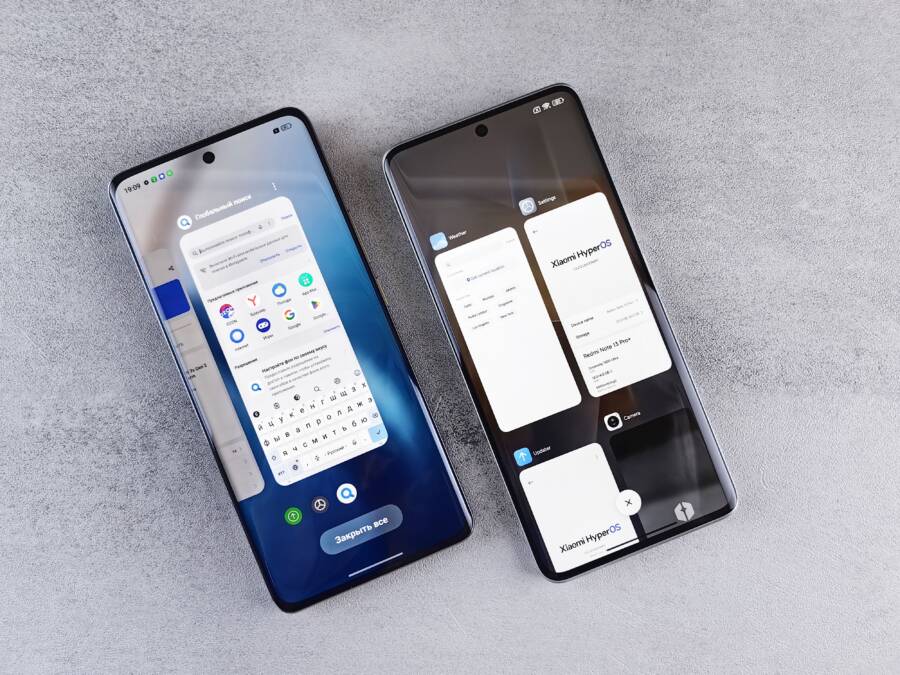
You just took a screenshot on your smartphone, but the image isn’t in your gallery. This common problem occurs because of temporary folder sync delays, hidden system directories, or incorrect permission settings.
Most users find their missing files by checking specific album folders or restarting their device. If your captures aren’t showing up, the following steps help you locate them quickly and fix the underlying cause.
Common Reasons Why Your Smartphone Screenshots Go Missing
Many users assume that every image they capture lands immediately in their primary gallery. However, your smartphone often sorts files based on strict directory rules. If you cannot find a recent image, it is usually because the file was saved to a specific sub-folder rather than the main feed. Software updates or permission changes can shift these paths unexpectedly. Understanding where your device hides these files will save you time and frustration.
Check Your Default Photo Library Folders
Most operating systems do not dump every image into a single catch-all folder. Your device typically separates items into categories like Recents, Camera, and Screenshots. When you look for a missing capture, check the Albums or Library tab inside your photo app first. Manufacturers often prioritize camera-taken photos, so your screen captures might sit in a separate, less visible folder titled Screenshots.
Sometimes, a software update resets your default storage preferences. You might find that your smartphone now saves captures to a folder inside your Pictures directory or even a hidden DCIM sub-folder. Check these locations if your primary Screenshots album appears empty:
- Look inside the internal storage folders using your device file manager.
- Search for a folder specifically named Screenshots or ScreenCaptures.
- Check if your phone created a secondary folder with a date stamp.
- Verify if a third-party app, such as a messenger or editor, is redirecting your capture destination.
If you still cannot locate the image, check if you accidentally moved the file to a secure or locked folder. Many devices allow you to hide specific photos behind a biometric lock. These items will not show up in your standard gallery view.
When Cloud Storage Delays Hide Your Images
Cloud services act as a bridge between your device and your online library, but they require a stable connection to function. If you take a screenshot while your smartphone has a weak signal, the sync process might stall. You might see the image for a second, but it disappears once the system attempts to upload it to the cloud. This behavior happens when your settings prioritize online storage over local caching.
Battery optimization tools also interfere with how these services operate. If your phone is in power-saving mode, the system often kills background tasks to preserve energy. This prevents services like Google Photos or iCloud from syncing your new images immediately. You can check the status of your upload in the app settings to confirm if a queue is holding up your files.
Consider these common sync issues:
- Your internet connection dropped during the upload, causing the file to remain in a temporary cache.
- Background data is restricted for your photo app, which stops it from updating.
- Your cloud storage quota is full, causing the system to stop importing new screenshots.
- The sync service is waiting for a Wi-Fi connection because mobile data usage is turned off in the settings.
If you suspect a sync issue, toggle your Wi-Fi or mobile data off and on again to trigger a refresh. You can also manually open the sync service app to force a check for new content. Refreshing the connection usually forces your smartphone to reveal any images currently stuck in the sync pipeline.
How to Fix Screenshot Issues on Your iPhone
Your iPhone often stops saving screenshots when it encounters software conflicts or hardware limitations. Most users resolve these issues by checking internal settings. You can typically restore capture functionality by adjusting storage availability or verifying application permissions.
Verify Your iPhone Storage and Permissions
A full storage drive is a frequent culprit for failed screenshots. Your smartphone requires a small amount of temporary space to process and write new image files to the internal memory. If your device reaches its capacity limit, the system prevents any new files from saving.
You should check your current space usage by visiting the Settings app. Tap General, then select iPhone Storage. If you see a near-capacity status bar, delete unused apps or large video files to create room. Once you clear several hundred megabytes, try taking another screenshot to see if the problem persists.
Permissions also block your device from writing images to specific folders. The Photos app must have access to your storage to save new captures. You can verify these settings by following these steps:
- Open the Settings app on your smartphone.
- Scroll down until you find the Privacy & Security menu.
- Tap on Photos to see a list of applications.
- Locate the Photos app or the specific camera utility you use.
- Ensure that the setting is set to Full Access or Read and Write.
Restricting photo permissions often happens accidentally during software updates or security prompts. If the app lacks proper access, the screenshot tool might trigger the shutter sound but fail to commit the file to your library. Correcting these settings allows the system to manage your files again.
Beyond standard permissions, check if you have an active Screen Time restriction. Some parental controls or device profiles limit the ability to save media to the camera roll. Navigate to Settings, tap Screen Time, and check Content & Privacy Restrictions to ensure that no blocks exist for your media storage. After verifying these configurations, restart your smartphone to apply the changes effectively.
Troubleshooting Screenshot Saves on Android Devices
If your images are not appearing where you expect them, your smartphone might be saving files to a hidden or unexpected directory. Software glitches or misconfigured permissions often prevent the gallery app from displaying your latest screen captures. You can manually locate these files to confirm the system is still capturing your screen correctly.
Use a File Explorer to Locate Hidden Media
Every Android device includes a native file manager, often labeled as Files, My Files, or File Manager. This app provides direct access to your internal storage, bypassing the limitations of your standard gallery app. When the gallery fails to update, the file manager acts as a source of truth for your device storage.
Open your file manager and navigate to the Internal Storage section. Look for a folder named DCIM, which is the standard directory for most media. Inside, check for a sub-folder titled Screenshots. If you do not see it there, search for a folder simply named Pictures or Screenshots in the root directory.
If you still cannot find your files, use the search function inside the file manager. Type “Screenshot” into the search bar to scan your entire drive. This process identifies images hidden in temporary folders or sub-directories created by third-party apps. Once you locate the files, you can move them to a folder that your gallery app regularly scans.
Managing Third-Party Gallery App Conflicts
Many users install alternative photo gallery apps to gain extra features or a different user interface. These apps rely on a media indexer to categorize your photos. When an app fails to scan your storage properly, it hides images from your view even though they exist on the smartphone.
Some apps use a configuration file called .nomedia to tell the system to ignore specific folders. If a folder contains this file, your gallery app will not display the images inside. You can check for this by enabling hidden file viewing in your file manager settings. If you find a .nomedia file in your screenshots folder, delete it to restore the visibility of your photos.
If the problem persists, try these steps to force an app update:
- Clear the cache of your gallery app in the system settings menu.
- Force stop the application to stop any stuck background processes.
- Restart your smartphone to trigger a fresh media scan.
These actions force the application to re-index all folders on your device. Most gallery apps will recognize the new screenshots once the indexer completes its scan. If you frequently face this issue, consider switching back to the default gallery app to see if the conflict remains. Your primary system app is usually better at maintaining consistent links to your storage directories.
Proactive Tips to Ensure Your Screenshots Always Save
You can avoid missing file headaches by adjusting your device habits and system settings. When your smartphone fails to capture a screen, it usually points to a storage bottleneck or a software conflict. Applying a few simple routines keeps your media library organized and prevents future data loss.
Manage Storage Space Regularly
A lack of available storage is the most common reason a smartphone fails to save new screenshots. Operating systems often require a small buffer of empty space to process and write files. If your internal drive reaches its capacity, the system stops recording new images immediately.
Check your storage status every few weeks to keep your device responsive. Deleting old screen captures, clearing cached data from browser apps, and offloading unused videos prevents the drive from filling up. You can view your storage breakdown in the system settings to see which apps consume the most space. Establishing a habit of clearing unwanted media keeps your library lean and ready for new captures.
Audit Your Sync and Backup Settings
Cloud services often sync your photos in the background, which consumes battery and data. If your smartphone enters a low-power state, the system may pause these background tasks to save energy. This pause occasionally interrupts the process of saving a new screenshot to your local directory.
Review your cloud app preferences to see if they force the device to wait for a stable connection. If you prefer instant access, ensure that background data usage is enabled for your gallery and cloud apps. You should also check if your cloud storage quota is full. A full account often causes the system to stall during file creation. Keeping your sync settings aligned with your network availability reduces the risk of lost files.
Update System Software Frequently
Software bugs occasionally disrupt the communication between your hardware and the gallery app. Manufacturers release updates to fix these glitches and improve how the operating system handles media files. Failing to install these updates leaves your smartphone vulnerable to known capture issues.
Check for system updates in the About Phone or Software Update menu. If a patch is available, install it to keep your camera and gallery tools functioning. Many updates include optimizations that handle file writing more effectively during high-memory usage. Running the latest version of your operating system often resolves minor permission errors and interface conflicts without further intervention.
Use Dedicated Screenshot Tools Properly
Some users rely on third-party apps for advanced screen capture features. While these tools offer more options, they sometimes conflict with the native system commands. If your smartphone stops saving files, test the hardware buttons to see if the default capture method works.
If the default method succeeds but your third-party app fails, the app may lack necessary storage permissions. You can verify this by checking the app settings in the security menu. Always grant the tool read and write access to your media files if prompted. Reducing reliance on too many background tools also keeps your system stable, as it prevents multiple apps from competing for control over the screenshot trigger.
Conclusion
Missing screenshots usually stem from simple settings or temporary storage conflicts on your smartphone. You can resolve most of these issues by checking your hidden folders, verifying app permissions, or clearing enough storage space to allow for new file writes.
Keep your system software updated to ensure your device handles media files as intended. Regular maintenance keeps your gallery organized and prevents future file loss.