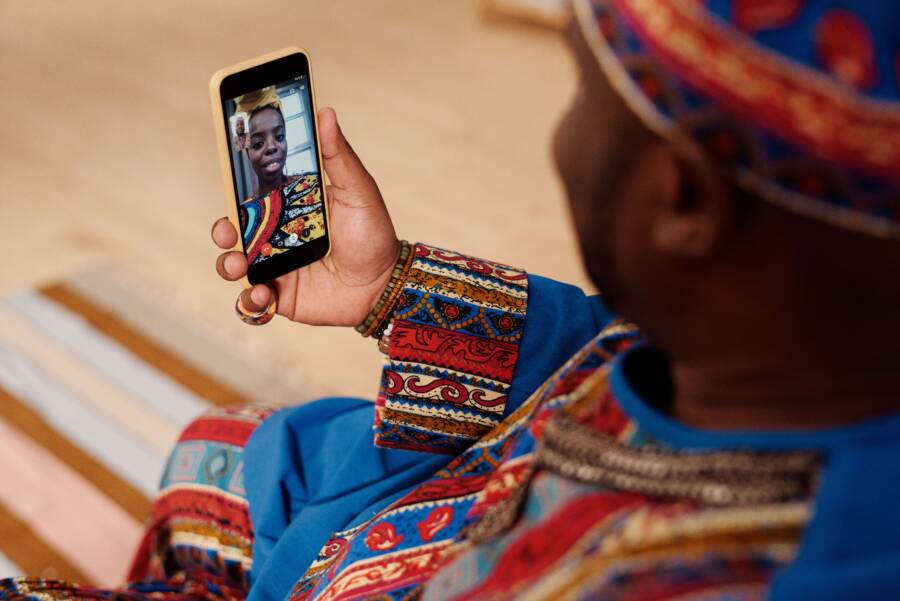
Failed video calls on your smartphone occur when your device cannot transmit data fast enough or the network restricts your connection. You can fix most of these interruptions by checking your data limits, toggling airplane mode, or updating your app permissions.
This guide helps you troubleshoot these connection barriers so you can return to your calls quickly. Following these practical steps will identify why your signal fails to support video traffic.
Quick Checks to Fix Cellular Data Issues
When your video call freezes or drops, your smartphone often struggles to maintain a consistent data stream. High-definition video requires a stable and continuous flow of information that slow or congested networks cannot provide. Before you search for complex settings, try these simple hardware and connection checks to restore your performance.
Verify Your Signal Strength and Network Coverage
Video calls demand reliable bandwidth, usually found on 4G LTE or 5G networks. When you see only one or two bars on your status screen, your smartphone lacks the upload speed necessary for smooth video transmission. Each bar represents your distance from the nearest cell tower and the quality of the connection between that tower and your device.
If you have low signal bars, your device constantly switches between different bands or towers to find a stable link. This creates the jittery video and garbled audio common during failed calls. You can often improve this by moving closer to a window, going outside, or stepping away from physical obstructions like thick concrete walls.
Check these factors to understand your current network status:
Location: Areas like basements or deep inside large buildings often block signals.
Network Type: Look for 5G or 4G icons in your status bar, as 3G or E symbols indicate connections too slow for video.
Obstructions: Metal structures and glass with specialized coatings frequently interfere with radio waves.
Toggle Airplane Mode to Refresh Your Connection
Sometimes your smartphone gets stuck trying to communicate with a distant, congested tower even when a closer one is available. Toggling airplane mode forces your device to drop its current network handshake and scan for the best nearby signal from scratch. This process clears temporary glitches in the modem software and often restores faster data speeds instantly.
Follow these steps to refresh your radio connection:
Swipe down or up to access your control panel or settings menu.
Tap the airplane icon to activate flight mode, which turns off all cellular and wireless radios.
Wait about ten seconds to allow the system to fully disconnect from the network.
Tap the icon again to disable airplane mode and permit your phone to reconnect to the strongest tower.
This action acts like a quick reboot for your cellular antenna. Most connectivity problems disappear once the phone re-establishes a fresh link with the tower. If the signal remains weak after this step, you might need to check if your service provider is experiencing an local outage or if your data plan hit its monthly limit.
How to Adjust Data Settings for Better Performance
Data settings control how your smartphone interacts with the network. When video calls struggle, the culprit is often a restriction on your data usage or an incorrect configuration within your device. Taking control of these settings prevents your phone from limiting performance during important calls.
Checking Your Monthly Data Limits and Caps
Most mobile plans include a set amount of high-speed data. Once you reach this limit, your carrier reduces your connection speed. This slowdown makes high-bandwidth activities like video calls nearly impossible. Even if your service remains active, the connection lacks the speed required to transmit video frames in real time.
You can verify your current status by logging into your carrier website or using their dedicated mobile application. Look for sections labeled “Data Usage” or “Plan Details” to see how much data remains in your billing cycle. If you hit your cap, consider upgrading your plan or purchasing a data add-on to restore full speeds.
Some smartphones include internal data monitors that track usage per app. Check these settings to identify if a background process consumed your remaining data. If your usage is high, disable automatic updates or high-quality video playback when connected to cellular networks. This ensures your remaining data goes toward your video calls rather than background tasks.
Enable Cellular Data for Specific Apps
Your smartphone has security settings that restrict mobile data access for individual apps to save power and bandwidth. If your video call app does not have permission to use cellular data, it will fail to connect unless you are on a Wi-Fi network. You must verify these permissions in your system settings to keep your video calls functional.
On an iPhone, follow these steps to manage app permissions:
Open the Settings app on your smartphone.
Tap the Cellular or Mobile Data menu.
Scroll down until you find your specific video call app in the list.
Toggle the switch to the on position to allow cellular data usage for that application.
If you use an Android device, the process is slightly different but equally straightforward:
Open the Settings menu on your smartphone.
Select Apps or Manage Apps.
Tap the specific video calling app from your installed list.
Select Mobile Data or Data Usage.
Ensure the toggle for Background Data or Allow Data Usage is enabled.
These adjustments confirm your device provides full network access to your communication tools. Test your connection after updating these settings by starting a short video call with a contact. Most apps work immediately once the system permission is granted. If the issue persists, review other battery-saving modes that might still restrict app background data even after you enable these primary settings.
Troubleshooting App-Specific Problems
Sometimes your cellular data works perfectly for browsing the web, yet a video call still fails to connect. This happens when a specific app struggles with the connection protocol or contains outdated files. Your smartphone acts as a bridge for these calls, and that bridge requires clean, updated software to function correctly. You can resolve most of these application errors by refreshing your installation and adjusting the internal quality settings.
Update or Reinstall Your Video Calling Apps
Software updates often contain fixes for known connection bugs that prevent calls from establishing. When you run an outdated version of a calling app, it may fail to handshake with modern cellular towers. Additionally, apps collect temporary data files known as cache files over time. Corrupted cache files often cause weird glitches, such as audio sync issues or complete connection drops.
Check for updates through your smartphone app store to see if a newer version is available. If the app is already updated, try these steps to clear out problematic data:
Locate the app icon on your home screen or in your settings menu.
Choose the option to clear the cache, or uninstall the app entirely if your phone lacks a specific cache clearing feature.
Restart your device to clear any remaining temporary memory.
Reinstall the app from the official store to ensure a fresh, clean configuration.
This process removes any corrupted files that previously hindered your connection. A fresh install ensures your app uses the latest communication protocols for your network. If the problem persists after this, your app might still try to request more bandwidth than your current signal allows.
Adjusting Quality Settings Inside the App
High-definition video consumes a large amount of data per second. When you operate on a cellular network with fluctuations in strength, your smartphone might struggle to sustain that high bitrate. Many apps default to the highest possible quality, which leads to call termination when the network hits a congestion point. Lowering the resolution within the app settings forces the software to use less data.
Reducing the video quality creates a more stable stream that fits within your available bandwidth. Look for these settings inside your calling app:
Find the Settings or Preferences menu inside the app interface.
Look for options labeled Video Quality, Data Usage, or Network Settings.
Switch from HD or Auto to a lower resolution like 480p or 360p.
Enable any “Data Saver” or “Low Data Mode” toggles if they appear in the menu.
These changes make your call more resilient to signal drops. By requesting less data, your app keeps the connection alive even when your signal bars flicker. Test this new setting during your next call to see if the connection remains consistent. If you still experience issues, check if the app has a specific setting for restricting video during mobile data usage, as this provides another layer of control over your connection performance.
Advanced Network Resets and Carrier Support
When basic troubleshooting steps fail to restore your cellular data, your smartphone might have deeper configuration errors or external service limitations. These issues often reside within the software layer of the modem or result from restrictions imposed by your mobile provider. Addressing these factors requires a systematic approach to identify whether the problem lies within your hardware or the cellular infrastructure itself.
Performing a Network Settings Reset
A network settings reset removes all saved cellular, Wi-Fi, and Bluetooth preferences from your smartphone. This action restores your device to its original factory state for all wireless communication. It effectively clears out corrupted cache files, conflicting APN settings, or residual configurations from previous system updates that hinder data traffic.
You should perform this reset only after trying simpler fixes, such as toggling airplane mode. Be aware that this process deletes saved Wi-Fi passwords, paired Bluetooth devices, and custom VPN configurations. Your device will restart automatically after the process finishes, forcing it to rebuild its network handshake from the ground up.
Follow these steps to reset your network settings:
Open the Settings app on your smartphone.
Navigate to General or System settings.
Select the option for Transfer or Reset, or sometimes Reset Options.
Choose Reset Network Settings and confirm your choice with your device passcode.
Once the phone boots back up, it will treat your cellular network like a new connection. This fresh start resolves most stubborn software conflicts that prevent stable video call performance. Remember to reconnect to your known Wi-Fi networks and re-pair any necessary Bluetooth accessories after the device finishes its reboot cycle.
When to Contact Your Cellular Provider
Sometimes, the bottleneck for your video call originates entirely outside your smartphone. If you have updated your software, reset your network settings, and verified your data plan, the issue likely involves the local cellular infrastructure or your account status. Contact your carrier directly if you notice signs that indicate a service-side failure rather than a hardware malfunction.
Monitor your phone for these specific scenarios to determine if your provider needs to intervene:
Your signal strength remains low or non-existent in locations where you previously had full service.
Other people using the same carrier in your immediate area report identical connectivity problems.
Your account status shows as active on your phone, yet the carrier system shows a suspended or restricted service flag.
You receive error messages specifically mentioning network registration failures or invalid SIM card status.
When you contact support, provide your exact location and the type of smartphone you own. Ask the representative to check for local tower outages or maintenance work in your vicinity. They can also perform a remote signal refresh on their end, which often clears registration issues that a local device reset cannot reach. If they confirm that your SIM card is old or damaged, they can initiate a replacement to ensure your device communicates correctly with the network towers.
Conclusion
Fixing video call issues on your smartphone starts with basic hardware checks and data limit verification. These steps resolve most connectivity barriers before you need to contact your carrier for assistance.
Apply this checklist if your connection fails:
Confirm your signal strength is stable and shows 4G or 5G.
Toggle airplane mode to force a fresh network handshake.
Verify that your video app has active permission to use cellular data.
Check your remaining monthly data balance and adjust app quality settings if necessary.
Reset your network settings if persistent software glitches disrupt your connection.
Keep your operating system and apps updated to maintain long-term reliability. Regular updates provide the latest communication protocols that keep your device functioning correctly on modern networks.