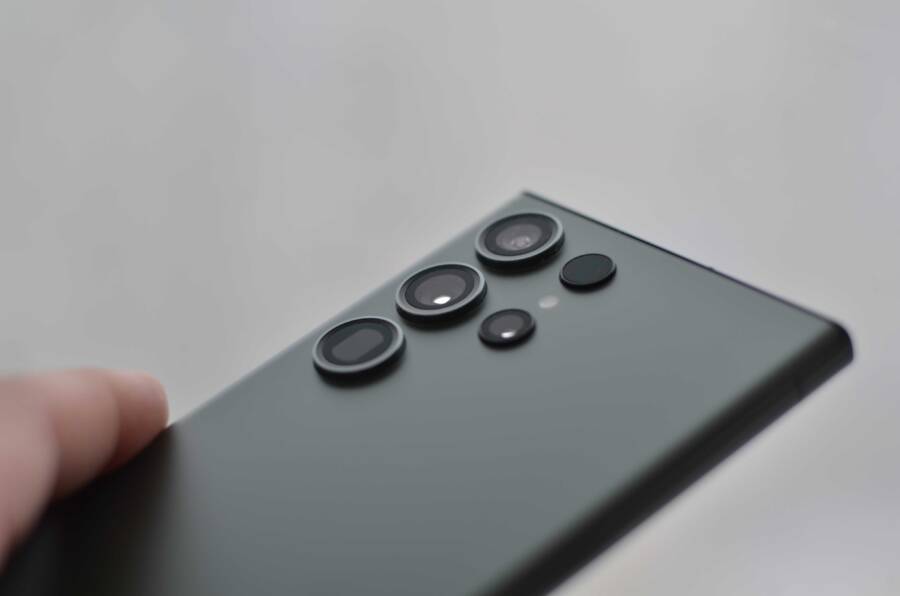
If your smartphone camera keeps launching on its own, you likely have a software setting issue or a physical button conflict. These accidental triggers are common on modern devices, but you can typically stop them by adjusting your lock screen shortcuts or cleaning your hardware.
This guide provides a thorough look at how to stop these unwanted captures by troubleshooting your software, physical buttons, and connected accessories. You will find that most issues disappear once you isolate the cause, whether it is a sensitive power button or an overactive gesture setting.
Quick Fixes for Common Smartphone Software Settings
Most accidental camera triggers stem from default gestures that prioritize speed over precision. While manufacturers design these features to help you capture moments before they disappear, they often become a nuisance when your smartphone shifts inside a tight pocket or bag. Adjusting a few internal settings typically resolves the issue without affecting your device performance.
Adjusting the Double-Press Power Button Shortcut
The double-press power button gesture is a primary culprit for unintended photo sessions on both major operating systems. On many Android devices, pressing the power button twice in rapid succession forces the camera open immediately. You can disable this behavior through your system settings. Navigate to your Settings menu and search for Gestures or Buttons. Look for the option labeled Jump to Camera or Quick Launch Camera and toggle the switch to the off position. Some manufacturers bury this under Advanced Features or System navigation menus, so use the search bar at the top of your settings window to save time.
iPhone users encounter a similar situation with the camera icon located on the bottom right of the lock screen. While you cannot delete the button entirely on recent iOS versions, you can adjust your physical handling habits to avoid it. If you use an older model with physical home buttons, you may find that double-clicking the home button triggers the camera. You can manage this by going into Settings, selecting Accessibility, and choosing the Side Button or Home Button menu. From there, adjust the click speed to Slow or customize the specific functions assigned to multiple presses. This adjustment ensures that only deliberate inputs trigger your camera application.
Managing Lock Screen Widgets and Shortcuts
Lock screen shortcuts provide quick access to your camera, but they sit in highly sensitive areas of your touchscreen. A simple brush of your thumb while pulling your smartphone out of a pocket is often enough to register a tap. Most modern Android interfaces allow you to swap these shortcuts for other tools or remove them entirely. Open your Settings, head to the Lock Screen section, and look for Shortcuts. You can select the camera icon and either replace it with a different app, like a flashlight or calculator, or choose the None option to disable the shortcut link.
Apple provides a different approach for iPhone users. The camera icon on the lock screen is a standard feature of the iOS interface. If you find yourself hitting it constantly, consider disabling the Raise to Wake feature. When this setting is active, the screen lights up with any movement, which makes the camera button vulnerable to accidental contact while the phone is in motion. Go to Settings, tap Display and Brightness, and toggle off Raise to Wake. You can also disable the Lock Screen access entirely by using Screen Time settings if you prefer to hide the camera icon from view. Using a case with a raised edge around the screen also creates a physical barrier that prevents accidental skin contact with the bottom corners of your display.
Checking Your Phone Case and External Accessories
Your smartphone case is meant to protect your device, but a poor fit often leads to phantom button presses. When a cover exerts constant, uneven pressure on your power or volume keys, the phone interprets this as an intentional command to launch the camera. Before you adjust your internal settings, you should verify if your accessories are causing the interference.
Testing Your Phone Without the Case
The most straightforward way to diagnose physical interference is to remove your phone case entirely. Once the device is bare, use it for several hours or throughout the day as you normally would. If the camera stops launching on its own, your case is the culprit.
Cheap cases often lack the precision engineering required to align perfectly with physical buttons. Over time, plastic or silicone materials warp, which causes the case to press down on the buttons even when the phone is resting on a flat surface. Even high-end covers can accumulate debris or stiffen, leading to similar issues. If you identify your case as the problem, replace it with a model that features tactile button cutouts or independent button covers that do not physically touch the internal hardware of your smartphone.
Identifying Sticky Buttons and Debris
Sometimes the issue exists within the phone hardware itself rather than the accessory. Pockets and bags act as magnets for lint, dust, and sticky residue. If these materials settle inside the small gap between the button and the frame, they can prevent the button from clicking back to its neutral position. When a button remains even partially depressed, your smartphone software might register an accidental, prolonged, or repeat input that triggers the camera app.
To check for this, run your finger along the edges of the buttons. They should feel snappy and responsive. If a button feels mushy or lacks a distinct click, you likely have debris trapped underneath. You can attempt to clear this by using a soft, dry toothbrush to gently scrub around the perimeter of the buttons while holding the phone at a downward angle. If the buttons remain unresponsive or stick frequently, avoid using liquid cleaners or sharp tools that could damage the water-resistant seals of your smartphone. Instead, consider visiting a service center to have the hardware cleaned by a professional.
Troubleshooting Software Glitches and System Updates
Software bugs often behave like phantom touches on your display or triggers for physical buttons. When your operating system encounters a conflict, it may misinterpret input signals and launch the camera app without your permission. Addressing these digital errors is usually a matter of systematic maintenance that resolves hidden software conflicts and restores standard behavior to your smartphone.
Updating Your Operating System
Manufacturers release regular software updates to fix stability issues and patch security vulnerabilities that cause unexpected app behavior. If a specific bug in your current firmware triggers the camera, installing the latest version is the most reliable way to clear the error. These updates frequently include optimizations for input processing, which helps the system distinguish between an intentional gesture and a background glitch.
Check for available updates by visiting your settings menu. On most devices, you will find this under System or General settings in a sub-menu labeled Software Update. If a version is pending, connect your smartphone to a charger and a stable Wi-Fi network before initiating the download. Restarting your device after the installation finishes allows the new code to stabilize and overwrite any faulty instructions that caused the previous issues. If the camera still launches accidentally after the update, you can feel confident that the core system is not the cause, which helps you narrow your search to specific app settings or physical obstructions.
When to Clear Cache and Reset Settings
Temporary files often accumulate as your smartphone runs various tasks throughout the day. Occasionally, these files become corrupted and create logic errors that cause the camera app to trigger without a direct prompt. Clearing the camera cache allows the application to discard these corrupted temporary data fragments while keeping your actual photos and videos completely safe.
To clear the cache on most Android devices, navigate to your Apps menu, select the Camera app, and open its Storage settings. You will see an option to Clear Cache, which resets the temporary operational data for that specific app. iPhone users generally do not have a manual cache clear option for system apps, so restarting the device is the standard way to refresh memory and clear background processes.
If these minor steps do not resolve the issue, a system settings reset acts as a final software-based solution. This process returns your preferences, such as Wi-Fi networks, Bluetooth pairings, and display layouts, to their default state without deleting your photos, contacts, or installed applications. Navigate to the System or General Management section of your settings to find the Reset option. Select Reset All Settings to eliminate any deep-seated software configurations that might be overriding your preferences. This action serves as a clean slate for your system architecture and removes potential conflicts caused by long-term usage or accidental configuration changes.
Advanced Hardware Solutions and Professional Repair
If your smartphone continues to launch the camera despite your best efforts to adjust settings or remove debris, the fault likely lies within the internal hardware. Physical switches and internal connectors wear out over time, especially with heavy daily usage. Understanding when a problem exceeds DIY capability helps prevent accidental damage and keeps your device functional.
Recognizing When a Button is Physically Damaged
Physical damage to the power button often manifests through subtle changes in how the button feels during operation. You should observe your hardware closely to determine if the internal mechanism is failing.
A button that requires excessive force to register a click, or one that clicks without providing any haptic feedback, often indicates internal spring fatigue. When you press the button, you should feel a distinct, mechanical resistance that snaps back immediately. If the button feels mushy or stays pressed down even after you release it, the internal contacts are likely stuck.
Another clear sign of physical damage is an “always-on” behavior. If your smartphone restarts unexpectedly or cycles through the camera app without any external input, the internal switch may be shorted. This happens when the conductive material inside the button housing degrades or when internal moisture corrodes the contact point. If you notice these symptoms, the physical switch has reached the end of its functional life.
Knowing When to Visit a Service Center
Deciding when to stop troubleshooting is as important as knowing how to fix the device. You should seek professional assistance if your attempts to clean or adjust the smartphone yield no improvement. Attempting to pry open a device to access button mechanisms poses significant risks to the internal circuitry and the integrity of the water-resistant seals.
Contact a manufacturer-authorized repair shop or a reputable professional if you encounter the following scenarios:
You suspect water or liquid damage has entered the button housing, as this requires internal cleaning to prevent long-term corrosion.
The buttons remain stuck or unresponsive after you have carefully removed external debris and debris-clearing attempts fail.
Your smartphone is still covered under a manufacturer or retailer warranty, as unauthorized disassembly will void your protection.
The device behaves erratically, such as ghost touches or spontaneous restarts, which often point to motherboard issues rather than simple button failure.
Professional technicians have access to calibrated tools and genuine replacement parts that ensure your smartphone remains sealed correctly. When a hardware repair involves removing the screen or the back panel, the risk of breaking delicate ribbon cables is high. Choosing professional service saves you from more expensive repairs down the road, and it ensures that your device maintains its intended performance.
Conclusion
Most camera issues on a smartphone stem from minor configuration errors or debris rather than hardware failure. You can solve the majority of these accidental launches by systematically adjusting your lock screen shortcuts and gesture settings.
Start your troubleshooting with the simplest software changes before moving to physical cleaning or system resets. If the problem persists after you update your system and clear the application cache, you likely need a professional to inspect the internal button mechanism.