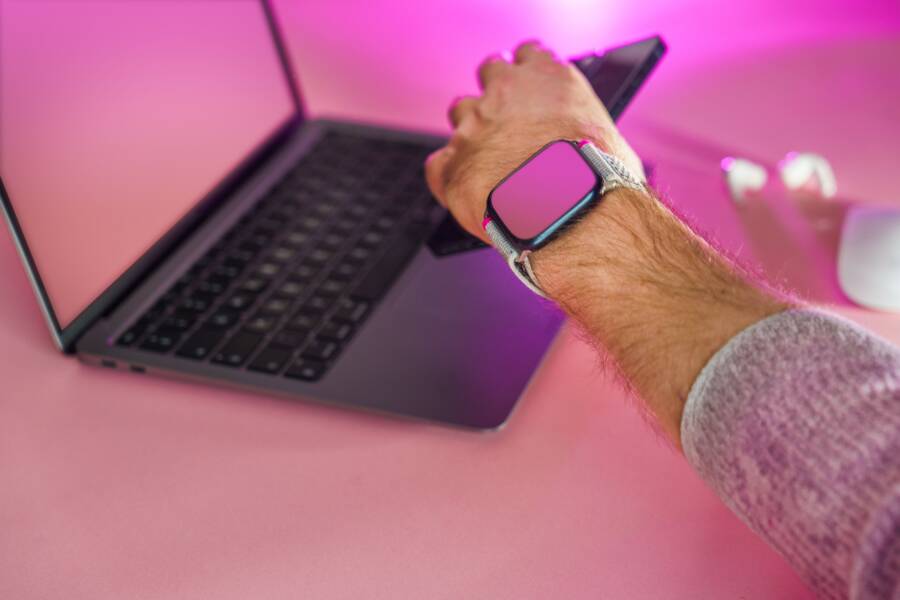
If your smartwatch keeps disconnecting from your smartphone, the issue usually stems from aggressive battery optimization, outdated firmware, or signal interference. You don’t need to be a technician to resolve this, as most fixes involve simple software adjustments that take only a few minutes.
You can often restore a stable connection by adjusting your phone settings and ensuring both devices run the latest software versions. This guide will walk you through the most effective ways to stop those annoying drops in connectivity.
Quick Checks to Keep Your Smartphone Connected
Maintaining a reliable link between your gear often requires more than just checking settings. When your connection drops unexpectedly, external factors or background software behavior are usually the primary culprits. You can resolve most connectivity problems by addressing physical spacing and permission settings on your smartphone.
Verifying Bluetooth Stability and Signal Strength
Bluetooth relies on low-power radio waves to exchange data between your wearable and your smartphone. While these signals travel through air with ease, solid objects or electromagnetic interference can weaken the link. Large metal surfaces, thick concrete walls, or densely packed electronic components often act as shields that degrade signal quality.
Electronic devices operating on the 2.4 GHz frequency also pose a significant challenge. Common household items like Wi-Fi routers, microwaves, and cordless phones can flood the immediate environment with noise, making it difficult for your wearable to maintain a consistent handshake with the phone.
To minimize these disturbances, consider the following:
Keep your smartphone within three to five feet of your wearable during initial pairing or firmware updates.
Avoid placing your phone near high-traffic Wi-Fi access points that compete for airtime on the same frequency band.
Remove bulky metal cases from your smartphone, as these can physically block the internal antenna from broadcasting a clean signal to your wrist.
If you suspect environmental noise is the issue, test the connection in a different room or away from large electronic hubs. If the signal stabilizes, you have identified the source of the interference.
Ensuring the Dedicated App Remains Active in the Background
Modern smartphone operating systems prioritize battery longevity by aggressively managing background processes. If your device identifies the companion app as a heavy consumer of power, it will stop the app entirely to preserve energy. When the app stops, the bridge between your watch and your phone snaps, leading to missed notifications and sync failures.
You must whitelist the app within your phone battery settings to prevent this behavior. The path to this setting varies by manufacturer, but the goal is to give the app unrestricted access to your device background.
Open your phone settings and navigate to the Apps or Battery section.
Select the specific companion app used for your smartwatch.
Look for battery optimization or battery usage settings within that app menu.
Set the battery usage preference to Unrestricted or Do Not Optimize.
By choosing these settings, you tell the smartphone operating system to ignore this specific app when it initiates battery-saving routines. This adjustment allows the app to maintain a constant, low-energy socket with your watch throughout the day. If you find the connection still drops, verify that the app also has permission to access your location and nearby devices, as these permissions are often required to maintain active Bluetooth discovery protocols.
Adjusting Smartphone Battery Optimization Settings
Your smartphone manages power consumption by limiting background activity for apps it deems non-essential. While this saves battery life, it often disconnects your wearable device. If the system forces the companion app into a sleep state, your watch loses its constant data feed. You need to adjust your settings to prevent this aggressive management from breaking your connection.
Excluding the Wearable App from Power Saving Modes
To keep your connection active, you must exempt the companion app from standard power-saving constraints. On Android, the exact path depends on your device manufacturer, but the process remains consistent. Navigate to Settings and select Apps or Manage Apps. Locate your wearable companion app in the list, tap on Battery or Battery Usage, and change the setting to Unrestricted. This prevents the operating system from terminating the app when you lock your smartphone screen.
On an iPhone, the process involves a different feature called Background App Refresh. This setting allows apps to update their content even when you aren’t currently using them. To confirm this is active for your wearable app, follow these steps:
Open your iPhone Settings.
Scroll down to find the specific app used for your smartwatch.
Toggle the switch for Background App Refresh to the On position.
Ensure Bluetooth permissions are enabled within the same app menu.
Disabling low power mode on your iPhone also helps. This mode restricts background activity globally to preserve charge, which frequently impacts Bluetooth stability. If you notice connectivity drops while your battery is low, turn off low power mode in the Control Center or within the Battery section of your settings.
Managing System-Wide Battery Savers
Many smartphones include extreme power-saving modes designed to extend battery life during emergencies. These modes turn off non-essential services, reduce screen brightness, and limit background data. Because Bluetooth connectivity requires active, consistent communication between your devices, these savers often prioritize energy preservation over your wearable link.
Using these modes creates a clear trade-off between device longevity and persistent connection. When you enable an aggressive power-saving mode, your smartphone will likely sever the Bluetooth handshake to stop the app from syncing data. This is helpful if you are stranded with low power, but it is counterproductive for daily use.
Consider these factors when deciding whether to use extreme battery modes:
Power-saving features disable background synchronization, which stops incoming notifications on your watch.
High-performance modes provide better connection reliability because they allow the smartphone to maintain active radio states.
You can manually toggle Bluetooth back on after enabling a power saver, but the system may still periodically kill the companion app to save energy.
If you rely on your watch for real-time alerts or health tracking, avoid extreme battery-saving modes. Keep your smartphone charged and use standard optimization settings instead. This provides enough power to keep your wearable linked while avoiding the harsh restrictions that force disconnection. If you must use a battery-saving mode, check your connection status immediately after the phone charges again, as the system sometimes forgets to restart the sync process.
Software Updates and Troubleshooting Steps
Connection issues often arise because software environments on your smartphone and wearable are out of sync. When manufacturers release patches, they frequently fix communication protocols that govern how your devices talk to each other. Keeping both systems current is the most reliable way to prevent frequent drops.
Updating Firmware on Both Devices
Outdated software is a common cause for connectivity bugs. Developers regularly issue updates to improve Bluetooth stability and address known glitches that cause devices to unpair randomly. If your smartphone runs a recent operating system version while your watch uses older firmware, the two devices may struggle to maintain a stable handshake.
Check for updates on your smartphone by visiting the system settings menu. If an update is available, install it before checking the companion app for your watch. Many wearables require a separate update process through their dedicated application. Keep the watch charging during this process, as firmware installation drains battery power quickly. If the battery level is too low, the update might pause or fail, leaving the device in a state where it cannot connect properly.
Following a successful update, restart both devices to force them to initialize the new software code. This refresh clears temporary memory errors that often persist after a system update. If the issue remains after both devices run their latest versions, you may need to move toward a full reset of the connection to clear out corrupt configuration data.
Re-pairing Your Watch for a Fresh Start
If you still experience persistent handshake errors after updating, a clean slate is your best option. Unpairing the devices removes the old link and deletes the temporary cache files that might contain broken instructions. This process forces the smartphone to recognize the watch as a brand-new device, rebuilding the security keys and connection protocols from scratch.
To properly reset your connection, follow these steps:
Open your smartphone Bluetooth settings and find the smartwatch in the list of paired devices.
Select the option to forget, unpair, or remove the device from the list.
Open the companion app on your phone and delete the watch profile if the app allows it.
Perform a factory reset on the smartwatch itself through its internal settings menu.
Restart your smartphone to clear any remaining Bluetooth cache data.
Open the companion app again and initiate the pairing process just as you did when the watch was new.
Clearing the cache on your phone helps ensure no leftover data interferes with the new pairing. On Android devices, you can manually clear the Bluetooth cache by accessing the system app list, selecting the Bluetooth app, and choosing clear storage. While this step is not always necessary, it prevents old connection logs from causing conflicts. Once you pair the devices again, the connection should remain stable unless the phone’s battery optimization settings continue to interfere with the background process.
Hardware Problems and When to Contact Support
Even with perfect settings, physical damage or internal component failure can prevent your smartwatch from staying connected. Hardware issues often present as erratic behavior, physical damage, or a complete refusal to turn on. If you notice signs of hardware fatigue or structural damage, software fixes will not resolve the problem. Recognizing these physical symptoms early prevents further damage to your expensive smartphone or smartwatch.
Identifying Physical Damage and Sensor Failure
Internal sensors in your smartwatch detect motion and heart rate, but they also rely on stable internal circuitry to maintain radio connections. Dropping your device on a hard surface or exposing it to extreme heat can loosen these internal components. If the device chassis appears warped, cracked, or shows signs of swelling, the battery or a structural piece is failing. You must stop using the device if the screen lifts or the casing separates, as these indicate a serious battery safety hazard.
Corrosion is another common hardware failure, especially for devices marketed as water-resistant. Soap, saltwater, or pool chemicals can degrade the seals that protect the internal electronics of your smartwatch. You might see a persistent gray screen, hear muffled audio, or notice that the device reboots randomly. These behaviors point to liquid ingress that has damaged the motherboard. If you suspect moisture inside the casing, turn the device off immediately and place it in a dry area.
When to Seek Professional Repair Services
Not every connection issue warrants a repair shop visit, but certain signs clearly indicate a failed component rather than a configuration error. If you have factory reset your devices and still face dropped connections, the Bluetooth radio antenna inside the watch or the smartphone is likely malfunctioning.
Consider contacting support or a technician in the following situations:
The smartwatch casing is bulging or feels hot to the touch while idle.
You see visible damage to the charging pins, preventing the device from receiving a full charge.
The screen displays horizontal lines, dead pixels, or flickers during standard use.
Neither a factory reset nor a full software update resolves the inability to discover Bluetooth signals.
Contacting the manufacturer is the best path forward if your device remains under warranty. Most brands offer official support portals that track repair requests by serial number. Prepare your proof of purchase and a brief summary of the troubleshooting steps you already tried. This preparation saves time during the support call and often speeds up the replacement process. If the device is out of warranty, check if your credit card or local electronics store offers extended coverage before you pay for an independent repair service.
Conclusion
Most persistent connectivity problems stem from aggressive battery management on your smartphone. By adjusting these settings to allow the companion app unrestricted background access, you solve the primary cause of daily connection drops.
Test your connection after you change each setting to see which adjustment works for your specific hardware. If software tweaks do not resolve the issue, evaluate the device for physical damage or signal interference. A stable link between your watch and your smartphone relies on clear communication, so keep your software updated to maintain these protocols.