When your smartphone fails to detect an SD card, the problem usually stems from a minor software glitch, dirty metal contacts, or a faulty memory card. Most issues resolve quickly with basic troubleshooting steps like restarting your device or cleaning the card.
If these simple fixes don’t restore access to your storage, a deeper hardware conflict or a corrupted file system might be to blame. You can often restore the connection by following a few methodical steps to isolate the cause.
Continue reading to identify why your device is struggling to read your card and how to resolve the connection error.
Quick Fixes for Common SD Card Detection Issues
When your smartphone fails to recognize an external memory card, the issue is often related to a minor software conflict or a physical connection fault. Most users can resolve these problems without professional repair services. Following simple, logical troubleshooting steps helps determine if the error originates from the device settings or the card hardware itself.
Refreshing Your Connection with a Simple Restart
A restart is the most effective way to clear temporary cache errors that interfere with hardware detection. When a smartphone stays powered on for extended periods, background processes can occasionally lock up or malfunction. This prevents the operating system from correctly identifying peripherals like SD cards.
Turning the device off and back on forces the phone to re-scan all hardware components upon reboot. During this startup phase, the system reloads drivers and checks for mounted storage devices. If a software glitch caused the connection to drop, a clean reboot typically clears the internal memory states responsible for the error.
If the card remains undetected after a restart, you should also consider toggling the Airplane mode on and off. This forces the device to refresh its internal communication modules without requiring a full system reboot. These quick actions often resolve hidden bugs that stop your phone from communicating with external storage.
Cleaning the Contacts to Restore Communication
Physical debris or oxidation on the metal pins can block the electrical signal between your card and the smartphone. Over time, microscopic dust or moisture buildup prevents a solid connection. Cleaning these contact points is a standard maintenance task that often restores functionality immediately.
Power off your phone completely and remove the card tray or access panel.
Carefully slide the SD card out of its slot using the manufacturer-provided tool.
Inspect the gold contact plates for visible signs of dust, grime, or dark spots caused by oxidation.
Use a clean, dry microfiber cloth to wipe the metal surface gently.
If the grime persists, apply a tiny amount of high-percentage isopropyl alcohol to a cotton swab.
Lightly rub the contacts until they look clean and let the surface air dry for one minute.
Reinsert the card firmly and turn the phone back on to check for detection.
Avoid using harsh chemicals or abrasive materials such as sandpaper or rough paper towels. These items damage the delicate gold plating and render the card permanently unusable. If you notice any physical damage or deep scratches on the pins, the card may have reached the end of its lifespan. In such cases, the device cannot maintain a reliable electrical link, and you should consider replacing the storage unit.
Troubleshooting Software Settings and Permissions
Software conflicts often stop a smartphone from recognizing an SD card even when the physical connection is secure. You can usually find the source of these errors within the system menus. Checking the status of your storage tells you whether the phone identifies the card at all or if the file system is currently unreadable.
Managing Storage Settings on Your Smartphone
Your device includes a dedicated storage manager that displays the status of every connected drive. If your SD card appears as unmounted or corrupted, the system is attempting to interact with the hardware but failing to read the data structure. You can verify this status by following a standard path in your settings menu.
Open your phone settings and look for the storage or device care section. This area lists internal memory alongside any external media inserted into the tray. If the external storage section shows the card as unmounted, the operating system knows it is there but refuses to access the files. You can often fix this by tapping the mount button provided in the menu.
If the menu labels the card as corrupted, the file system on the card is likely incompatible or damaged. In these cases, the system might offer an option to format the card. Formatting wipes all existing data to create a fresh file structure, so only take this step if you have already backed up your files. If the menu shows no external card at all, your smartphone is failing to detect the hardware on a deeper level.
Updating System Software to Fix Compatibility Bugs
Manufacturers frequently release software updates to improve how hardware components communicate with the operating system. An outdated system might struggle to support high-capacity SD cards that use modern file protocols like exFAT. If you recently upgraded your storage to a larger card, your older software version may not recognize the high density of that card.
Check for available system updates by navigating to the software update section in your settings. If a pending patch exists, install it immediately to ensure your device has the latest drivers for external media. These patches often resolve internal bugs that block communication with specific card brands or hardware formats.
Some older smartphone models have hard-coded limits on the size of SD cards they can support. If your device manual specifies a maximum capacity of 32GB, inserting a 256GB card will likely result in an error or a failure to detect the media. Always verify your device specifications before purchasing new storage to prevent these common compatibility issues. If the software is current and the card remains undetected, the problem likely lies with the card hardware itself.
Evaluating Whether Your SD Card Is Corrupted
Determining if an SD card is truly broken requires testing it outside your smartphone. If your device cannot see the card, you must confirm if the issue is a faulty card slot or a damaged memory chip. Moving the storage to a different environment isolates the problem and reveals the next steps for recovery.
Testing Your Card with a PC or Laptop
Connecting your memory card to a computer is the best way to bypass your smartphone hardware. Most laptops have built-in SD card readers, but you might need a USB adapter for microSD cards. Once you insert the card into the reader, your operating system will attempt to mount the volume.
If your computer detects the card immediately, your smartphone likely has a damaged internal pin or a software configuration error. You can then copy your files to your computer hard drive to keep them safe. However, if the computer also fails to show the card, the memory controller on the card itself has likely failed.
Follow these steps to check the card status on a Windows PC:
Insert the card into your computer.
Open File Explorer to see if a new drive letter appears in the sidebar.
Right-click the Start button and select Disk Management.
Look for your card in the list of connected storage devices.
If the system labels the card as RAW or unallocated, the file system is corrupted.
If the computer does not recognize the hardware at all, try using a different adapter or a USB port on the back of the desktop tower. A faulty USB port often misleads users into thinking the SD card is the problem. Should the card remain invisible across multiple computers, you can conclude the hardware is dead.
Formatting Options for Unreadable Media
Formatting is the final resort for an unreadable SD card. This process wipes the entire file system and creates a fresh structure, which fixes most software corruption issues. You must understand that formatting deletes every file currently stored on the card. Never perform this step unless you have already attempted a data recovery scan or you accept that the data is lost.
You should format the card if your computer sees the drive but cannot open it. If your device displays a partition error, the card is often physically intact but logically scrambled. Use the FAT32 or exFAT file system format during the process to ensure the card stays compatible with your smartphone.
If the system returns an error like “Windows was unable to complete the format” or “Device I/O error,” the card is physically beyond repair. These errors indicate that the internal NAND flash memory has reached its write limit or suffered a catastrophic failure. In these situations, the card is usually a total loss. Replacement is the only path forward when the storage hardware refuses to accept new formatting commands.
When to Consider Professional Repair or Replacement
You should seek professional help or replace your hardware when standard software troubleshooting fails to resolve detection issues. Often, an SD card issue stems from user-fixable software settings. However, physical damage to the card or the internal smartphone hardware requires a different approach. Recognizing these limits saves you time and prevents further damage to your device.
Signs of Permanent Hardware Failure
Physical damage is rarely reversible. If you suspect your card or phone slot is broken, look for clear warning signs. First, inspect the gold contacts on your SD card. If they appear scorched, deeply scratched, or bent, the hardware is damaged beyond repair. A phone cannot establish a clean electrical connection with compromised pins.
Furthermore, you should consider replacement if your card consistently displays errors across multiple devices. If you test your card in a laptop or a second phone and it remains undetected, the internal memory controller is likely dead. Cards often stop working due to reaching their maximum write cycles. When this happens, the memory chips enter a read-only state or fail completely. In such cases, data recovery services are expensive and rarely yield success for individual users.
When a Repair Shop is the Better Choice
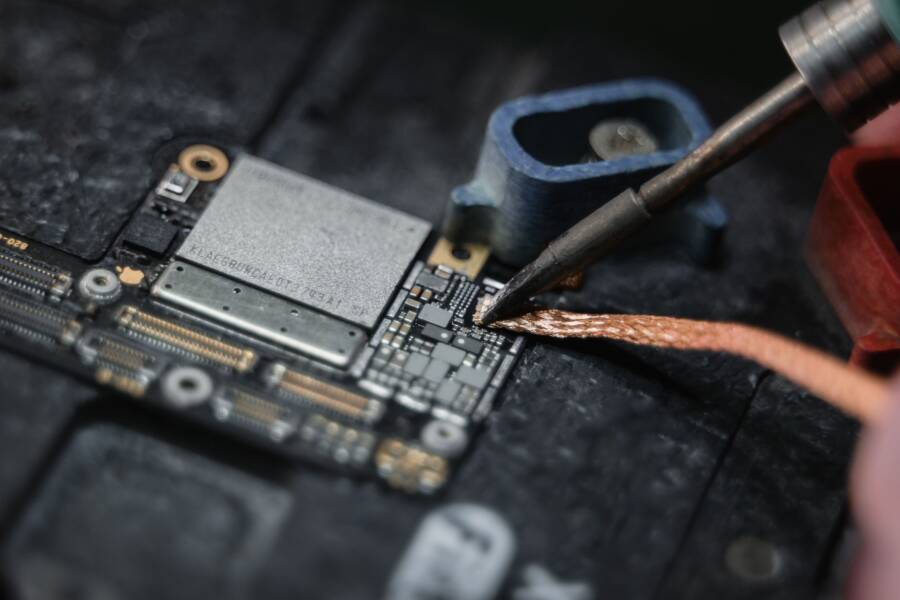
Professional technicians are necessary if the issue originates within the smartphone itself. If you have confirmed that your SD card works in other devices, your smartphone likely has a faulty card reader slot. Repairing this component requires opening the device, which often involves heating the adhesive or removing delicate ribbon cables.
A professional repair shop is your best option if the following conditions apply:
You suspect debris is trapped inside the deep recesses of the internal card slot.
Your phone suffered a recent drop or liquid damage that coincided with the detection error.
You need to retain your current device setup and cannot easily perform internal board repairs yourself.
Technicians have access to specialized microscopes and cleaning tools designed for tight spaces. They can also perform a voltage test on the card reader pins. If a pin is loose or disconnected from the motherboard, they can solder it back into place. Attempting this level of repair yourself frequently leads to broken screen glass or severed internal cables. If your smartphone is still under warranty, contact the manufacturer first. Unauthorized repairs usually void your protection plan and may prevent future support for your device.
Conclusion
Most detection issues with your smartphone arise from simple software glitches or minor physical interference. You can resolve these common errors by restarting your device or gently cleaning the contact points on the card.
If these steps fail to restore functionality, test your card in a separate computer to identify whether the hardware has failed. Persistent issues usually indicate that the card has reached its end of life or the internal slot requires professional repair.
Regularly back up your important photos and documents to a cloud service or computer hard drive. Maintaining a secondary copy of your data protects your files if a memory card fails unexpectedly.