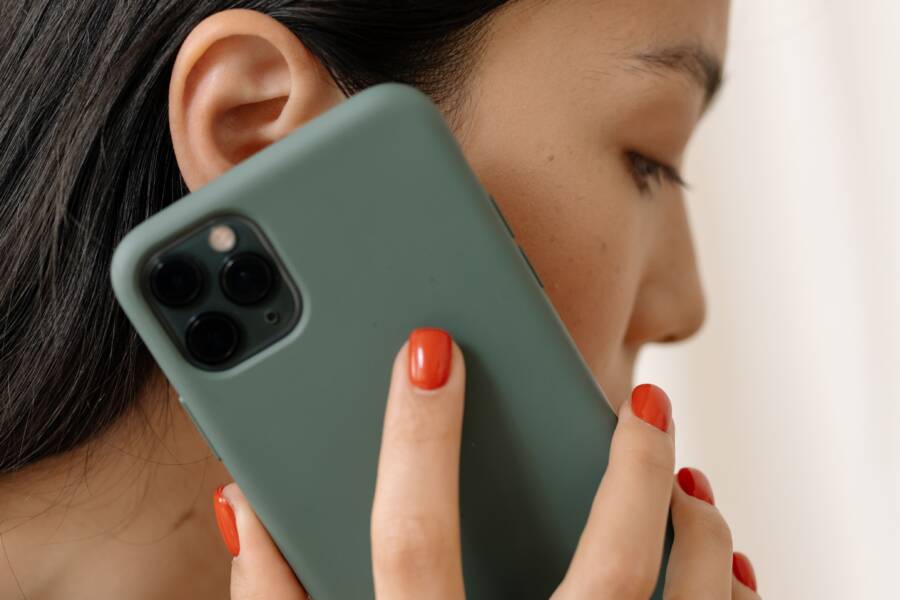
When your smartphone suddenly goes silent during a call, you don’t necessarily need a hardware repair or a new device. This common issue often stems from a software glitch or a blocked proximity sensor rather than a broken speaker component.
You can fix most audio problems by adjusting your internal settings or cleaning your hardware. This guide provides step-by-step instructions to troubleshoot and restore your earpiece audio without requiring professional tools.
Continue reading to identify the cause of your sound issues and restore clear audio to your device.
Quick Fixes for Common Call Audio Issues
When your smartphone stops producing sound during a call, the cause is often a simple software misconfiguration or a physical obstruction rather than a permanent hardware failure. Most users can resolve these audio interruptions by following a few targeted troubleshooting steps. You should examine these common culprits before you consider a professional repair or device replacement.
Checking Your Proximity Sensor for Obstructions
Your smartphone uses a proximity sensor to detect when the device is pressed against your ear. This sensor automatically disables the touchscreen and turns off the earpiece display to prevent accidental inputs and conserve battery power. If the sensor remains covered, the phone keeps the earpiece audio disabled even if you move the device away from your head.
Accumulated dust, oil, or an improperly fitted screen protector often triggers this response. Many third-party cases or heavy-duty protectors also contain small gaps that trap debris directly over the sensor array. If the sensor detects an obstruction, it assumes the phone is still in use and blocks audio from the earpiece.
You can troubleshoot this by inspecting the area around the top speaker grille. Wipe the top portion of the screen with a clean microfiber cloth to remove smudges. If you recently applied a new screen protector, ensure it does not overlap the sensor cutout located near the front camera. Removing a faulty or misaligned case often reveals if the obstruction was physical rather than internal.
Toggling Speakerphone to Reset Audio Routing
Sometimes the audio routing software on your smartphone becomes unresponsive, causing the system to send call audio to a non-existent output. This error frequently happens when the device fails to switch back to the earpiece after a hands-free session. You can force a reset of this audio handshake by manually toggling the speakerphone mode.
During an active call, tap the speakerphone icon on your screen to enable the external speaker. Wait for two or three seconds to confirm that sound is playing through the main speaker. Once you confirm audio output, tap the icon again to turn off the speakerphone. This action forces the operating system to re-establish the connection to the internal earpiece and often clears stuck software flags. If this does not work on the first attempt, repeat the process while ensuring your volume settings are adjusted to the maximum level.
Verifying Bluetooth Connections and Hidden Audio Devices
Lost earpiece audio often results from your smartphone secretly broadcasting sound to a nearby wireless device. If your phone is connected to a pair of earbuds left in another room, or a smart speaker in your car, it will route all call audio to that hardware instead of your ear. This connection remains active even if you are not currently using the peripheral.
You should verify your connection status by following these steps:
Open the settings menu on your device and navigate to the Bluetooth section.
Check if the status indicates an active connection to an unknown or secondary device.
Toggle the Bluetooth switch to the off position to disconnect all paired peripherals immediately.
Test the call audio again while Bluetooth remains disabled to confirm if a connected device was the source of the silence.
Disabling Bluetooth is the most effective way to rule out external audio interference. If the sound returns immediately after you turn off Bluetooth, you know that a paired speaker or headset was causing the conflict. You can then re-enable Bluetooth and manually disconnect specific devices one by one to identify which peripheral caused the issue.
Digging Deeper into Smartphone Software Settings
When physical checks fail to resolve your audio issues, your smartphone might be struggling with corrupted internal data. Your device stores temporary files to help applications run faster, but these files occasionally become outdated or damaged after a system update. This conflict disrupts the communication between your calling app and the hardware, leading to silent calls. Clearing these caches is a safe, non-destructive way to force your device to rebuild its connection files without losing your personal data or photos.
Clearing the Phone Cache and App Data
Applications like your dialer often store call logs, settings, and temporary configurations in a cache folder. If a recent update installed incorrectly, these residual files might clash with your current software version. Clearing this data removes the problematic files while keeping your contacts and history intact.
Follow these steps to refresh your calling application:
Open the Settings app on your smartphone and select Apps or Application Manager.
Locate the Phone app in the list. You may need to select “Show system apps” from the menu if it does not appear initially.
Tap on Storage and select Clear Cache.
If the issue persists, select Clear Data or Clear Storage to reset the app settings to their original state.
Restart your device immediately after performing these steps to allow the operating system to re-index the app files.
Identifying Conflicting Third-Party Call Apps
Many users install additional software to enhance their smartphone experience, such as call recorders, custom dialers, or voice-over-IP clients. These programs often hook into the primary call routing system to capture audio or modify the interface. If these apps are poorly optimized, they can intercept the audio stream and prevent it from ever reaching your earpiece.
You can identify if a third-party app is the culprit by booting your phone into Safe Mode. This mode disables all downloaded apps and runs only the pre-installed software. If your earpiece audio works perfectly in Safe Mode, you have confirmed that a third-party application is causing the conflict. Start by uninstalling recent additions, especially those related to call recording or VoIP services, to see if the problem resolves. You should also check the permissions list for your apps to ensure that your default dialer is the only one granted access to microphone and phone functions.
Updating System Firmware for Bug Fixes
Manufacturers frequently push software updates to address known glitches that affect hardware performance, including earpiece connectivity. If your audio failure is a widespread bug, your smartphone developer likely already released a patch to correct the routing error. Keeping your firmware current ensures that your device maintains compatibility with the latest network and system requirements.
Check for available updates by following this procedure:
Open your Settings menu and scroll down to System or Software Update.
Tap on Check for Updates to see if the manufacturer has a pending download.
If an update exists, connect to a stable Wi-Fi network and ensure your battery is at least 50% charged.
Select Download and Install to begin the process.
Your device will restart automatically once the update finishes. Test your call audio immediately after the phone powers back on. Even if an update does not mention audio fixes specifically, these patches often reset internal drivers that might be responsible for your missing sound.
Physical Maintenance and Cleaning for Your Earpiece
Daily use often leads to a buildup of debris, skin oils, and lint inside your smartphone speaker grill. Over time, these particles pack into the mesh, creating a physical barrier that muffles sound or stops it entirely. Regular, gentle cleaning restores audio clarity and prevents permanent blockage.
The Right Way to Clean the Earpiece Grill
You must proceed with caution when cleaning the earpiece grill. Because the mesh protects sensitive internal components, applying too much pressure or using sharp metal tools causes irreparable damage to the speaker diaphragm.
Stick to these soft tools to remove surface obstructions:
Soft-bristled toothbrush: Use a clean, dry brush with very soft bristles to gently sweep across the grill. Angle the phone downward so that gravity helps dislodge the dust rather than pushing it further into the device.
Sticky tack or putty: Press a small, clean ball of adhesive putty onto the grill mesh. Pull it away slowly to lift out embedded lint or dust without leaving residue behind.
Air duster: If you have a compressed air canister, hold it at least six inches away from the phone. Give short, controlled bursts of air to blow out loose particles. Never spray directly into the grill at close range, as the high pressure can rupture the internal speaker seal.
Avoid using liquids, cleaning sprays, or sharp objects like needles and toothpicks. Moisture promotes corrosion inside the speaker chamber, while sharp objects often puncture the delicate mesh or damage the speaker assembly itself.
Recognizing Signs of Internal Water Damage
Smartphone speakers are highly sensitive to moisture. Even if you haven’t dropped your device in water, high humidity, steam from a bathroom, or liquid spills near the top grill can lead to erratic audio behavior. Internal water damage creates specific symptoms that you can identify before concluding the hardware is fully dead.
Watch for these indicators of moisture-related failure:
Muffled or distorted sound: If audio sounds crackly, underwater, or inconsistent despite a full volume setting, moisture may have compromised the electrical connections or the speaker cone itself.
Volume fluctuations: Water can cause short circuits in the volume control circuitry. If your audio levels jump up and down on their own, the internal components likely have moisture present.
Visible discoloration: Examine the grill mesh under a bright light. White, chalky, or brownish spots on the mesh suggest oxidation or mineral deposits from dried liquid.
System alerts: Some devices display an error message notifying you of moisture in the charging port or speaker area. Do not ignore these warnings, as they indicate the presence of liquid that can damage the logic board.
If you suspect water damage, the most effective step is to power down the device immediately to prevent further electrical shorts. Place your smartphone in an area with good airflow for several hours to allow trapped moisture to evaporate. Avoid extreme heat, such as using a hair dryer, because high temperatures melt internal adhesives or damage the screen components. If audio issues persist after a full drying period, the internal hardware likely requires a professional inspection.
When to Consider Professional Repair Services
You should contact a professional technician if your efforts to resolve software conflicts and surface-level blockages fail. While many audio issues disappear after a simple restart or a quick cleaning, internal hardware failures require specialized diagnostic tools. Attempting deep repairs on a smartphone without proper training often leads to broken ribbons, damaged screen connectors, or compromised seals.
Recognizing Irreparable Hardware Failure
Persistent silence indicates the earpiece speaker or the audio processing chip on your motherboard has failed. If you have performed a factory reset and verified that no apps or Bluetooth connections are intercepting the sound, the problem is likely mechanical. Professionals possess the equipment to test voltage at the speaker contact points and identify whether the motherboard is failing to send a signal.
Signs that you need professional help include:
The audio remains silent even when the phone runs in safe mode or after a factory reset.
You hear no sound during speakerphone tests, which suggests a failure in the main audio codec.
The phone suffered a significant physical drop or impact shortly before the audio cut out.
You notice physical damage, such as a cracked frame or a distorted screen, near the top of the device.
Assessing the Cost and Warranty Implications
Repairing a smartphone earpiece is often more affordable than replacing the entire device, provided the damage is limited to the speaker module. Many manufacturers or third-party repair shops offer flat-rate pricing for speaker replacements. Always check your warranty status before visiting a shop. If your device is under a manufacturer warranty, unauthorized opening of the case voids your coverage.
Authorized service centers provide genuine components that match your specific model requirements. Using non-official parts often leads to poor audio quality or secondary software issues after a system update. When you choose a repair service, ask if they provide a warranty on their labor and parts. A reliable shop usually guarantees their work for at least 90 days.
Preparing Your Device for Professional Service
Before you hand over your smartphone, you must protect your privacy and ensure the technician has access to the necessary functions. Start by backing up all personal data, photos, and messages to a cloud service or an external hard drive. This prevents data loss if the technician needs to perform a full system restore during the diagnosis.
Take these steps to prepare your device:
Disable Find My iPhone or your Android equivalent to remove the activation lock.
Remove any passcodes, patterns, or biometric locks so the technician can test the audio.
Remove your SIM card and any external memory cards to keep your personal data and identity secure.
Note down the specific time or conditions when the audio failure occurs to help the technician isolate the issue.
Professional technicians value clear communication. Providing a concise history of when the problem started helps them avoid redundant testing and speeds up the repair process. If you follow these precautions, your device remains secure while the specialists work to restore your call audio.
Conclusion
Most call audio failures on a smartphone stem from minor software glitches or external obstructions rather than permanent hardware damage. You can typically restore sound by clearing your app cache, toggling your Bluetooth, or cleaning the speaker grill with a soft brush.
Start your troubleshooting with these simple, non-invasive steps before considering more complex solutions. Persistent silence despite these attempts often indicates a need for professional repair or a deeper internal diagnosis.
Keep your device software updated and perform regular maintenance to prevent future audio interruptions. If you continue to experience problems after trying every step in this guide, check your manufacturer warranty status to explore your next options.