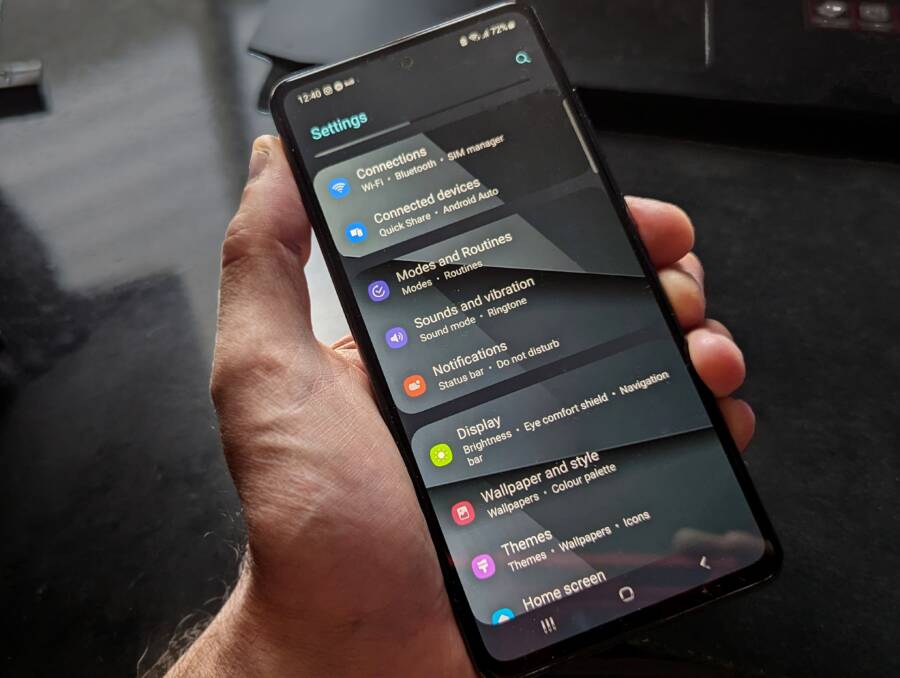
If your smartphone keeps switching back to dark mode the moment you enter full-screen mode, it is usually because of an aggressive power-saving setting or a specific app override. You can fix this behavior by disabling “Auto-dark” features in your system display settings or by checking individual app permissions.
These glitches often happen when your phone thinks it needs to conserve battery or protect your eyes during video playback. Understanding these triggers allows you to regain control over your display preferences. Let’s look at how you can stop these interruptions and keep your light theme consistent.
Understanding Why Your Smartphone Theme Defaults to Dark
Your smartphone often switches to dark mode because modern mobile operating systems prioritize battery longevity and visual comfort. When you open a high-energy app or enter full-screen mode, the system assumes you want to save power or reduce glare. This behavior is usually an automated response rather than a random glitch.
The Role of Battery Saver Algorithms
Software developers design your smartphone to manage energy consumption automatically. Dark pixels require less power on OLED or AMOLED displays because the individual diodes turn off completely. When your device detects that you are consuming media in full screen, it interprets this as a high-drain activity. Therefore, it shifts the interface to a dark theme to minimize the total energy pull from the battery.
If your battery drops below a specific threshold, like 20 percent, the system often triggers this change regardless of your previous settings. You might notice your phone forcing dark mode specifically during video playback to extend your viewing time before the device dies.
Visual Comfort and Ambient Light Sensors
Modern display technology utilizes ambient light sensors to adjust color temperatures based on your environment. If you use your smartphone in a dimly lit room, the system might force dark mode to prevent eye strain. This feature acts as an automated bridge between your hardware and your surroundings.
Adaptive Brightness: When the sensor detects low light, it lowers the display intensity.
Blue Light Filters: Many devices activate a warmer tone alongside dark mode to make screen reading easier at night.
Contextual Triggers: The phone identifies specific apps, such as video players or web browsers, and applies dark settings because they are common candidates for nighttime use.
App-Specific Overrides and Permissions
Sometimes the issue is not the system-wide setting but an individual app’s behavior. Many apps include their own dark mode toggles that act independently of your main smartphone theme. When you launch these apps in full-screen mode, they force their internal theme over your system preferences.
Check the display settings within the specific app you are using. You will often find an option labeled “System Default” or “Follow System Theme.” Selecting this ensures the app respects your global settings instead of imposing its own dark mode version. If an app lacks these controls, it likely defaults to dark mode by design to align with common industry standards for media playback.
Comparing Automatic Modes
The following table summarizes why different triggers cause your display to shift.
These mechanisms are helpful for most users, but they become intrusive when you prefer a consistent light theme. By identifying which trigger is active, you can adjust your settings or toggle specific features to regain control over your display appearance.
Check Your System Display and Scheduling Settings
Your smartphone often shifts to dark mode because of internal schedules or background settings. You can resolve this by reviewing your display configuration and power management profiles. Taking control of these settings prevents the device from overriding your preferred light theme when you open specific applications.
Disabling Scheduled Dark Mode Features
Many operating systems use a schedule to toggle themes based on the time of day. This feature frequently defaults to the “Sunset to Sunrise” setting, which forces dark mode when the sun goes down. Because your smartphone tracks your local time, it applies this change even if you are in the middle of a gaming session or watching a video.
Open your device settings and navigate to the Display or Theme menu.
Look for an option labeled Dark Mode or Schedule.
Toggle off any active scheduling, such as “Sunset to Sunrise” or “Custom Time.”
Ensure the system is set to manual mode to prevent automatic switching.
Some devices also trigger dark mode when you open media-heavy apps like YouTube or Netflix. If the issue persists, check if your system has a specific “Auto-dark” toggle for media playback. Disabling this setting keeps your interface in light mode, regardless of the application you currently use.
Reviewing Battery Saver and Accessibility Modes
Battery saver modes are frequent culprits when your screen behavior seems erratic. When the charge level drops below a set percentage, your smartphone automatically applies a dark theme to minimize pixel energy consumption. This happens instantly, often creating the impression that a specific app forced the change.
Accessibility settings also override your standard display preferences. Features like high-contrast mode or color inversion change how your interface looks to accommodate visual needs. If you accidentally enabled high-contrast mode, your screen might appear dark or inverted every time you open a full-screen application.
Battery Saver: Check if your device enters power-saving mode automatically. You can disable this by turning off the “Battery Saver” toggle or increasing the threshold limit in your power settings.
Accessibility: Look under the Accessibility section in your settings menu. Verify that color correction, high-contrast, or color inversion features are turned off.
Developer Options: Some users inadvertently activate simulated color spaces in developer settings. Ensure these are set to “Off” to prevent unexpected shifts in display color.
Power management settings prioritize device longevity over your aesthetic choices. Adjusting these parameters puts you back in charge of your display. If you notice the theme shift after a power-saving mode triggers, connect your smartphone to a charger to see if the theme returns to your preferred light state. Monitoring these settings provides a clear picture of what triggers your display changes.
Troubleshooting App-Specific Overrides for Light Mode
Sometimes your smartphone displays a light theme in the system settings, yet a specific app forces dark mode the moment it opens in full-screen. This behavior happens when an application ignores your global preferences in favor of its own internal display rules. You can regain control by identifying these internal settings and adjusting them to match your desired visual output.
Managing In-App Theme Preferences
Individual apps frequently carry independent display controls that override your smartphone system settings. You need to investigate the internal menu of each problematic app to find where these display configurations reside. Most developers place these options within a dedicated account or settings section.
Begin by launching the app and tapping your profile icon or the three-dot menu, which is usually located in the corner of the screen. Look for labels like “Appearance,” “Theme,” or “Display Settings” inside the primary menu structure. Once you open these categories, check for a selector that says “System Default” or “Follow System Theme.” Selecting this option forces the application to mirror the light mode you chose in your Android or iOS settings.
If the app lacks a direct theme toggle, search for a feature labeled “Dark mode for video” or “Background display.” Some video players activate dark mode during playback by default to improve contrast, regardless of your system settings. Disabling these specific features allows the app to render content according to your main display preferences.
Updating Applications to Resolve Theme Glitches
Software bugs often prevent an app from communicating effectively with your smartphone OS. When an application becomes outdated, it may fail to read your current light mode status, causing it to default to dark mode as a fallback measure. Ensuring your apps are current allows them to recognize and implement your system-level display choices correctly.
Visit the app store on your smartphone to check for pending updates. If you see a list of available updates for your installed applications, choose to update them all or target the specific apps that exhibit the theme-switching bug. Developers frequently release patches to fix conflicts between app display logic and OS-level color modes.
If the app is already updated to the latest version, consider clearing the app cache. Sometimes stored data retains old configuration files that force an unwanted display state. You can clear the cache in your system settings under the “Apps” or “Applications” menu. Find the app in question, select “Storage,” and choose “Clear cache.” Restarting the app after this step forces it to re-examine your system display status, which often resolves the issue.
Advanced Fixes When Simple Settings Fail
When standard toggles and basic app adjustments do not solve your dark mode problem, the issue is often buried deeper within your smartphone software. Stubborn visual shifts suggest that temporary files or outdated firmware are overriding your manual display choices. You can address these deeper technical glitches without losing your personal data by following these advanced troubleshooting steps.
Clearing App Cache for Persistent Theme Issues
Temporary files stored by an application often house configuration data that dictates how the program renders on your screen. If an app gets stuck in a loop where it forces dark mode during full-screen playback, these cached files might be the cause. You can delete these temporary storage items to force the app to reset its display behavior to the current system default.
Open your phone settings and navigate to the Apps or Application Manager menu.
Find the specific application that keeps switching to dark mode against your wishes.
Tap on Storage or Storage and Cache.
Select Clear Cache.
This action removes temporary data that the app uses for faster loading, but it does not erase your login credentials, saved preferences, or personal account data. Once you clear the cache, return to the app and trigger full-screen mode again. The application will re-examine your system display settings and should now respect your light theme preference.
Checking for Operating System Updates
Bugs within your smartphone firmware frequently cause display errors that you cannot fix through standard menus. If the operating system itself contains a flaw regarding how it communicates theme states to full-screen applications, no amount of setting adjustments will solve the issue. Manufacturers release periodic software updates to patch these vulnerabilities and fix known UI glitches.
Check for available updates by visiting your system settings menu, typically found under About Phone or System Update. If an update is pending, download and install it as soon as possible. These patches often resolve conflicts between the hardware display drivers and third-party software, restoring consistent behavior across your device. Applying the latest firmware ensures your smartphone runs the most stable version of the code, which eliminates errors caused by outdated or faulty system commands.
Conclusion
You can regain full control over your display by targeting the primary settings that trigger unwanted theme shifts. Most display issues stem from three main culprits: automated scheduling features, aggressive battery saver modes, and independent in-app display overrides. Checking these specific areas allows you to override the system defaults that force dark mode during video playback.
Take a moment to verify your system settings to ensure manual control is active. By adjusting your battery profiles and individual app permissions, you secure a consistent, preferred light theme for your smartphone.