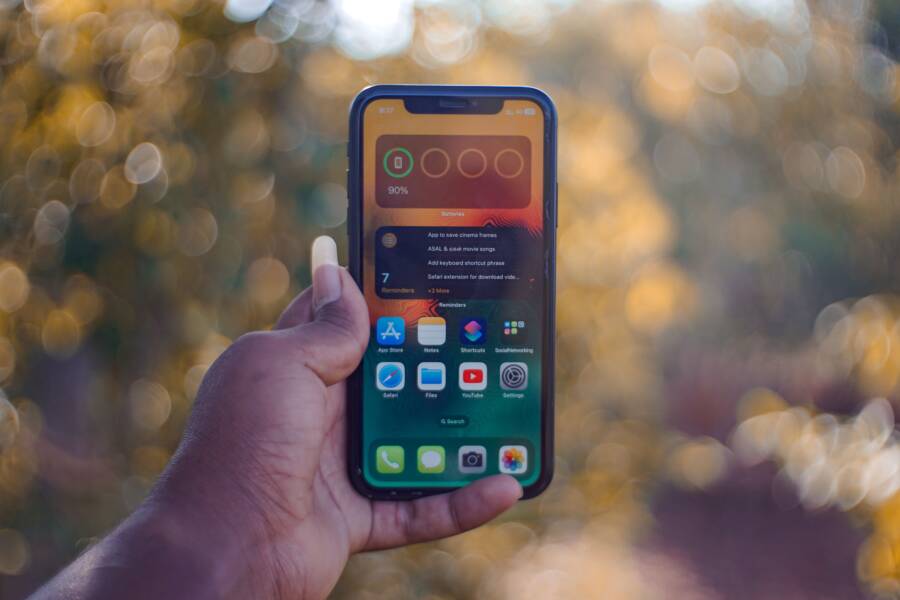
Turning off location services is a common first step when your smartphone battery dies too fast, but it is rarely the complete solution. While GPS tracking consumes power, other background processes often drain your battery just as quickly. You need to identify the specific apps and system features pulling the most energy to see real results.
This guide provides a practical approach to troubleshooting hidden battery drains on your device. You will learn how to monitor power usage and manage the background activity that actually matters. By following these steps, you can stop the constant need for a charger and regain control over your battery life.
Why Turning Off Location Is Not Enough
Many users blame location services for poor battery performance, yet this feature is usually only one piece of the puzzle. If you disable location and still notice your battery percentage dropping, your smartphone likely has other software processes running in the background. Syncing services, push notifications, and outdated software often act as silent power sinks.
Modern operating systems manage power well, but misbehaving applications can override these controls. You must look beyond simple location toggles to find the root cause of the drain. The goal is to isolate the energy-hungry culprits while keeping the features you use every day.
Monitoring Your Power Consumption
Before you change settings, you need to see exactly where your battery power goes. Both iOS and Android provide detailed menus that list your most power-intensive apps.
- iPhone: Go to Settings and tap on Battery to see a list of apps ranked by energy usage. This menu shows activity from the last 24 hours or the last 10 days.
- Android: Open Settings, select Battery, and tap Battery Usage. This screen reveals which apps consume the most power relative to your total usage.
If a specific app appears at the top of these lists even when you rarely open it, that app is likely causing your issues. You can then restrict its background activity or consider removing it if the performance impact remains high.
How to Find Which Apps are Really Eating Your Power
You can identify the exact processes draining your battery by looking past general categories. Your smartphone provides specific metrics to show which apps utilize the most energy while running in the background. Use these system tools to pinpoint the actual sources of your power loss.
Identifying Background Activity
Most battery drain occurs when applications wake up your processor without your knowledge. You should monitor whether an app uses power while the screen is off. If an application consistently shows high background activity, it is likely the main culprit.
You can check these specific indicators in your settings:
- Look for the time spent on screen versus time spent in the background for each app.
- Notice if a specific app runs when you are not actively using it.
- Observe if your battery drops during hours when the smartphone should be idle.
If you find an app that consumes more background time than foreground time, restrict its permissions. Most operating systems allow you to toggle off background app refresh for individual programs. This small change stops the app from syncing data or updating content when you are not using it.
Detecting Rogue Processes
Sometimes an app does not just use power in the background, it locks your processor in a constant state of work. This creates a loop that generates heat and drains your battery. You can often spot these rogue processes because your phone feels warm even when it is sitting on a table.
Check the battery usage list after a period of inactivity to see if one app accounts for a large percentage of the total drain. If a social media app or a messaging tool appears at the top of your list despite minimal use, it might be stuck in a loop. Forcing the application to close often resets the process. If the drain continues, consider uninstalling the app to see if the battery life returns to normal levels.
Understanding System Services
Not all power consumption comes from third-party apps. Sometimes, system processes related to mail syncing, push notifications, or cloud backups trigger excessive battery usage. You might find that your email app is syncing too frequently, forcing the radio to stay active for extended periods.
Adjusting these settings helps you save significant power without losing functionality:
- Change your email fetch settings from push to manual or hourly intervals.
- Disable push notifications for apps that do not need immediate attention.
- Review auto-update settings to ensure your phone only downloads data when connected to Wi-Fi.
By optimizing these system-level behaviors, you reduce the strain on your hardware. These tweaks allow your smartphone to enter a low-power state more often, which is essential for preserving charge throughout your day.
Fixing Background App Refresh and Push Notifications
Background activity on your smartphone acts like a car engine left idling in a parking lot. It consumes energy while you remain stationary and gain no benefit. Many applications are designed to poll servers constantly for updates, even when you do not need that data immediately. By restricting these background tasks, you allow your device to remain in a low-power state for longer periods, which directly extends your daily battery life.
Managing Background App Refresh Settings
Background App Refresh is a feature that allows apps to update their content even when you are not actively using them. While this keeps information current, it forces your phone to wake up the processor and radio frequently. Restricting this setting saves significant battery power throughout the day.
On an iPhone, you can control these permissions by following this path:
- Open your Settings app.
- Select General.
- Tap on Background App Refresh.
- Toggle the feature off entirely, or choose to restrict specific power-hungry apps to Wi-Fi only.
On Android devices, the menu structure varies by manufacturer, but the general steps are similar:
- Open your Settings menu.
- Select Apps or Manage Apps.
- Choose the specific app you want to limit.
- Tap on Battery or Mobile Data and Wi-Fi.
- Toggle off the setting labeled Allow background usage or Background data.
Setting these preferences to Wi-Fi only is a smart compromise. It prevents the device from using cellular data to fetch updates, which is often a major power drain due to weak signal strength. If an app does not require real-time notifications to be useful, turn off background access for it entirely. You will still receive information the moment you open the app manually.
Cleaning Up Your Notification Center
Every notification that hits your screen forces the display to light up and the processor to wake from sleep. If you receive dozens of alerts from social media, news apps, or games, your smartphone spends most of its time in a high-power state. This constant cycle of waking and sleeping creates a massive, hidden drain on your battery.
High-frequency notifications serve as a distraction for you and an energy thief for your phone. You should audit your notification settings to keep only the ones that truly matter. For example, keep alerts for direct messages or calendar events, but disable them for generic social media updates or marketing emails.
Follow these simple steps to reduce the impact:
- Navigate to your Notifications menu in Settings.
- Review the list of apps allowed to send alerts.
- Turn off notifications for apps that do not require immediate attention.
- Set non-essential apps to deliver alerts in a daily summary rather than pushing them individually.
Turning off unnecessary notifications prevents your screen from lighting up constantly. This preserves the health of your battery over time and helps you regain focus by reducing interruptions. A quieter phone is usually a phone that lasts until the end of the day.
Optimizing Network and Connectivity Settings
Your network connection has a major impact on how long your battery lasts. When your smartphone struggles to find a stable connection, it increases power to the antenna to hunt for a signal. This constant search creates a massive drain on your power reserves. You can significantly improve battery life by adjusting how your device interacts with cellular and wireless networks.
Dealing with Weak Cellular Signals
When you are in an area with poor reception, your smartphone works overtime to stay connected to a cell tower. It repeatedly sends out pings and boosts signal gain, which burns through your battery charge much faster than normal usage. If you are stuck in a location with one bar or frequent signal drops, your phone is likely fighting a losing battle.
Turning on airplane mode is the fastest way to stop this behavior. It completely cuts off the cellular radio, preventing the device from wasting power on an unreachable network. If you still need to make calls or send texts, you can re-enable Wi-Fi while keeping airplane mode active. This allows you to use Wi-Fi calling features to stay reachable without the battery penalty of a weak cellular link.
Wi-Fi calling is often more efficient than cellular calling in low-signal areas because it routes data through your local internet connection. By offloading this task to your router, you stop the phone from burning energy to maintain a connection to a distant tower. Most modern devices support this feature, and it is a simple way to preserve power while staying connected at home or in the office.
Managing Bluetooth and Wi-Fi Scanning
Your smartphone performs background scans to keep track of nearby Bluetooth accessories and Wi-Fi networks. This scanning happens even when you are not using these features. By constantly looking for connections, the device keeps its wireless radios in a semi-active state. These tiny, frequent power draws add up to a significant percentage of your daily battery loss.
You can reduce this drain by modifying the advanced scanning settings in your network menu. Many users are unaware that their phone is hunting for signals in the background at all times. Here is how you can regain control:
- Location accuracy: On Android devices, go to Location settings and look for Wi-Fi and Bluetooth scanning. Toggle these off to stop the phone from using these signals to improve location precision.
- Bluetooth usage: If you are not actively using headphones or smartwatches, toggle Bluetooth off in the main settings or control panel.
- Wi-Fi preferences: Disable the setting that automatically connects to open networks. This prevents the radio from scanning for and testing every public signal you walk past during the day.
Disabling these background scanners does not stop your phone from working correctly. It simply tells the operating system to stop being curious about every device or network in your vicinity. You can still manually connect to your favorite Wi-Fi network or Bluetooth speakers whenever you need them. This small change ensures that your wireless hardware only consumes power when you actually want it to perform a task.
Hidden Battery Killers: Software Bugs and Old Batteries
Hardware limitations are often the culprit for poor battery performance, but software bugs and chemical degradation play a larger role than most users realize. A smartphone is a complex machine that requires precise communication between its physical components and the operating system. When code errors force the processor to work harder than necessary, or when an aging battery loses its ability to hold a charge, your battery life suffers regardless of your settings.
Checking Your Battery Health Status
Your battery health percentage is a direct indicator of how much total capacity remains compared to when the device was new. Lithium-ion batteries chemically age as you charge and discharge them over months and years. This process reduces the total amount of energy the battery can store. If your settings show a health capacity below 80 percent, the battery is likely nearing the end of its useful life.
At this stage, the chemical resistance inside the battery increases. The phone may experience sudden drops in power levels because the battery cannot provide the required voltage during intense tasks. You can find this metric in the battery settings menu of your phone. Use this information to understand if your drain issues result from normal wear rather than a configuration error.
Updating Your System Software
Operating systems undergo constant refinement to improve how they manage power. Manufacturers release software updates that include patches for bugs that cause excessive background drain. These bugs often arise from unexpected interactions between system processes and third-party apps, which can lead to runaway power consumption.
Updating your software ensures that your smartphone runs the latest, most efficient code for power regulation. When you delay these updates, you miss out on fixes that specifically target energy-hungry system services. Developers frequently identify these issues through user reports and diagnostic data, so keeping your system current is a simple way to resolve hidden hardware-software conflicts. Always check your update settings to ensure you are running the latest version available for your device.
Conclusion
Restoring your battery life requires more than just toggling location services. You must analyze your power usage, disable unnecessary background app refresh tasks, and optimize how your smartphone interacts with cellular networks. Checking your hardware health also helps you determine if the issue is a software setting or a battery that needs a replacement.
Test these adjustments over the next few days to observe the true impact on your daily usage. You will likely find that managing these specific system settings allows you to go much longer between charges. Keep monitoring your power consumption stats to maintain this improved efficiency over time.